
Until you’ve experienced a website disaster, I bet you never considered WordPress backup important. It’s not just you; it happens to many business owners.
In 2016, I experienced how devastating the lack of a safe backup can be for a business. I lost all of my website content due to a database problem that couldn’t be resolved.
If I had backed up the site in a safer place earlier, the story would be different today. Trust me, losing your entire business due to something preventable will kill you every time you remember.
Luckily, you can backup your WordPress site in multiple ways, depending on your situation and skill level. In today’s post, I will share how to create a WordPress backup using different methods and tools.
From using plugins to your web host platform to more complex options like phpmyadmin, you’ll learn how to keep your entire site safe in case of unforeseen disaster.
Which WordPress Backup Option is Right for you?
This is the first challenge you need to solve. Which option is suitable for you?
As I said earlier, there are many methods for backing up your WordPress site. Your choice will depend on several factors.
For example, if you want to back up your site to an external platform, such as Dropbox, Google Cloud, or Amazon Cloud, some web hosts offer off-site backup, which lets you upload your database and save it in the cloud for a minimal fee.
Let’s say you need to keep only the files or a specific folder of your WordPress site, not the database. You can use an FTP program to connect to your server and locate the document path. Then, follow the process to download the file and save it to your preferred storage location.
Another situation is when you want to migrate to another web host and need to keep a copy of your WordPress database. In such a case, you can use backup plugins such as UpDraftPlus, BlogVault, or JetPack Backup.
Aside from these options, most web hosts offer built-in regular daily backup. This option keeps a fresh site copy each time you update it. The backup content includes your WordPress core installation, database, themes, plugins, and uploaded files/media content.
However, some web hosts’ built-in backup systems may be insufficient or unreliable for some businesses, especially large enterprises or eCommerce websites. Therefore, such businesses may need to review other options, such as offsite backup, a dedicated backup plugin, or manually keeping the website database in a safer place.
That said, now let’s go over different methods for backing up your WordPress blog to prevent data loss and ensure a safe recovery in case of necessity.
Why You Should Back Up Your WordPress Site
The most important reason for keeping a copy of your site files or the complete WordPress installation is data recovery. If a website issue ever results in data loss, missing files, or a corrupt database, you can easily roll back the site to a previous stable version.
Here are other reasons why backing up your WordPress site should be a top priority:
1. Corrupted Database
A corrupt database can occur for various reasons, including plugin conflicts, server issues, or incorrect code.
When your database is compromised, you can lose important site data, such as user information, blog posts, form entries, order information, or e-commerce product details.
Regular backups ensure you can restore your site to a working version without losing valuable content.
2. Website Hacking
WordPress sites are popular targets for hackers. If your site is compromised, you could lose all your content or have it altered in harmful ways.
Having a backup gives you a safety net – just in case your site is attacked, you can quickly restore it to its original state.
Though you can fix some malicious code from the attack, restoring a complete backup might be the best solution in extreme cases of damage.
3. Server Failure
Server outages can happen unexpectedly, and sometimes hosting providers experience hardware issues that lead to data loss.
A good backup ensures that your site can be restored online with minimal downtime, even in the event of a server failure.
4. Human Error
Sometimes, we make mistakes. Whether we accidentally delete content, install a faulty plugin, or make an error while updating WordPress, human error can cause irreversible damage.
Having a backup means you can quickly undo these mistakes and get your site back on track without stress.
5. Malicious Software or Malware
Malware infections can wreak havoc on your site, damaging files and corrupting your content. A backup helps you recover quickly, so you don’t lose everything to malicious software.
6. Software Updates and Compatibility Issues
While updates are essential for security and performance, they can sometimes cause compatibility issues.
A backup gives you peace of mind before updating WordPress, themes, or plugins. If something goes wrong, you can revert to the previous version of your site without hassle.
7. Accidental Theme or Plugin Installation
Installing new WordPress themes or plugins can cause your site’s layout or functionality issues. If a new addition doesn’t work as expected, you can restore a backup and undo the changes without troubleshooting for hours.
Having a regular backup routine means you’re always ready to face any challenge, from server failures to user errors. It’s one of the simplest and most effective ways to keep your WordPress blog safe and running smoothly.
How to Back up Your WordPress Site using Your Web Host
For many website owners, your web host is the first option to keep your WordPress site copy. This is the easiest and hands-free method to store a full copy of your site.
Some web hosts offer basic daily or weekly website backup, often including the entire site. The most recent backup will be available for a specific period, usually 7 to 14 days. You will probably have access to one backup copy.
Shared hosting offers the most basic backup features. Some shared hosting providers do not even provide automatic regular backups; you must initiate the process manually.
If you’re with such a web host, it’s time to think of managed WordPress hosting.
Managed WordPress hosts like Cloudways and Kinsta keep multiple daily backups with more advanced features. If you need to restore your site to a specific date, these backups are archived for 14 days. This means you can access and restore the last 14-day version of your site at any time.
Kinsta backup is more advanced and offers a variety of options, including external backup, system-generated backup, manual backup, daily, hourly, and downloadable copy. This flexibility ensures that every business type has a suitable backup option, regardless of size or needs.

Using your web host’s built-in backup system offers advantages, including saving money. The backup feature or services are already included in your hosting plan, and you don’t pay extra for them, except for offsite backup.
They offer a one-click restore point whenever you need it. This is the most beginner-friendly option for restoring a website from your host server.
How to Back Up Your Site With Plugins
Backup plugins offer a seamless process for storing a copy of your site in your preferred storage space. These WordPress backup plugins offer different controls, features, and flexibility.
You can run on-demand or schedule a backup at your preferred time. Some plugins offer more granular control, such as specifying the WordPress folder, files, plugins, themes, media files, custom selection, etc.
However, you need to review the plugins carefully, as some of these WordPress backup plugins can cause server strain or require a complex setup process. Some plugins store the backup copy on your server, leaving you with unnecessary loads that cause performance issues.
Here are some of the top WordPress backup plugins to consider.
UpdraftPlus
UpdraftPlus is one of the most popular and beginner-friendly backup plugins available. It allows you to perform complete, manual, or scheduled backups of your entire WordPress site, including files and the database.
You can store your backups offsite using services like Dropbox, Google Drive, Amazon S3, or FTP.
One of Updraftplus’s standout features is its one-click restore function, which makes recovery simple. Even the free version includes features many other plugins reserve for premium plans, making it a great starting point for most users.
JetPack Backup
Jetpack Backup, previously known as VaultPress, is a premium solution developed by Automattic, the company behind WordPress.com. It’s known for its hands-off, reliable approach to backups.
Jetpack Backup offers real-time backups for active sites and daily backups for those with less frequent updates.
All backups are stored securely offsite, and you can restore your site in just one click from either desktop or mobile.
Because it’s managed entirely in the cloud, there’s no complex setup, making it ideal for users who want simplicity backed by a trusted name in WordPress.
BlogVault
BlogVault is a cloud-based backup solution designed for reliability and performance. It offers real-time incremental backups, meaning it only backs up changes instead of the entire site each time, which reduces server load.
BlogVault includes a built-in staging environment for safely testing updates or design changes. It also makes migrating your site to a new host effortless.
It stores backups on its secure servers and is especially useful for developers, agencies, or WooCommerce store owners who need advanced features and peace of mind.
Backup Buddy
BackupBuddy, created by iThemes, is a long-standing favorite for WordPress site backups. It offers complete backups of your WordPress installation, including media files, themes, plugins, and the database.
You can set up scheduled backups and store them remotely on services like Google Drive, Dropbox, or Amazon S3. BackupBuddy includes easy site restoration or migration tools and bonus features like malware scanning and database repair.
It’s a solid choice if you’re looking for a one-time purchase rather than a recurring subscription, especially if you want everything bundled into one plugin.
Each of these plugins has its strengths, and the right one for you will depend on your site’s needs, budget, and how hands-on you want to be with your backups.
Check each plugin official documentaion for a step guide on how to use it to backup your site.
Manual Backup via cPanel
Another excellent option to back up your WordPress site is via the cPanel dashboard. If your web hosts use cPanel, you can conveniently back up your site or take a partial backup.
cPanel also offers a one-click restore option, partial backup, and the ability to download your backup offline.
Log in to your cPanel account and locate the Backup Wizard under the File Section.

On the cPanel Backup Wizard interface, locate the option labeled Backup. Your cPanel dashboard might differ from what you see here, but the steps should remain the same or similar.

On the next screen, choose Full Backup or Partial Backup.

Full Backup lets you create a complete archive of your site files, database, configurations, and WordPress core. Choose partial backup to download or store the home directory, database, or other files.
Once you’re done selecting, proceed to the download stage.
On this page, choose the download destination. There are several options; choose the one that suits you.
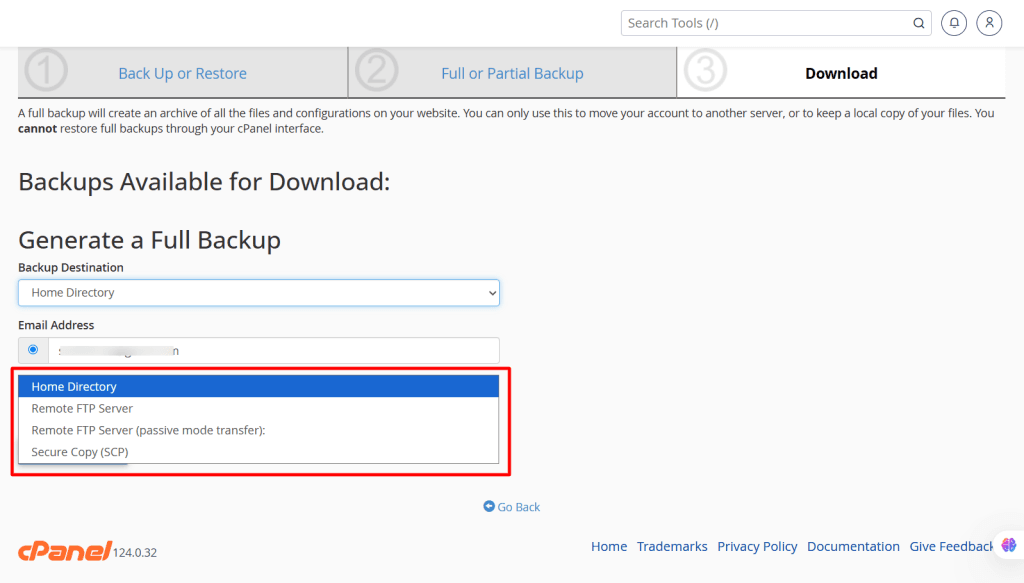
After choosing your backup location, click Generate Backup to start the process.
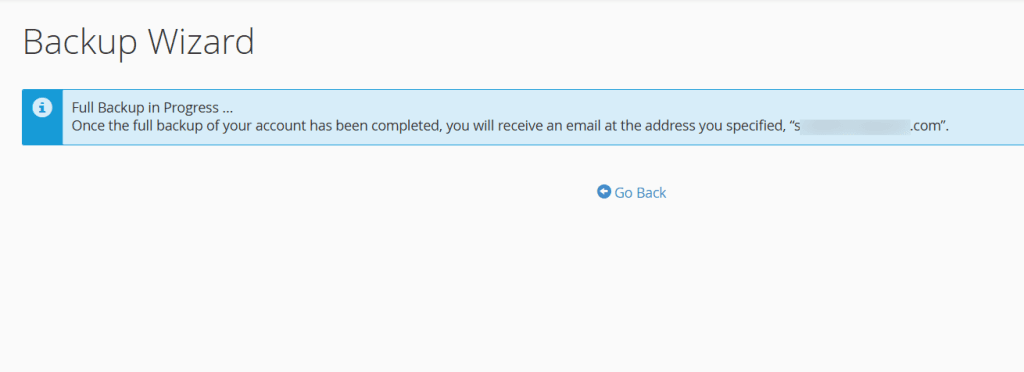
Once the process is complete, your newly generated backup will be listed and available for download. Check the cPanel Backup Wizard page for the “Backup Available for Download” list with a blue checkmark.

You can now download a copy to your local computer to keep.
Remember to upload a copy to external storage like Google Drive, Dropbox, One Drive, etc. This will ensure the safety of your website files.
If you take a complete backup, you can restore it on another web host and start your business there.
Best Practices for Backing Up Your WordPress Site
Backing up your site isn’t just about occasionally hitting a “backup now” button. You need a solid backup strategy to protect your WordPress site. Here are some best practices to follow:
1. Back Up Regularly
How often you back up depends on how frequently your site changes. Consider daily or real-time backups if you publish new content daily or run an active online store.
For smaller or less active sites, weekly backups may be enough. The key is to never go so long between backups that you’d be upset if you lost the changes you made since the last one.
2. Always Back Up Before Making Major Changes
Create a full backup before updating WordPress core, themes, or plugins or making any significant changes to your site’s design or code. This way, if something breaks or conflicts after the update, you’ll have a reliable way to undo it.
3. Use Both Manual and Automated Backups
Relying on only one method isn’t a great idea. Set up automatic backups to make sure your site is regularly saved without you having to remember it. But also do manual backups before significant changes or migrations or just for peace of mind.
4. Store Backups in Multiple Locations
Never store backups only on your web server. If your hosting account is compromised, your backups could be lost, too.
Save copies to cloud storage (like Google Drive, Dropbox, or Amazon S3), external hard drives, or a secure backup service. Having multiple copies in different locations keeps your site safer.
5. Back Up Both Files and Database
A complete WordPress backup includes two parts: your site files (themes, plugins, media uploads, etc.) and your database (posts, pages, settings, user data, etc.). Some tools only back up one or the other, so ensure your backup solution covers both.
6. Test Your Backups
A backup is only helpful if it works when you need it. Every now and then, restore your site on a staging environment to ensure the backup is complete and functional. This small step could save you from significant headaches during an emergency.
7. Use a Trusted Backup Plugin or Service
Not all backup tools are created equal. Choose a reliable plugin like UpdraftPlus, BlogVault, BackupBuddy, or Jetpack VaultPress. These plugins make it easier to automate backups, schedule them, and store them off-site securely.
8. Keep Old Backups (But Not Too Many)
It’s a good idea to keep several versions of your backups, especially if you don’t notice a problem immediately. But don’t store too many, or you’ll encounter storage issues. Most backup tools allow you to set a limit on how many copies to keep.
Following these best practices will give you peace of mind, knowing your site is protected and that you can recover quickly if something goes wrong. Regular, reliable backups are one of the smartest habits you can adopt as a website owner.
Conclusion
Backing up your WordPress blog isn’t something you should put off or treat as optional. Whether you’re running a personal blog, a growing business, or an online store, regular backups are your safety net when things go wrong.
From database corruption to hacking attempts and even accidental mistakes, there are countless ways your site can break sometimes without warning.
Having a reliable backup strategy means you’re always one step ahead. Use trusted backup plugins, store your backups in multiple locations, and make it a habit to back up before any significant changes. Setting up takes just a few minutes, but it can save you hours or even days of stress and lost work later.
At the end of the day, backups are like insurance for your website. You may not need them daily, but you’ll be glad you planned ahead when disaster hits. Take the time now to put a solid backup routine in place. It’s one of the smartest moves you can make to protect your blog.