

When you’re building a website, choosing the right font is just as important as picking the right colors and layout. Your website’s typography affects readability, user experience, and brand identity.
If you’ve ever wondered how to change fonts in WordPress, you’re in the right place.
In this guide, I’ll walk you through five simple ways to change fonts in WordPress, whether you’re using the built-in settings, plugins, or custom CSS. No matter your skill level, you’ll find an option that works for you.
1. Changing Fonts Using the WordPress Theme Customizer
The easiest way to change fonts in WordPress is through the Theme Customizer. Most modern themes allow you to tweak typography settings without touching any code.
The step is similar in most WordPress themes. Typically, you navigate to Typography>Fonts and change the default font or customize the active Fonts.
Let me show you how to change your WordPress Fonts using the Astra theme. The steps will be similar, no matter your theme. The option to change the font for Full Site Editing themes is below.
To get a starter, go to Astra> Customize, or hover over Appearance and click Customize from the menus. Both options take you to the same screen.
This will open the WordPress theme customizer screen.
Astra has a Global setting on this screen that lets you customize elements like Typography, Color, Container, Scroll to the top, Accessibility, Block Editor, and misc. You can also change and customize the settings for individual site elements. I will walk you through each option.
Click Global on the customizer to access the Global Font settings, which enable you to set font style site-wide.

On the customizer next screen, click Typography.

You’ll see the preset font combinations. You can choose any of these default options if you like. The preset will activate for the entire site. To know which fonts are in the preset, hover over it to reveal the font types.

For example, I chose the Rubik/Karla font combinations for the heading and Body Font families. The Rubik, which is set for the headings, will take effect for all H tags (H1 – H6) on the site, and Karla will take effect for all body and footer content.
Let’s say you do not want this combo, or you want to change the font family for each heading tag on your site—e.g., Lato font for H1, Arial for H2, and so on. You can do this by scrolling down the customizer and configuring relevant settings.
In the image below, the “Base Font” option lets you select a sitewide font family (for headings and body) and customize its settings globally. You can set font weight, size, upper or lower case, and more.
The Heading Font option lets you change the font family for an individual heading tag. Like the base font, you can customize font weight, font family, size, case, etc.
You need to click the small pencil editing icon to open their settings.

Like this.

You can make many customizations on this page. For example, you can customize the Font family for each device: Table, Desktop, and Mobile. Set whether to underline heading text, strikethrough, use uppercase, capitalize the first letter, etc.
The more you play around the Astra theme, the more you realize its superpower.
When you’ve customized your site typography, click the publish button on the customizer screen to publish or update your changes.
2. Changing Fonts Using a WordPress Plugin
If your theme doesn’t allow you to fully control fonts, a plugin is the next best option. The Olympus Google Fonts Plugin (or similar plugins like Easy Google Fonts) makes adding and customizing fonts without editing code easy.
Using a plugin to change fonts in WordPress may come with other benefits, such as full access to the Google Font library, Adobe Font integration, and the ability to upload your font. This flexibility might not be possible with a WordPress theme.
Many WordPress themes don’t offer the complete Google Font library, which might limit your design customizations.
For this tutorial, we will use the Olympus Google Font plugin. This plugin also hosts Google Fonts locally, preloads fonts, and removes external fonts loaded by other plugins and themes. If your theme or caching plugin does not offer these features, this plugin is a good choice.
First, install and activate the Olympus Google Font plugin on your blog.

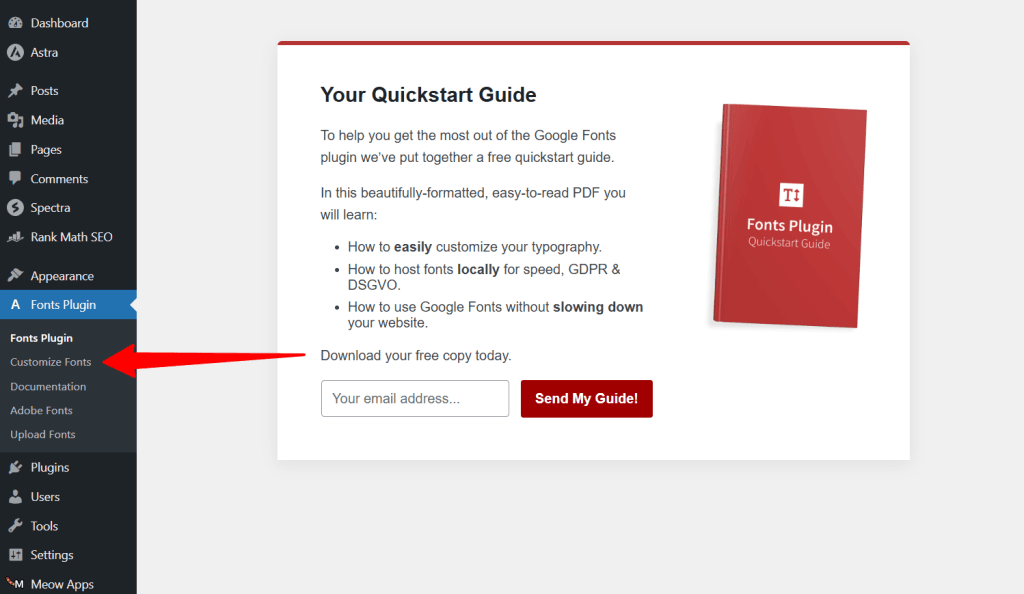
After activation, you should see the QuickStarter Guide page. On this page, you can enter your email address to subscribe, download the walkthrough PDF, or jump to configuring the plugin.
Whatever, click “Customize Font” in your WordPress dashboard to open the customizer page.
Next, click the Basic setting from the options.

Click the dropdown menu to select your font. There are over 1,400 Google Fonts to choose from. Click the small setting icon to control font style and weight, such as italic, oblique, or regular and normal bold, medium, semi, and bold.

This plugin has an advanced setting that lets you control every part of your theme typography. For example, you can specify different font families for template parts, headings, and content.
The Olympus Google Font plugin can change font families for footer content/headings and other template sections. For example, you could use Ariel for navigation menus, Georgia for body content, Consolas for Quotes, Palatino for bullet lists, Calibri for sidebar headings, and AR One Sans for sidebar content.

It is a powerful plugin for customizing WordPress typography and offers extensive customization beyond traditional WordPress themes.
The Pro version even offers more customization and features, such as hosting Google Fonts locally, blocking other plugins from loading Google Fonts on your site, and rewriting external fonts.
The free plan is sufficient for most small WordPress blogs.

Using a plugin such as Olympus Google Font to change WordPress Fonts is perfect if you want access to various font families without modifying theme files. Once you’re finished with the customization, click ‘Publish’ to make your changes live.
3. Changing Fonts In Full Site Editing Theme
Full-site editing themes differ in that they enable you to modify or edit any part of the theme using blocks. Similar to the way you write and add content in the Gutenberg editor.
The default WordPress themes, such as Twenty Twenty-Five, are good examples of Full-Site editing themes. This block-based theme doesn’t use the traditional WordPress customizer.
If you’re using this type of theme, you can easily change and customize its fonts.
To change the font in a Full Site Editor (FSE) theme, go to Appearance> Editor. This will open the Full Site Editor customization screen. Here, you can customize the theme’s color, typography, navigation, patterns, layouts, etc.

But let’s just focus on changing the font family in a Full Site Editor theme. So, click Style on the Full Site Editor theme screen.
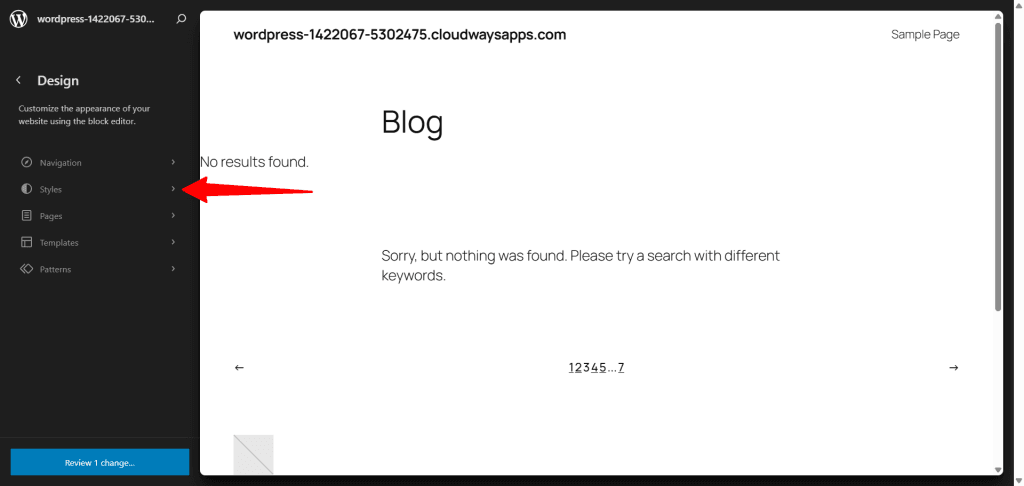
On the next screen, you can click the editing pencil icon or scroll down the panel to change the typography. Clicking the small pencil editing icon opens the theme in your WordPress editor, where you can further customize your website’s typography.

If you just want to change the site-wide typography without further customization, such as selecting a specific font for headings, captions, links, buttons, text, and size, you can choose your preferred typeface here.
However, if you need to customize further, like adding more Google fonts, uploading your own font, or customizing font size for different elements on the site, click the small pencil editing icon.
Next, click “Typography” in the Customizer of your WordPress editor interface.

From here, you are open to a new world of font customization. Once you’re through with the customization, click save to publish your changes.
That’s it; you’ve changed fonts in a Full Site Editor theme.
4. Adding Custom Fonts to WordPress
Want to use a unique font that’s not available in Google Fonts? You can upload custom fonts to your WordPress site. This gives you more control over your site design, font, and aesthetics.
Here is how to add custom fonts to WordPress:
- Find a font you like on Google, Adobe, or Font Squirrel.
- Download the font files (OTF or TTF format).
- Use a plugin like Use Any Font to upload and apply the custom font.
- Alternatively, manually upload the font via FTP and add CSS rules to use it site-wide.
Custom fonts can enhance your brand identity, but make sure they are web-safe fonts that won’t slow down your site.
Conclusion
Changing fonts in WordPress is easier than you might think. Whether you use the built-in theme customizer, a plugin, a page builder, or CSS, there’s a method that fits your needs.
The them customizer option is ideal for beginners. It’s straightforward, easier, and doesn’t require extensive configuration. The plugin option offers more granular control and advanced customization, making it ideal for advanced users.
If you have a custom font you want to use, you can manually add it to your site.
Now that you know how to change fonts, it’s time to experiment with finding the perfect typography for your website.