
Pressable is a managed WordPress hosting platform built by Automattic, the company behind WordPress.com and WooCommerce. It offers a high-availability cloud server, built-in caching and CDN, performance optimization features, and a custom dashboard designed specifically for WordPress websites.
While those features are useful for high-traffic sites, they may be more than a small blog or new website needs. If your site is still growing, a reliable shared hosting plan may provide enough resources at a much lower cost.
The challenge arises when you attempt to migrate WordPress from a managed web host like Pressable to shared hosting.
Pressable uses a custom WordPress configuration that does not always work well with traditional SFTP migrations. Because of this, a plugin-based migration method is usually the safest approach.
In today’s guide, I’ll show you how to migrate WordPress from Pressable to shared hosting step by step, using a method that avoids common migration problems and helps you move your site without breaking anything.
Why Migrating From Pressable Is Different
If you have migrated WordPress sites between typical shared hosting providers before, you may expect the process to be straightforward. In most cases, you simply copy the WordPress files through SFTP, export the database, and then import everything into the new hosting account.
With Pressable, the situation can be different.
Pressable runs WordPress on a custom server environment optimized specifically for its managed WordPress hosting. Instead of storing all WordPress core files directly inside your website’s main directory, the platform often uses symbolic links (symlinks) that point to a shared WordPress core installation elsewhere on the server.
I recently moved a site from Pressable to the Verpex shared hosting plan and requested the free migration support. When Verpex attempted to move the site using SFTP credentials and inspected the directory structure, they noticed entries similar to this:
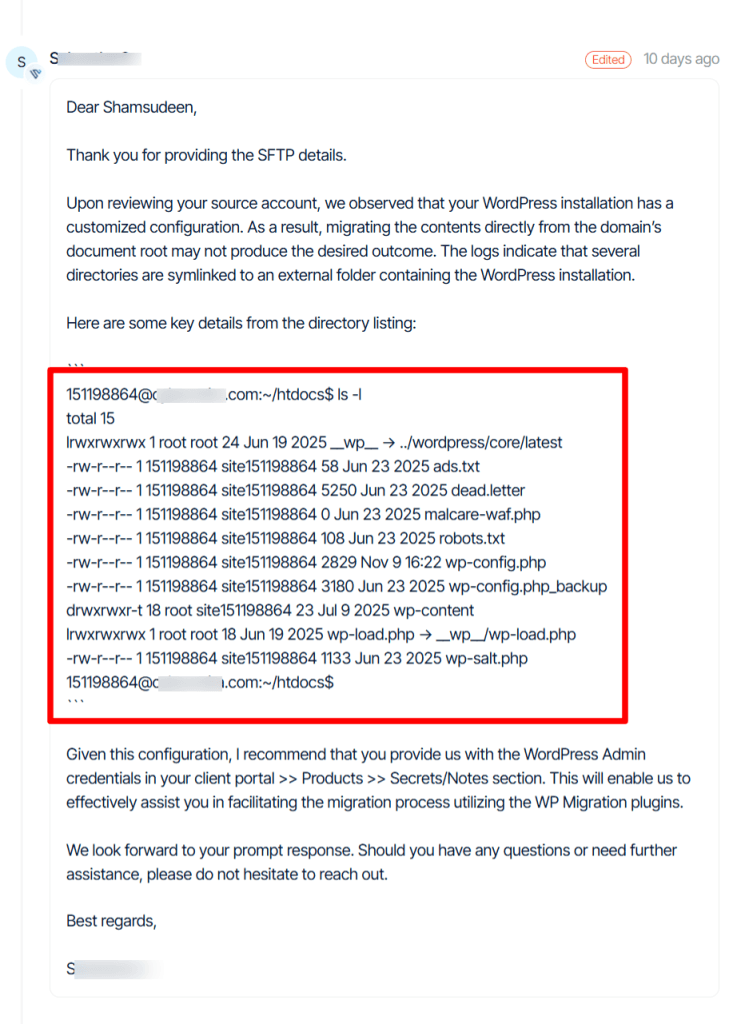
This means that some WordPress core files were not actually located inside the site’s main folder. Instead, those files were linked to another location managed by Pressable’s infrastructure.
This architecture helps Pressable maintain:
However, it also introduces a complication during the migration.
If you try to copy files directly from the server using SFTP, the migration may fail because the linked directories do not contain the full WordPress installation. The result is usually an incomplete website that does not load correctly after being transferred to a standard shared hosting environment.
Because of this, your hosting providers might recommend using a WordPress migration plugin, rather than a direct server-to-server file transfer when moving a site away from Pressable.
A plugin-based migration package your entire website into a single export file, including:
When you import that package into a fresh WordPress installation on your new hosting account, the plugin recreates the full site exactly as it existed before. This approach avoids the problems caused by Pressable’s symlinked file structure, making the migration much more reliable.
What You Need Before Starting the Migration
Before you begin the migration process, it helps to prepare a few things. This makes the transfer smoother and reduces the chance of downtime or configuration issues later.
First, you need a new shared hosting account to move the website. Hostinger, Namecheap, and Verpex are among the most affordable shared hosting providers.
These providers support WordPress and offer tools such as WP Toolkit and Softaculous to install WordPress quickly.
These tools allow you to create a fresh WordPress installation in just a few minutes, which you will later replace with your migrated site.
You should also make sure you have access to your WordPress admin dashboard on Pressable. Since the migration method used in this guide relies on a WordPress plugin, you will need permission to install and run plugins inside your existing site.
The next thing you will need is a reliable migration plugin.
In this tutorial, we will use All-in-One WP Migration because it packages your entire website into a single export file. That file contains the database, plugins, themes, media uploads, and configuration settings.
Title
Check out my Migrate Guru tutorial if you’re moving a large site and want a free plugin to handle the process.
Once exported, you can import the same file into the new WordPress installation on your shared hosting account.
It’s also a good idea to confirm that you can access your domain registrar. After the site has been successfully moved, you will need to update your domain’s DNS settings so visitors are directed to the new server instead of the old one.
Finally, keep in mind that DNS settings sometimes change during migration, especially if you connect your domain to a CDN such as QUIC.cloud, Cloudflare, or move DNS management to a different provider.
Because DNS records also control email routing, you should note your existing email configuration before making any changes. This small step can save you from troubleshooting email delivery problems later.
Once these pieces are ready, the next step is to create a clean WordPress installation on your new shared hosting account. This installation will be the destination for importing your Pressable website.
Install a Fresh WordPress Site on Your Shared Hosting
Before you can import your website, you need a clean WordPress installation on your new shared hosting account. Think of this as the destination for restoring your migrated site.
Start by logging in to your hosting control panel and locating the Softaculous Apps Installer under Software. Open it and click “Install” on the page.
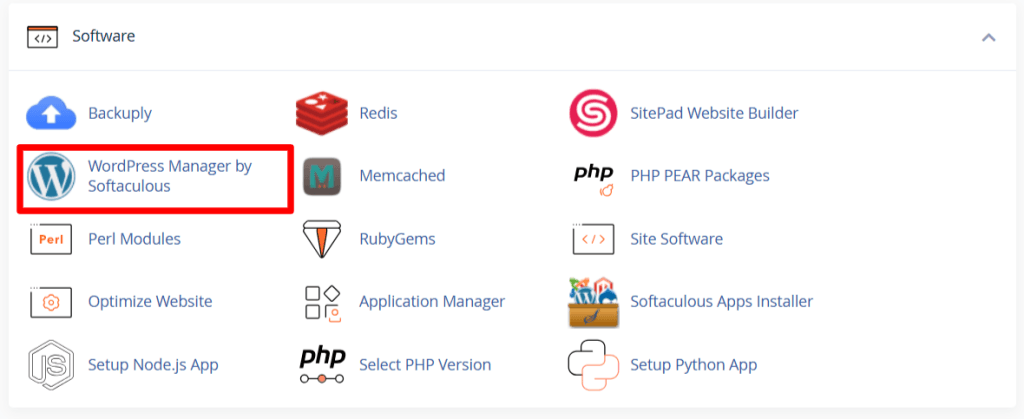
Note: You can also use WP Toolkit (if your host provides it) to install WordPress in cPanel.
The installer will ask you to choose the domain where you want to install WordPress. If you are migrating your main website, enter the same domain that was previously connected to Pressable.
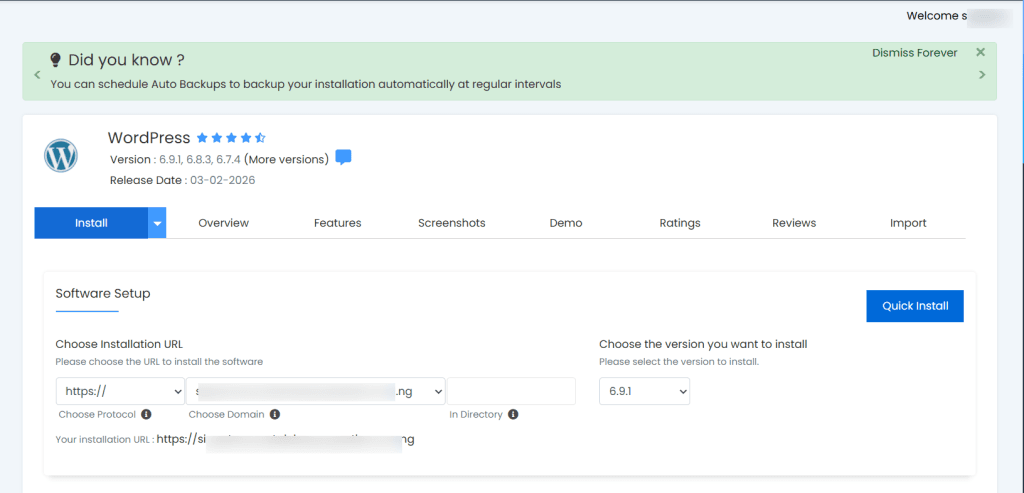
You will also be asked to create a WordPress admin username, password, and email address. These credentials allow you to log in to the new WordPress dashboard after the installation finishes.
Once you complete the form, Softaculous will install WordPress on the server. The process usually takes less than a minute.
After that, you will see two links: one to visit the new website and another to log in to the WordPress admin dashboard.
At this point, the website will be a fresh installation with the default WordPress theme and no content. That is completely normal.
Export Your Website From Pressable
Now that the new WordPress installation is ready on your shared hosting server, the next step is to export your existing website from Pressable.
Since Pressable uses a custom WordPress environment with symlinked core files, the safest way to move the site is to create a full backup using a migration plugin.
This method captures the entire website in a single package and avoids problems that can arise when copying files directly via SFTP.
Log in to the “WordPress admin dashboard” of your site hosted on Pressable. From the admin menu, go to Plugins > Add New and search for All-in-One WP Migration.
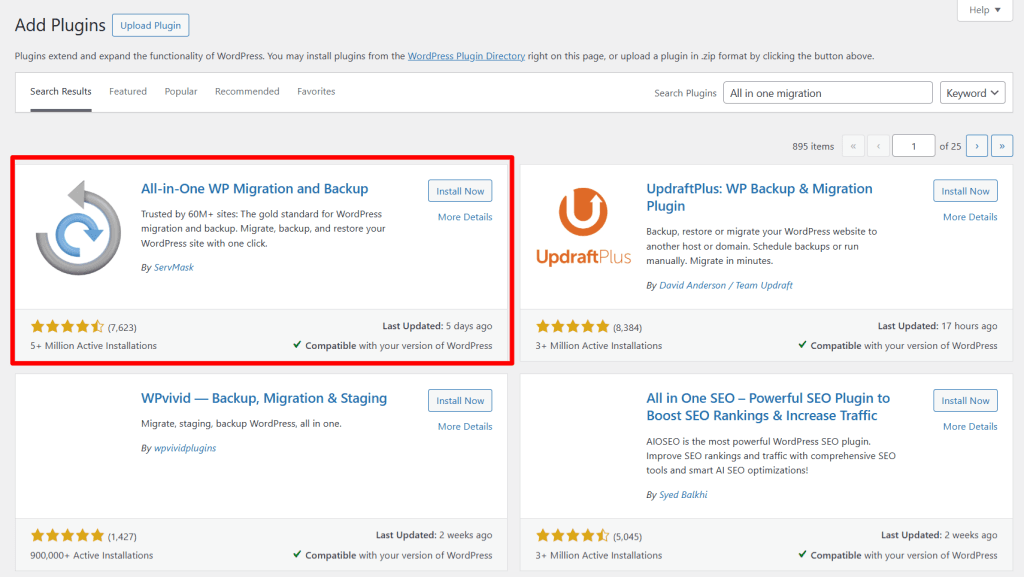
Install and activate the plugin.
After activation, you will see a new menu item called All-in-One WP Migration in your WordPress dashboard. Click it and select Export.
The export screen gives you a few options for downloading your site. For this migration, choose Export to > File. The plugin will start packaging your website into a single archive.
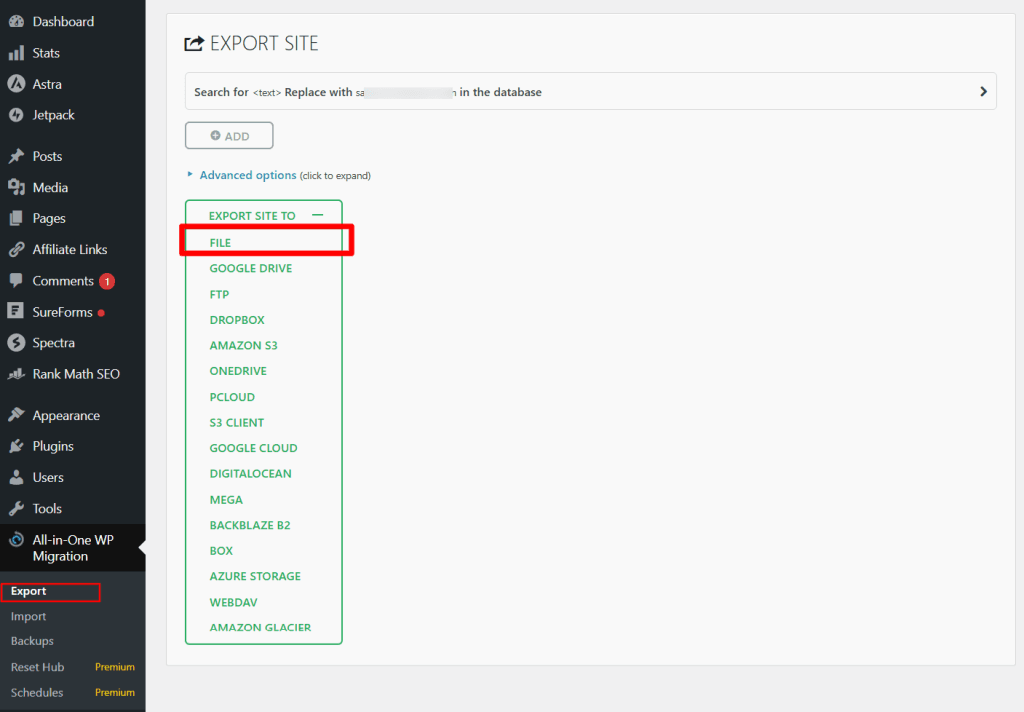
During this process, the plugin collects everything that makes up your WordPress site, including your database, themes, plugins, uploaded images, and configuration settings. Depending on your website’s size, the export may take a few minutes to complete.
Once the process finishes, the plugin will generate a downloadable file containing your entire website. Download this file to your computer and keep it in a safe place.
You will use it in the next step to import your website into the new WordPress installation on your shared hosting account.
With the backup file ready, you can now move on to the next step: importing the website into the new server so it runs in the shared hosting environment instead of Pressable.
Import the Website to Your New Shared Hosting
Now that you have exported your website from Pressable, the next step is to import that backup into the fresh WordPress installation you created on your shared hosting account.
Start by logging in to the WordPress dashboard of the new site you installed earlier on your shared hosting server.
From the left menu, go to Plugins > Add New and search for All-in-One WP Migration again. Install and activate the plugin on this new WordPress installation.
Once the plugin is active, open All-in-One WP Migration > Import from the WordPress dashboard.
On the import screen, click Import From > File. Then select the export file you downloaded earlier.
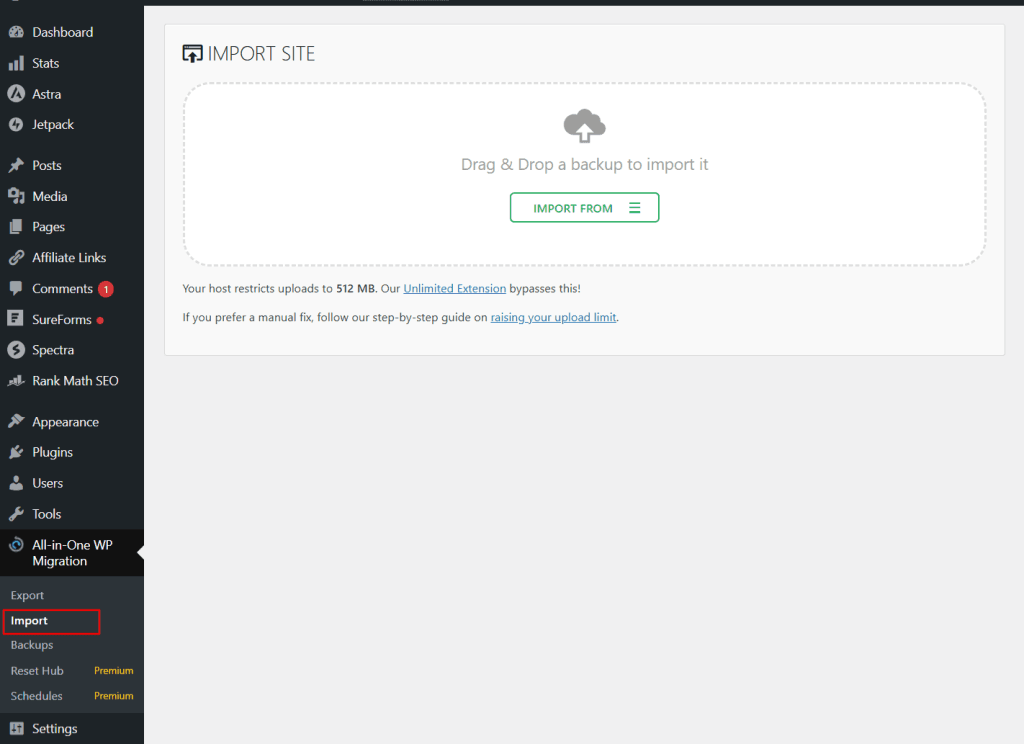
The plugin will begin uploading the file and preparing the website for restoration. Depending on the size of the backup file and the speed of your internet connection, this process may take a few minutes.
NOTE:
You might need to increase the upload file size limit for your WordPress site.
After the file finishes uploading, the plugin will display a warning that the current website, including its database, themes, plugins, and content, will be replaced with the imported version.
This is exactly what you want, because the export file contains your original website. Confirm the import and allow the plugin to continue.
Once the process completes, your WordPress site will now contain the exact content, settings, plugins, and themes from the Pressable installation.
The plugin will usually ask you to log in again with the same WordPress username and password you used on your previous site. At this stage, the website has been successfully transferred to your shared hosting server.
However, before visitors can see the new version of the site, you still need to update a few settings and point your domain to the new hosting server.
Preview Your Site
If you try to log in to the site on the new shared hosting server, you’ll surely be redirected to your site on the Pressable server.
Don’t panic. This is normal. It happens because DNS still points to the Pressable server, and both sites exist on the same domain address: yoursitename.com
What you need to do is create a temporary preview URL to access the site. This preview URL gives you access to both the front end and the back end of the site.
To do this, go to https://sitepreview.org/ and follow the instructions below.
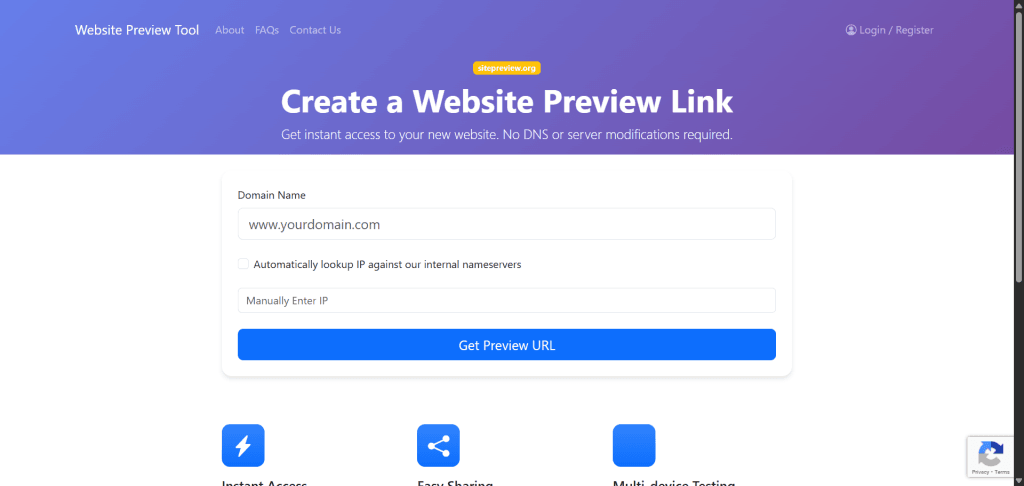
Note: Use the generated URL to access your site. Your site still uses the same WordPress login credentials as the Pressable site – username and password.
Another reliable method to access your new site before changing DNS is to edit your computer’s localhost file. This method allows only YOU to access the new site on the shared hosting server, while the rest of the world still sees your Pressable site version.
When you edit your computer’s hosts file, you’re basically telling your computer to load a website from a shared hosting server. And bypass the global DNS setting for your site.
So everyone else sees your live site on Pressable; only you see the site on the new shared hosting account.
This option has an advantage over the preview URL because it lets you test the migrated site under your main domain, verify internal links, and access the admin area without broken JS, failed REST API calls, or mismatched cookies.
To edit your computer’s localhost file, follow these steps:
Step 1: Get Your Shared Hosting Server IP
Step 2: Edit Your Hosts File (Windows)
Step 3: Add These Two Lines at the Bottom
Replace this value with your actual server IP and primary domain name:
Step 4: Flush DNS Cache
Step 5: Test
Now open your browser and try to access your website by typing your site name.
You should now see the shared hosting version, not Pressable. And the WordPress admin should load normally without broken JS, raw template code, or half-screen loading.
One quick note:
Chrome and other web browsers might flag the connection as insecure because it uses HTTP. If this happens, just type “thisisunsafe” on your keyword. Chrome will let you visit the site at that moment.
Once you confirm the migration is working as expected, and you change the domain name server (DNS) to your new web host, you MUST remove the two lines from your localhost file.
Update Permalinks and Check Your Site
It is important to refresh a few settings and make sure everything works correctly before pointing DNS to your new host.
Log in to the WordPress dashboard of the migrated site. Use the same username and password as in your original Pressable installation, since the migration plugin replaces the entire database during the import process.
Once inside the dashboard, go to Settings > Permalinks.
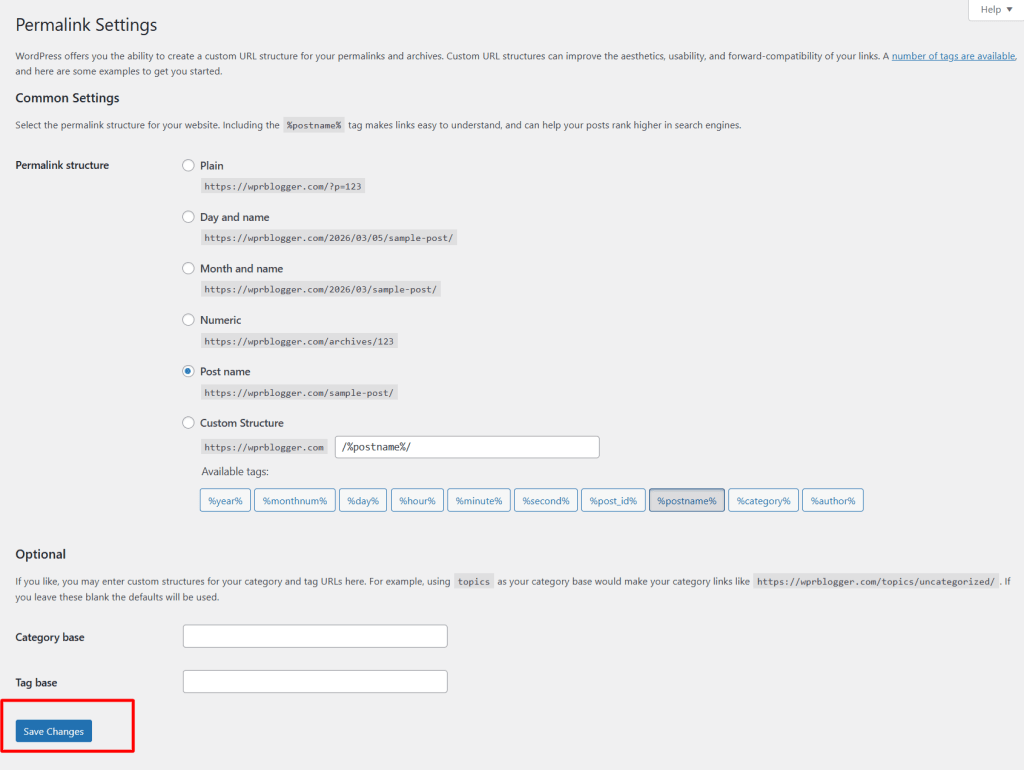
You don’t need to change anything here. Simply click the Save Changes button. This action forces WordPress to rebuild its permalink structure and regenerate the .htaccess file used by many shared hosting environments.
This small step fixes several common migration issues, including broken internal links and posts returning 404 errors.
After refreshing the permalinks, spend a few minutes checking the website to confirm that everything loads properly. Open the homepage, browse a few posts or pages, and make sure images display correctly.
If your site uses a contact form or newsletter signup form, submit a quick test entry to confirm that the form still works. If you installed caching or performance plugins on your old site, it’s also a good idea to clear their cache after the migration so visitors see the latest version of the site.
At this stage, the website should already be working on the new hosting server. The only thing left is to update your domain’s DNS settings so visitors are directed to the new host instead of Pressable.
Point Your Domain to the New Hosting Server
DNS (Domain Name System) records tell the internet where your website is hosted. When you change hosting providers, you need to update those records so your domain points to the new server instead of the old one.
To do this, log in to the account associated with your domain name. Many people register their domain with companies like Namecheap or GoDaddy, but the process is similar regardless of the registrar.
You typically have two ways to connect your domain to the new hosting account.
The first option is to change the nameservers. Your shared hosting provider will give you nameserver addresses when you sign up. Once you replace the old nameservers with the new ones, the hosting provider will automatically manage the DNS records for your domain.
The second option is to update the A record in your DNS settings. This method keeps your DNS management where it currently is, but changes the IP address so the domain points to the new hosting server.
If you plan to use a CDN such as QUIC.cloud or Cloudflare, you may need to point your domain to the CDN’s DNS records instead. In that case, the CDN becomes the service managing your DNS records.
After making these changes, the update must propagate across the internet. This process is known as DNS propagation.
In many cases, it happens within a few minutes, but it can sometimes take several hours for every network to begin sending visitors to the new server.
During this period, some visitors may still reach the old Pressable server while others will see the new site on your shared hosting account. This is normal and usually resolves itself once DNS propagation completes.
PRO TIP!
Don’t forget to cancel your Pressable hosting account before another billing date. Otherwise, you will be charged for the service you didn’t use. Follow the steps to cancel your account.
Problems You May Encounter After the Migration
Most migrations from Pressable to shared hosting go smoothly when you use a plugin-based method. Still, a few issues can appear after the site is moved to a new hosting environment. These problems are usually easy to fix once you know what to look for.
Import File Size Limit
One of the most common problems happens during the import step when using All-in-One WP Migration.
Shared hosting environments often limit the maximum upload size PHP allows. If your export file exceeds that limit, the plugin may refuse to upload it during the import process.
You can solve this by increasing the upload limit in your hosting control panel or asking your hosting provider to raise it for you. Many hosts can adjust this setting within a few minutes.
Once the limit is increased, simply upload the migration file again and continue the import process.
Login Issues After Import
Sometimes WordPress asks you to log in again after the import completes, but the login page keeps refreshing or refuses to accept your credentials.
This usually happens because your browser still stores cookies from a previous session on the site.
Clearing your browser cookies or opening the login page in a private or incognito window usually resolves the issue immediately. You can then log in with the same username and password you used on your original site.
Broken Links or Missing Images
After moving a site to a new server, some posts or pages may return 404 errors, or images may fail to load properly.
In most cases, this happens because WordPress has not yet refreshed its permalink structure. The fix is simple.
Log in to your WordPress dashboard, go to Settings > Permalinks, and click Save Changes without making any changes.
This forces WordPress to regenerate the rewrite rules and rebuild the .htaccess file. Once you do this, the broken links usually start working again.
Your Domain Email Stops Working
Another issue you might not notice right away involves domain email.
Managed WordPress hosting platforms like Pressable typically do not provide email hosting. Because of that, you may rely on external email services such as Google Workspace, Zoho, or private email services from your domain registrar.
When you move your website to shared hosting and change your DNS configuration, your email settings can be accidentally overwritten.
This can happen if you connect your domain to a CDN such as QUIC.cloud or move DNS management to a different provider. Some systems automatically apply default email settings based on the hosting server.
I actually experienced this after moving my site from Pressable to shared hosting. When I connected my domain to QUIC.cloud, the system automatically pulled the email configuration from the hosting server instead of using my private email provider’s settings.
Because of this, my domain email silently stopped receiving messages for several days before I noticed the problem.
To avoid this situation, always review your email-related DNS records after migration. Make sure your MX records, SPF record, and DKIM records match the settings provided by your email provider.
Sending a quick test message to your domain email address is an easy way to confirm that everything is working correctly.
Most of these issues are minor and easy to resolve once you know where to check. With the migration complete and everything working properly, you can now enjoy the flexibility and lower cost that shared hosting offers compared to managed WordPress hosting.
When It Makes Sense to Move From Managed WordPress Hosting to Shared Hosting
Managed WordPress hosting platforms like Kinsta and Pressable are built for performance, security, and convenience. They handle many technical tasks automatically, including server optimization, WordPress updates, backups, and security monitoring.
For high-traffic websites or businesses that depend heavily on their site, this type of hosting can be extremely valuable. However, not every website needs that level of infrastructure.
If you run a new blog or a site with relatively low traffic, a quality shared hosting plan can often handle your needs without any issues. Most modern shared hosting providers offer tools that make managing a WordPress site straightforward.
Features such as cPanel, one-click installers via Softaculous, automatic backups, and free SSL certificates from Let’s Encrypt are now standard on many shared hosting platforms.
Cost is another factor many site owners consider. Managed WordPress hosting typically costs significantly more than shared hosting because it includes specialized infrastructure, services, and support.
If your site is still growing and not generating much traffic or revenue yet, paying for premium managed hosting may not be necessary.
Shared hosting can also give you more flexibility in some situations. You may have direct access to server tools, free email hosting, file managers, and configuration options that are sometimes restricted on managed WordPress platforms.
This doesn’t mean managed hosting is a bad choice. In fact, it can be the right solution when your website begins receiving large amounts of traffic or when you want a hosting provider to handle most of the technical maintenance for you.
But if you are running a smaller WordPress site and looking to reduce hosting costs while still maintaining reliable performance, moving from managed WordPress hosting to shared hosting can be a practical and cost-effective decision.
Final Thought
Migrating a WordPress site from Pressable to shared hosting may sound complicated at first, especially because Pressable uses a custom WordPress environment that does not always work with traditional file-based migrations.
The good news is that the process becomes much simpler when you use a plugin-based approach. By exporting your site with All-in-One WP Migration and importing it into a fresh WordPress installation, you avoid the complications caused by symlinked WordPress core files and incomplete SFTP transfers.
Once the site is imported, the remaining steps mainly involve refreshing your permalink structure, pointing your domain to the new server, and testing the website to confirm that everything works as expected.
Taking a few extra minutes to verify DNS settings, email configuration, and SSL activation can also prevent small problems from appearing after the migration.