

Namecheap and Hostinger are two web hosts popularly known for their affordable shared hosting plans. Many beginners started with them before moving to more resourceful server setups like cloud and VPS hosting.
Both web hosts offer a range of hosting services, from shared to VPS to dedicated and reseller hosting, plus an optimized stack for WordPress.
This article compares the shared hosting plans from Hostinger (Unlimited) and Namecheap (Stellar Business). I used those plans while writing this review.
If you pick a different subscription plan from either host, your experience might differ, but this comparison should give you a solid baseline for what to expect.
With that out of the way, let’s dive in.
NOTE:
If you want to explore Hostinger specifically, read my comprehensive standalone review of it. I cover the hPanel in more depth, plus the security tools, performance data, AI Agents, AI builder, and more.
NOTE:
In another post, I share my decade-long experience being a Namecheap customer. I discuss cPanel limitations, their AI Website Builder, SSL issues, performance grade, and more.
Dashboard Experience and Ease of Use
This is where the gap between Hostinger and Namecheap shows, and it’s not small. The dashboard experience matters a lot for anyone who has managed a WordPress site before, and it matters even more for anyone who hasn’t.
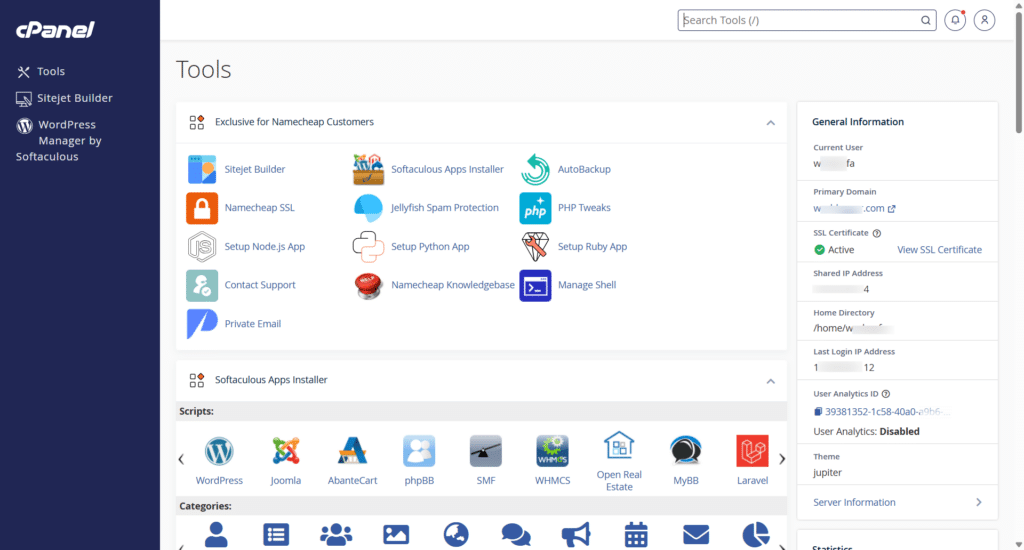
Namecheap still sticks to the traditional cPanel experience. If you’ve been around a long time, or you’ve never used a custom dashboard from another web host, cPanel is fine. It does the core job of managing a site at both the application and server level, and it’s the same interface millions of site owners already know from other hosts.
Hostinger’s hPanel takes a completely different approach. It’s not a reskinned cPanel; it’s a ground-up custom dashboard built around AI Agents (n8n, OpenClaw, Hermes, and Paperclip) and automation workflows.
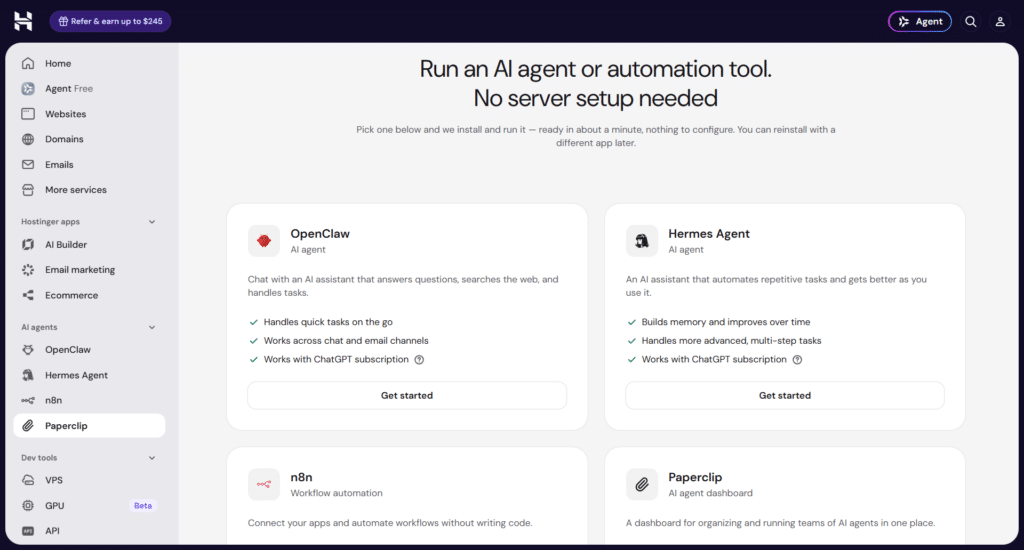
Instead of navigating a grid of cPanel icons, hPanel organizes everything into a sidebar (Home, Websites, Domains, Emails, More services, plus collapsible groups for Hostinger apps, AI Agents, and Dev tools), with an AI chat interface sitting front and center on the Home screen.
Here’s how the two compare feature by feature:
| What you need to do | cPanel (Namecheap) | hPanel (Hostinger) | How each helps |
|---|---|---|---|
| Install WordPress | Softaculous one-click installer | AI Builder/manual WordPress install | cPanel’s Softaculous is a proven, no-surprises installer. hPanel’s AI Builder can generate a working site from a text prompt, useful if you don’t want to start from a blank install. |
| Manage files | File Manager | Files section | Functionally similar. Both offer browser-based file editing without needing FTP. |
| Backups | AutoBackup (Stellar Plus/Business) via cPanel | Daily backups + one-click restore built into Websites dashboard | Namecheap’s AutoBackup is a bolt-on cPanel feature. Hostinger bakes backup/restore into the core website management flow, so it takes fewer clicks to find. |
| Email accounts | Email Accounts in cPanel | Emails section in hPanel sidebar | Same core function, different navigation. cPanel groups email with other server tools; hPanel gives email its own top-level section. |
| Domain/DNS management | Domains + Zone Editor in cPanel | Domains section, dedicated DNS Zone management | Comparable depth. hPanel’s domain section is more visually guided for beginners. |
| Getting help while working | Separate support ticket/chat, opened outside your current task | Ask AI in the top bar, or the AI Agent (Kodee) that can open the exact settings page for you | This is the biggest practical difference. In my test, asking Hostinger’s Agent to open the domain connection page returned a direct button link to that exact page within seconds. cPanel doesn’t have anything like this baked in. |
| Building without code | Sitejet AI Website Builder (also available on Namecheap) | Hostinger AI Builder, described as “agentic,” can build and edit through conversation | Namecheap’s Sitejet is a solid drag-and-drop AI builder. Hostinger’s version leans further into letting AI build code, change structure and content on your behalf, not just layout. |
| Server-level control (SSH, cron, PHP version) | Available in cPanel | Available under Dev Tools/Advanced in hPanel | Both expose this; cPanel’s version is more standardized since it’s the same across most hosts, which helps if you’re used to working across multiple cPanel hosts. |
| Staging environment | Softaculous WordPress Manager’s “Staging” button creates a full copy under a chosen subdomain/directory with its own database | Native “Staging” tool under WordPress> Staging, one click | Both genuinely have this. Namecheap lives inside the Softaculous app rather than cPanel itself, and asks you to name a database and pick a URL path; Hostinger’s is a single click with no setup questions. Functionally comparable once you know where to look on Namecheap. |
| Cloning / reusable setups | Softaculous offers both “Clone” (duplicate to another domain) and “Create Template” (save as a reusable preset) on the same screen as Staging | Copy Website (duplicate to another domain) and Presets (save a reusable theme/plugin setup) as separate tools | Near-identical capability, just organized differently. Namecheap groups all three (Staging, Clone, Template) under one WordPress management screen; Hostinger splits them into separate sidebar items. |
| Resource usage monitoring | cPanel’s “Resource Usage” tool: current usage table plus historical graphs (CPU, memory, I/O, IOPS, processes) and a fault log, viewable by hour/day | Dashboard’s “Resource Usage” page: live and historical CPU, memory, throughput, PHP workers, IOPS, and max processes, shown against plan limits | Both are genuinely detailed. cPanel’s version is more technical-looking (abbreviated column headers, raw data tables) and includes a fault-tracking log; Hostinger’s doesn’t show it as directly. Hostinger’s is easier to read at a glance. Neither is clearly more capable; it’s a presentation difference. |
| Image optimization | “Optimize Website” tool only handles gzip/mod_deflate content compression, no image-specific optimization | Dedicated “Website Optimization” tool: automatic WebP conversion plus smart resizing, with separate width/quality settings for desktop and mobile | A real gap. Namecheap’s built-in tool doesn’t touch images at all; you’d need a plugin (Smush, ShortPixel) to get what Hostinger includes natively. |
The honest takeaway: cPanel is the safer choice if you (or your developer) already know cPanel and want a predictable, portable skillset that transfers across hosts. hPanel is the better choice if you want AI folded into daily site management rather than bolted on as a separate tool, and you don’t mind learning a new interface that isn’t used anywhere else.
Where the two are functionally closer than they first appear is staging, cloning, and resource monitoring; the real difference is discoverability: Hostinger surfaces these directly in the sidebar, while Namecheap tucks the WordPress-specific ones inside the separate Softaculous app, which is easy to miss if you don’t know to look there.
Namecheap’s cPanel does include an AI site builder through Sitejet, so it’s not accurate to say Namecheap has no AI tools. The difference is where AI sits in the experience.
On Hostinger, AI Agents and AI Builder are core navigation items prominently featured in your dashboard. On Namecheap, Sitejet lives inside cPanel as one tool among many, and the overall dashboard experience is still fundamentally the cPanel you’d get from any other host.
Performance
Most Hostinger and Namecheap hosting reviews lean on tools like GTmetrix, Google PageSpeed Insights, or Pingdom for their speed numbers. I didn’t, and here’s why.
Those tools often measure the full page experience from a single fixed test location, and PSI specifically throttles the network and CPU to simulate a mid-tier mobile device. That’s useful for judging a finished page’s user experience, but it tells you almost nothing about the host server itself.
Page weight, image sizes, and third-party scripts swamp whatever signal comes from the server, and a bloated page on a fast web host can easily score worse than a lean page on a mediocre host.
I tested Time to First Byte (TTFB) directly against each host’s origin server to strip out that noise. The test isolates the one thing that’s actually different between two hosts: how fast their hardware, PHP configuration, and network peering respond to a request, before a single image or script is even downloaded.
That’s the number I built this section around.
To keep the comparison fair, I set up the same WordPress installation on the same domain (wpsblogging.site), on both Hostinger and Namecheap, and tested each in two states.
Before: No caching, no CDN
This is the raw server, PHP, and database doing real work on every single request, with no caching layer and no CDN sitting in front to soften the result. I measured this with SpeedVitals’ 40 global TTFB tool against each host origin directly.
| Region | Hostinger (uncached) | Namecheap (uncached) |
|---|---|---|
| America | ~427ms | ~396ms |
| Europe | ~320ms | ~569ms |
| Asia-Pacific/Africa | ~1.2 | ~1.1sec |
| Overall average (40 locations) | ~593ms | ~687ms |

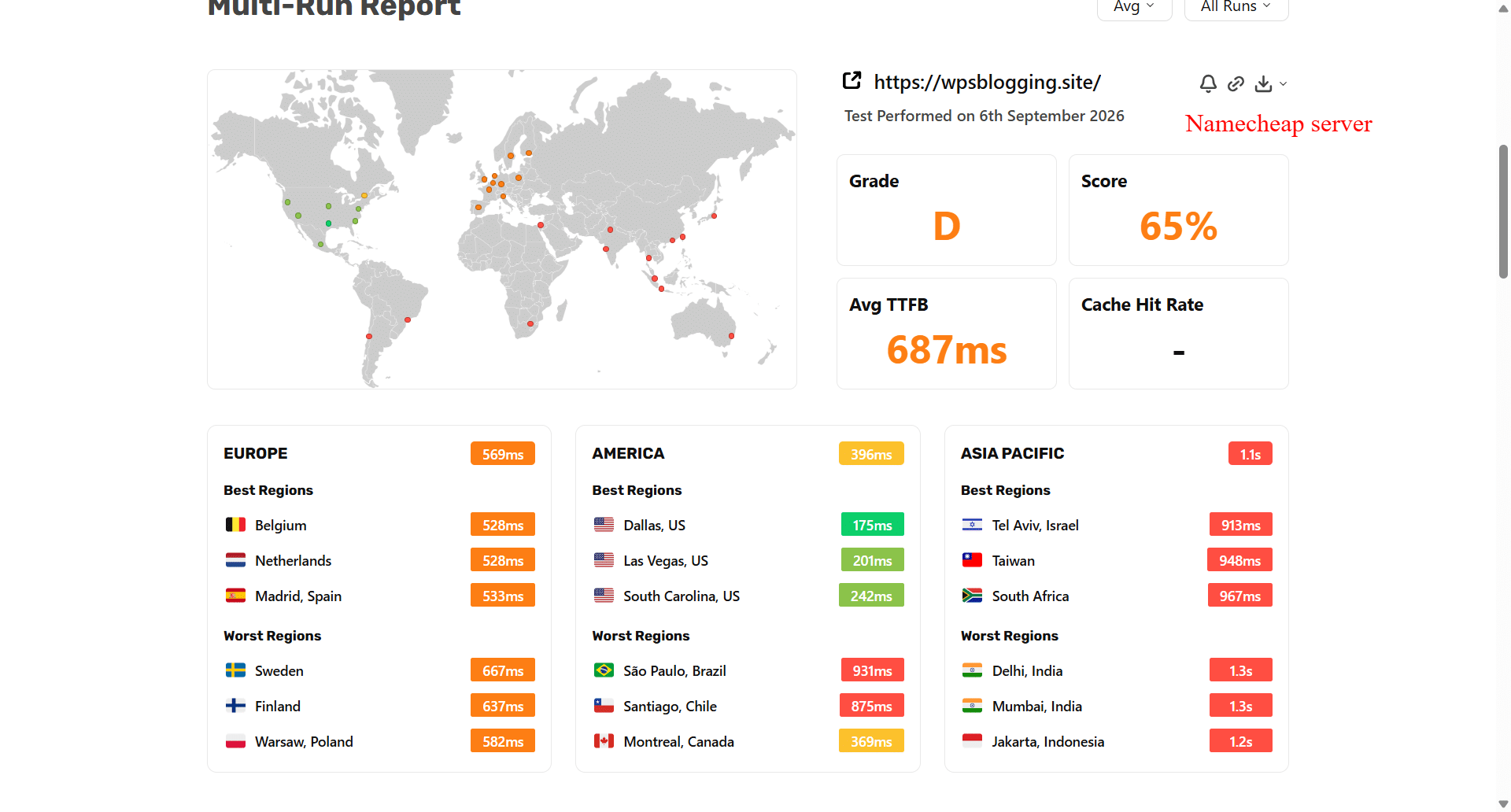
Namecheap edged ahead in the Americas, Hostinger edged ahead in Europe, and the two were essentially tied across Asia-Pacific and overall. Read this as “close enough to call a draw” rather than a decisive win for either host. Neither company’s raw shared-hosting hardware is dramatically faster than the others before any optimization.
Note:
These regional averages are calculated from individual test locations in each SpeedVitals run rather than SpeedVitals’ own regional buckets, so treat them as a reasonable approximation, not a lab-grade figure.)
After: optimized (LiteSpeed Cache + Object Cache + CDN, 100% cache hit rate)
This is what a visitor actually experiences once the site is properly configured, cache enabled and warmed, CDN active, and (on Hostinger) Object Cache turned on. Both web hosts hit a 100% cache hit rate, meaning every test request was served from the edge rather than the origin.
Important caveat on the CDN used: the 189ms Hostinger figure below was achieved with Hostinger’s built-in hCDN disabled. I connected the domain to Cloudflare directly instead, with a page rule caching the HTML document and Tiered Cache Topology enabled.
That’s the same CDN setup used for the Namecheap side, since Namecheap has no built-in CDN at all. This wasn’t an arbitrary choice; it resulted from testing hCDN on its own first.
With Hostinger’s hCDN active (and nothing else changed), wpsblogging.site graded a C (83%), with a 433ms average TTFB, despite response headers confirming the cache was working (x-hcdn-cache-status: HIT, x-litespeed-cache: hit).
In other words, hCDN was caching and serving correctly; it just wasn’t fast enough to compete with Cloudflare’s edge network. Switching from hCDN to Cloudflare, with everything else held constant, took the same site from a C/433ms to an A/189ms.
If you’re setting up either host, the practical takeaway is: don’t rely on Hostinger’s hCDN. Disable it and connect Cloudflare (or another third-party CDN) directly, as you would on Namecheap regardless. The numbers below reflect that setup on both hosts, not hCDN.
| Region | Hostinger (optimized, via Cloudflare) | Namecheap (optimized, via Cloudflare) |
|---|---|---|
| Europe | 76ms | 132ms |
| America | 110ms | 105ms |
| Asia-Pacific | 362ms | 202ms |
| Overall Avg TTFB | 189ms | 148ms |
| Grade / Score | A / 95% | A / 96% |
| Cache hit rate | 100% | 100% |


Once caching and a third-party CDN are in play, both hosts land in the same tier: Grade A, ~95% score, and TTFB within 40ms of each other overall. Hostinger pulls ahead in Europe and America; Namecheap pulls ahead in Asia-Pacific- again, too close to call a clear winner, provided you skip hCDN on the Hostinger side.
NOTE:
Whichever host you choose, check our LiteSpeed Cache settings to fine-tune your site speed and improve the user experience.
The real story: optimization matters more than the host
| Before (uncached) | After (optimized) | Improvement | |
|---|---|---|---|
| Hostinger overall avg TTFB | ~593ms | 189ms | 68.13% faster |
| Namecheap overall avg TTFB | ~687ms | 148ms | 78.46% faster |
That’s the actual headline. The gap between an unoptimized and optimized setup on the same host (roughly 5x faster) dwarfs the gap between Hostinger and Namecheap at either end.
If you’re choosing a host based on raw speed alone, you’re optimizing for the wrong variable; whether and how well you configure caching and a CDN will affect your visitors far more than which of these two hosts you pick.
AI Website Builder
Both hosts offer an AI-assisted way to build a site from scratch, though they arrive at it a little differently. Namecheap uses Sitejet, while Hostinger’s tool started as Horizons and has since been rebranded to AI Website Builder.
The Starting Point: Template or Prompt
Both platforms give you two entry points: a curated template you customize by hand, or a conversational flow where you describe your business and let the AI generate a first draft.
Hostinger AI Website Builder splits this into two distinct modes:
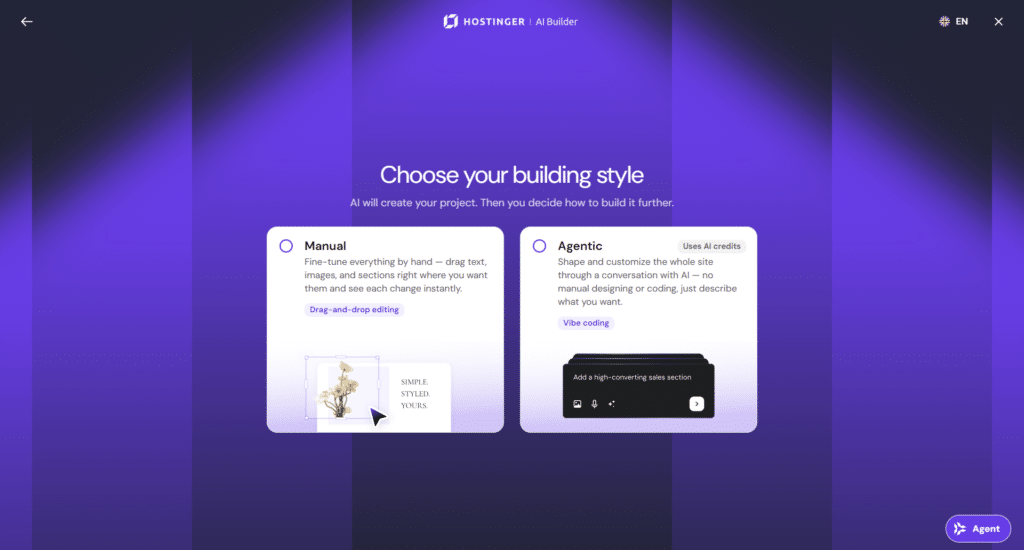
- Manual mode: Start from a template or a text prompt, then hand off to a drag-and-drop editor to finish the design.
- Agentic mode: A fully conversational, no-code build. You describe changes in a chat window, and the AI applies them directly; there’s no visual editor and no manual element placement. It’s closer to a vibe-coding workflow than a traditional site builder.
Agentic mode runs on a credit-based system. It’s bundled into the standard Hostinger hosting plans, so you don’t pay extra to access it, but you’ll need to top up credits once your allotment runs out. (I go deeper into credit consumption and what I found testing this, including a full test build, in my standalone Hostinger AI Website Builder review.)
Sitejet, by contrast, funnels every path into the same destination. Whether you start with its AI Website Generator, describe your business and pick a one-page or multi-page layout, or choose a template from its library, you always land in the drag-and-drop editor for final customization.
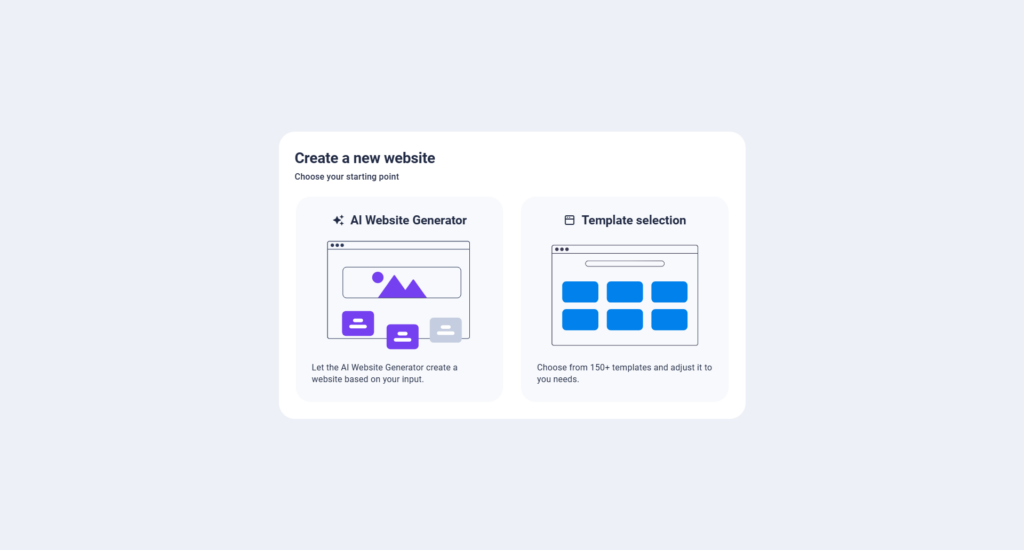
There’s no equivalent to Hostinger’s chat-only Agentic mode.
Template Library and Generated Output
Sitejet’s template library is large and well-organized, filterable by type (Landing Page, Onepager, Multipager, Blog) and by industry (Business, Health, IT & Media, Legal & Finance, Non-Profit, Gastronomy, and more). The templates I previewed (a burger restaurant, a plumbing service, an eye clinic, a call center) look polished and close to launch-ready out of the box.

Go the AI-generation route instead, and Sitejet builds out a full page structure automatically, not just a homepage, and you can review, reorder, edit, or delete each generated page before moving on. From there, you can add a logo and pick a color palette, with live preview cards showing how your headline, body copy, and buttons will actually look in each option, before dropping you into the full editor.
Sitejet’s responsive preview isn’t a basic desktop and mobile toggle. It lets you test your design against a long list of real device breakpoints (iPad Pro, iPad Air, iPad Mini, Galaxy Tab, Google Pixel Tablet, and others), which is a more granular way to catch layout issues than most builders offer.

Which One to Choose
If a genuine no-code, conversational AI site builder (no editor, no manually placing elements) is what you’re after, Hostinger’s Agentic mode wins outright. Sitejet has no real equivalent to it.
But if you’d rather start from a high-quality template and don’t mind finishing the job inside a visual editor, Sitejet has the edge.
Built-in performance tools compared
Both hosts run LiteSpeed on their shared hosting plans, which already puts them ahead of hosts still running plain Apache. Beyond that baseline, they take different approaches to speeding up PHP execution:
| Feature | Hostinger (Unlimited) | Namecheap (Stellar Business) |
|---|---|---|
| Web server | LiteSpeed + LSCWP preinstalled | LiteSpeed |
| Object Cache | Included | Not available (Redis is VPS/Dedicated only) |
| PHP opcode caching | Not applicable (handled via LiteSpeed’s own caching + Object Cache) | eAccelerator and xCache, both exclusive to the Stellar Business tier (not available on Stellar or Stellar Plus) |
| CDN | hCDN included with the plan, but underperformed Cloudflare in testing (see below); best used with hCDN disabled and a third-party CDN connected instead | Not included by default; Supersonic CDN available as a paid add-on, or connect a third-party CDN like Cloudflare |
Hostinger’s approach bundles a modern object cache directly into the plan, a genuine no-setup advantage over Namecheap’s older PHP accelerators.
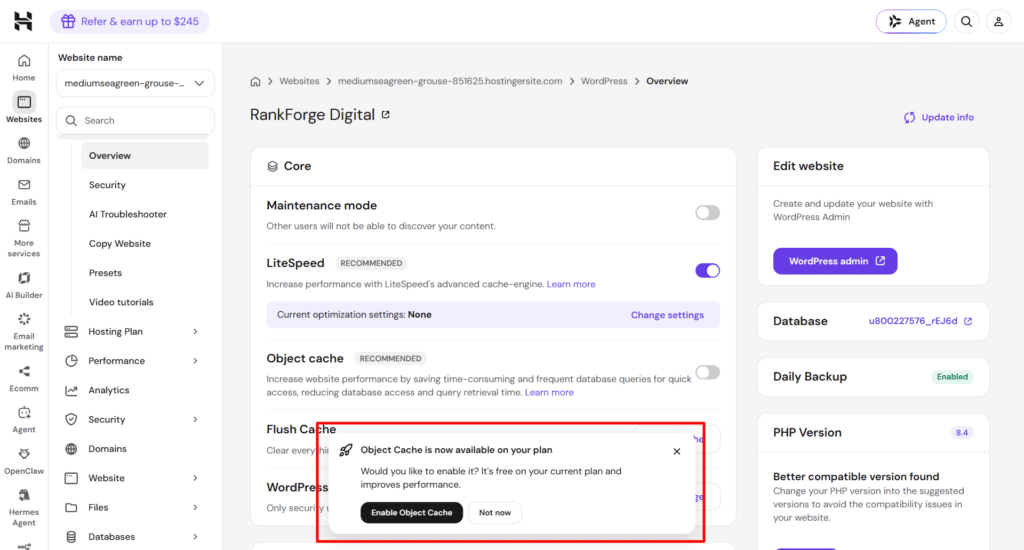
The CDN story is more mixed than it looks on paper, though. hCDN is included at no extra cost and caches correctly, but in testing, it lags behind Cloudflare once you set up HTML caching and enable Tiered Cache Topology in CF.
Namecheap’s Stellar Business plan compensates for its lack of Object Cache with eAccelerator and xCache, older-generation tech that still helps but isn’t as effective as a proper object cache, and like Hostinger, you’ll get your best results by bringing your own CDN rather than relying on whatever ships by default (or, in Namecheap’s case, not shipping one at all).
Worth noting:
eAccelerator and xCache are locked to the top Stellar Business tier; Stellar and Stellar Plus customers don’t get them.
Bottom line on performance: on raw, unoptimized hardware, the two hosts are statistically a wash. Once you configure caching and a well-chosen CDN, they’re also a wash; both hit Grade A with TTFB in the same ballpark.
The meaningful difference isn’t speed; it’s how much work you have to do to get there, and what defaults you need to override along the way.
Hostinger’s Object Cache is a real, no-effort win. Its bundled hCDN is not; don’t take it at face value just because it’s free and preinstalled; test it against a third-party CDN before assuming it’s your best option. Namecheap gets you to the same finish line, but expects you to source your own CDN and lean on less current PHP acceleration tools to make up the difference.
Core Security Features
Namecheap’s Stellar Business plan includes Imunify360 across all shared hosting tiers at no extra cost. That covers real-time malware scanning, an intrusion prevention system, and a machine-learning-based firewall, plus KernelCare for automatic kernel patching without downtime, and proactive tools like PHP Immunity and anti-bot protection.
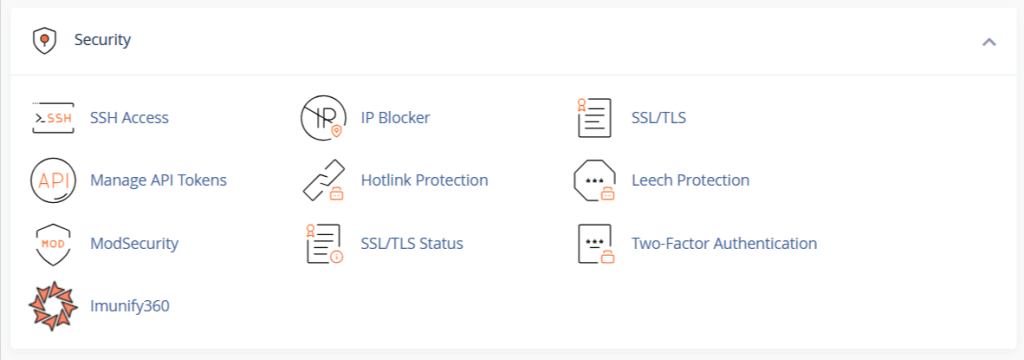
You also get cPanel’s built-in two-factor authentication and free SSL (Namecheap bundles 50 free Standard SSL certificates per account, auto-installed).
Hostinger’s shared hosting security stack is built around a few layers working together: an integrated malware scanner inside hPanel that automatically flags and lists infected files.
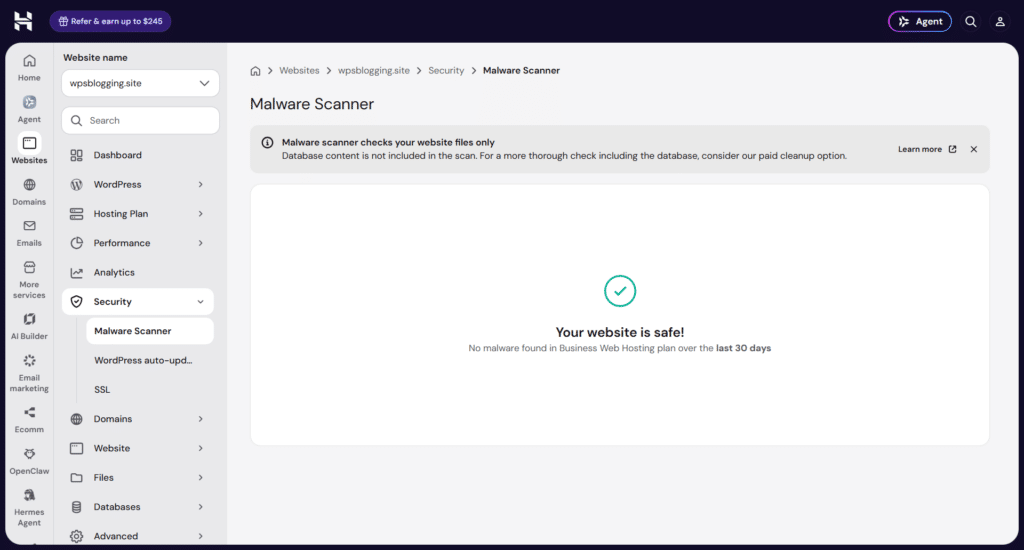
Cloudflare-based DDoS protection applied at the nameserver level, server-side hardening (mod_security, PHP open_basedir restrictions), and Patchstack for automatic WordPress vulnerability patching on supported plans.
Free SSL is automatic on every plan. Higher hPanel tiers add an AI Security Audit feature that flags unusual bot activity and access patterns, though this is reactive rather than preventative.
Neither host’s shared hosting security is “enterprise-grade,” and that’s expected at this price point. Namecheap’s Imunify360 is a more unified, single-vendor security suite bundled uniformly across every shared plan.
Hostinger’s approach stitches together several tools (Cloudflare, its own malware scanner, Patchstack, server hardening), which is comparably effective in practice but less centralized as a single named product.
However, during unrelated performance testing, Hostinger’s security layer detected and blocked traffic from a known third-party monitoring tool, while Namecheap’s did not do this under the same test.
This isn’t a mystery behavior; hPanel has a dedicated CDN AI Audit tool that identifies automated crawlers by name (GPTBot, ClaudeBot, Bytespider, and others) and lets you individually allow or block each one, with a running request count per crawler. That’s almost certainly the same fingerprinting infrastructure that caught the monitoring tool.
It’s a deliberate, visible security feature rather than a weakness, and arguably a genuine plus for anyone who wants real control over AI scraping, but it’s worth knowing if you plan to run third-party uptime monitors against a Hostinger-hosted site.
Hostinger vs Namecheap Pricing
Pricing structures between the two hosts aren’t directly apples-to-apples, since they use different commitment terms for their introductory discount price, so it’s worth laying out the actual numbers rather than just the advertised rate.
| Hostinger Unlimited | Namecheap Stellar Business | |
|---|---|---|
| Marketing price | $3.99/mo (requires a 48-month term) | $4.81/mo (billed yearly) |
| Monthly billing (no term) | $18.99 per month | $11.88/mo |
| What you pay upfront | $191.52 for 48 months | $57.72 for 1 year |
| Renewal rate | $16.99/mo | Renews at $128.88/year (about $10.74/mo) |
| Websites | Unlimited | Unlimited |
| Storage | 50 GB NVMe | 50 GB SSD (Cloud Storage on US data center) |
| Mailboxes | Unlimited, free for 1 year | Unlimited |
| RAM / CPU cores | 3 GB / 2 cores (published on the pricing page before signup) | 2 GB physical memory / 400% CPU (roughly 4 cores), confirmed via cPanel’s Resource Usage tool after signup, not published on the pricing page |
| PHP workers/processes | 60 PHP workers | 40 entry processes, 200 total processes (NPROC), 1024 IOPS, per cPanel’s Resource Usage tool |
| Object cache/Redis | Built-in Object Cache included | Not available on shared hosting (Redis is VPS/Dedicated only) |
| CDN | Hostinger hCDN included | Not included by default; connect a third-party CDN (Namecheap also sells its own Supersonic CDN as an add-on) |
| Backups | Daily backups + easy restore | AutoBackup: daily, weekly, and monthly |
| Security suite | Malware scanner, Cloudflare DDoS, server hardening | Imunify360 (bundled) |
The marketing prices look close, but the commitment terms aren’t equivalent: Hostinger’s $3.99/mo rate locks you into 4 years upfront, while Namecheap’s $4.81/mo is a 1-year commitment.
If you compare like-for-like commitment lengths instead of introductory rates, Namecheap’s 1-year price is actually the more flexible option for anyone who isn’t ready to commit to a 4-year hosting relationship.
Hostinger publishes clear RAM/CPU/PHP-worker specs on its pricing page before you sign up. Namecheap doesn’t publish those specs on its pricing page, but they are visible after signup through cPanel’s Resource Usage tool, which turned out to show real, fairly detailed numbers (2GB RAM, 400% CPU, 40 entry processes, 1024 IOPS), along with historical usage graphs and a fault log.
So the gap isn’t “Namecheap hides its specs”; it’s “you can’t compare specs before you commit to a plan,” worth knowing if you want to shop by server limits, but not the transparency void it might first appear to be.
NOTE: If you’re looking to get more saving on Hostinger (and other web host) hosting plans, including their VPS, Dedicated, and AI Agent hosting, check our Black Friday page:
Support
Both Namecheap and Hostinger offer 24/7 support, knowledge base articles, and hundreds of help tutorials.
They follow a similar process: you start with an AI assistant, and if you need more help, your chat session escalates to a human rep. The user experience around that process differs significantly, though.
Namecheap support starts with a typical AI-assisted chat flow: you select what you need help with (domain, hosting, technical, billing, and so on), which takes you to a support chat pop-up.
The AI assistant (“Suzy Q”) is highly capable and often resolves issues without human assistance. This is especially true if your issue involves finding a solution in help documents or learning how to do something better.
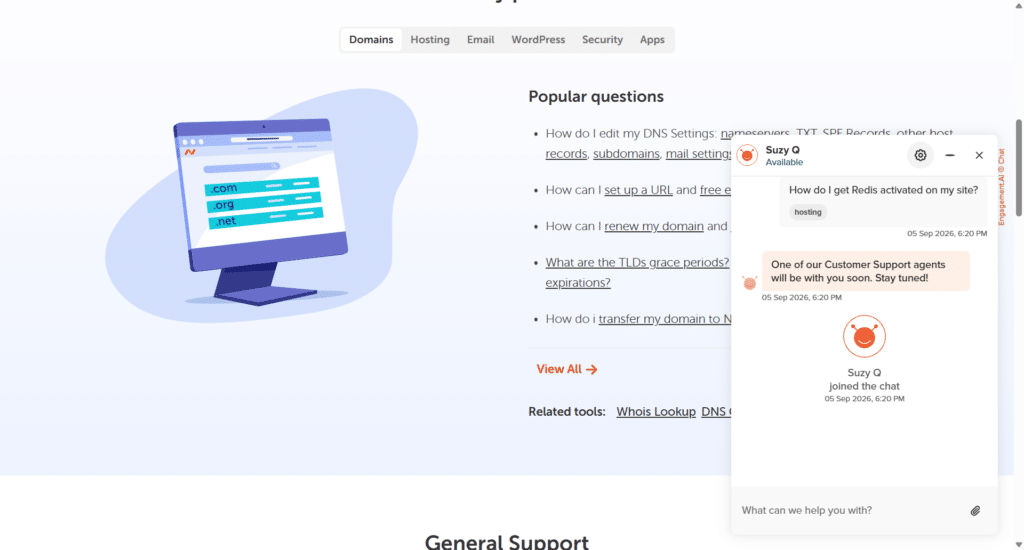
One area I’d love to see Namecheap improve, after my over a decade being a customer, is escalating tasks to different support representatives before resolving them.
Many times, my issue gets escalated to different support representatives before it’s finally resolved. The pattern often looks like this: I start with an AI response, a human rep joins and asks for a few minutes to look into the details, then another support rep joins, and the issue gets escalated again before it’s finally resolved.
Hostinger takes a completely different approach. Its AI Agent behaves more like a general-purpose assistant such as ChatGPT, Claude, or Gemini than a typical support chatbot. Kodee, Hostinger’s AI Agent, answers almost every question related to managing your website on the platform.
It walks you through processes, digs into documentation and tutorials, and offers advice on getting more out of your Hostinger plan. You can also use prebuilt skills to complete various SEO, content, and marketing tasks directly through the Agent.
You can ask questions about your dashboard, what you’re currently working on, troubleshoot performance bottlenecks, and even ask it to open a specific page. In my test, I asked it to open the domain connection page, and within seconds it returned a direct button link to that exact page; one click and I was there.

In short, Hostinger’s AI Agent feels less like a support widget and more like an extension of your workflow inside the dashboard.
Final Verdict and Recommendation
After running both hosts through the same tests, dashboard tasks, and support flows, here’s where things stand.
Performance is a wash, and that surprised me. Raw, uncached TTFB is close enough between the two to call it a tie, and once you configure caching and a CDN, both hit Grade A with TTFB within 6ms of each other. If speed alone is your deciding factor, neither host gives you a real edge; the bigger swing comes from whether you bother optimizing at all, not which of these two you pick.
Security is comparably solid, just structured differently. Namecheap’s Imunify360 is a single, unified suite bundled the same way across every shared plan. Hostinger stitches together several tools (Cloudflare, its own malware scanner, Patchstack, server hardening) that add up to similar real-world protection, plus a security layer alert enough to notice and block known automated-testing traffic, worth knowing either way you go.
The two genuinely diverge in the dashboard, built-in tooling, and support experience.
Hostinger’s hPanel bundles Object Cache and a CDN directly into the plan, publishes its RAM/CPU/PHP-worker specs upfront, and backs it all with an AI Agent that can act on your dashboard rather than just answer questions about it.
Namecheap’s cPanel is the more portable, familiar skill set if you’ve used it before, but it uses older PHP accelerators, no bundled CDN, unpublished server specs, and a support flow that, in my experience, bounced between several human reps before resolving.
Choose Hostinger Unlimited if:
Choose Namecheap Stellar Business if:
My overall take
If you’re not particularly attached to either dashboard style and you’re comfortable with a longer commitment, Hostinger Unlimited is the slightly stronger package on paper, mainly for the bundled Object Cache, CDN, published specs, and the more capable AI-assisted support.
Namecheap Stellar Business isn’t a step down so much as a different trade-off: shorter commitment, a more familiar cPanel experience, and comparable security, in exchange for doing a bit more of the optimization work yourself.
Neither host will disappoint you on raw performance, and that’s arguably the most useful finding in this whole comparison: at this price tier, the difference between a fast site and a slow one comes down far more to how you configure it than which of these two hosts you choose.