
LiteSpeed Cache is one of the most powerful free WordPress performance plugins available. But it comes with many settings, and a lot of them can break your site if you enable them without knowing what they do.
The most common advice you’ll find online is a generic list of ON/OFF recommendations.
The problem? Those recommendations don’t account for your specific hosting environment, your theme and plugins, your CDN, or which Core Web Vitals you’re actually struggling with.
This guide is different. Every setting you’ll see here comes from a live WordPress site running on a LiteSpeed server with Verpex hosting.
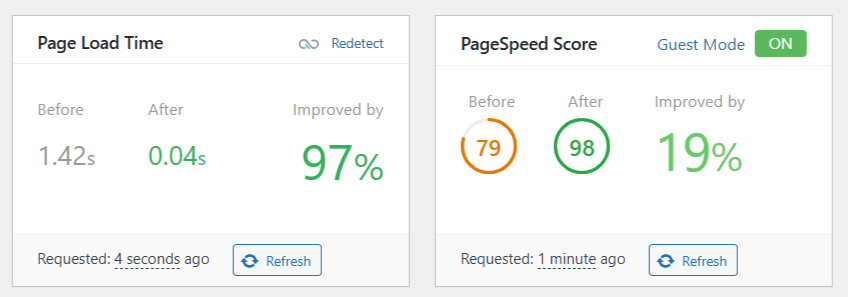
Page load time dropped from 1.42 seconds to 0.04 seconds, and PageSpeed Scores improved from 79 to 98 after applying and fine-tuning these settings.
You’ll learn what each important setting does, why it’s turned on or off, and what to watch out for — so you can configure the best LiteSpeed Cache settings with confidence, not guesswork.
Pro Tip:
Not sure where to start? Use the free LiteSpeed Cache Settings Advisor at WPrBlogger. Answer 7 quick questions about your setup and get personalized recommendations.
Before You Configure LiteSpeed Cache
A few things to confirm before you touch any settings:
Step 1: Start With the Advanced Preset
Before manually configuring individual settings, go to LiteSpeed Cache > Presets and apply the Advanced (Recommended) preset.
This gives you a solid baseline to build from, with Guest Mode, JS/CSS/HTML minification, font display optimization, and more already enabled.
The five preset options are:
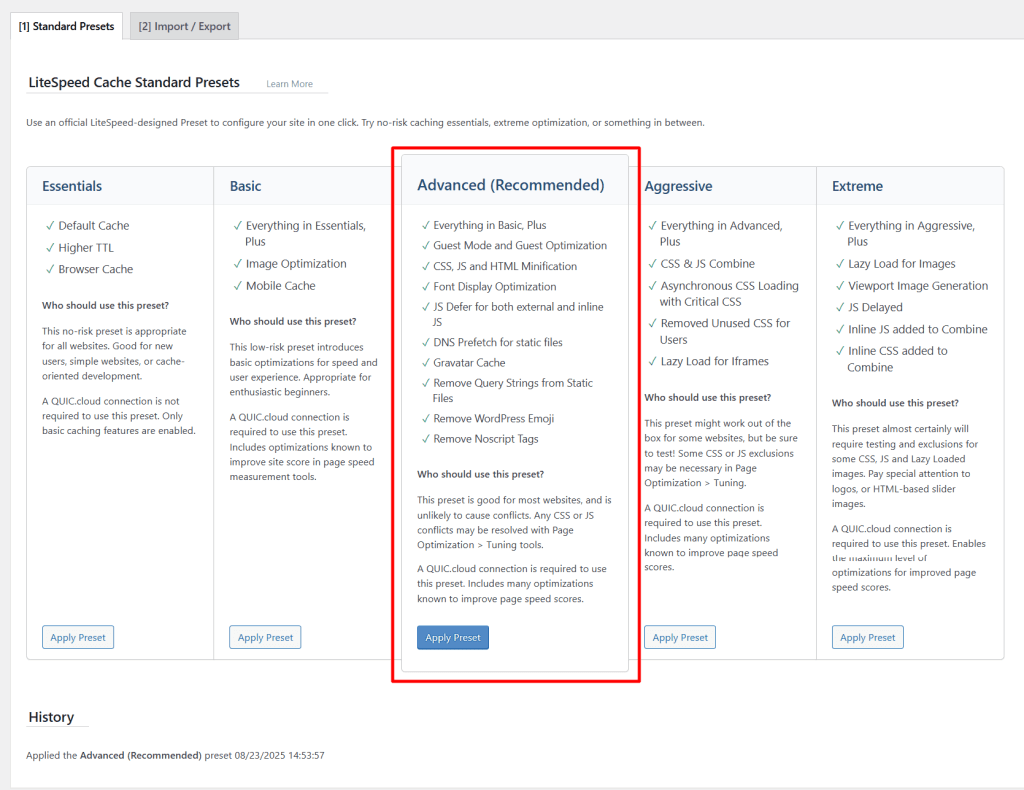
The Advanced preset was applied to this site, and all subsequent plugin settings were layered on top of it. The Presets page also has an Import/Export tab — useful for backing up your configuration or copying it to another site.
General Settings
Go to LiteSpeed Cache > General. There are two tabs: Online Services and General Settings.
Online Services Tab
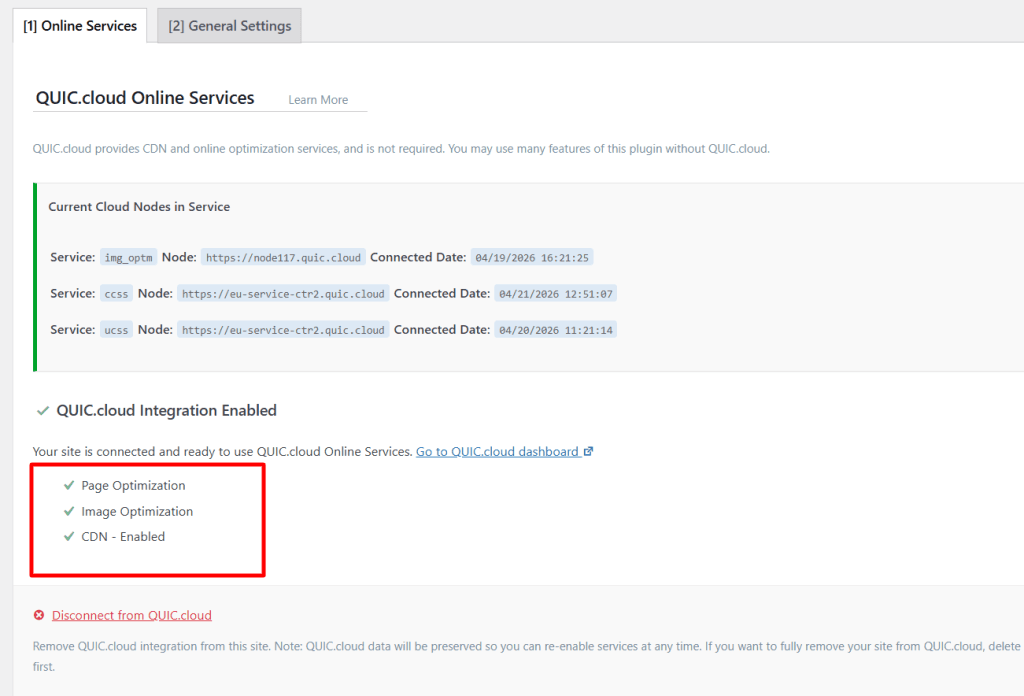
This is where your QUIC.cloud connection lives. When connected, you’ll see active cloud nodes listed for img_optm (image optimization), ccss (critical CSS), and ucss (unique CSS).
The status panel will show green checkmarks confirming that Page Optimization, Image Optimization, and CDN are all enabled.
If you don’t see those green checkmarks (if this is your first time connecting the plugin), click Request Domain Key and follow the on-screen steps to link your site.
NOTE:
Some of the LiteSpeed Exclusive features won’t work if you use other CDN services or aren’t on LiteSpeed-powered hosting, Open LiteSpeed, or Commercial LiteSpeed products.
General Settings Tab
| Setting | Value | Notes |
|---|---|---|
| Automatically Upgrade | ON | Auto-updates the plugin when new versions release. Convenient for most users. |
| Guest Mode | ON | Serves a fully cached page to first-time visitors before AJAX runs. Major speed boost for new users. Requires testing. |
| Guest Optimization | ON | Applies maximum CSS/JS optimizations for Guest Mode visitors. Pair with Guest Mode for best PageSpeed scores. |
| Server IP | Set | Enter your server’s IP address so QUIC.cloud can communicate directly. Find it in your hosting control panel. |
| Notifications | ON | Receive plugin update and hotfix notifications in your dashboard. |
Important:
Guest Mode and Guest Optimization together are responsible for much of the dramatic speed improvement you’ll see in PageSpeed Insights. However, they can cause issues with certain themes or plugins. Always test in incognito after enabling.
Cache Settings
Go to LiteSpeed Cache > Cache. This tab has eight sub-tabs. The most important one is the first one: Cache.
Cache Tab
| Setting | Value | Notes |
|---|---|---|
| Enable Cache | ON | The master switch. Everything else depends on this being on. |
| Cache Logged-in Users | ON | Caches pages for logged-in users privately. Fine for most blogs; disable only if users see stale data. |
| Cache Commenters | ON | Caches pages for visitors who’ve left a comment. Uses more server resources on high-comment sites. |
| Cache REST API | ON | Caches REST API requests. Required by many themes and the block editor. |
| Cache Login Page | ON | Caches the wp-login.php page to reduce server load from bots. |
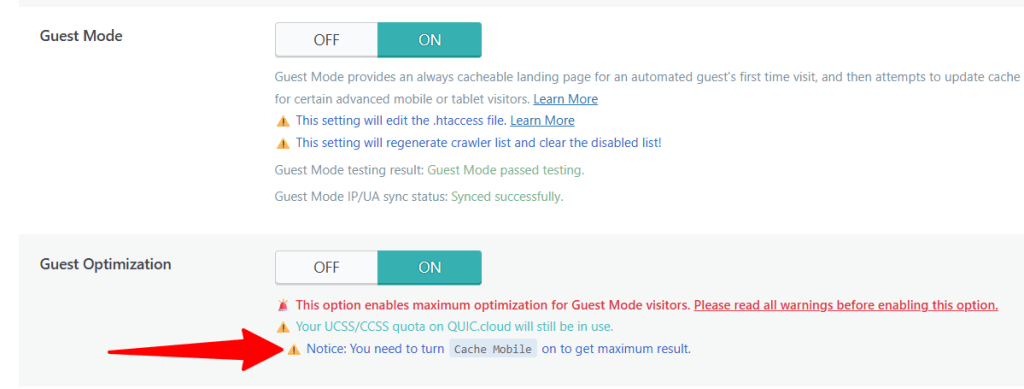
| Cache Mobile | OFF | Currently OFF — but if you have Guest Optimization enabled, LiteSpeed recommends turning this ON to get maximum results. Safe to enable on responsive themes like Astra. Test in mobile incognito after enabling. |
| Drop Query String | Set | Add fbclid, gclid, utm*, _ga — strips tracking parameters so URLs with UTM tags still serve cached pages. |
Important:
Cache Mobile is OFF on this site, but there’s an important nuance: if you’ve enabled Guest Optimization, LiteSpeed explicitly warns in the plugin that you need to turn Cache Mobile ON to get maximum results from Guest Optimization.
If you’re using a fully responsive theme like Astra or Kadence (no separate mobile theme), enabling Cache Mobile is safe. It just creates a separate cache copy for mobile visitors so they also receive the fully optimized Guest Mode experience. The risk of layout issues is low on responsive themes.
Enable it and test in mobile incognito to confirm everything looks correct.
TTL Tab
TTL (Time to Live) controls how long LiteSpeed Cache keeps a cached file before regenerating it. The defaults are fine for most sites:
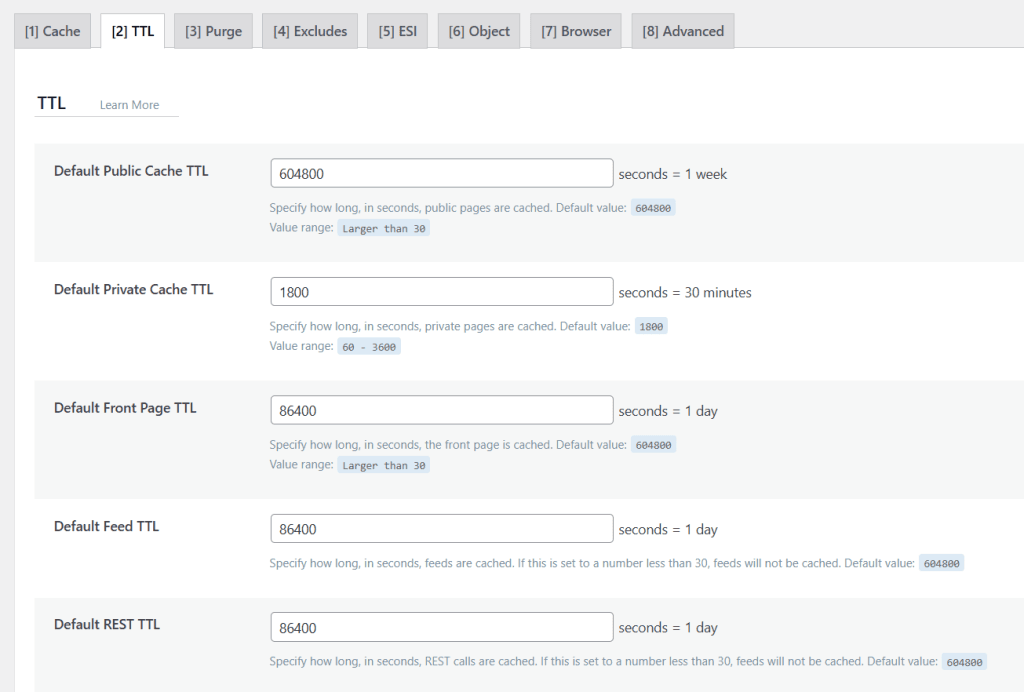
Only shorten these if your content changes very frequently and you need visitors to always see the latest version. Shorter TTLs = more server requests = more resource usage.
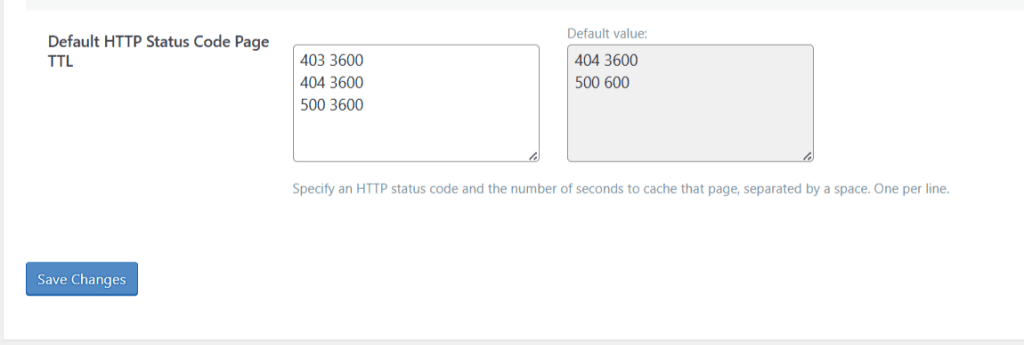
LiteSpeed Cache lets you set TTL for HTTP Status code pages, such as 404 Not Found, 500, 403, and more. Leave these settings to default if you don’t know what you’re doing.
Purge Tab
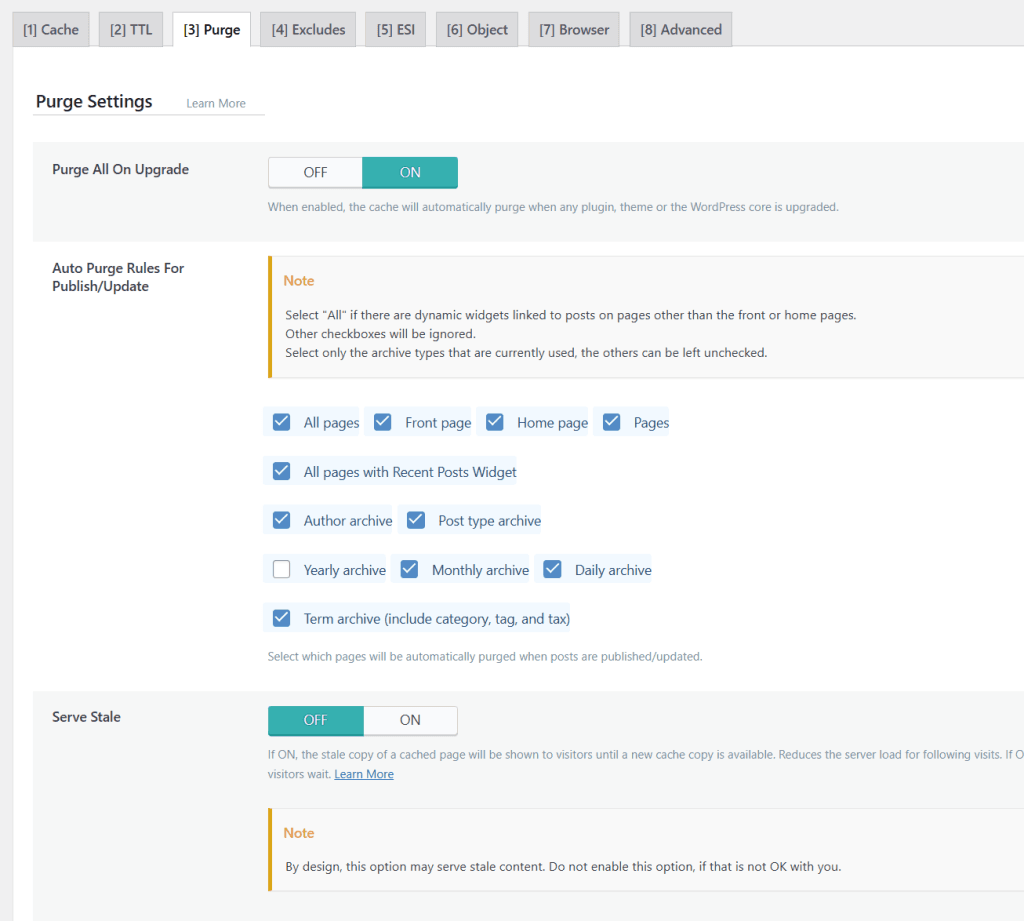
Controls what is automatically cleared from the cache. The defaults work well — pages are purged when their content is updated. No changes needed here unless you have a specific workflow reason.
The only exception is the “Serve Stale” pages setting. If you have a busy site, you may need to enable this function. It benefits high-traffic sites but has little to no impact on small sites.
The function allows LiteSpeed Cache to serve a recently purged cache page to a visitor while building the updated cache copy. So, it’s up to you to decide if it’s worth it for your site.
Excludes Tab
This is where you tell LiteSpeed Cache which URLs should never be cached. On this site, the following are excluded:
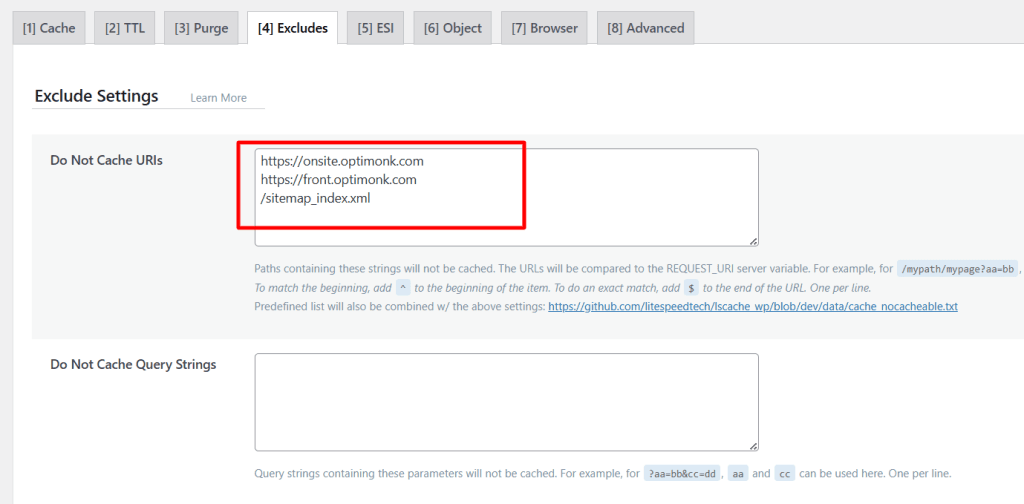
Under Do Not Cache Roles, only Administrator is checked. This means pages are never cached during an admin session, preventing admin bars and draft previews from being served to the public.
ESI Tab
ESI (Edge Side Includes) lets you serve cached pages to logged-in users while keeping dynamic elements like the admin bar and comment form uncached.
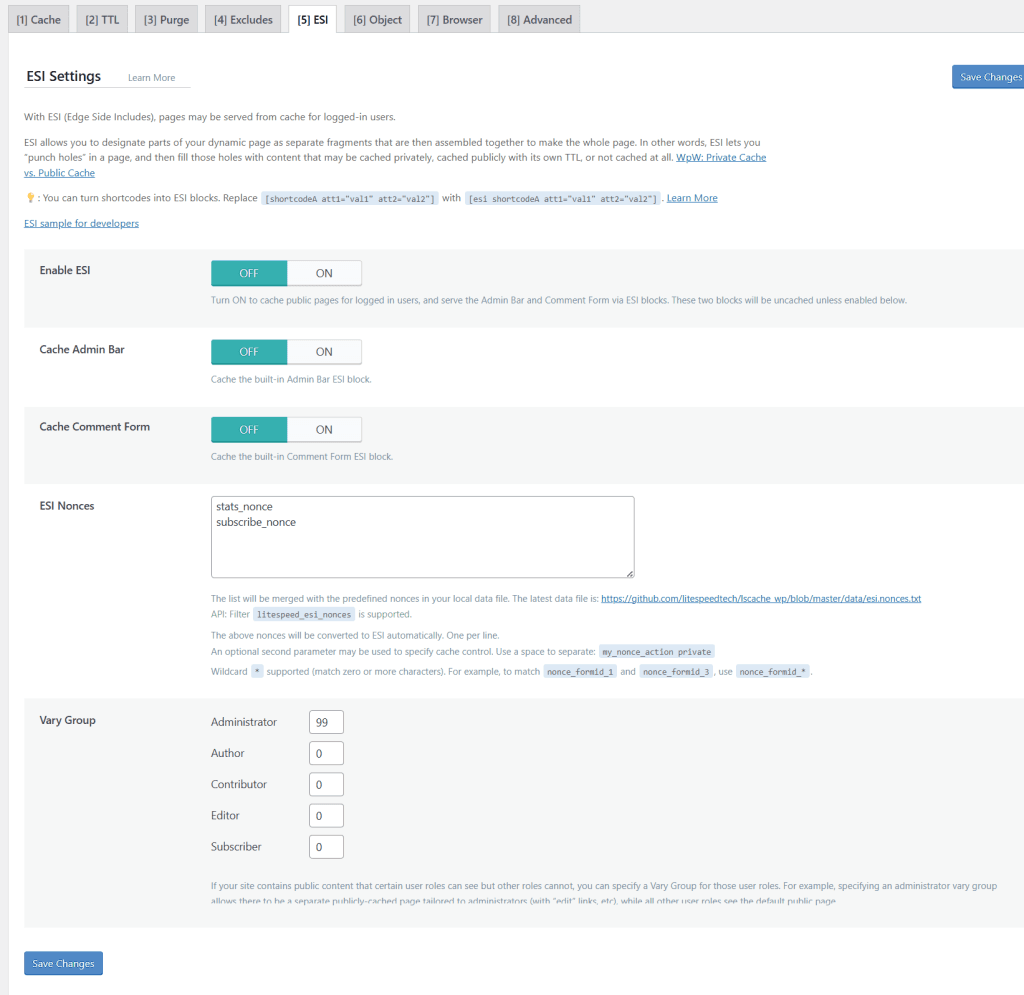
| Setting | Value | Notes |
|---|---|---|
| Enable ESI | OFF | Left off — most blogs don’t need per-user caching. Enable if you run a membership site or WooCommerce. |
| Cache Admin Bar | OFF | Pre-caches the admin bar ESI block for efficiency. |
| Cache Comment Form | OFF | Pre-caches the comment form ESI block. |
| ESI Nonces | Set | stats_nonce and subscribe_nonce added for form functionality. |
However, if you run a WooCommerce site, a membership site, or a user-specific content site, you may need to enable ESI to improve caching efficiency. Watch this video to learn more about the benefits of enabling ESI.
Object Cache Tab
Object cache stores the results of database queries in memory (Redis or Memcached) so WordPress doesn’t have to run the same query twice. This dramatically speeds up the WP-admin and dynamic pages.
| Setting | Value | Notes |
|---|---|---|
| Object Cache | ON | Enabled. If your host support Redis or Memcached. |
| Method | Redis | Redis is faster and more feature-rich than Memcached. Use what your host provides. |
| Default Object Lifetime | 360s | 6 minutes. Balances freshness vs. performance. |
| Persistent Connection | ON | Keeps the connection to Redis alive between requests. Reduces overhead. |
| Cache WP-Admin | ON | Speeds up the WordPress admin dashboard significantly. |
Pro Tip:
Object Cache requires Redis or Memcached to be available on your server. Verpex is one of the web hosts that supports Redis. Check with your host if you’re unsure — it’s usually a one-click enable in the control panel.
If your host supports it, get the necessary settings to enable the connection in LiteSpeed Cache. For most hosts, settings such as port, password, and hostname are available in the control panel.
For example, here is Verpex’s Redis Server setting page.
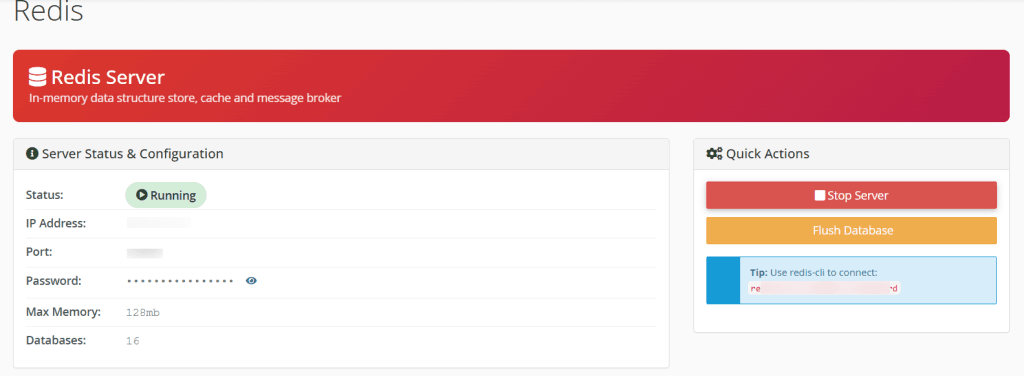
You need to get these settings in your cPanel and enter them in the LiteSpeed Object Cache settings tab.
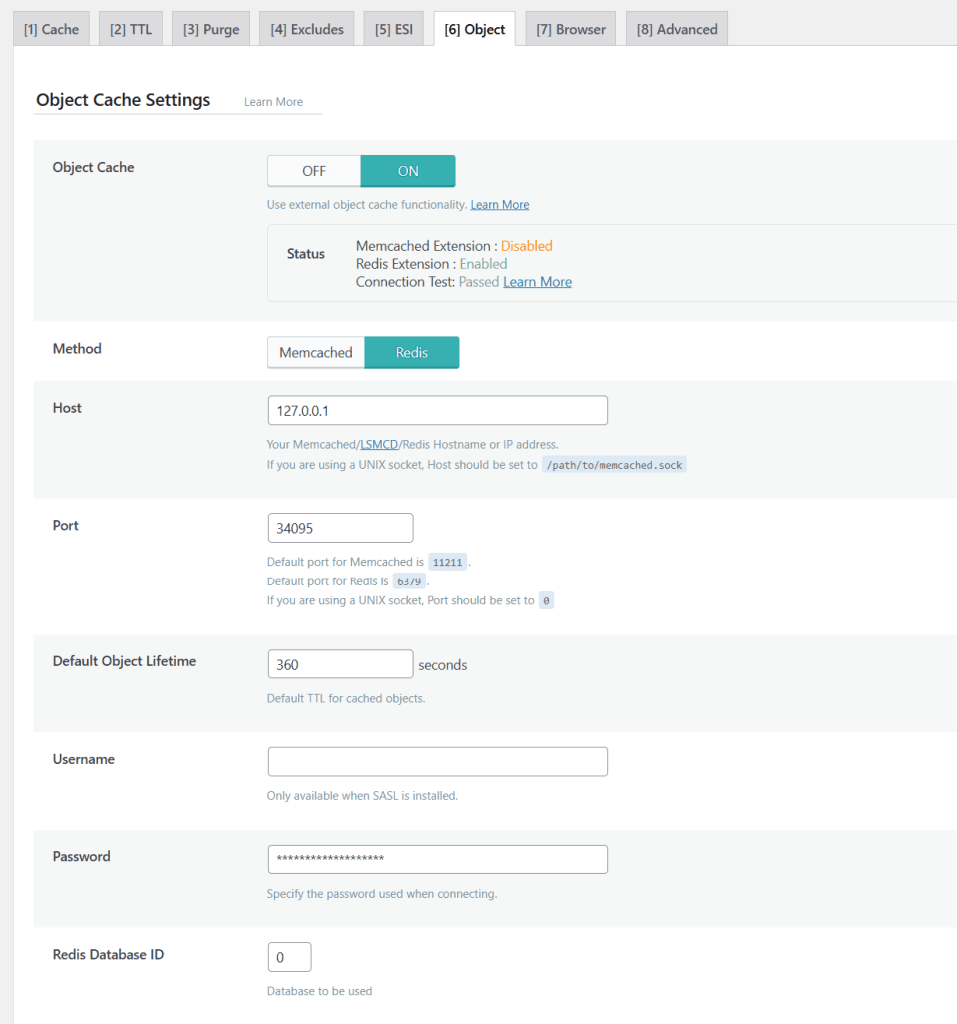
If you enable the Redis connections on multiple sites on the same server, assign each database an ID. IDs range from 0 – 100 or your host-specific maximum number.
Browser Cache Tab
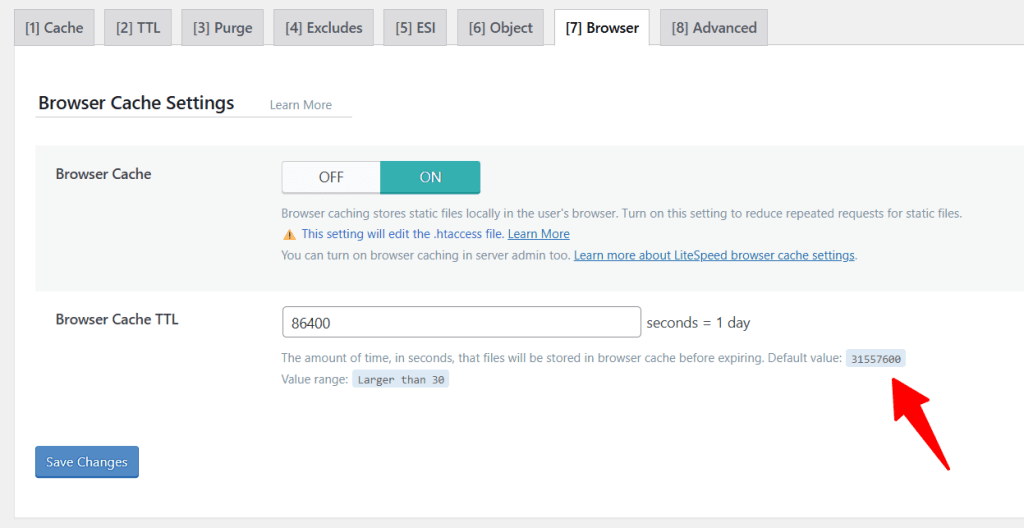
While I was writing this post, I discovered that this site’s browser cache setting is set to 86400, which is 1 day. This is not always right. I wanted to update it to 31557600 (1 yr) before publishing, but I decided to leave it to make an important point.
| Setting | Value | Notes |
|---|---|---|
| Browser Cache | ON | Tells browsers to store static files locally so repeat visitors load your site faster. |
| Browser Cache TTL | 86400 | Currently 1 day (86,400s) — below the plugin default of 31,557,600 (1 year). Consider increasing to 2,592,000 (30 days) or higher for better repeat visit performance on sites that don’t change assets frequently. |
Important point:
The Browser Cache TTL of 86,400 seconds (1 day) is significantly lower than the plugin default of 31,557,600 (1 year). For a blog where CSS, JS, and images don’t change frequently, this means repeat visitors re-request static files every 24 hours instead of serving them from local browser cache.
A better value is 2,592,000 (30 days) or 31,557,600. Only keep TTL low if you update your theme or assets very frequently and need users to always pick up the latest files.
Advanced Tab
| Setting | Value | Notes |
|---|---|---|
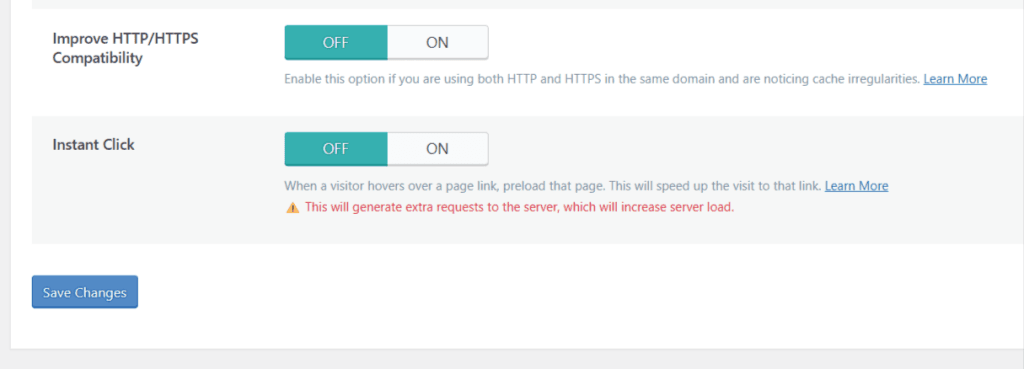
| Improve HTTP/HTTPS Compatibility | OFF | Only needed if you’re running both protocols. Leave off on HTTPS-only sites. |
| Instant Click | OFF | Preloads pages on hover. Left off here, but worth testing on managed LiteSpeed or VPS hosting — server load concern is minimal when pages are served from cache. Can make internal navigation noticeably faster on content-heavy blogs. |
Pro Tip:
Instant Click is left off on this site, but it’s worth reconsidering if you’re on a managed LiteSpeed server or VPS. The concern with Instant Click is the extra server requests it generates as users hover over links.
However, on a LiteSpeed server where pages are served directly from cache (not dynamically generated), those extra requests are extremely lightweight. For content-heavy blogs where readers click through multiple posts per session, Instant Click can make internal navigation feel noticeably faster.
Enable it, test for any issues, and monitor your server load. It’s easy to roll back.
CDN Settings
Go to LiteSpeed Cache > CDN. There are three tabs: QUIC.cloud, Cloudflare, and Other Static CDN.
QUIC.cloud CDN Tab
QUIC.cloud is LiteSpeed’s own CDN service — and it integrates directly with the plugin.
When connected, it handles CDN delivery, Critical CSS generation, and Image Optimization through the same service. This site uses QUIC.cloud CDN with the following confirmed status:
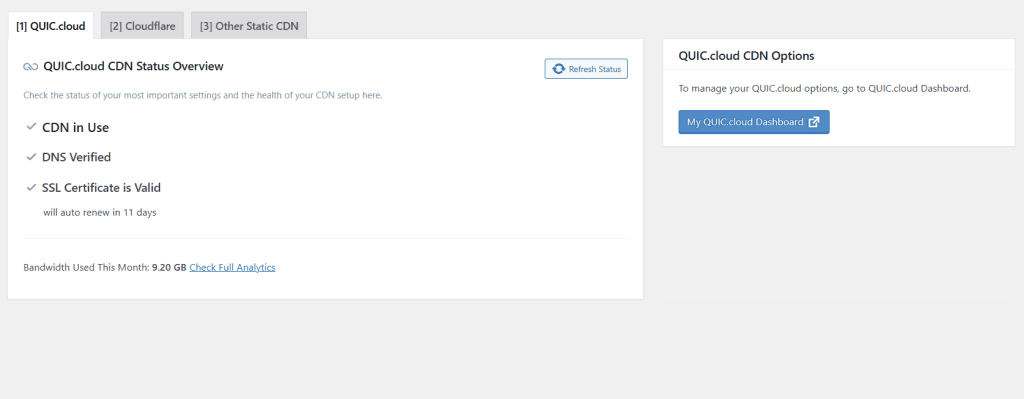
To set up QUIC.cloud CDN: connect your domain key in General > Online Services, then configure your CDN settings directly in the QUIC.cloud Dashboard (not inside the plugin). The plugin just shows the connection status.
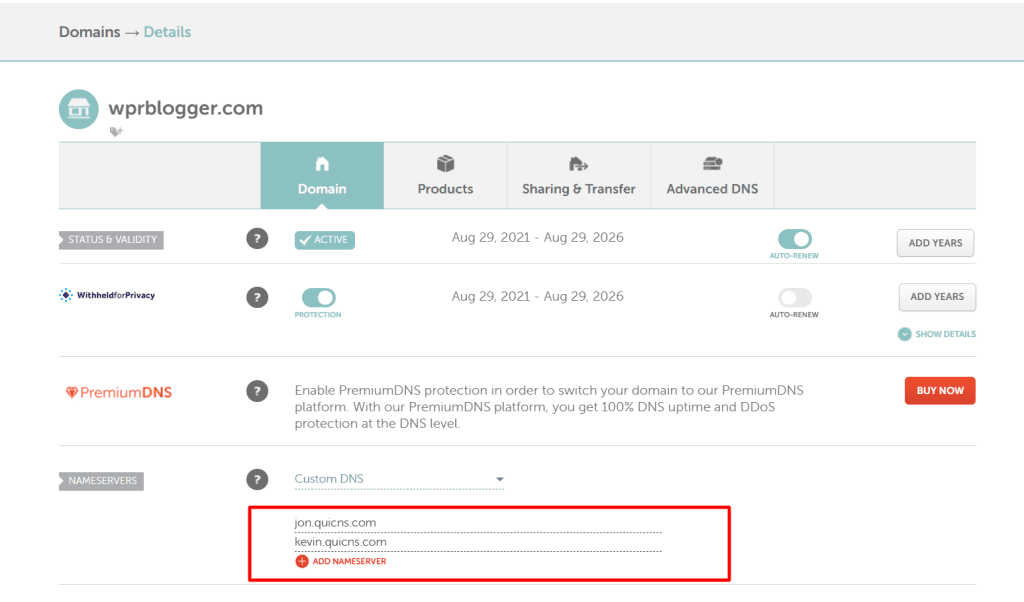
There are a couple of steps to complete. First, you must change the nameserver in your Domain Registrar account to use QUIC.cloud CDN.
When you complete QUIC.cloud registration and connecting your domain name: DNS records and nameservers are automatically configured and assigned to you.
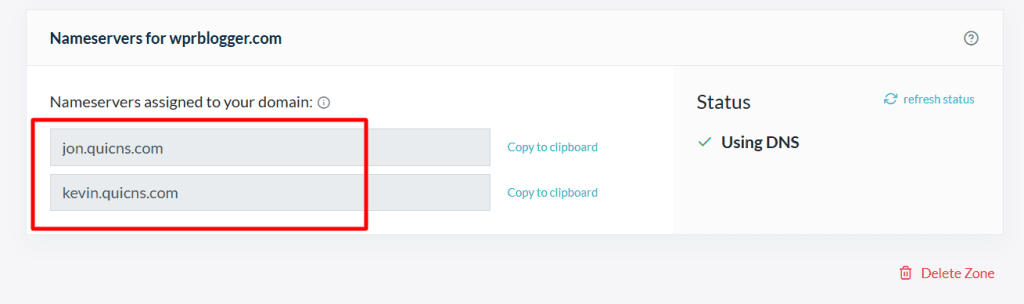
Copy the nameservers and update them in your domain registrar dashboard.
I use Namecheap, and here is a screenshot to show you how.
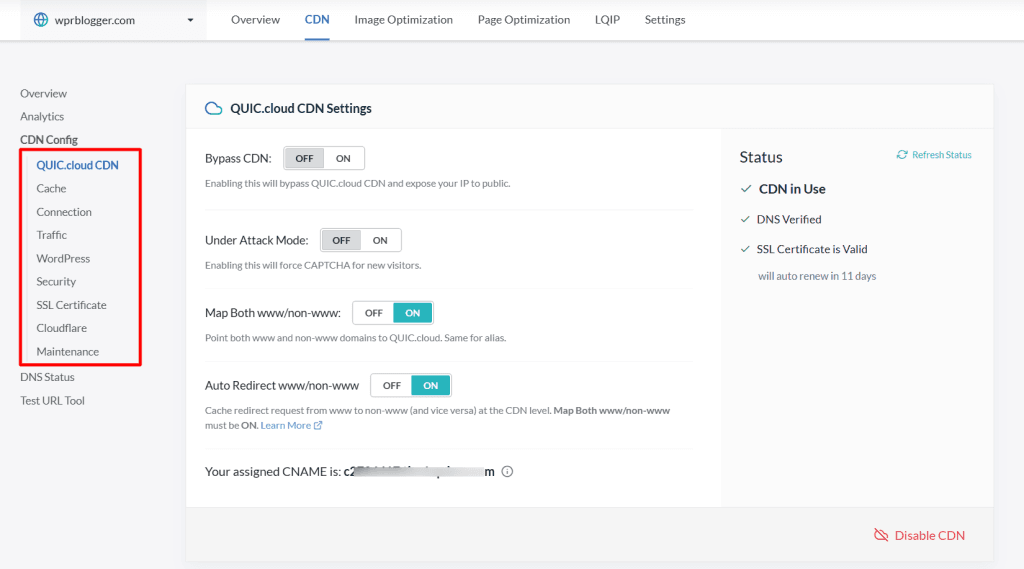
After this step, you need to complete the QUIC.cloud CDN security settings. Review the settings in the red box in the image, and make your selections based on your site’s needs.
One important note: LiteSpeed offers a free tier of its QUIC.cloud CDN, which offers 6 PoPs and basic DDoS protection with limited monthly free credit for image and page optimization, and CDN bandwidth.
Switch to the Standard plan to enable access to all 78 PoPs (Point of Presence) and advanced DDoS protection. This is a Pay-as-You-go plan.
You refill your account and allocate credit to LiteSpeed online services for use, including CDN, Image, and Page optimization features.
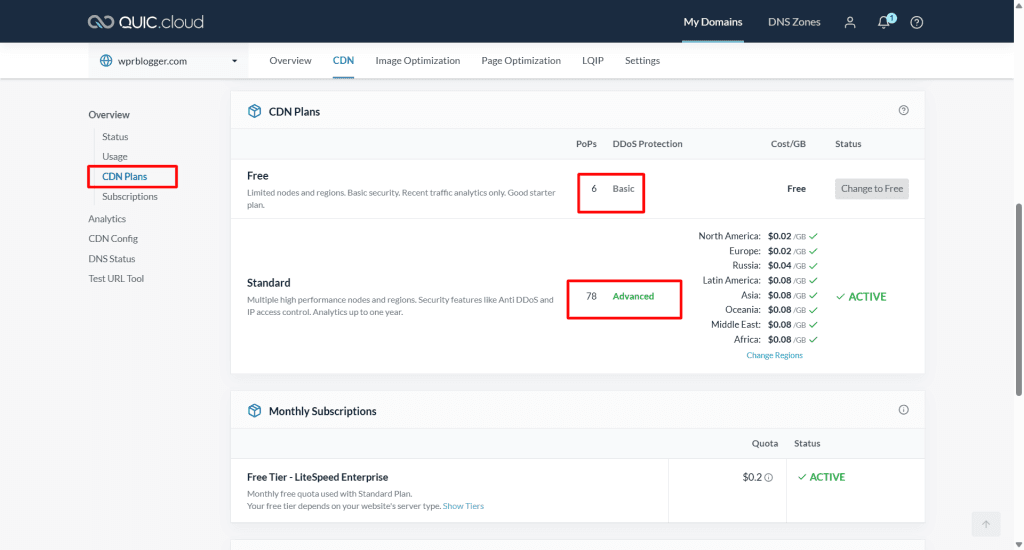
You still get the free monthly credit. Paid credit is used when you run out of free plan allocation. Unless your blog gets fewer than 500 unique visitors monthly, you will definitely run out of free credit in a few days.
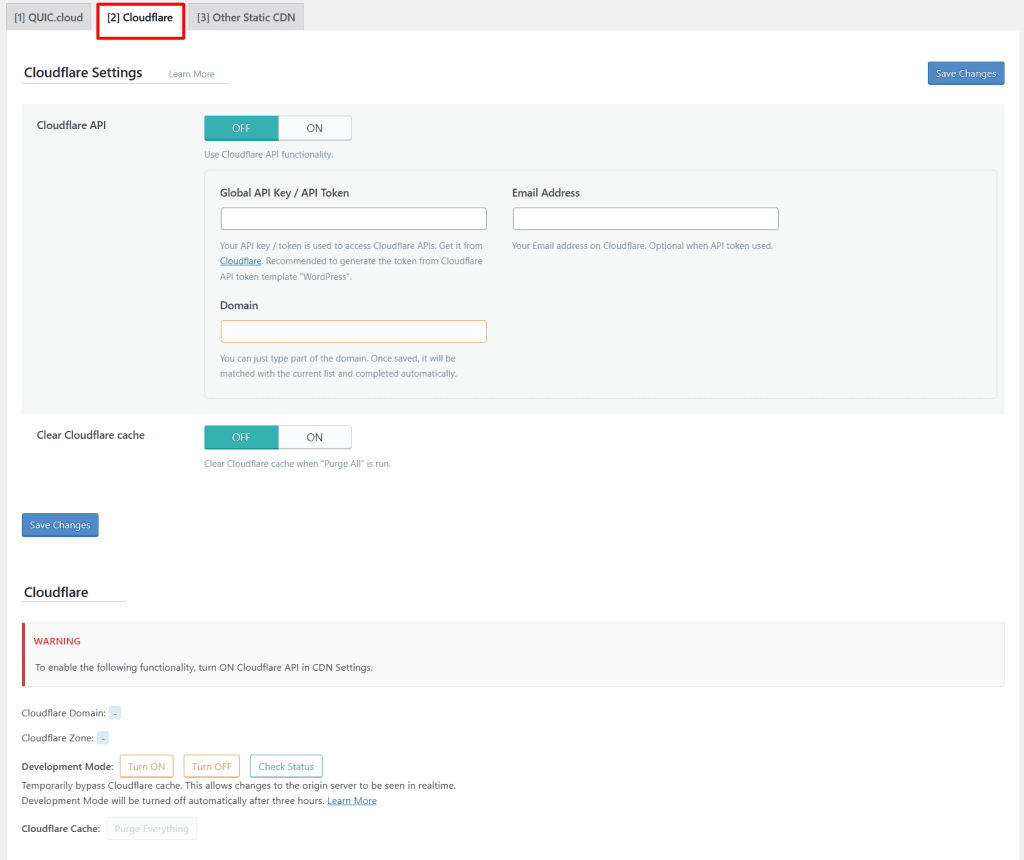
Cloudflare Tab
Cloudflare API is disabled on this site due to QUIC.cloud CDN is being used instead. If you use Cloudflare rather than QUIC.cloud, you’d enter your API credentials here. You don’t need both.
Other Static CDN Tab
CDN Mapping is OFF. This option is only needed if you use a traditional pull CDN (like BunnyCDN or KeyCDN) with a separate CDN subdomain for static files. Not needed when using QUIC.cloud or Cloudflare.
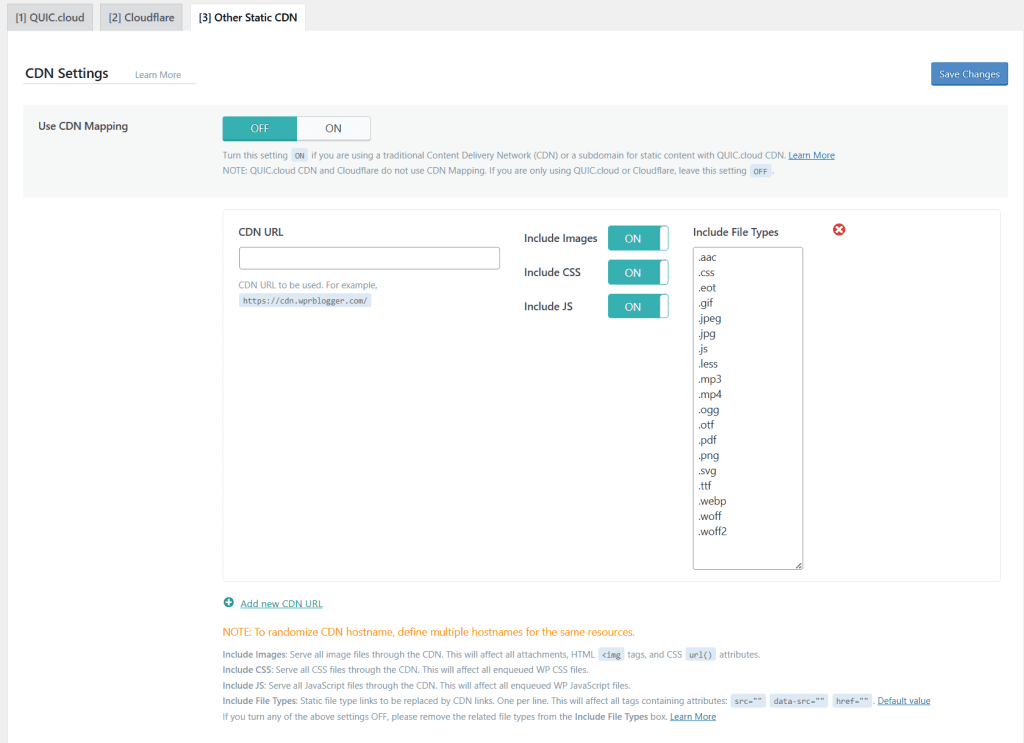
Image Optimization
Go to LiteSpeed Cache > Image Optimization. There are two tabs: Summary and Settings.
Image Optimization Summary
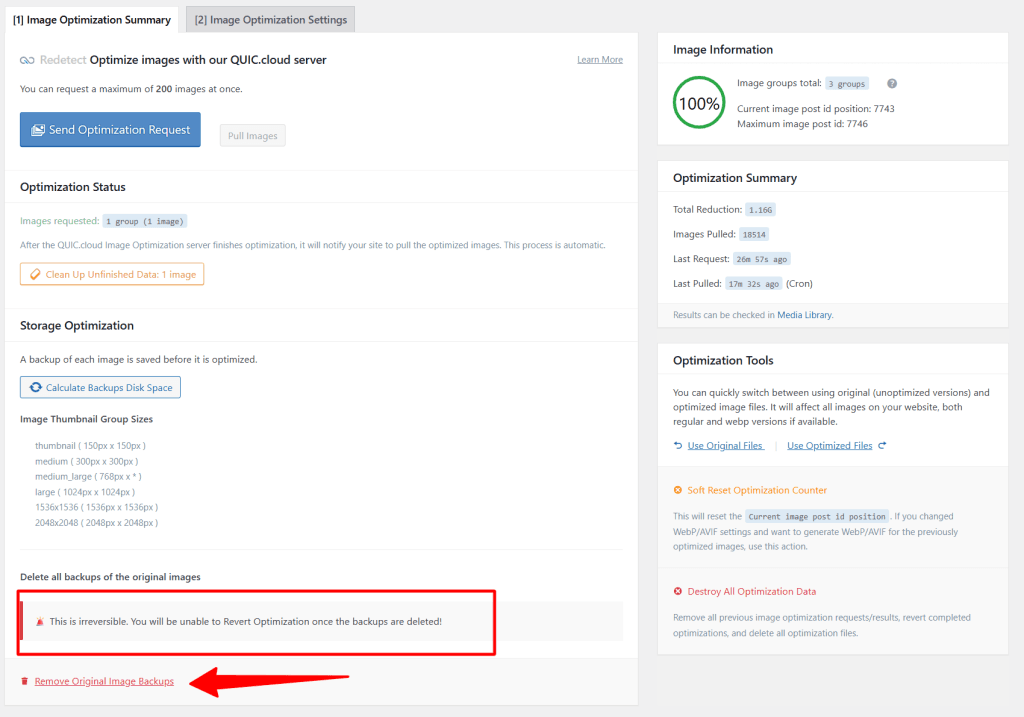
This tab shows your optimization status. On this site: 100% of images optimized, 18,274 images pulled, with a total file size reduction of 1,156 units.
The Auto Request Cron is ON, so new images get optimized automatically after upload.
The optimization runs through QUIC.cloud servers. You send a request, QUIC.cloud processes and compresses your images, then pushes them back. You can request up to 200 images at a time.
Image Optimization Settings
| Setting | Value | Notes |
|---|---|---|
| Auto Request Cron | ON | Automatically submits new images for optimization. Set and forget. |
| Optimize Original Images | ON | Replaces originals with optimized versions and keeps backups. Best file size savings. |
| Remove Original Backups | OFF | Keep this OFF. Once backups are deleted, you can’t revert optimization. Irreversible. |
| Optimize Losslessly | OFF | Lossless compression gives larger files. Lossy (default) gives smaller files with near-identical visual quality. |
| Next-Gen Image Format | WebP | Converts images to WebP — smaller files with no visible quality loss. Supported by all modern browsers. |
| WebP/AVIF For Extra srcset | ON | Ensures WebP is used in srcset image sets generated outside standard WordPress logic. |
| Preserve EXIF/XMP data | OFF | Stripping EXIF data reduces file size. Only keep ON if you need GPS or copyright data in images. |
| Optimize Image Sizes | All ✓ | All standard sizes (Thumbnail through 2048×2048) are optimized. |
Important:
Remove Original Backups is intentionally left OFF even though it saves disk space. LiteSpeed explicitly warns that deleting backups is irreversible — you’d lose the ability to switch back to originals if needed.
Page Optimization
Go to LiteSpeed Cache > Page Optimization. This is the most complex section and the one most likely to break things if you’re not careful.
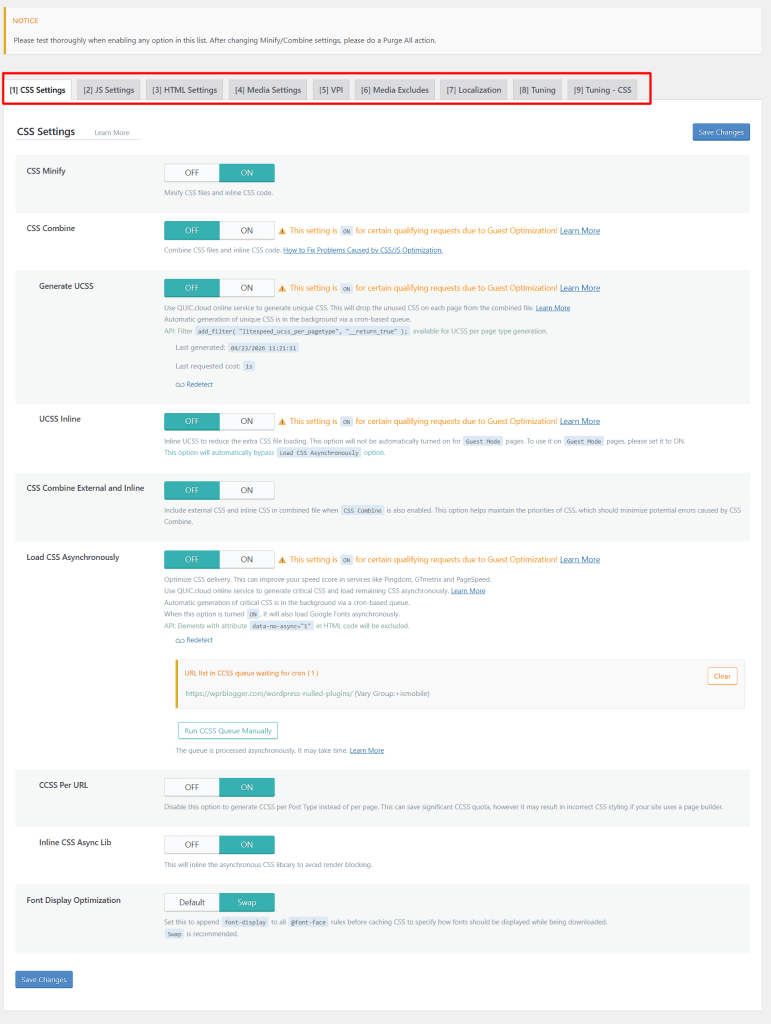
There are nine sub-tabs. Work through them in order and test after each major change.
Important:
LiteSpeed Cache displays a notice at the top of this section: test thoroughly after enabling any option. After changing Minify/Combine settings, always do a Purge All.
Now, let’s walk through the tabs.
CSS Settings Tab
| Setting | Value | Notes |
|---|---|---|
| CSS Minify | ON | Removes whitespace and comments from CSS files. Safe on almost all sites. |
| CSS Combine | OFF | Merges all CSS into one file. Left OFF — caused FOUC (Flash of Unstyled Content) in PageSpeed Insights on this site. |
| Generate UCSS | OFF | Removes unused CSS per page via QUIC.cloud. Left off — CCSS handles async loading instead. |
| UCSS Inline | OFF | Off because UCSS generation is also off. |
| CSS Combine External and Inline | OFF | Off because CSS Combine itself is off. |
| Load CSS Asynchronously | OFF | Left off — site uses CCSS Per URL approach instead. |
| CCSS Per URL | ON | Generates a separate Critical CSS file per URL. More accurate for page builders. |
| Inline CSS Async Lib | ON | Inlines the async CSS library to avoid an extra render-blocking request. |
| Font Display Optimization | Swap | Adds font-display: swap to @font-face rules. Prevents invisible text during font loading. |
Important:
CSS Combine is OFF on this site because it triggered a FOUC (Flash of Unstyled Content) visible in Google PageSpeed Insights when LiteSpeed Cache’s CSS Combine setting was active. If you enable it on your site, always test in incognito and in PageSpeed Insights — not just in your own browser.
Tuning CSS Tab (Tab 9)
The Tuning CSS tab is where you handle exceptions and advanced CCSS configuration. Most fields are left empty on this site except one:
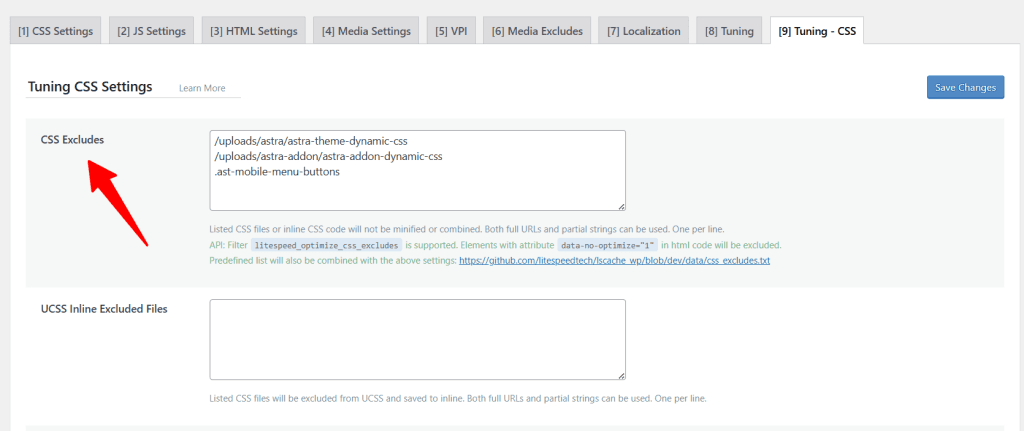
The UCSS Inline Excluded Files, UCSS Selector Allowlist, and UCSS URI Excludes fields are all empty because UCSS is not active on this site.
JS Settings Tab
| Setting | Value | Notes |
|---|---|---|
| JS Minify | ON | Removes whitespace and comments from JavaScript files. Safe and effective. |
| JS Combine | OFF | Merges all JS into one file. Left OFF — can break interactive elements on many themes and plugins. |
| JS Combine External and Inline | OFF | Off because JS Combine itself is off. |
| Load JS Deferred | Deferred | Delays JS until after HTML is parsed. Improves FID/TBT scores. Deferred is safer than Delayed for most sites. |
Pro Tip:
Deferred vs. Delayed: Deferred loads JS after the HTML is fully parsed. Delayed wait for user interaction (e.g., a mouse move or scroll) before loading JS. Delayed gives better PageSpeed scores but can break functionality — Deferred is the safer choice for most sites.
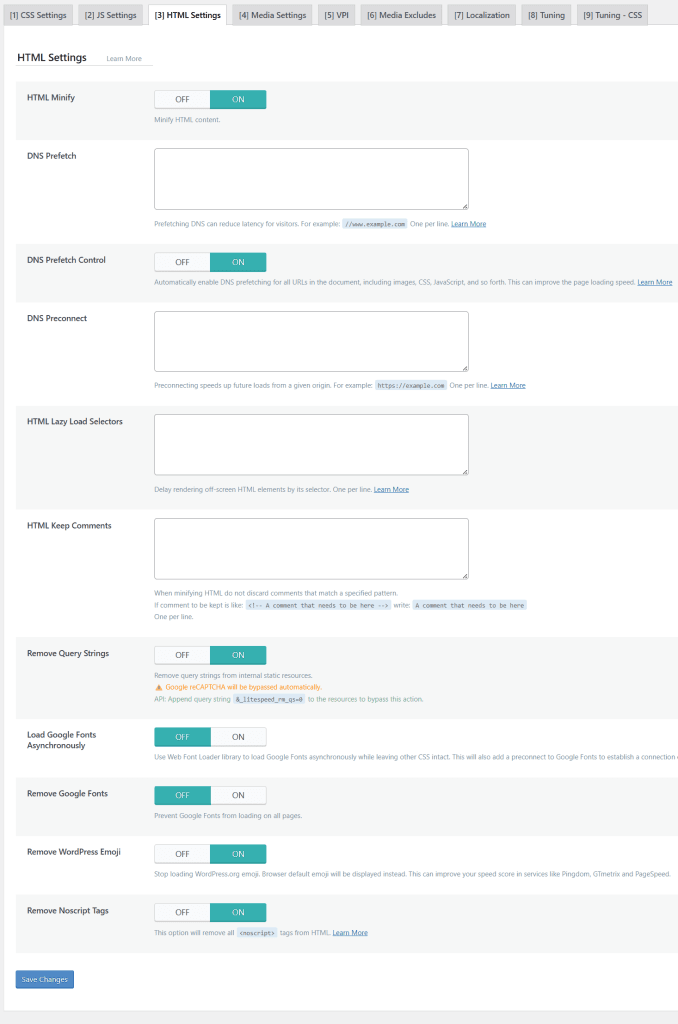
HTML Settings Tab
| Setting | Value | Notes |
|---|---|---|
| HTML Minify | ON | Removes whitespace from HTML output. Minor file size saving with no visible effect. |
| DNS Prefetch Control | ON | Automatically adds DNS prefetch hints for all external URLs. Reduces latency for third-party resources. |
| Remove Query Strings | ON | Removes version query strings (?ver=x.x) from static files. Improves caching and PageSpeed scores. |
| Load Google Fonts Asynchronously | OFF | Left off — fonts are managed directly through the Astra (your theme) theme settings. |
| Remove Google Fonts | OFF | Not removing Google Fonts — they’re needed for the site’s typography. |
| Remove WordPress Emoji | ON | Stops WordPress loading its emoji script. Browser emoji displays instead. Small but easy win. |
| Remove Noscript Tags | ON | Removes noscript tags from HTML output. Marginally reduces page weight. |
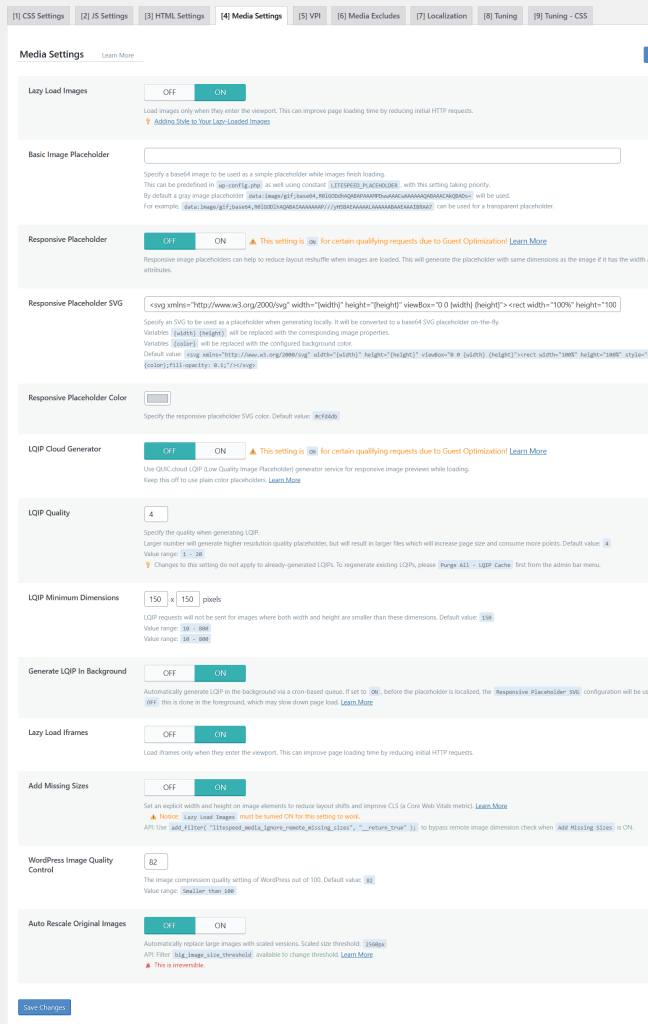
Media Settings Tab
| Setting | Value | Notes |
|---|---|---|
| Lazy Load Images | ON | Loads images only when they enter the viewport. Reduces initial page weight significantly. |
| Responsive Placeholder | Auto | Auto-activated for Guest Optimization qualifying requests only. |
| LQIP Cloud Generator | Auto | Low Quality Image Placeholder via QUIC.cloud. Also auto-activated for Guest Optimization. |
| LQIP Quality | 4 | Low enough to be tiny, high enough to give shape context while the real image loads. |
| Generate LQIP In Background | ON | Processes LQIP via cron queue rather than blocking page load. |
| Lazy Load Iframes | ON | Delays loading of embedded iframes (YouTube, etc.) until they scroll into view. |
| Add Missing Sizes | ON | Adds explicit width and height to images without them. Reduces CLS (layout shift). |
| WordPress Image Quality | 82 | Default value. 82/100 gives good visual quality with meaningful file size reduction. |
| Auto Rescale Original Images | OFF | Irreversible — avoid unless you’re sure you want originals permanently scaled down. |
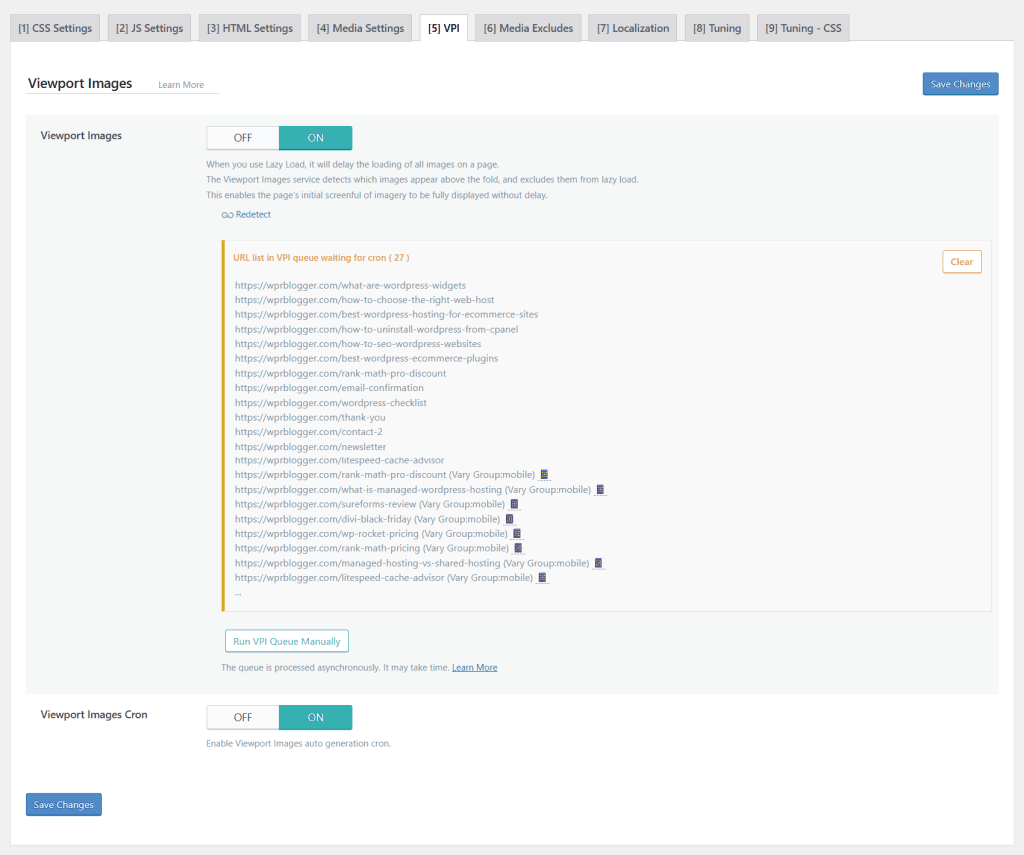
VPI Tab (Viewport Images)
| Setting | Value | Notes |
|---|---|---|
| Viewport Images | ON | Detects which images appear above the fold on each URL and excludes them from lazy load entirely — so they load immediately without deferral. Directly improves LCP (Largest Contentful Paint). Works alongside LQIP, not instead of it. |
| Viewport Images Cron | ON | Automatically processes the VPI queue in the background via cron. Enable together with Viewport Images so new URLs are detected and processed without manual intervention. |
Pro Tip:
LQIP and VPI are complementary, not interchangeable. LQIP generates tiny blurred previews for all images as placeholders while they load. VPI (Viewport Images) does something different — it detects which specific images appear above the fold on each URL and excludes those images from lazy load entirely, so they load immediately without any deferral or placeholder.
This directly improves your LCP (Largest Contentful Paint) score. If your LCP score needs improvement, enabling VPI + Viewport Images Cron is a low-risk test. Ensure the QUIC.cloud service is connected, and the queue is already populated.
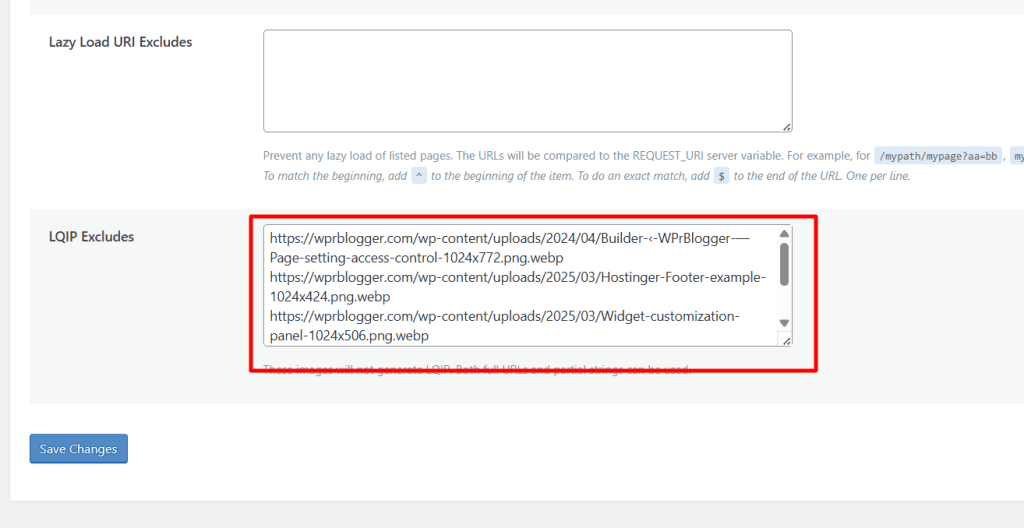
Media Excludes Tab
Specific images are excluded from lazy load and LQIP processing to prevent Core Web Vitals issues:
Localization Tab
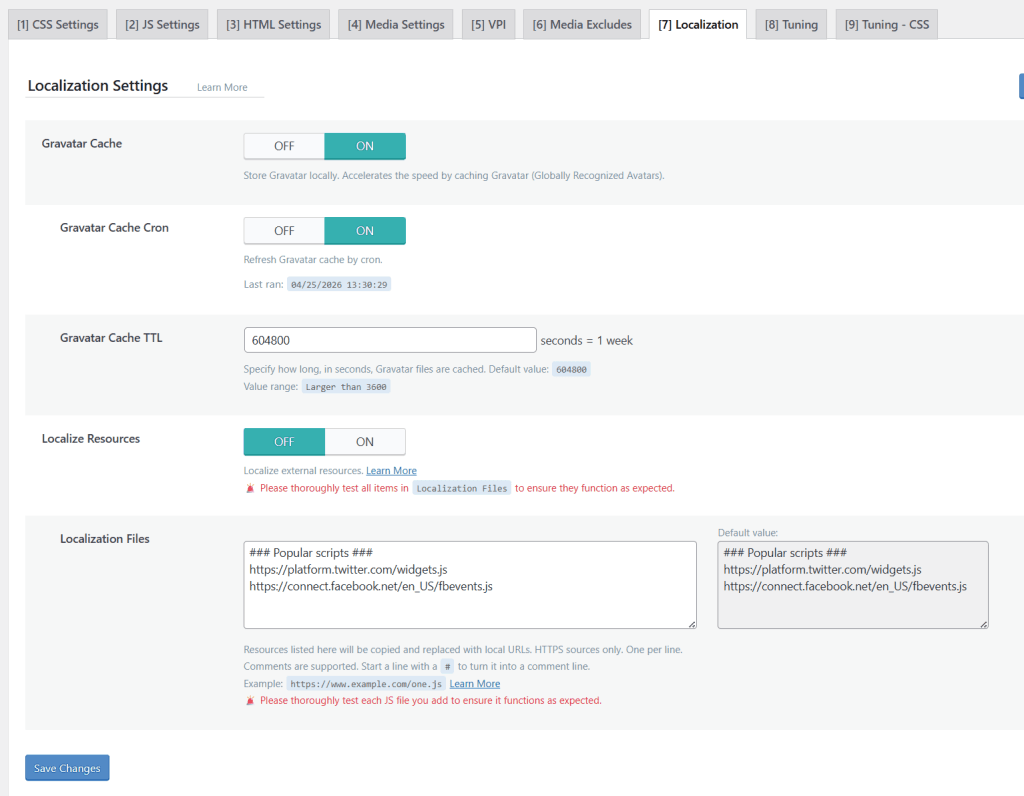
| Setting | Value | Notes |
|---|---|---|
| Gravatar Cache | ON | Stores Gravatar avatar images locally. Eliminates third-party requests for comment avatars. |
| Gravatar Cache Cron | ON | Automatically refreshes cached Gravatars. TTL set to 604800 (1 week). |
| Localize Resources | OFF | Left off — but worth testing if eliminating third-party DNS lookups is a priority. The Twitter widgets.js is generally safe to localize. The Facebook fbevents.js (Pixel) is riskier — test with Facebook’s Pixel Helper extension to confirm tracking still fires correctly. |
| Localization Files | Default | Pre-populated with platform.twitter.com/widgets.js and connect.facebook.net/en_US/fbevents.js — these are the scripts that would be served locally if Localize Resources is enabled. |
Pro Tip:
Localize Resources copies external JS files to your server and serves them locally, eliminating third-party DNS lookup latency. The Localization Files field already has two scripts pre-loaded: platform.twitter.com/widgets.js (Twitter embedded widgets) and connect.facebook.net/en_US/fbevents.js (Facebook Pixel).
Localizing the Twitter script is generally safe if you’re not using Twitter embeds site-wide — the file just loads locally instead of from Twitter’s CDN. Localizing the Facebook Pixel script is riskier — it can break conversion tracking if Facebook’s servers expect to receive events from a specific origin URL. If you do test this, verify that Facebook Pixel fires correctly in Facebook’s Pixel Helper browser extension before publishing.
Tuning Tab
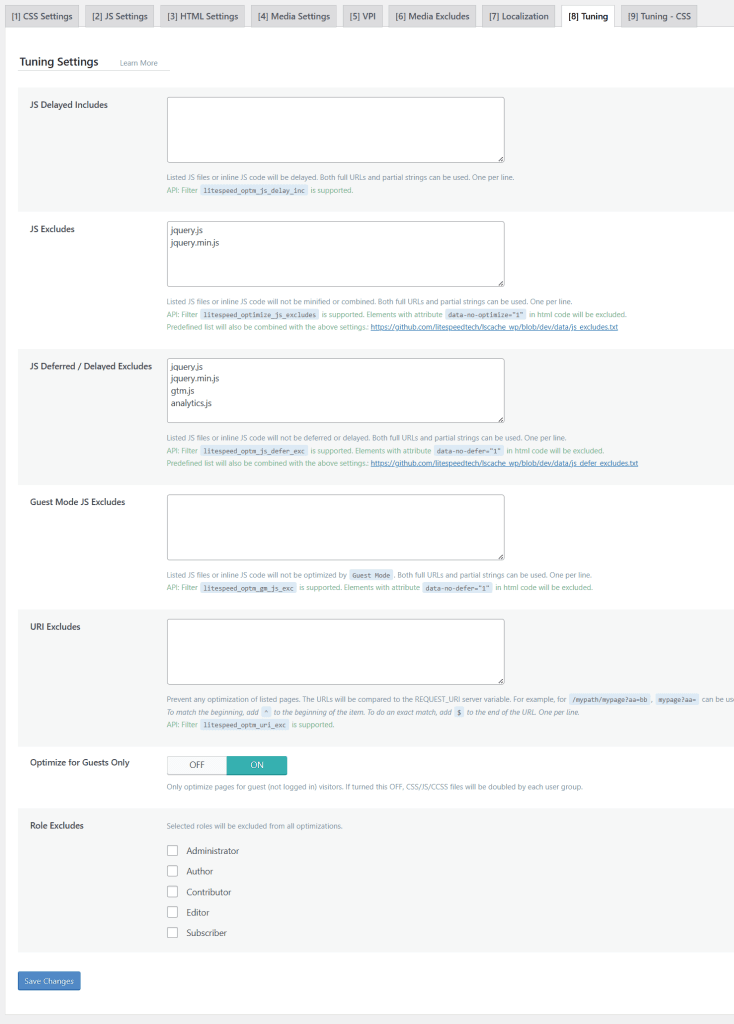
The Tuning tab is where you add exclusions to prevent JS Defer/Delay from breaking scripts that need to load immediately.
| Setting | Value | Notes |
|---|---|---|
| JS Excludes | Set | jquery.js, jquery.min.js — prevents jQuery from being minified or combined. |
| JS Deferred/Delayed Excludes | Set | jquery.js, jquery.min.js, gtm.js, analytics.js — these must load normally, not deferred. |
| Optimize for Guests Only | ON | Limits CSS/JS/CCSS optimization to logged-out visitors only. Prevents doubling of QUIC.cloud quota usage. |
Important:
The JS Deferred/Delayed Excludes list is critical. If you defer GTM or analytics scripts without excluding them, they may fire out of order, breaking tracking. Always exclude analytics, tag managers, and critical UI scripts.
Database Optimization
Go to LiteSpeed Cache > Database. There are two tabs: Manage and DB Optimization Settings.
DB Optimization Settings Tab
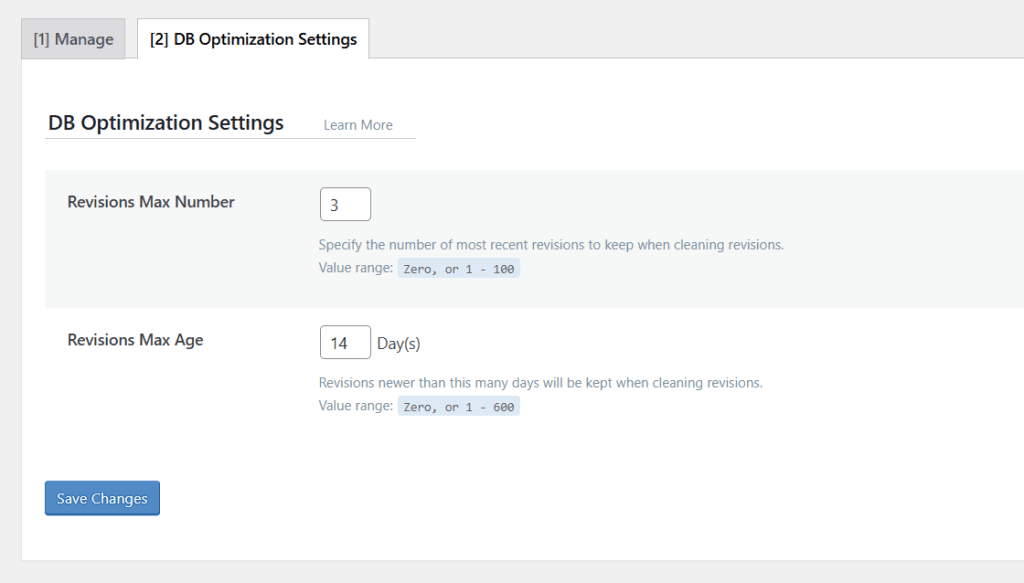
| Setting | Value | Notes |
|---|---|---|
| Revisions Max Number | 3 | Keeps only the 3 most recent revisions per post. Prevents database bloat over time. |
| Revisions Max Age | 14 days | Deletes revisions older than 14 days (except the 3 most recent). Good for frequent publishers. If your writing workflow spans multiple weeks, consider bumping to 30 days to avoid losing revisions before a post is published. |
Pro Tip:
14 days is a reasonable default for bloggers who publish frequently and write posts in one or two sessions. But if your writing workflow spans multiple weeks — drafting, editing, and revising a post over 2-4 weeks before publishing — 14 days can delete earlier revisions before the post is even live.
A safer value for longer workflows is 30 days (enter 30 in the field). This gives you a full month of revision history while still keeping the database lean. The Revisions Max Number of 3 acts as a second safety net — even within the age window, only 3 revisions per post are kept.
Manage Tab
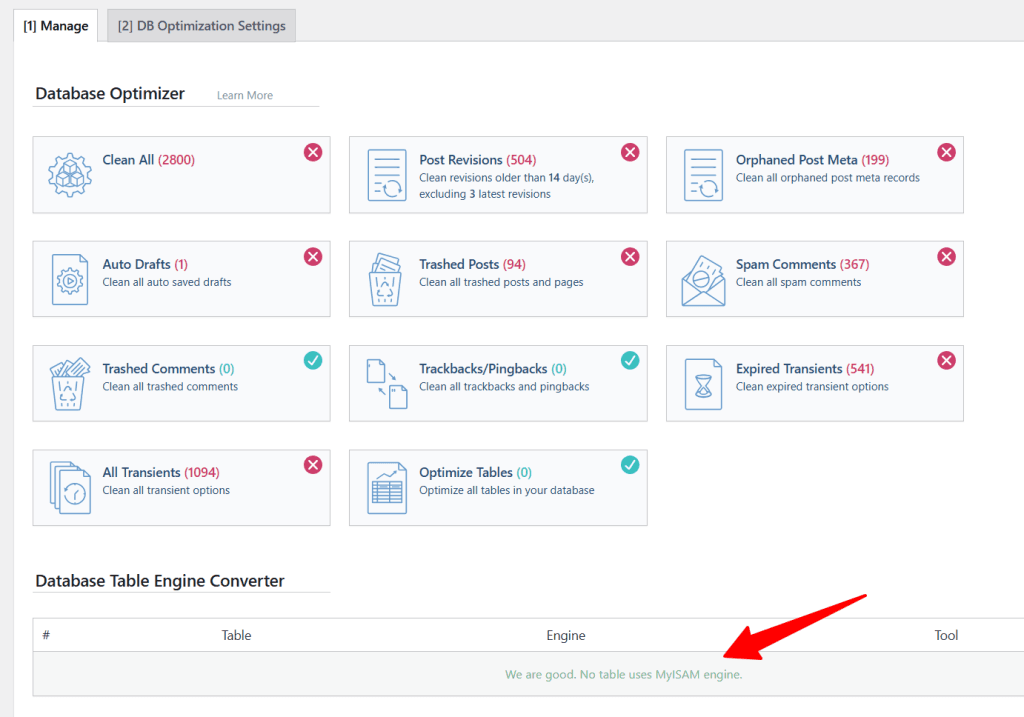
The Manage tab shows everything in your database that can be cleaned. On a live site, you’ll often see numbers for:
Click Clean All to remove eligible items (respecting your max revision settings). Run this periodically — monthly is a good cadence for active blogs.
The Database Table Engine Converter section will tell you if any tables are using the older MyISAM engine — on this site, it shows “We are good. No table uses the MyISAM engine.”
Pro Tip:
Before running Clean All, make sure your Revisions Max Number is set. If it’s left at default (0 = unlimited), Clean All won’t remove any revisions.
Crawler (Optional)
Go to LiteSpeed Cache > Crawler. The Crawler pre-visits your pages so they’re already cached before a real visitor arrives. This eliminates the “cold cache” problem, where the first visitor to a page after a cache purge gets a slow uncached response.
However, the Crawler service must be enabled on your server for this function to work. Read this documentation to learn the right guidelines for your specific control panel.
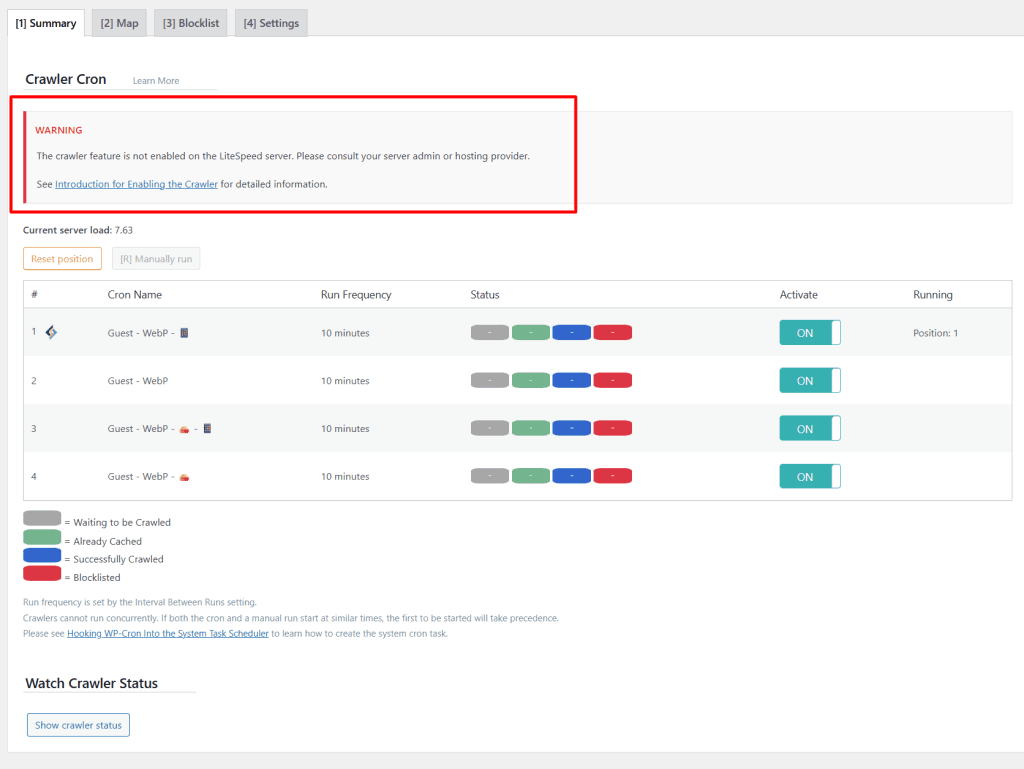
Crawler Settings
| Setting | Value | Notes |
|---|---|---|
| Crawler | OFF | Off on this site. Recommended OFF for shared hosting (can trigger resource limits). On managed LiteSpeed or VPS, consider enabling — it keeps cache warm after purges so the first real visitor doesn’t get a slow uncached response. |
| Crawl Interval | 302400 | Default value (3.5 days). How often the crawler re-crawls the full site if enabled. |
| Server Load Limit | 1 | Stops crawling if average server load exceeds 1. Prevents impact on live visitors. |
Pro Tip:
Whether to enable the Crawler depends on your hosting environment. On traditional shared hosting (e.g., Namecheap cPanel, Hostinger starter plans), leave it OFF — the crawler runs as a background process that generates real HTTP requests and can trip resource usage limits.
On managed LiteSpeed hosting (like Verpex) or a VPS, the crawler is worth enabling. With Server Load Limit set to 1, it will automatically pause if your server gets busy, so the risk to live visitors is controlled.
The benefit: after every Purge All, your pages are pre-warmed by the crawler before real visitors arrive — so nobody gets a slow uncached response.
Toolbox
Go to LiteSpeed Cache > Toolbox. This section is less about settings and more about maintenance tools. The main tabs are:
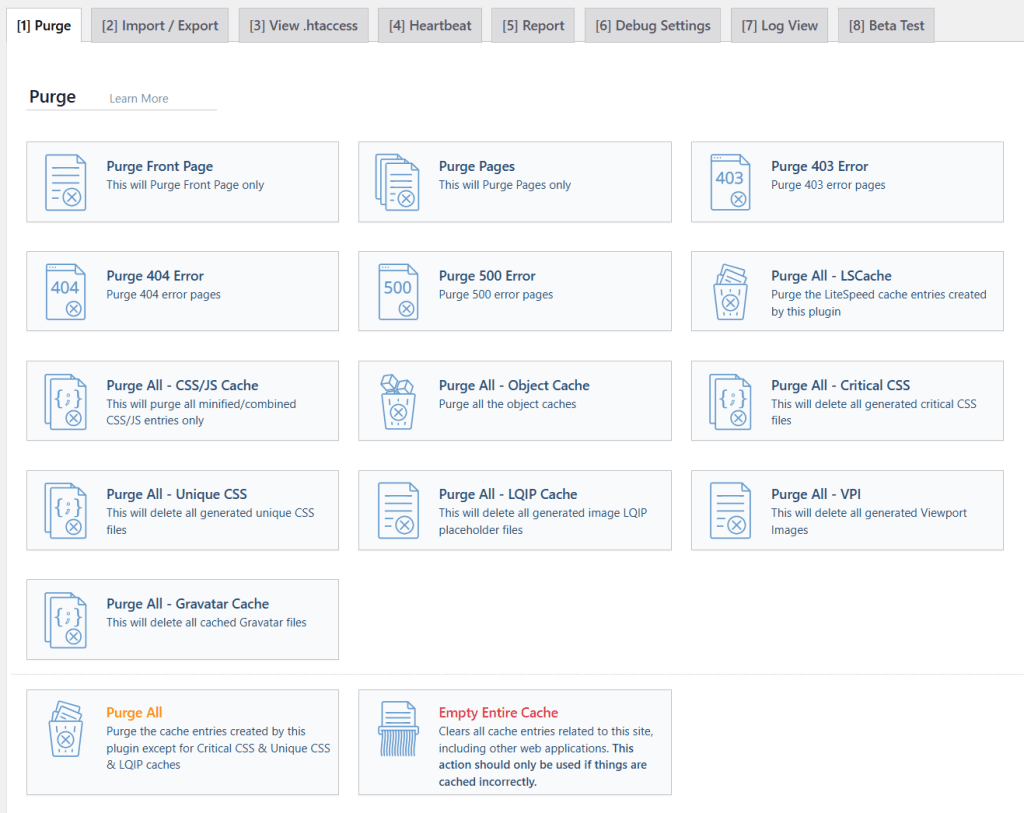
Common LSCWP Issues and How to Fix Them
Flash of Unstyled Content (FOUC) in PageSpeed Insights
Symptom: your site looks fine in your browser, but PageSpeed Insights shows a screenshot with a broken or unstyled layout.
Cause: CSS Combine is merging files in a way that changes load order, causing styles to apply late.
Fix: go to Page Optimization > CSS Settings and turn CSS Combine OFF. Then do a Purge All. If you still see FOUC, check whether CSS Combine External and Inline is enabled and disable it.
Table of Contents Breaks for Logged-Out Users
Symptom: your TOC plugin works fine when you’re logged in, but disappears or breaks for regular visitors.
Cause: JS Defer or JS Delay is loading your TOC plugin’s JavaScript after the HTML, so the TOC initializes before its script is ready.
Fix: go to Page Optimization > Tuning and add your TOC plugin’s JS file to the JS Deferred/Delayed Excludes list.
Open your browser’s DevTools and go to Network > JS to find the filename. Partial filename matching works (e.g., “table-of-contents” matches any file whose path contains that string).
Admin Bar Showing in Cached Pages
Symptom: logged-out visitors see the WordPress admin bar or admin-only UI elements.
Fix: go to Cache > Excludes and make sure Administrator is checked under Do Not Cache Roles. This prevents admin sessions from populating the public cache.
Recommended Hosting for LiteSpeed Cache
LiteSpeed Cache reaches its full potential on a LiteSpeed web server. Here are three solid options that run LiteSpeed and support the advanced features in this guide:
Verpex
Verpex runs LiteSpeed Enterprise on all plans, including shared hosting, and supports the Redis object cache service.
Real-world TTFB tests from WPrBlogger showed consistent sub-73ms server response times. Excellent for small businesses and affiliate sites that want premium-grade infrastructure without VPS pricing.
Namecheap EasyWP
Namecheap’s shared hosting platform uses a LiteSpeed-based stack. It’s among the most affordable LiteSpeed-compatible options available, making it a good entry point for new bloggers who want the speed benefits of LiteSpeed without a large hosting budget.
Hostinger
Hostinger’s shared and cloud hosting plans run LiteSpeed.
With competitive pricing, a beginner-friendly hPanel, and LiteSpeed Cache pre-installed, it’s one of the most popular entry points for WordPress and WooCommerce users looking to optimize performance.
Final Tips Before You Go Live
Here’s a quick checklist to run through after applying these settings: