
Inside LiteSpeed Cache’s Image Optimization settings, there’s a toggle called Remove Original Backups. It looks harmless. It promises disk space savings.
The plugin slaps two separate red warnings, including the word “irreversible”, not to delete the original image backups. However, most users either ignore the warnings and click it anyway or ignore the setting entirely without understanding what it actually controls.
This post explains exactly what happens when you enable it, what you’re giving up, every scenario where that decision comes back to haunt you, and the one situation where enabling it is actually justified.
Important:
LiteSpeed Cache displays this warning twice in the UI: ‘This is irreversible. You will be unable to Revert Optimization once the backups are deleted.’ This is not boilerplate. Read this post before you click.
What Does ‘Remove Original Backups’ Actually Do?
When LiteSpeed Cache optimizes your images through QUIC.cloud, here is the exact sequence:
Remove Original Backups deletes step 4 — permanently. Once those backup files are gone, you cannot revert to your original images through LiteSpeed Cache.
Your only path back is to restore from a full server backup or a recent media backup, if one exists.
To check how much disk space your backups are currently consuming before making any decision, go to LiteSpeed Cache > Image Optimization > Summary tab and click Calculate Backups Disk Space.
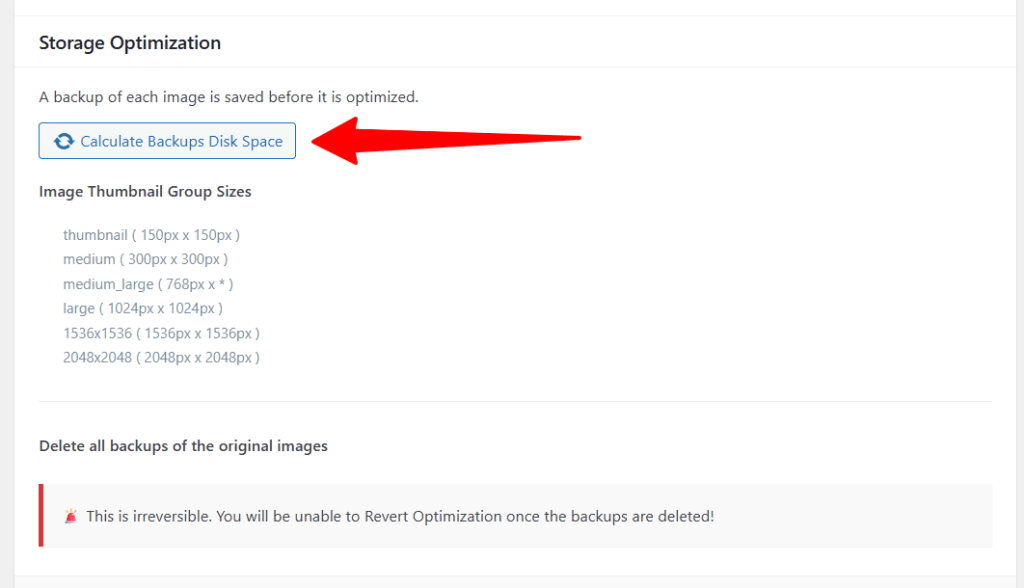
That number is the only legitimate reason to consider this image backup setting.
Pros and Cons at a Glance
| ✅ Pros | ❌ Cons |
|---|---|
| Frees up disk space — the only benefit | Permanently unrecoverable — no undo button |
| Removes redundant files once you’re confident in optimization quality | Locks you into current optimization settings forever |
| Marginally simplifies your uploads folder structure | Blocks clean re-optimization if you switch formats (e.g., WebP → AVIF) |
| Complicates or breaks host migration workflows | |
| Eliminates fallback if a bad optimization batch occurs | |
| Makes switching image optimization services much harder |
Every Reason Not to Enable It — In Detail
1. It Is Genuinely Irreversible
This isn’t standard software warning language. LiteSpeed Cache’s developers wrote irreversible in the UI because they mean it.
There is no trash folder. There is no 30-day grace period. There is no recovery option within the caching plugin. The moment you click Remove Original Image Backups, those files are deleted from your server’s filesystem.
The only recovery path is a full hosting backup, and that raises its own questions.
How recent is your most recent backup? Does your host take daily backups and retain them long enough? Are your backups stored separately from your main server (so a server issue doesn’t wipe both)?
If you can’t answer all three confidently, this is an additional reason you shouldn’t delete the original image backups folder in the LiteSpeed Cache plugin.
Pro Tip:
Before touching this setting, go to your hosting control panel and verify your backup schedule, retention period, and storage location. Backups stored on the same server as your site are not a reliable safety net.
2. You Lose the Ability to Revert Optimization
Image optimization is not a perfect process. Compression algorithms can produce unexpected results — banding artifacts on gradient images, color shifts in PNG files with transparency, and quality degradation on images that were already compressed before upload.
QUIC.cloud’s optimization is generally excellent, but no automated system catches every edge case across thousands of images.
With your original image files intact, reverting is a one-click operation inside LiteSpeed Cache (Image Optimization Summary > Use Original Files).
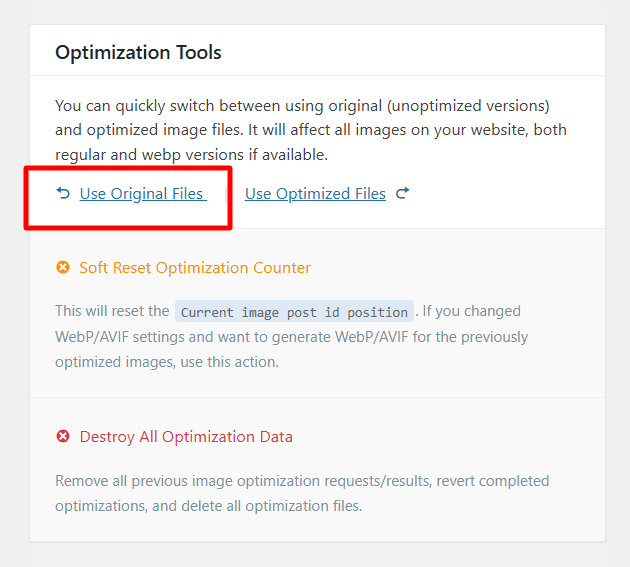
Without them, reverting means either restoring individual images from a backup manually — an extremely time-consuming process on a site with thousands of images — or accepting that the optimization results are permanent.
3. WebP Is Not the Final Image Format
WebP is the right format choice today. It’s well-supported across all modern browsers, delivers meaningful file size reductions, and LiteSpeed Cache handles the conversion automatically. But image format evolution doesn’t stop at WebP.
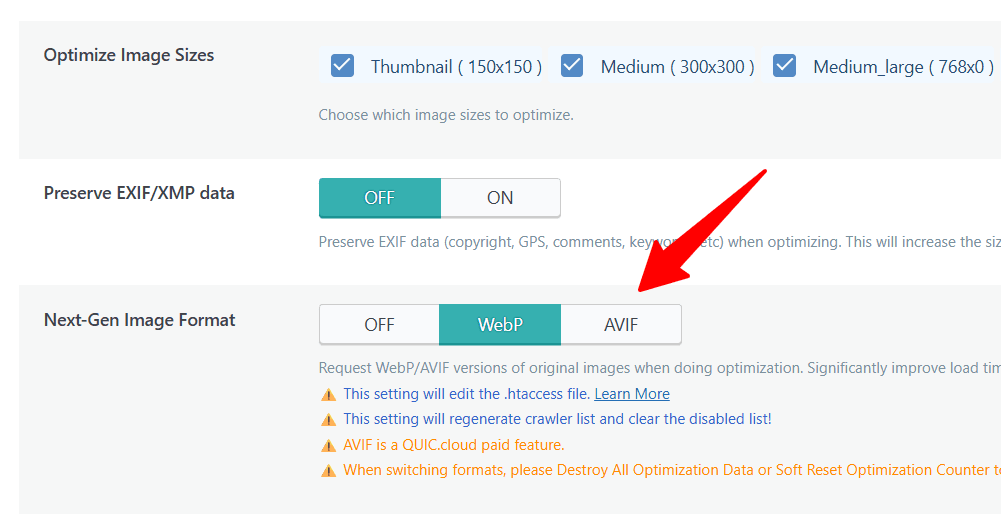
AVIF is already available in LiteSpeed Cache’s Image Optimization Settings (it appears as a format option alongside WebP).
AVIF achieves 20-50% smaller image file sizes than WebP at equivalent visual quality, and browser support is now widespread across Chrome, Firefox, Safari, and Edge. It is not a question of whether the industry moves to AVIF — it is already moving.
Here’s the problem:
When you re-optimize an already-compressed WebP file to AVIF, you’re running a lossy compression algorithm on output that was already lossy.
Each compression pass compounds quality loss. The result is visibly worse than converting from the original JPEG or PNG source. With your original uploaded images intact, the AVIF conversion is clean. Without them, every future format upgrade starts from a degraded source.
Important:
This isn’t hypothetical. LiteSpeed Cache already supports AVIF. If you delete your originals today and decide to switch to AVIF in six months, you will get noticeably worse image quality than if you had kept them.
4. Switching Image Optimization Services Becomes Painful
LiteSpeed Cache’s image optimization is tied to QUIC.cloud. If you ever decide to switch to a different image optimization service — ShortPixel, Imagify, Cloudinary, Squoosh, or a future tool that doesn’t exist yet – those services optimize images from source files.
Their algorithms, compression quality settings, and format support are calibrated for original, uncompressed, or minimally compressed source images.
When a different optimization service receives an already-WebP-compressed file as its input, two things happen:
Keeping your originals means you can switch optimization services cleanly at any time without a quality penalty.
5. Hosting Migrations Carry Real Risk
Migrating a WordPress site to a new host is already one of the more complex maintenance tasks bloggers face.
When your original image backups are deleted, hosting migration introduces a specific risk that is easy to overlook until it’s too late.
Here is the typical migration sequence and where the problem surfaces:
The frustrating part is the time gap. The migration itself goes smoothly — no immediate red flags. The problem only surfaces weeks or months later, long after any straightforward recovery window has passed.
6. Migrating from LiteSpeed to Apache or Nginx
This is a scenario worth addressing directly because it’s more common than it sounds.
LiteSpeed servers are not universally available across all hosting providers. If your site grows to a point where you want to move to a dedicated server, a managed VPS, or a cloud infrastructure provider like DigitalOcean, AWS, or Google Cloud — many of those environments run Nginx or Apache by default, not LiteSpeed.
Here’s why this is relevant to your image backups:
The short version: moving off LiteSpeed to Apache or Nginx doesn’t immediately break anything, but it does eliminate your ability to use LiteSpeed Cache’s server-level optimization features going forward.
Your originals become your only option for clean re-optimization under any future server stack.
Pro Tip:
If you’re planning a migration to a non-LiteSpeed environment, keep your original image backups intact until you have fully configured image optimization on the new server and confirmed everything is working correctly. Only then — if ever — consider whether deleting backups makes sense.
7. A Bad Optimization Batch Has No Recovery
Automated image optimization runs on schedule via cron — often processing hundreds of images at a time without any human review. Most of the time, this is exactly what you want. But occasionally something goes wrong:
With the original image backup on your server, you can recover from any of these scenarios. You go to Image Optimization > Summary > Use Original Files, which instantly reverts all images site-wide.
Then you adjust your settings and re-optimize.
Without originals, your recovery options are: restore from a full server backup (disrupting everything), manually replace affected images one by one (impractical at scale), or accept the bad output permanently.
Where Removing Original Image Backup Makes Sense
Disk space pressure is the only legitimate reason to consider removing your original image backups.
If your hosting plan has a hard disk quota and your backups are consuming a significant portion of it — enough to affect your ability to upload new content or run your site — that is a real constraint worth addressing.
Even then, work through this checklist first:
Important:
Even if you work through this checklist and decide to proceed, download a full backup of your uploads folder to an external location — your local computer or a cloud storage service — before enabling the LiteSpeed Cache setting. This gives you a last-resort recovery path outside the server environment.
FAQs About Deleting LiteSpeed Backup Image
Final Verdict
Keep your original image backups. The disk space you save is a one-time, fixed benefit. The risks you’re accepting — loss of revert capability, format lock-in, migration complications, server stack flexibility — compound over time and are permanent.
LiteSpeed Cache’s image optimization is genuinely excellent. The results on a well-configured site speak for themselves — 18,274 images optimized (as of writing), meaningful file-size reductions, and WebP conversion running automatically.
That system works precisely because it operates on high-quality source files. The moment you delete those sources, you’re betting that you’ll never need them again. That’s a bet worth refusing.
If disk space is a real and pressing constraint, calculate your backup size first, explore a hosting plan upgrade, and only proceed after downloading an external backup of your uploads folder. Never delete what you can’t recreate.