

Hostinger is one of the top choices for shared hosting. It’s also one of the most affordable.
But affordable and popular is not the same as being a reliable web host you can trust with your business site.
That’s why I tested the Hostinger Unlimited plan, explored the dashboard, benchmarked server performance, reviewed the security layers, and covered everything I could.
I do this to help my readers make informed decisions. If you’re deciding between Hostinger and a comparable web host, this review should help you decide whether it is the right choice for you.
Hostinger

A hands-on review of Hostinger’s Unlimited web hosting plan, covering the hPanel dashboard, origin server TTFB testing, a hCDN versus Cloudflare performance comparison, AI tools, security features, and pricing.
Price: 2.99
Price Currency: USD
Operating System: Web
Application Category: BusinessApplication
4.3
Pros
- AI-assisted hPanel dashboard
- Free Object Cache
- LiteSpeed Preinstall and configure
- Daily backups
- AI Agents and developer tools
Cons
- hCDN underperforms
- lowest price requires 48 months subscription
Dashboard (hPanel)
If you’re coming from the traditional cPanel experience, hPanel is a completely new world of possibilities.
The dashboard is one of Hostinger’s selling points, and a significant advantage over web hosts still using cPanel.
I noticed that Hostinger wanted hPanel to feel more like the WordPress admin dashboard. In my experience, it actually does. So if you’re already a WordPress user, you’ll feel at home navigating your new web hosting control panel.
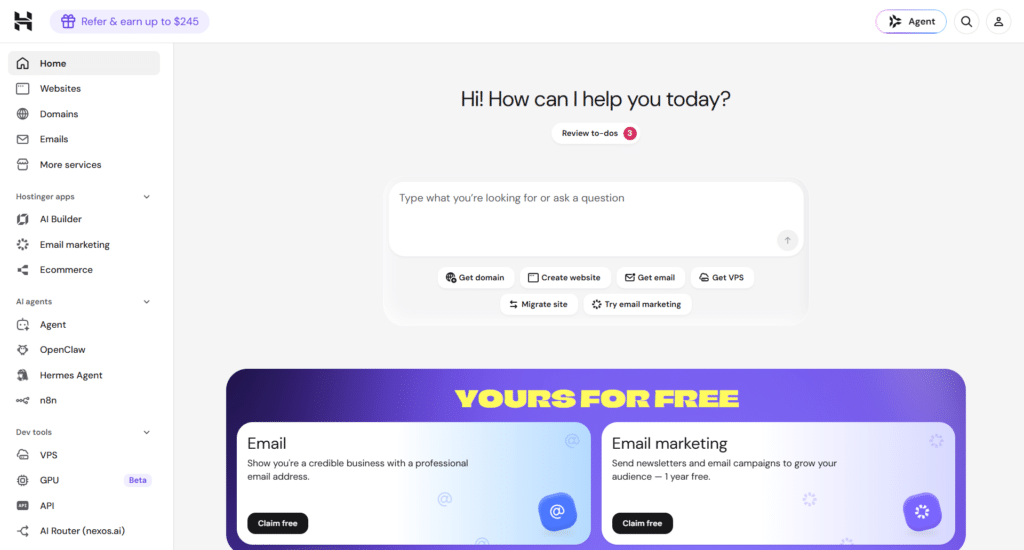
Hostinger has done a great job bringing essential website management tools directly into the dashboard, including AI Agents like n8n, OpenClaw, Hermes Agent, and Paperclip.
From building your WordPress site to connecting domains, managing cache, backups, hCDN, files, and performance and resource monitoring, everything lives inside your hPanel dashboard.
Building a WordPress or AI No-Code Site
Beyond WordPress, Hostinger lets you deploy custom PHP/HTML websites, web apps from GitHub, or upload your files directly. And if you already have existing sites somewhere, you can migrate them to Hostinger for free.
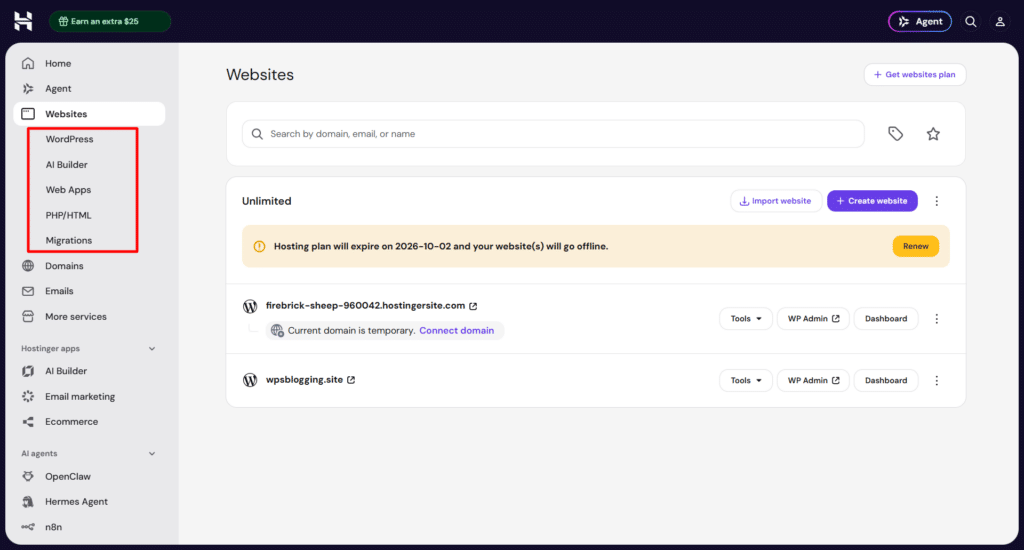
The Hostinger AI website builder is ideal for beginners or vibecoders who want a quick site setup with minimal input. You describe your idea, and the AI builds it (from design to images to content); everything is done for you. No plugins. No theme management.
However, you can build with AI in two ways: manual or vibe coding with the Hostinger Horizons AI Agent (Agentic).
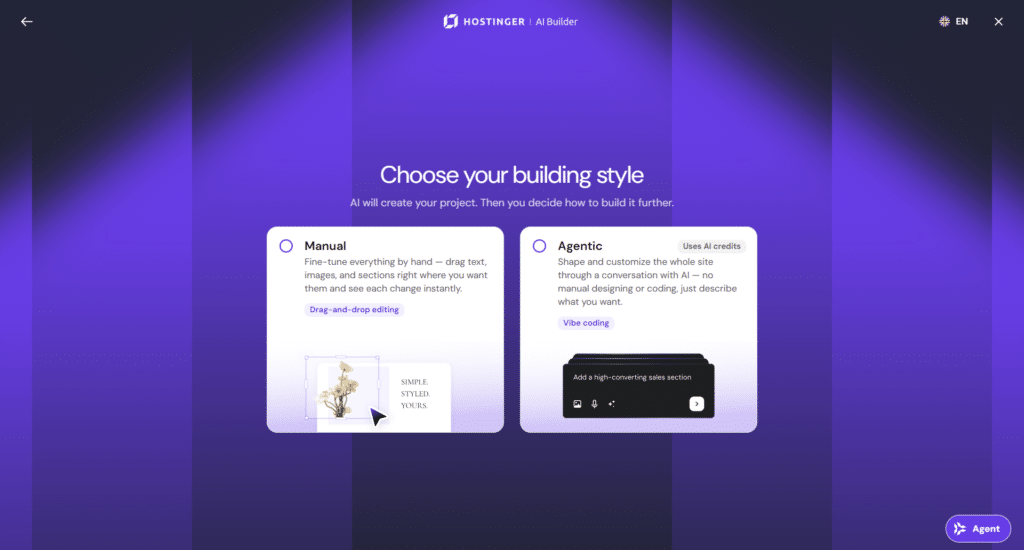
Both options work the same way: you describe what you want in the chat box, and the AI brings it to life. Where they differ is in the development process and customization options.
AI Builder (Manual) opens the first draft in a drag-and-drop editor, where you can add images, edit text, rearrange elements, and make all sorts of customizations manually. So you’re not locked into whatever the AI builds.
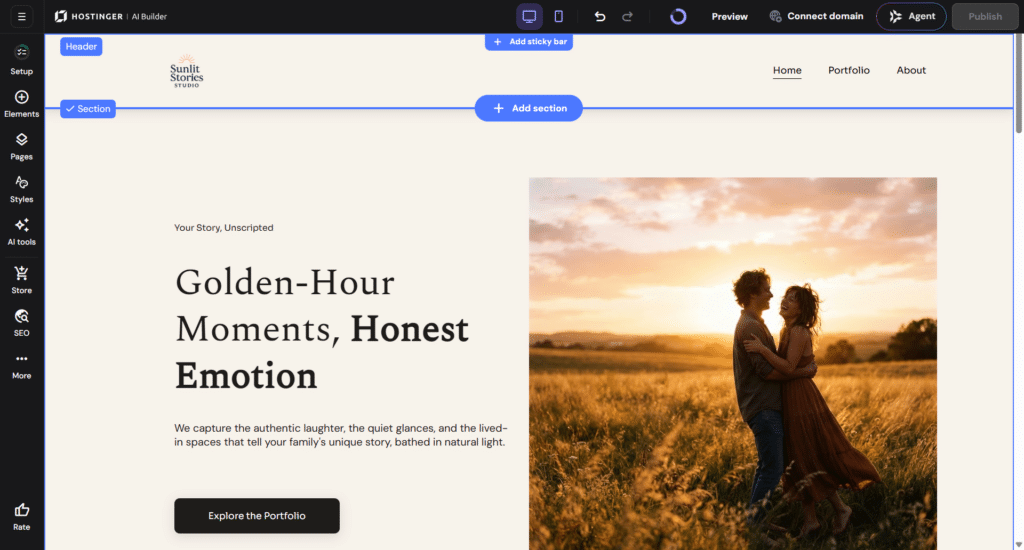
The Agentic mode, however, is a complete no-code website builder (comparable to Lovable, B12, and Base44) powered by Hostinger’s Horizons AI Agent. From the first draft to the final design and further customizations, you never have to touch or manually edit anything. Everything is conversational in the AI chat window.
Here is a site I built with the AI Agent, with the prompt by the side.
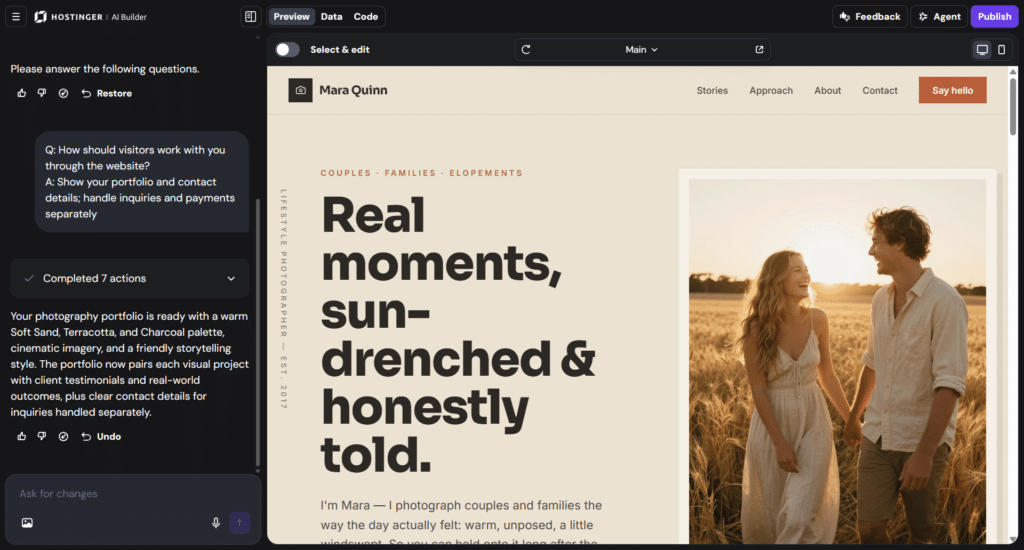
If I need a contact form, add a store, or an image, all I need to do is click Edit on my Hostinger dashboard, land on the editing page, and describe what I want in the chat box. From there, the Agentic AI writes the code and updates the website in real time. I click “Publish,” and the changes take effect on the website.
If you want to get under the hood, you can view each file and make changes. Don’t touch any of these files if you don’t know what you’re doing.
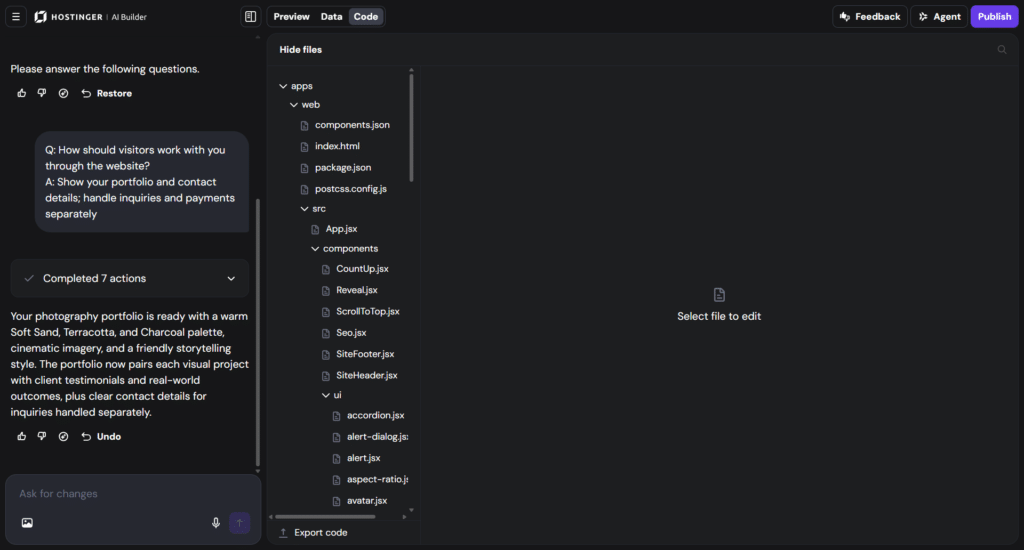
When you build your website with Hostinger AI, either manual or Agentic, there is no WordPress admin to manage the site.
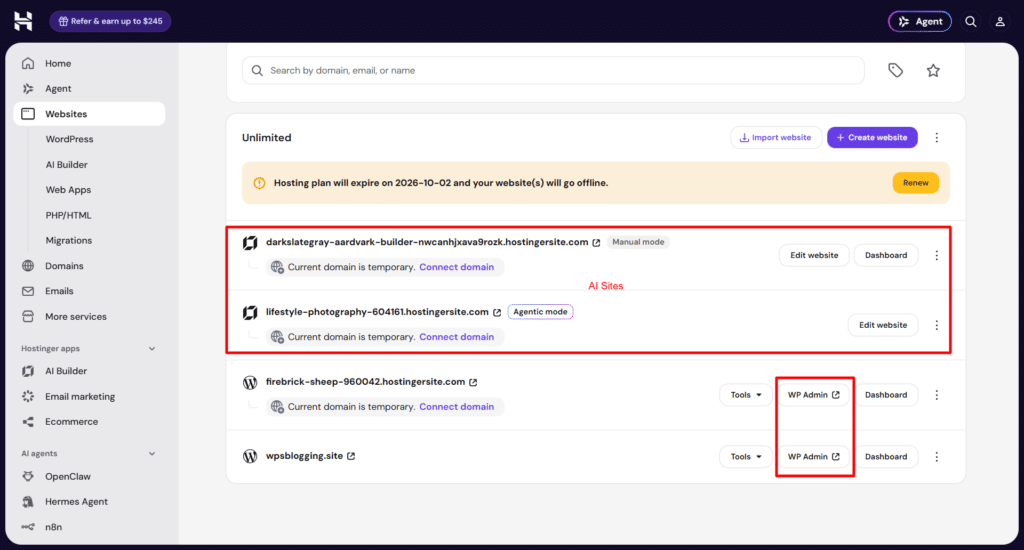
You make every customization in its respective working environment.
Note:
Malware protection, hCDN, Object Cache, and the LiteSpeed Cache plugin are preinstalled and activated when you install a WordPress site on Hostinger. These are not included in any of the AI site builders.
One thing I really appreciate is the Hostinger Onboarding checklist and the AI Agent assistant, “Kodee,” inside the WordPress admin.
The checklist guides you through the essential site setup process, while the AI Agent answers any questions.
You can ask questions related to managing your site, available tools, troubleshooting guides, performance optimization recommendations, and more.
For example, I asked it to list the current active plugins on a newly installed Hostinger WordPress site. Within a few seconds, it listed the five preinstalled active plugins by name and version.
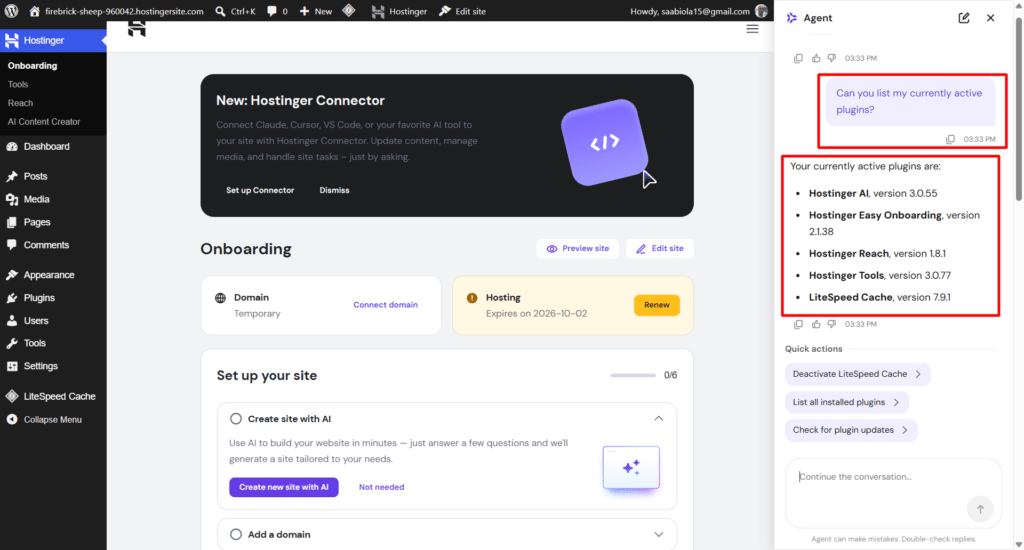
It even offered follow-up quick actions right underneath the answer, deactivated LiteSpeed Cache, list all installed plugins, or check for plugin updates, without me having to type another prompt.
NOTE:
Read my complete review of Hostinger AI Builder (Horizons) if you’re thinking of building a no-code AI site. I show the prompt, credit usage, pros and cons, and the core features.
Core Features
Beyond the dashboard and site builder, a handful of features are worth breaking out on their own, because they’re either genuinely unique to Hostinger or directly shape whether the plan is worth your money.
Here’s what stood out.
AI Agent and Dev Tools
Hostinger has quietly built out a fairly serious developer toolkit around its AI agents, and it’s worth understanding even if you’re not a developer yourself, because it affects how much you can eventually do on this plan without switching hosts.
OpenClaw, Hermes Agent, n8n, and Paperclip are the four automation apps sold as one shared plan, and you can switch between them anytime without a new subscription.
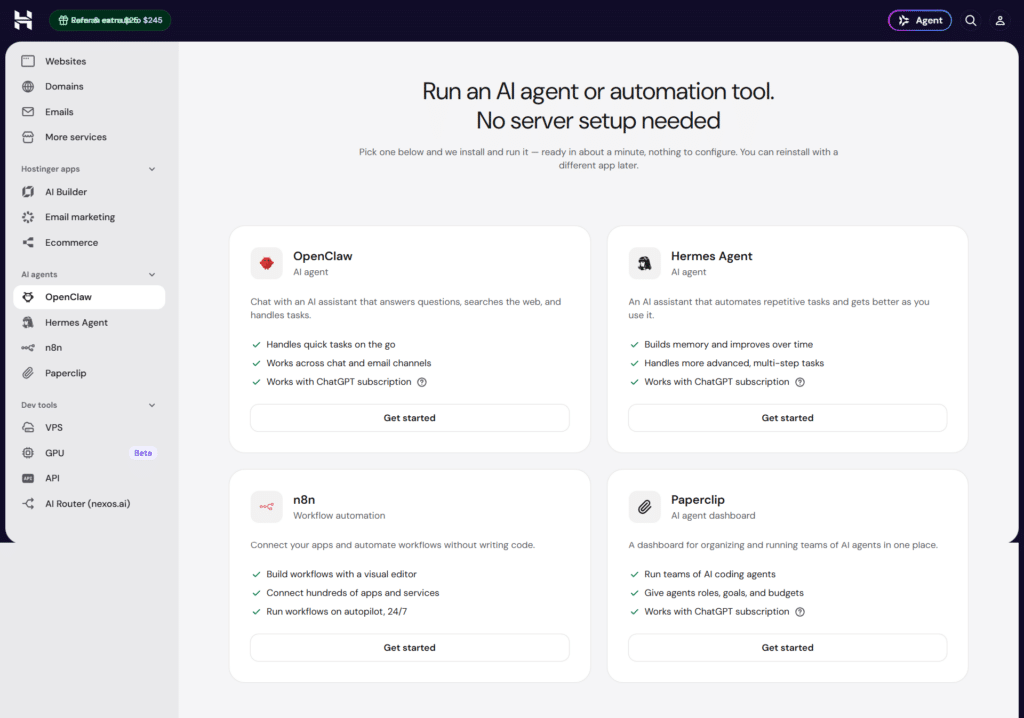
OpenClaw handles quick, on-the-go tasks and answers questions across chat and email. Hermes Agent is built for more advanced, multi-step work and builds memory as you use it, so it improves over time instead of starting fresh every session.
n8n is visual workflow automation that connects hundreds of apps and runs them on autopilot without writing code.
Paperclip is different from the other three: it’s a dashboard for organizing and running teams of AI coding agents, assigning them roles, goals, and budgets, aimed at people managing several automated workflows at once rather than a single assistant.
Depending on your business needs, these AI Agents can help in several ways.
For example, you can monitor your store and top competitors every morning and get alerted on Telegram if prices change or a page slows down. You can scrape industry blogs daily and draft a LinkedIn post in your voice while you sleep, or automatically enrich new leads and route qualified ones to your sales channel.
These aren’t hypothetical; they’re the kind of task a small business owner would otherwise pay a virtual assistant or a separate SaaS subscription to handle.
Pricing for the automation apps sits outside your core hosting plan: $5.99/mo on a 24-month term (73% off the $21.99 rate), $7.99/mo on a 12-month term, or $10.99/mo month-to-month, renewing at $11.99/mo. AI credits, web search, and a visual interface are included regardless of which app you pick.
AI Router is a separate but related tool: one API key and one shared credit balance that gives you access to models from Anthropic, OpenAI, DeepSeek, xAI, Mistral, Moonshot, MiniMax, StepFun, and Z.ai, instead of juggling separate accounts and billing for each provider.
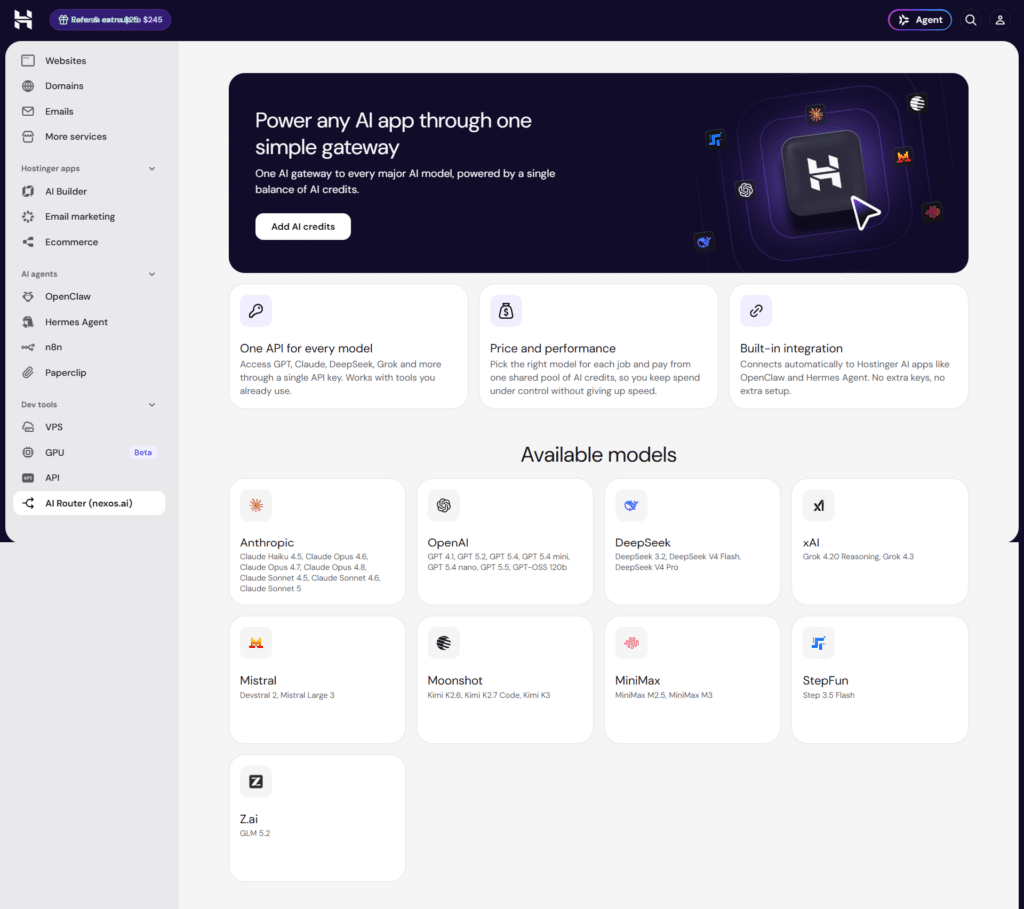
It plugs directly into OpenClaw and Hermes Agent with no extra setup.
GPU instances let you deploy dedicated hardware, ranging from an RTX 4090 up to an A100 80GB or B200, billed hourly, for training models or running heavier AI inference workloads.
This is well beyond what a typical shared hosting customer needs, but it shows where Hostinger is pushing its platform, and it means you could scale into serious AI infrastructure without ever leaving hPanel.
The Hostinger Connector (MCP) is the feature I’d actually recommend to developers specifically. It connects your code editor, VS Code, Cursor, Claude Code, Codex, Devin, or Antigravity, directly to your Hostinger hosting.
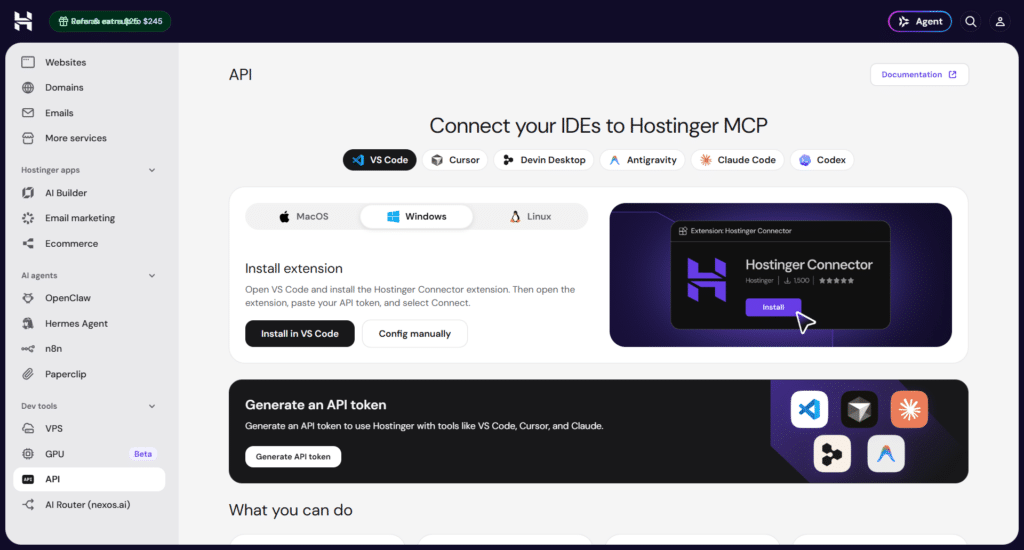
Once connected, you can spin up infrastructure, deploy WordPress or static sites, pull CPU/memory/bandwidth metrics, scan for malware, and restore backups, all from a chat prompt inside your editor, without opening hPanel at all.
For a developer managing several client sites, that’s a real time saver, not a gimmick.
AI Troubleshooter
Hostinger’s AI Troubleshooter is a standout feature worth its place in this review. It’s helpful for improving site speed without digging into files or configuring settings yourself.
The tool runs a five-step process: run a speed test, benchmark the result, optimize, benchmark again, and finalize. The process is fully automatic, takes only a few minutes, and you can reverse any change if you don’t like the outcome.
What it’s actually doing behind the scenes is analyzing your site with Google PageSpeed Insights, then applying LiteSpeed best practices and database query optimization.
The tool specifically targets slow database queries and optimizes for 3 to 5x improvement in query performance, translating to roughly a 20% mobile and 10% desktop PageSpeed score increase on average. It works on WordPress and custom PHP sites alike.
However, it’s not purely a speed optimization tool, either. The same underlying system also watches for outright errors- 403, 404, 500, 503, and the dreaded “There has been a critical error on this website” message- and flags them on your dashboard with a suggested fix before you even notice something’s wrong.
I ran it on my test site twice, a few days apart, and got two different honest answers. The first time, it told me plainly that performance was already good and didn’t push me to change anything.
The second run, after I’d made some changes to the site, flagged specific optimization opportunities (tagged LiteSpeed and Database) and recommended I run the optimizer, estimating 10 minutes to complete.
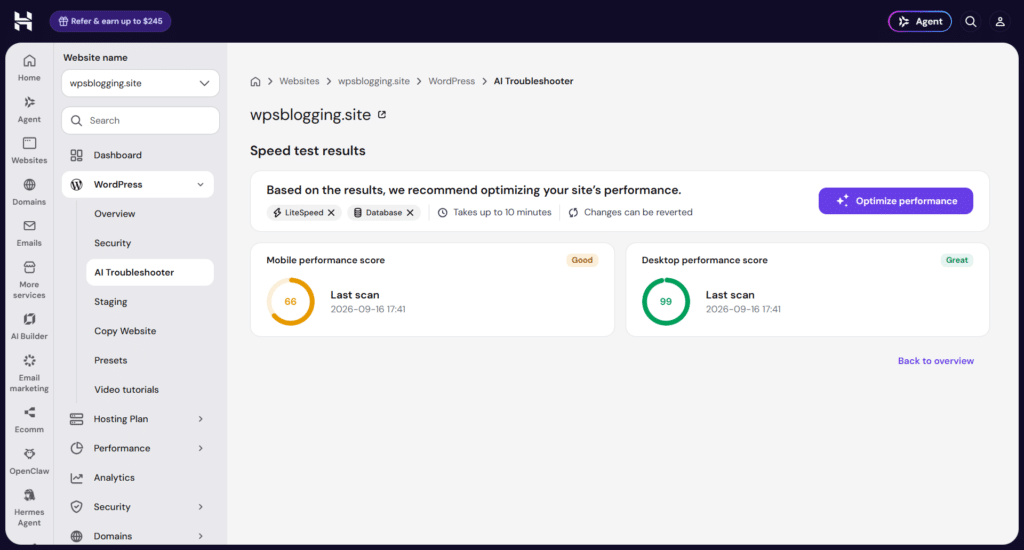
That’s the detail that earns my trust here; it’s not defaulting to “optimize now” just to look useful. It actually reads the site’s current state.
Performance
Performance is everything in hosting. What matters is how fast your website loads, stays online, protects against attacks, and improves your business.
I’ve been running online businesses for over a decade. One thing I’ve come to realize is that the best way to measure a host’s performance, and its direct impact on your business, is to test origin server TTFB directly, using tools that reflect what actually affects SEO visibility.
Given that conviction, I always pay close attention to what Google Search Console reveals about a host’s server response time. If Google can’t crawl your site efficiently because of slow or poor server response time, there’s strong evidence you’ll struggle with rankings no matter how good your content is.
So I signed up for the Hostinger Unlimited plan, created a real site on a custom domain, connected it to Search Console, and collected data over several weeks.
I also tested the origin server’s TTFB from 40 locations across different continents using SpeedVitals. Testing from 40 locations gives a much better picture of what to expect, especially if you serve a global audience rather than just one region.
Raw origin performance, no optimization layers
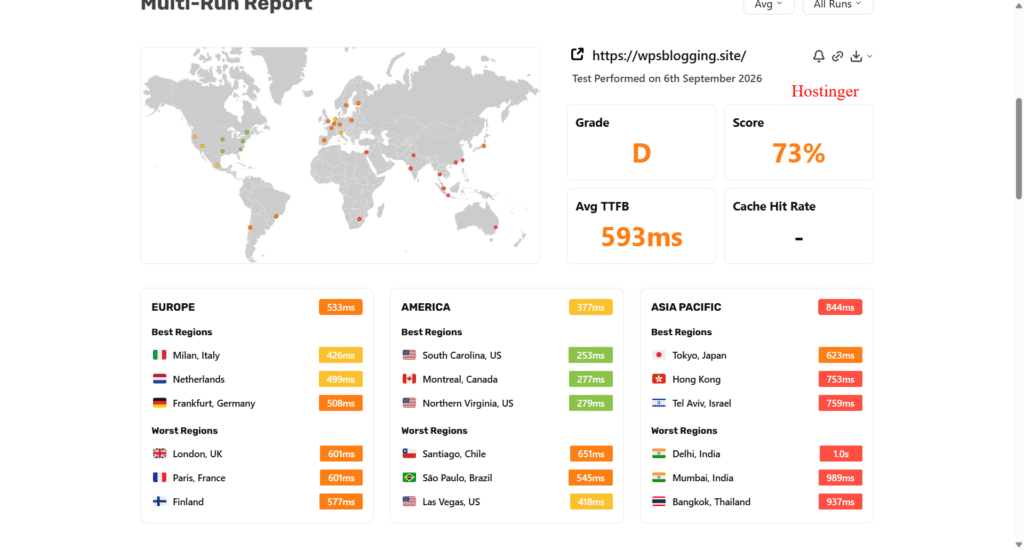
The first test excluded Hostinger’s preinstalled performance tools entirely: no Object Cache, no LiteSpeed Cache, no hCDN. Just the origin server responding to a cold request.
At an average TTFB of 593ms, Hostinger’s shared hosting origin server isn’t the fastest host I’ve tested, but it isn’t the slowest either. There’s room for improvement, and that room matters once you consider what a CDN does to that number.
With hCDN, Hostinger’s own built-in CDN:
When you layer a CDN in front of your site, requests get served from the edge instead of hitting your origin server for every visitor, which should meaningfully improve TTFB and page speed.
To test what a real visitor actually experiences, I enabled hCDN along with LiteSpeed Cache and Object Cache, then ran the test again.
Result: 433ms average TTFB, Grade C, 83% score, cache hit rate not even reported by the test. I ran this more than once across different days to rule out a one-off fluke, and a second run came back nearly identical: 419ms, Grade C, 84%, again with no cache hit rate showing up.
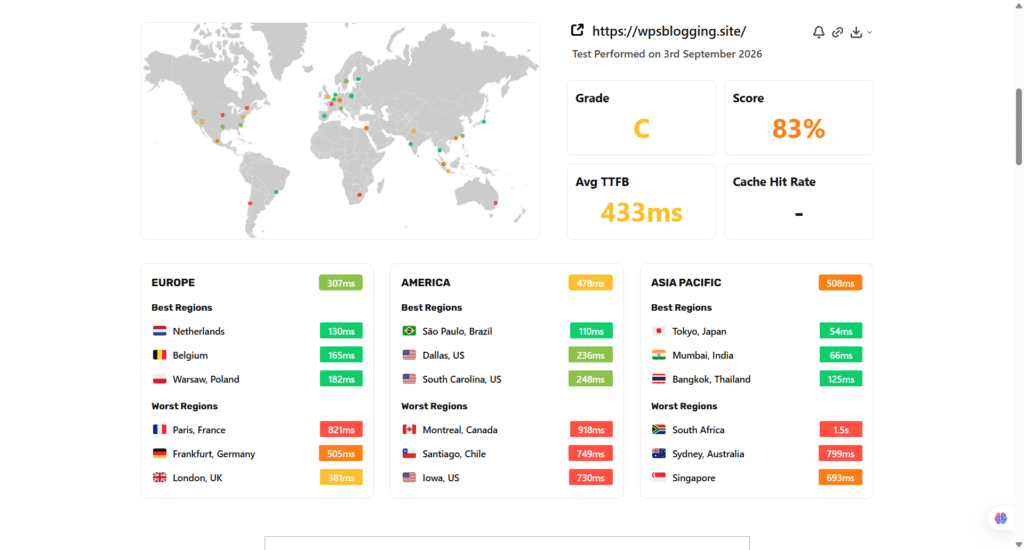
Looking at those numbers, there’s clearly room for improvement. hCDN wasn’t doing a much better job than the raw origin server, and there isn’t much you can configure for it inside Hostinger beyond toggles for WebP image optimization, traffic blocking, and security level; no fine-grained caching rules, no page-level control.
Swapping hCDN for Cloudflare
So I disabled hCDN entirely and connected Cloudflare instead, with a custom page rule to cache HTML responses at the edge, Tiered Cache Topology turned on, and advanced page rules configured.
Result: 148ms average TTFB, Grade A, 96% score, 100% cache hit rate. I ran this again the following day to double-check consistency: 119ms, Grade A, 97%, 100% cache hit rate.
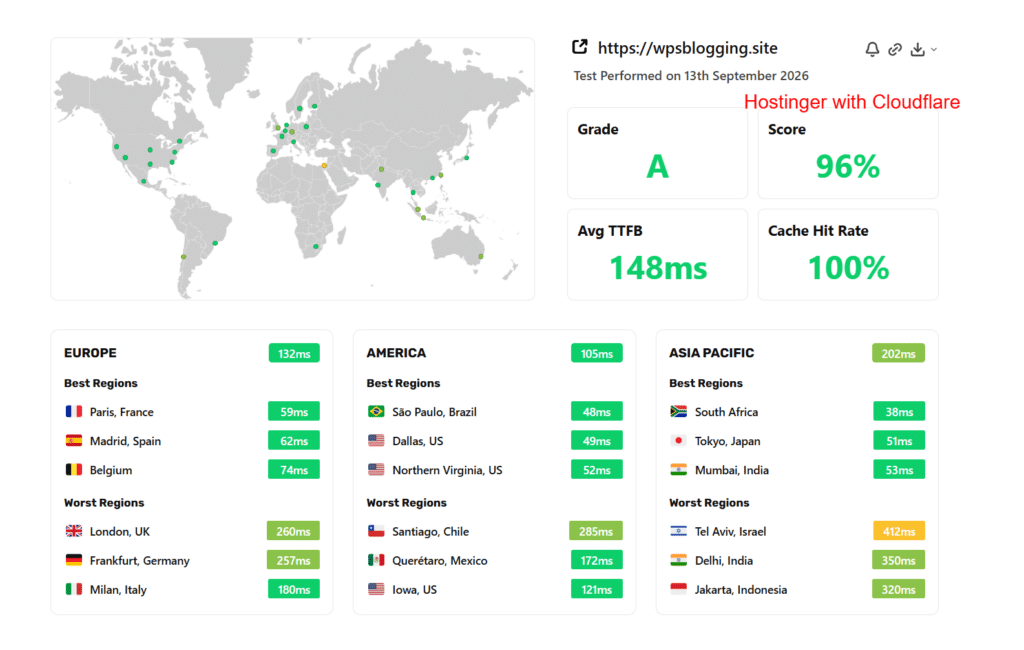
That’s not a marginal difference. That’s the same site, on the same Hostinger server, going from a C grade with no measurable cache hit rate to an A grade with a perfect one, just by changing which CDN sits in front of it.
My take: use Cloudflare instead of Hostinger’s hCDN. Configure it to cache HTML and serve it directly from the edge, and you’ll see a dramatic, repeatable effect on TTFB, page speed, and overall user experience.
hCDN is convenient because it’s already switched on, but convenient isn’t the same as fast, and in my testing it never came close to matching what a properly configured Cloudflare setup delivers on the exact same server.
Security
Security on a shared hosting plan is always a balance between what’s handled for you automatically and what you have to configure yourself. Hostinger leans toward automatic, which is good for beginners, but it’s still worth knowing what’s actually running.
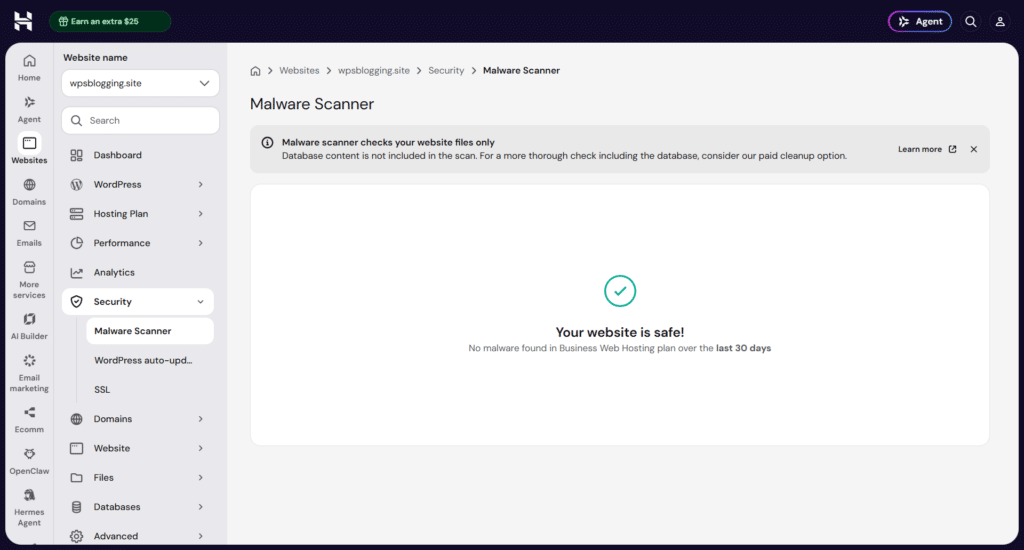
Malware Scanner runs continuously in the background and reported my test site as safe, with no malware found over the prior 30 days.
Note: the scanner only checks your website’s files, not your database. If you want database-level malware checking, that’s a separate paid cleanup service, not something the free scanner covers, so don’t assume a clean scan means your database is clean too.
Free, automatic SSL is set up the moment you sign up, no action needed on your end, and DDoS protection runs through Cloudflare at the nameserver level for every site.
CDN AI Audit is one of the more genuinely useful security tools I found, and it’s directly tied to something I ran into during testing.
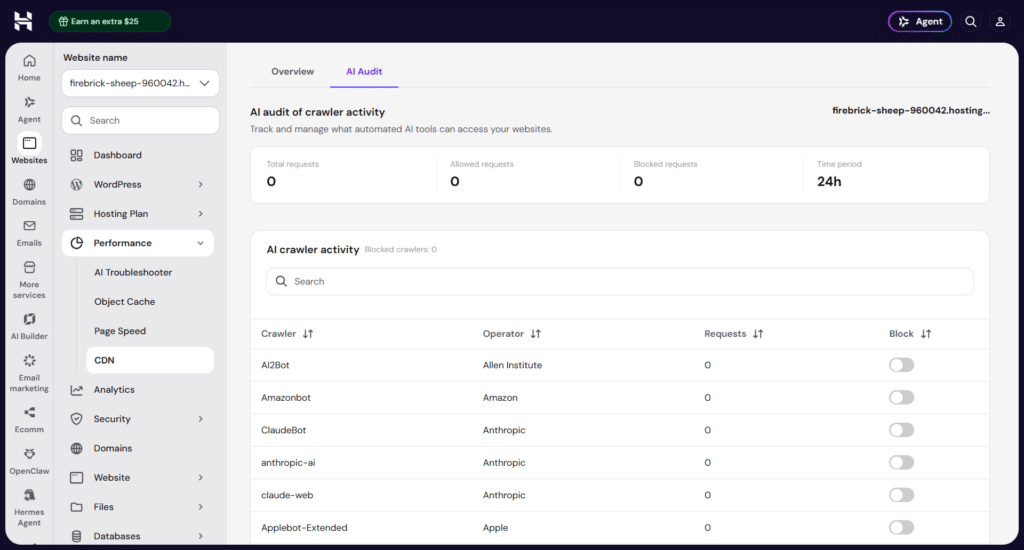
Under Performance, this feature tracks exactly which automated AI crawlers have hit your site (GPTBot, ClaudeBot, Bytespider, and others), how many requests each made, and lets you individually allow or block each one by name.
While running third-party monitoring tools against my test site, I got a wave of blocked requests, and it turned out Hostinger’s infrastructure had specifically fingerprinted and blocked that monitoring tool’s traffic pattern.
That’s not a bug; it’s this same system working as intended. If you plan to run your own external uptime or performance monitors against a Hostinger site, know this layer exists and may need adjusting.
Traffic and access controls round out the security tab: an adjustable security level (Low/Medium/High) that changes how aggressively incoming requests get challenged, an option to enforce TLS 1.3 only, IP allow/block lists, country-level traffic restriction, password-protected directories, and a file-ownership repair tool for when uploads or migrations leave permissions in a bad state.
None of this is flashy, but it’s all reachable in two or three clicks, not buried in documentation.
Analytics
Hostinger splits what most hosts would call “server stats” into two separate, genuinely useful views: Analytics and Resource Usage.
Analytics (under Performance) breaks down exactly how your CDN is handling traffic: the percentage of requests served as cache hits versus misses versus dynamic/bypass, plotted over time, alongside HTTP status code trends (how many 2xx, 3xx, 4xx, and 5xx responses your site returned).
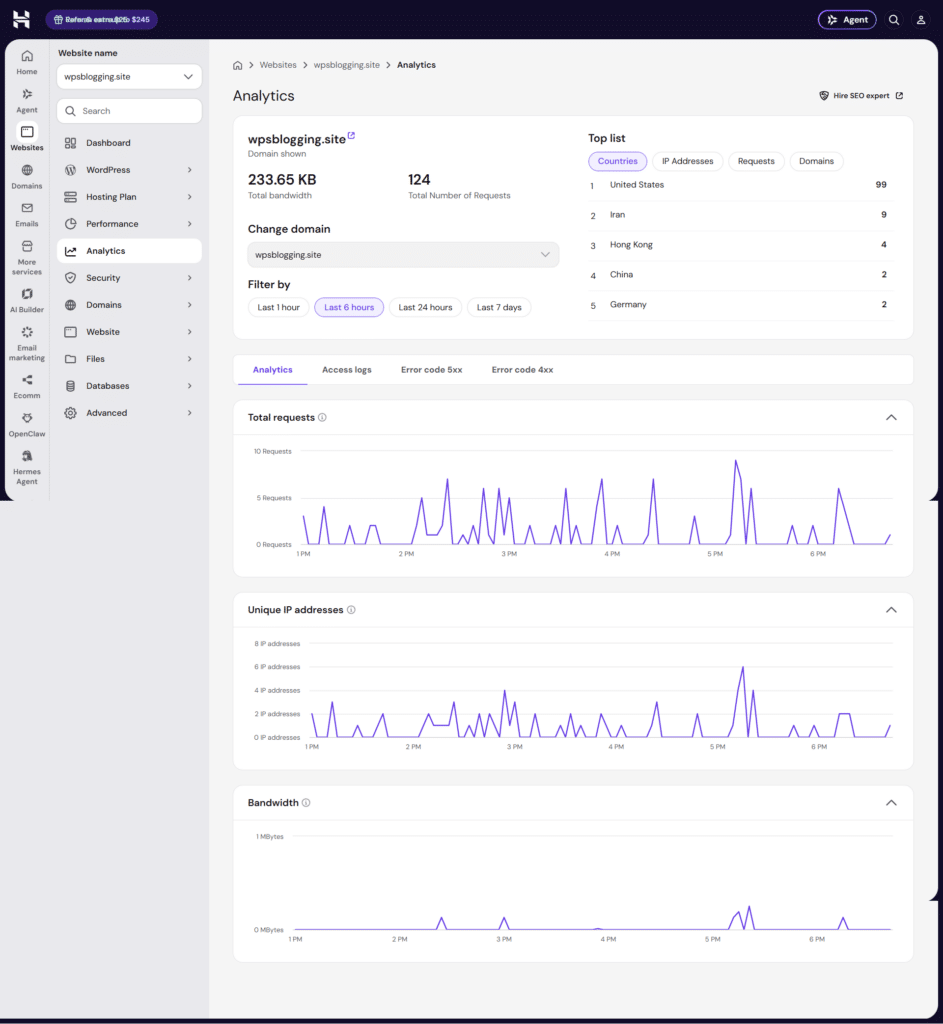
If a site feels slow, this is the first place I’d check; it tells you directly whether caching is actually working, instead of guessing from a stopwatch.
Resource Usage (under Hosting Plan) is where Hostinger’s transparency actually shines. It shows live and historical CPU, memory, disk throughput, PHP worker usage, storage IOPS, and max concurrent processes, each plotted directly against your plan’s limit, with toggles for live, 6-hour, 24-hour, 7-day, and 30-day views.
On my test site, usage sat nowhere near the ceiling: 1% average CPU, 40MB of memory out of 3GB available. That’s a concrete, checkable answer for anyone wondering whether their traffic actually justifies their plan, rather than guessing based on a slow page load.
Support and AI Assistant
Support here happens on two levels, and both are worth understanding separately.
The first is Kodee, Hostinger’s AI Agent, available as a chat button in hPanel’s top navigation and as a widget inside the WordPress admin dashboard. This isn’t a scripted chatbot reading from an FAQ.
When I asked it to list my active plugins, it queried the actual site and returned the real, current list with version numbers, not a generic answer.
When I separately asked it to open a specific settings page, it returned a direct button that took me straight there, no searching required. It also surfaces “quick actions” under its answers, one-click follow-ups like deactivating a plugin or checking for updates, so a single question often leads straight to the fix rather than more back-and-forth.
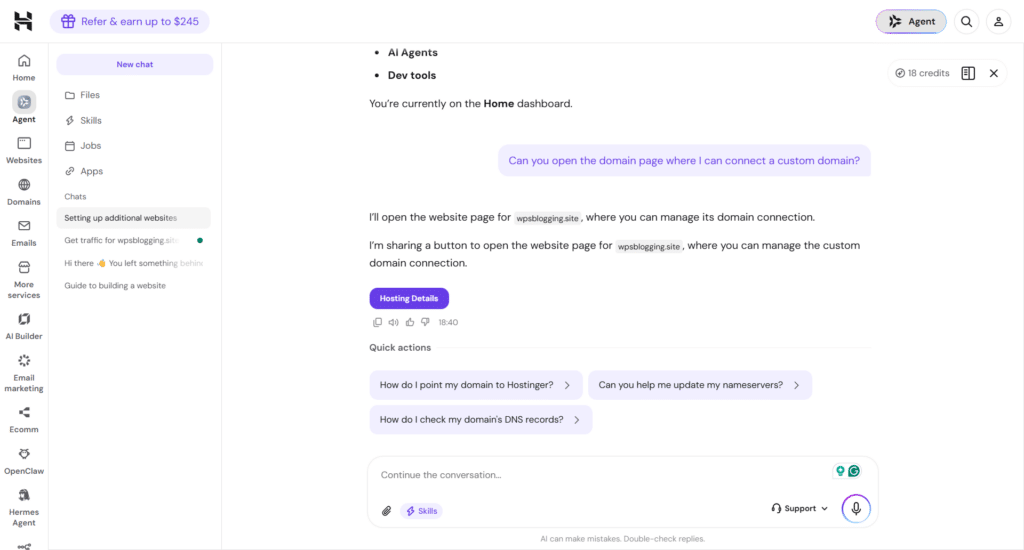
The second layer is Hostinger’s human support: priority 24/7 expert support on this plan, accessed through the same chat interface once a question goes beyond what the AI can resolve.
I didn’t need to escalate anything serious during testing, so I can’t speak to response times under a real emergency, but the AI layer alone resolved every practical question I threw at it during setup.
Pricing
The Unlimited plan I tested for this Hostinger review is $3.99/mo, but that rate requires paying a full 48-month term upfront: $191.52 total. It renews at $16.99/mo afterwards.
If you’re not ready to commit to four years, the month-to-month rate for this specific plan is $18.99, so factor that commitment into your decision, not just the headline number.
For this shared hosting price, the Unlimited plan includes:
Compared to Hostinger’s other shared plans, Premium ($2.99/mo, capped at 3 websites, 20GB storage, 2GB RAM, 1 CPU core, 40 PHP workers) and Cloud Startup ($7.99/mo, 100GB storage, 4GB RAM, 4 CPU cores, 100 PHP workers), Unlimited sits in the middle and is genuinely the right pick for anyone running more than a couple of sites or expecting to grow past a hobby-blog level of traffic.
Pros and Cons
Pros:
Cons:
Final Verdict
Hostinger’s Unlimited plan is a legitimately strong shared hosting option, but the value isn’t quite where the marketing points you.
The dashboard experience, Object Cache, daily backups, and AI-assisted troubleshooting are real, well-built advantages that justify picking Hostinger over a plain cPanel host at a similar price.
The developer-facing tools (AI Router, the MCP editor connector, GPU access) go further than I expected from a budget shared host and suggest Hostinger is building toward something bigger than basic hosting.
Where I’d push back on the marketing is hCDN. It’s presented as a bundled performance win, and in my repeated testing, it simply isn’t one.
If you sign up for this plan expecting fast, edge-cached performance out of the box, you’ll be disappointed until you take the extra step of connecting Cloudflare yourself, which, to be fair, only takes about ten minutes and costs nothing.
My recommendation: if you’re comfortable committing to the 48-month term, or you plan to renew regardless, the Unlimited plan is a solid, well-rounded choice, especially if you’ll actually use the AI tooling. Just don’t skip testing hCDN against a real alternative before you assume your site is as fast as it can be.