

If you’ve been chasing a better PageSpeed score and wondering whether NitroPack can actually deliver, I have a direct answer: yes, it can.
I activated NitroPack on WPrBlogger — running on Cloudways Vultr HF — and watched the mobile performance score jump from 51 to 91 in a single session.
But raw scores don’t tell the whole story. NitroPack is a capable and deeply configurable performance plugin, and that depth is both its biggest strength and the thing most likely to trip up a beginner.
Everything I discovered firsthand — the setup process, the features, the real performance numbers, pros, and cons, and who this plugin is (and isn’t) the right fit for- is what you’ll learn in this NitroPack review.
Key Takeaway
NitroPack delivered a 40-point improvement in mobile performance on WPrBlogger, raising the score from 51 to 91. It’s one of the most feature-complete optimization plugins available, with 38 hosting integrations, deep configuration, and a CDN powered by Cloudflare’s global infrastructure.
The trade-off is complexity and aggressiveness: NitroPack is not a set-it-and-forget-it plugin. If a setting breaks your site design or functions, you’ll need to dig into its settings to fix it (either exclude the affected script or try another preset optimization option).
Also, NitroPack does not include a database optimization tool; you’ll need to pair it with a free option, such as WP-Optimize, to keep your database healthy.
NitroPack

NitroPack is a cloud-based WordPress optimization plugin that delivered a 40-point mobile PageSpeed improvement in one session — LCP dropped from 10.2s to 2.0s. It’s feature-rich and powerful, but requires comfort with a split interface and a pageview-based pricing model that scales with traffic.
Price: 7
Price Currency: USD
Operating System: Web-based
Application Category: Website Speed Optimization/SEO Software
4.2
What Is NitroPack?
NitroPack is a cloud-based multi-platform website optimization service that combines caching, image optimization, JavaScript, HTML, and CSS optimization, a global CDN, and Core Web Vitals improvement into a single platform.
Multi-platform means NitroPack works across most CMS and custom-built sites, including WordPress, Magento, WooCommerce, and PHP-based websites.
Unlike traditional WordPress caching plugins that run entirely on your server, NitroPack offloads much of the heavy lifting to its own cloud infrastructure.
When a visitor hits your site, NitroPack serves an already-optimized version of that page, with images compressed and converted to next-gen formats, CSS and JS minified and combined, critical CSS inlined, and render-blocking resources removed.
Your server does less work, and your visitor gets a faster page.
NitroPack’s CDN is powered by Cloudflare’s global network. It’s not a separate proprietary CDN; instead, it runs on Cloudflare’s infrastructure to deliver your optimized assets.
This means you get the reliability and reach of Cloudflare’s network (310+ locations globally) with NitroPack’s optimization layer on top.
That fundamental difference in architecture- cloud-based processing combined with Cloudflare CDN delivery- is why NitroPack works across platforms and delivers equal optimization results.
Before And After: How I Tested NitroPack Optimization Features
I enabled NitroPack on WPrBlogger without any optimization plugins. Before activating NitroPack, the mobile PageSpeed scores were concerning:
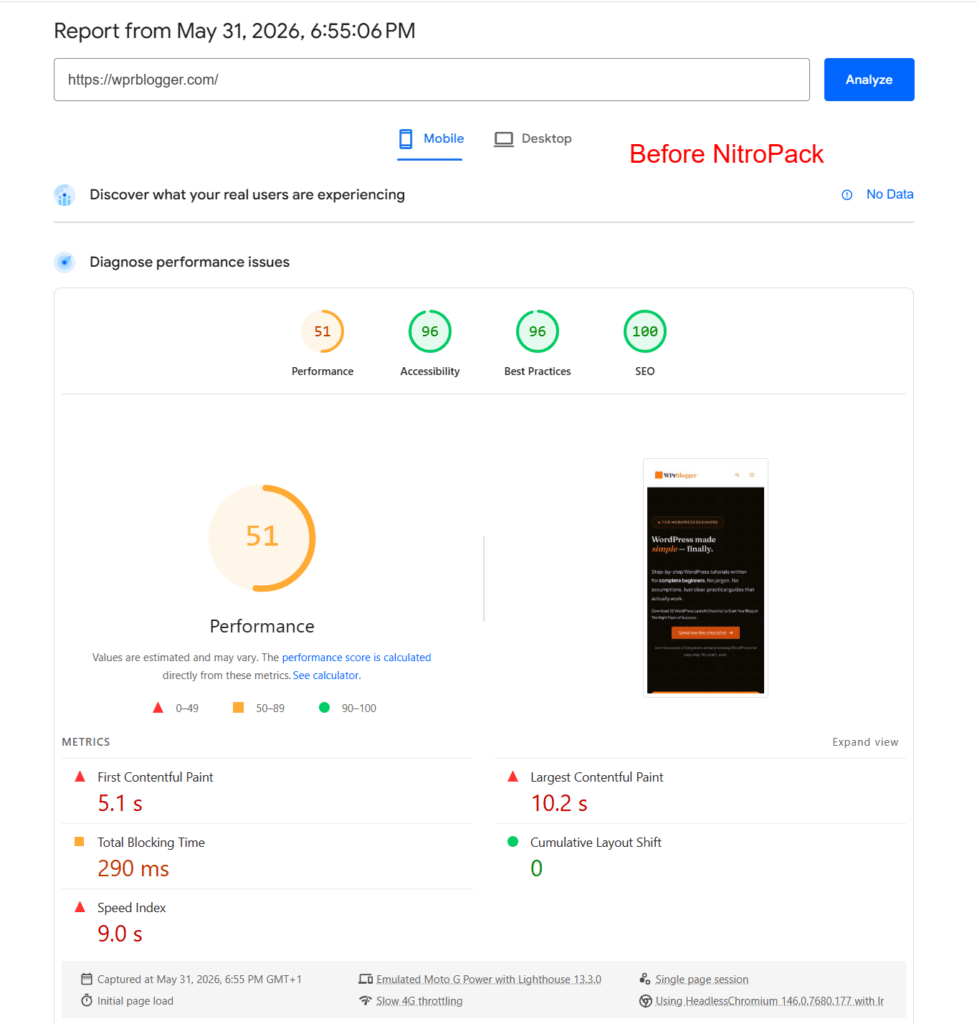
The LCP of 10.2 seconds is the most damaging number here. Google’s threshold for a “good” LCP is under 2.5 seconds, so WPrBlogger was failing badly on the single metric that matters most for Core Web Vitals.
Remember, this is just a bare Cloudways Vultr HF server without additional optimization plugins.
After activating NitroPack in Ludicrous mode:
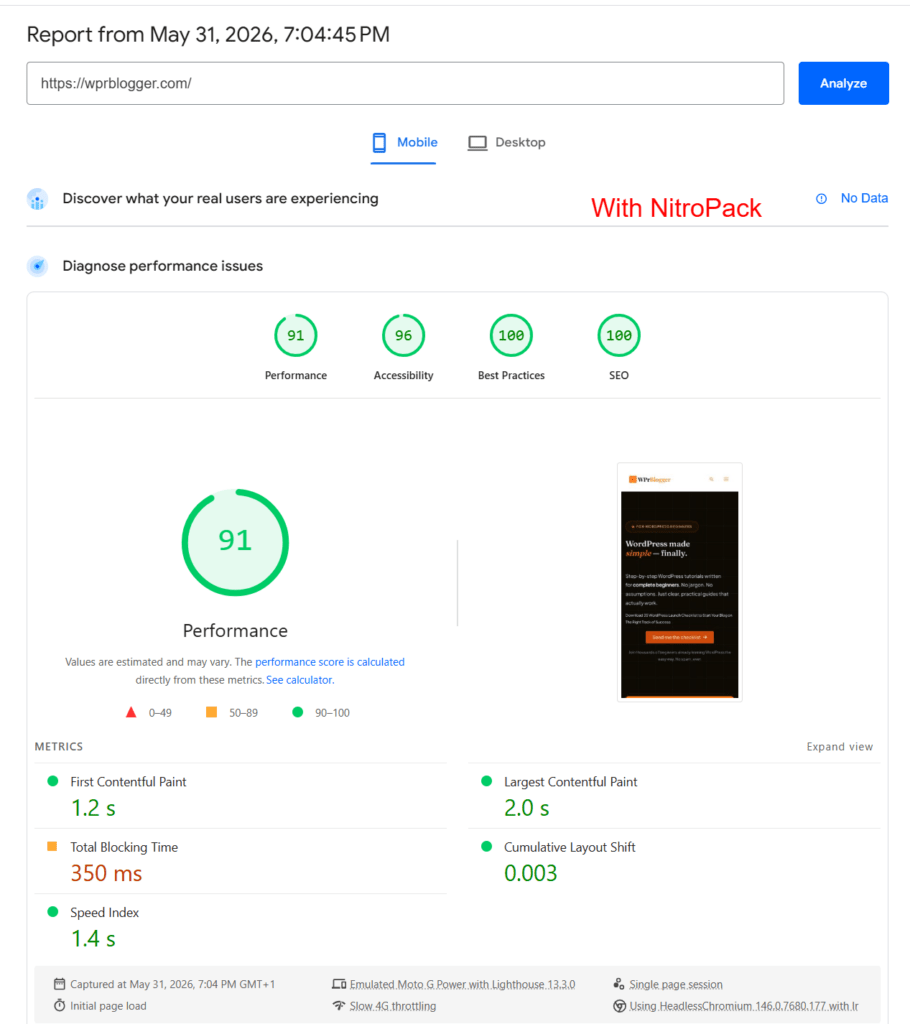
The PSI scores are remarkable. LCP dropped from 10.2s to 2.0s. This is now within Google’s “good” threshold. FCP improved from 5.1s to 1.2s. Speed Index went from 9.0s to 1.4s. These are not marginal gains; they’re transformative.
One quick note:
TBT increased slightly from 290ms to 350ms. TBT measures the total time the main thread is blocked during page load, and the increase is a known trade-off of aggressive JavaScript optimization. Combining JS files can sometimes add a small blocking window.
In practice, the overall performance gain far outweighs this, but it’s worth knowing.
How to Install and Configure NitroPack
NitroPack installs like any standard WordPress plugin. You find it in the plugin directory, install and activate it, and you’ll be guided through a three-step onboarding flow.
Step 1 is where NitroPack does something genuinely useful: it auto-detects your hosting environment. In my case, as soon as I activated the plugin on WPrBlogger (hosted on Cloudways), a banner appeared at the top of the WordPress dashboard:
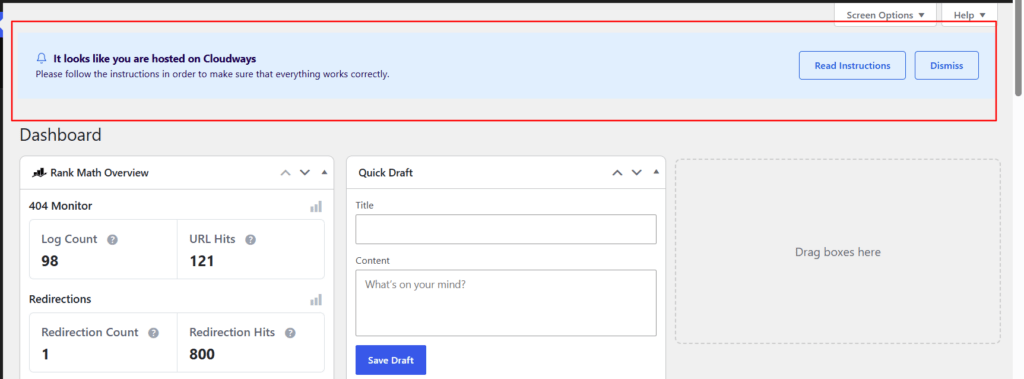
This isn’t NitroPack automatically configuring your server; it only detects your web host and gives you specific, targeted compatibility instructions for what you need to do on your end.
For Cloudways, those instructions walk you through adding a Varnish cookie exclusion rule (`nitropack-nocache`) in your Application Settings → Varnish tab, which ensures the Cloudways Varnish cache and NitroPack’s cache don’t conflict.
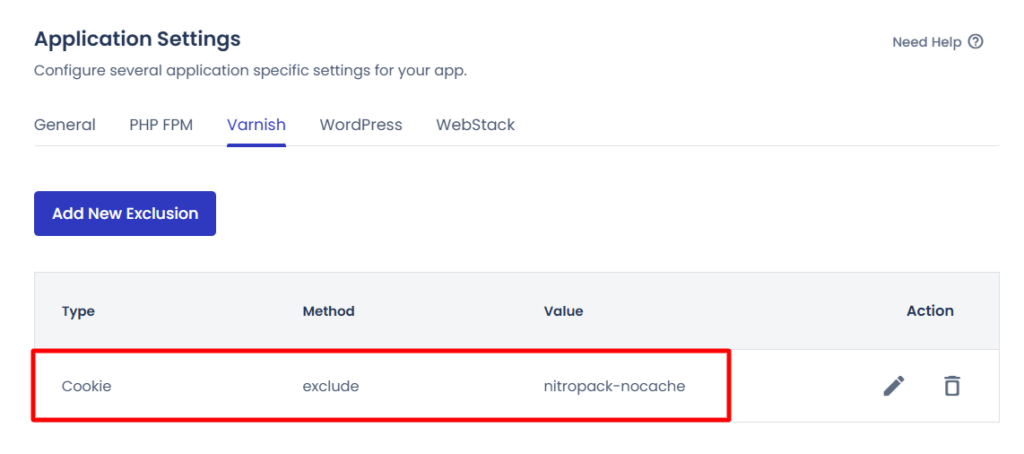
The fact that NitroPack knows which host you’re using and tells you exactly what to do, rather than leaving you to research it yourself, is a meaningful time-saver.
Compare that to WP Rocket or LiteSpeed Cache, where host-specific compatibility configuration is left entirely to help documents.
This NitroPack’s host awareness spans 38 hosting integrations, including Kinsta, SiteGround, WP Engine, Hostinger, Pressable, A2 Hosting, Pantheon, and Namecheap. For the most popular managed hosts, NitroPack knows the environment and gives you precise configuration guidance, or the plugin is auto-compatible.
Step 2 lets you choose your optimization mode and preview the result before making it live. NitroPack activates the Ludicrous mode by default, which works for most blogs. However, if you find Ludicrous causes visual glitches or functionality issues, stepping down to Strong is a reasonable starting point.
There are four modes:
Step 3 enables cache warmup. Cache warmup proactively pre-builds the optimized cache for all your pages, rather than waiting for real visitors to trigger optimization.
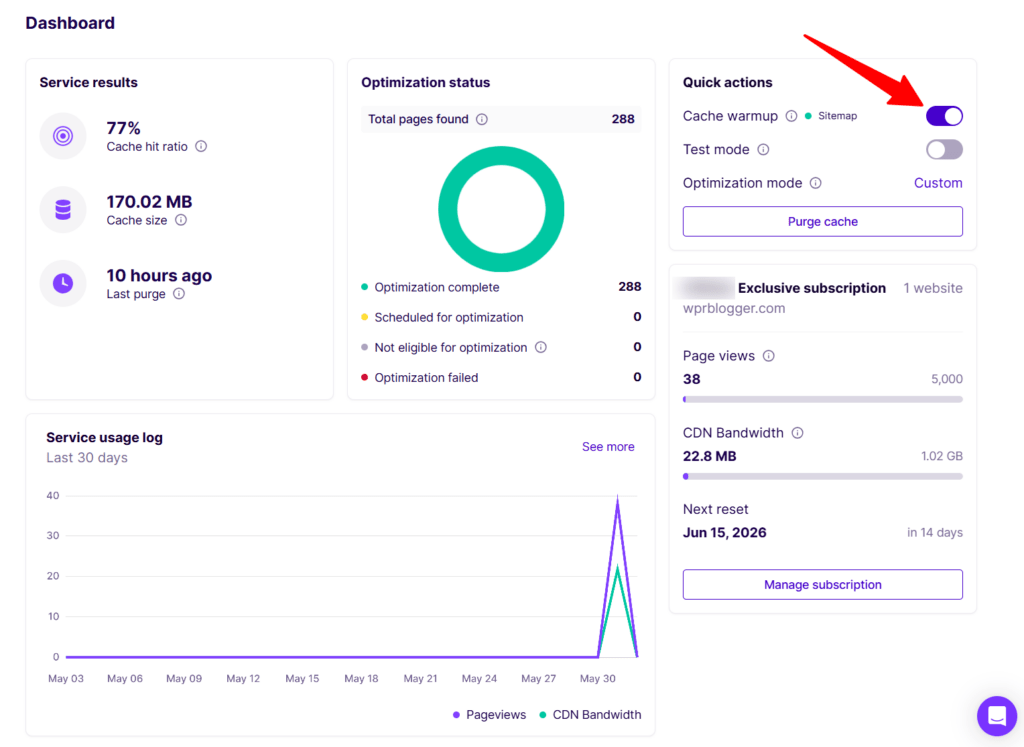
This means every visitor gets a fast experience from the start, even on pages no one has visited since the last cache purge.
NitroPack Core Features
NitroPack does not keep all settings inside the WordPress admin; instead, it splits its configuration between the WordPress plugin and its external web dashboard.
Basic settings, such as optimization mode, test mode, cache warmup, purge behavior and live, are in the plugin. Everything else- image optimization, JavaScript, HTML/CSS, fonts, cache, and integrations- is configured at the Nitropack website.
You need to log in to your Nitropack account each time you want to manually configure a core feature setting.
However, this split architecture might be intentional. NitroPack handles significant processing in the cloud, and keeping the plugin itself lightweight on your WordPress installation makes sense.
The trade-off is that the configuration requires switching between two places, which can feel disjointed initially.
Below is a detailed walkthrough of what each section (core features on the NitroPack website) covers and what to pay attention to.
Image Optimization
Image optimization is one of NitroPack’s strongest feature areas, and one that most reviews of NitroPack skim over too quickly. The Images and Media section is divided into two parts: Lazy Load and Images and Video.
Here’s what each setting does and which ones deserve special attention.
Lazy Load
Lazy load images (on by default, Recommended): Delays loading of off-screen images until they’re needed. This is standard practice for most performance plugins, but NitroPack’s implementation includes two sub-settings that matter:
Size images preemptively: This option adds width and height attributes to images before they’re loaded, allowing the browser to reserve the correct space during rendering.
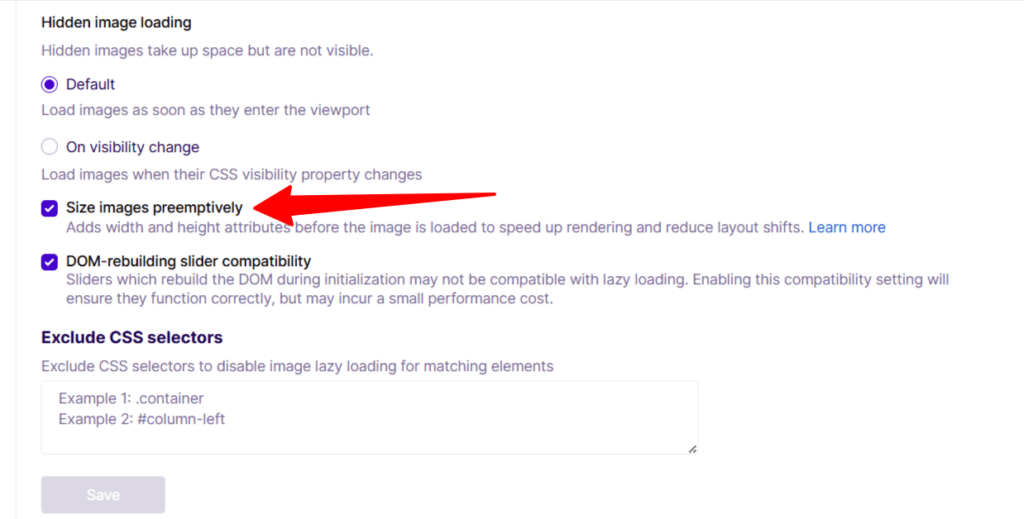
In practical terms, this prevents the layout shift that happens when an image loads and pushes content down the page, a direct CLS (Cumulative Layout Shift) improvement.
I enabled this on WPrBlogger and notably did not encounter any image dimension errors in PageSpeed Insights. This is something that commonly occurs with other caching plugins that attempt similar optimizations.
If you’ve had CLS issues caused by images on your site, this feature alone is worth testing.
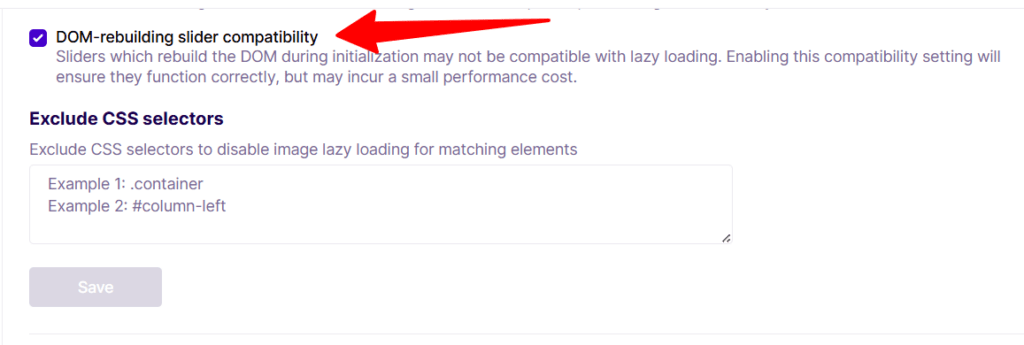
DOM-rebuilding slider compatibility: Sliders that rebuild the DOM during initialization can conflict with lazy loading. This setting ensures slider compatibility, which is relevant to any theme or plugin that uses a carousel or slider component.
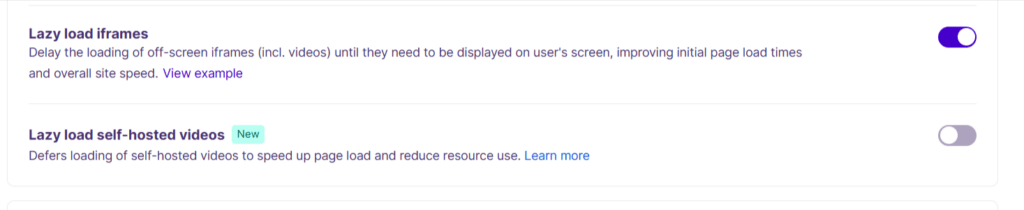
Lazy load iframes (on by default): Defers loading of off-screen iframes, including YouTube embeds, until they enter the viewport. If you embed videos in your posts, this results in a significant reduction in page weight on initial load.
Lazy load self-hosted videos (New, off by default): Extends the same deferral logic to videos hosted directly on your server rather than via YouTube or Vimeo.
Images & Video
Image optimization (on by default, Recommended, set to High – 80%): Compresses image file sizes while maintaining visual quality. The quality level is configurable — 80% is the default “High” setting, which balances file size reduction with image fidelity.
NitroPack includes a “Preview compression” link so you can see the visual difference at your chosen quality level before committing.
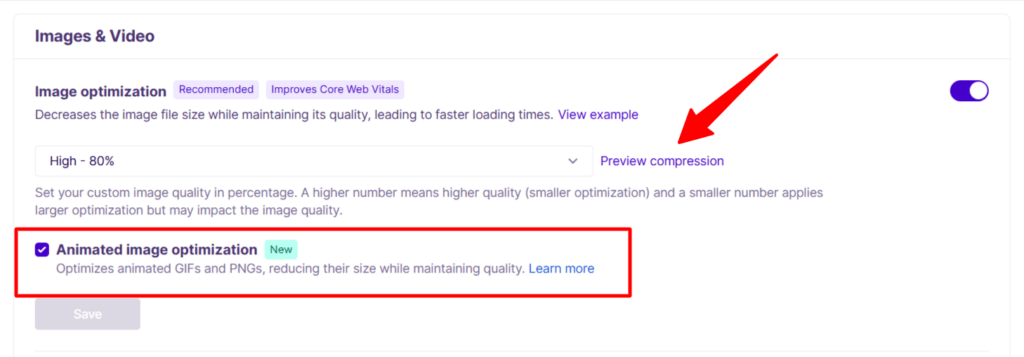
Animated image optimization (New): Optimizes animated GIFs and PNGs, reducing their file sizes while maintaining animation quality.
This is a meaningful addition for bloggers who use animated visuals; unoptimized GIFs can be extremely large files. Most caching plugins don’t touch animated formats at all.
Adaptive image sizing (on by default): Resizes image files to match their container dimensions before serving them.
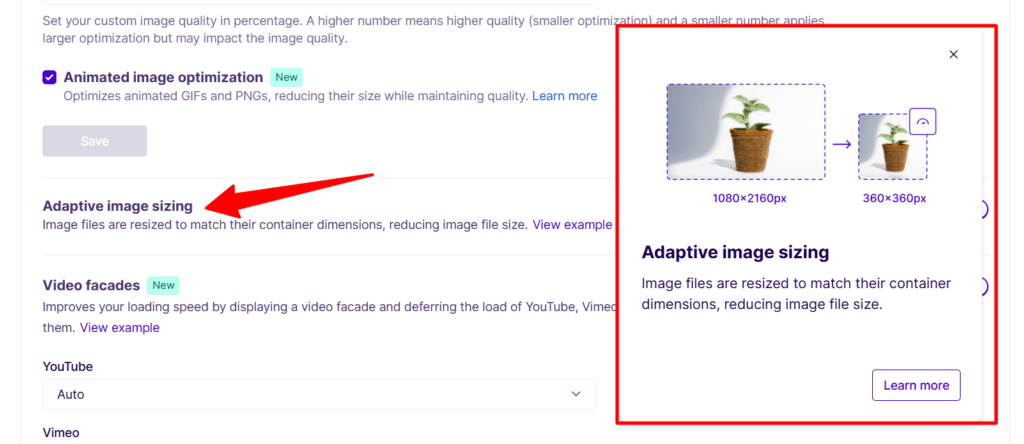
If your theme displays an image at 600px wide but the original file is 1,600px wide, NitroPack resizes it to 600px before delivering it, eliminating unnecessary data. This is a genuine improvement over simply scaling images via CSS, which still downloads the full-size file.
To determine whether this feature works as promised, I tested a page with several large images in PSI before applying Adaptive Image Sizing.
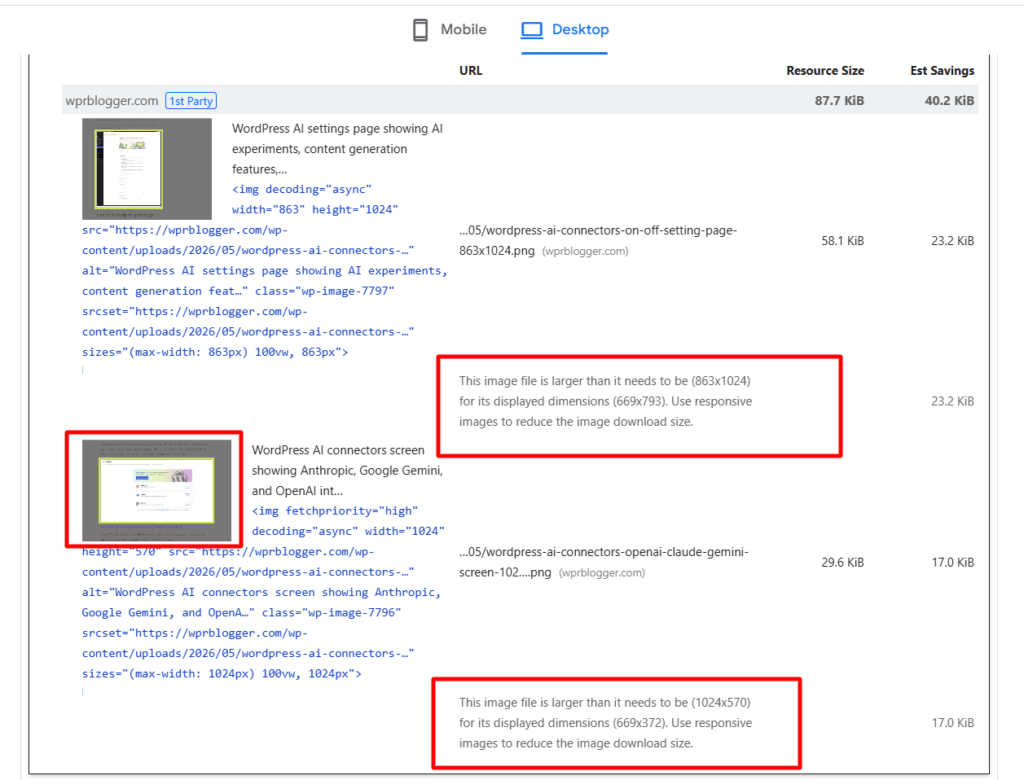
The PSI report shows these images are larger than their display dimensions. After applying Adaptive Image Sizing, I ran the test again, and the error seems to be resolved.
To be sure, I inspected the image element in the DevTools in incognito mode and saw exactly the scaled-down size that NitroPack applies.
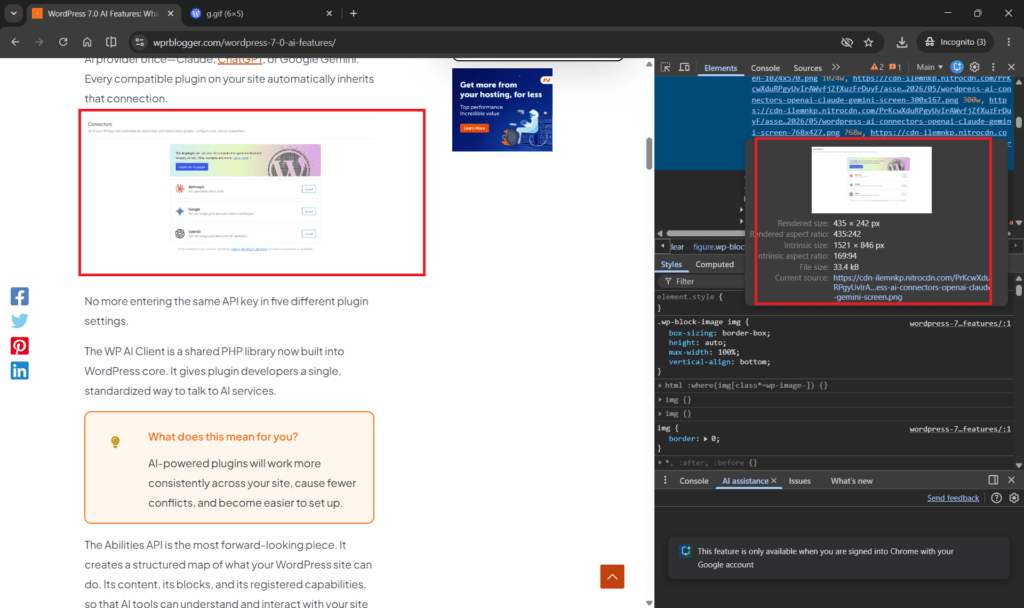
For image-heavy sites in the travel, ecommerce, and fashion niches, this feature can significantly improve the user experience on both mobile and desktop.
Video facades (New): Display a static thumbnail in place of an embedded YouTube, Vimeo, or Wistia video and defer loading the actual video player until the user clicks to play.
The benefit is significant: a YouTube embed typically adds 500KB–1MB of third-party JavaScript to every page it appears on. Video facades eliminate that entirely until the user actually wants to watch.
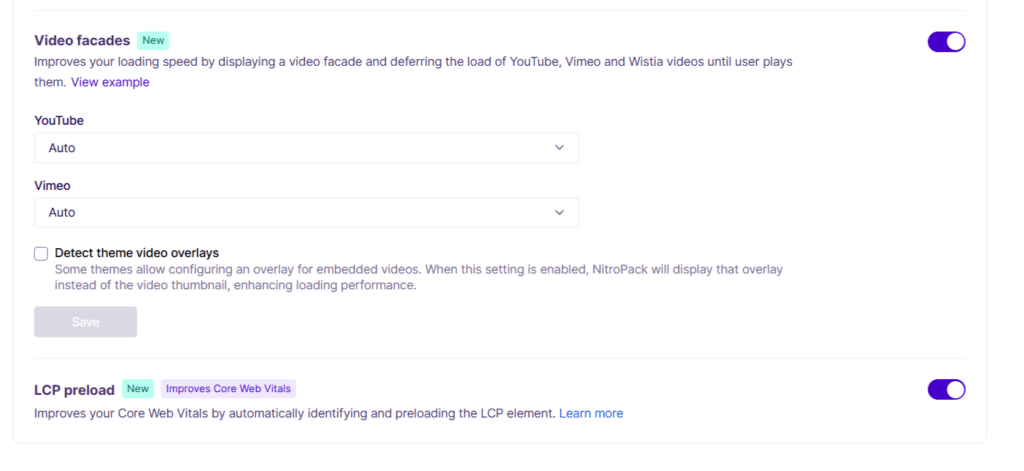
LCP preload (New, Improves Core Web Vitals): This is one of NitroPack’s most impactful image-related features. It automatically identifies the Largest Contentful Paint element on each page, typically the hero image or above-the-fold featured image, and preloads it with high priority.
This means the browser fetches the LCP image as early as possible, which directly improves the LCP score.
My after-NitroPack LCP of 2.0 seconds (down from 10.2s) was partly driven by this feature working in combination with the critical CSS generation.
JavaScript

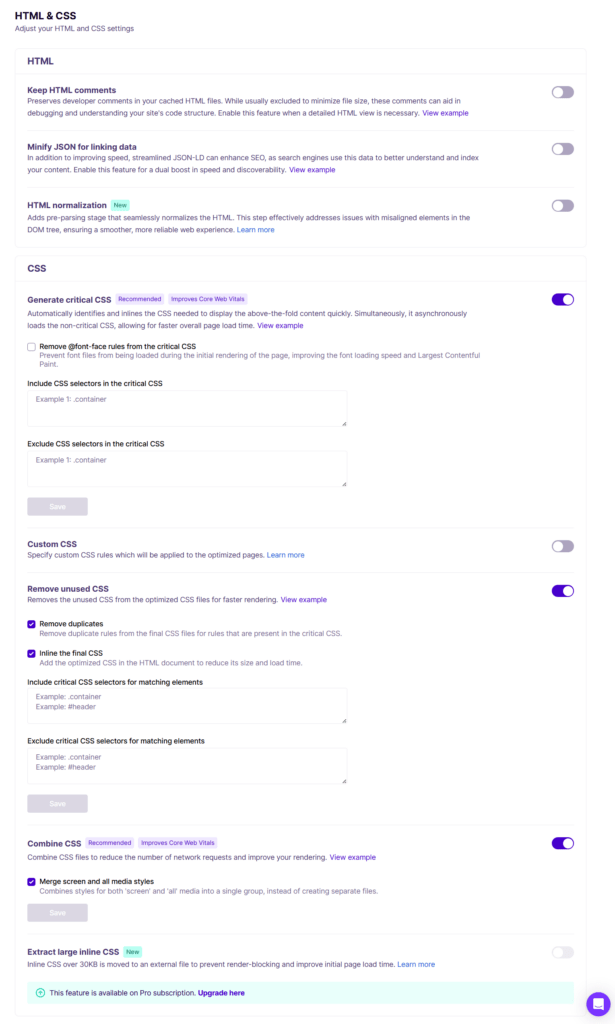
HTML & CSS
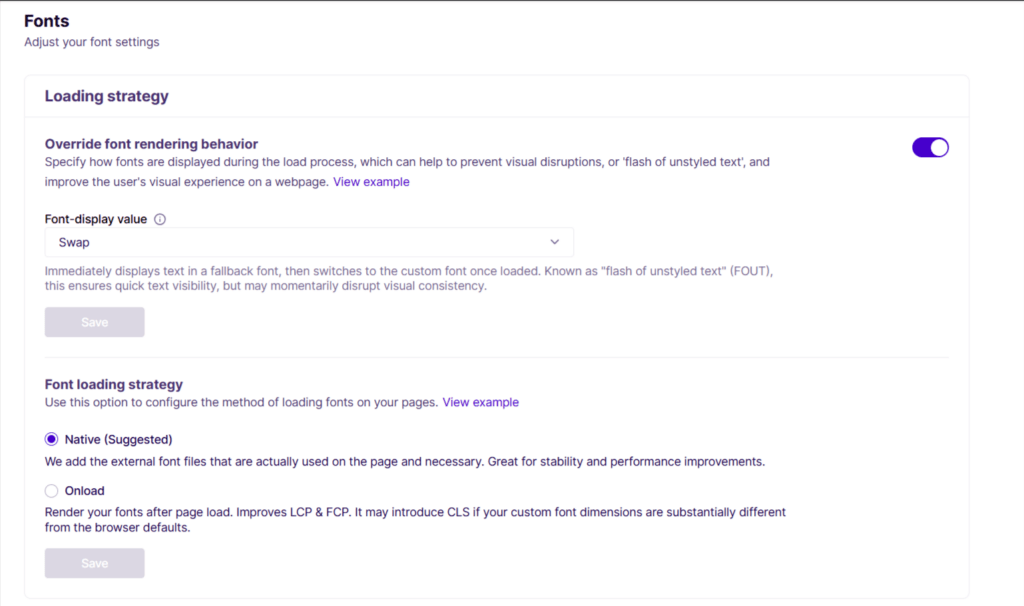
Fonts
NOTE:
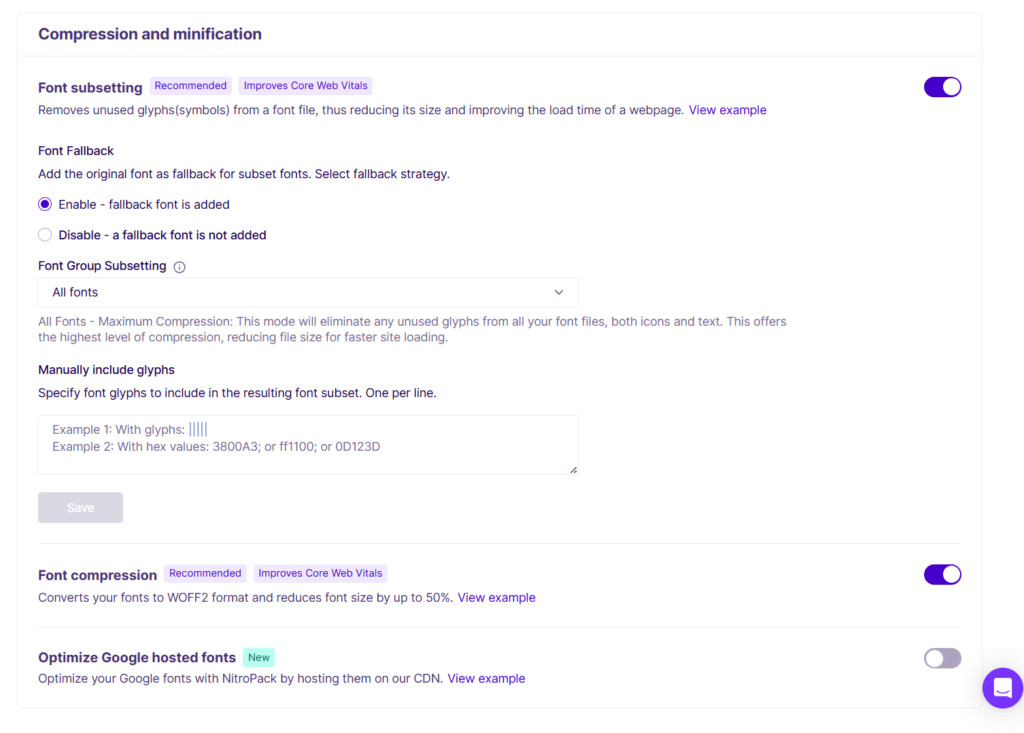
I had to disable the Font Subsetting option because it made my H3 headings appear lighter and less visually distinct. The deep black color of the headings faded, reducing their readability and overall impact. If you enable this option, I recommend testing your site in an incognito window and carefully checking your heading colors to make sure they still display as intended.
Cache
Cache is enabled by default, but you can fine-tune its settings in your NitroPack account dashboard. Below are the settings available to configure:
The dynamic content cookie option is particularly useful for multinational businesses. If you serve different content for users based on location, currency, or language, this is a feature worth attention.
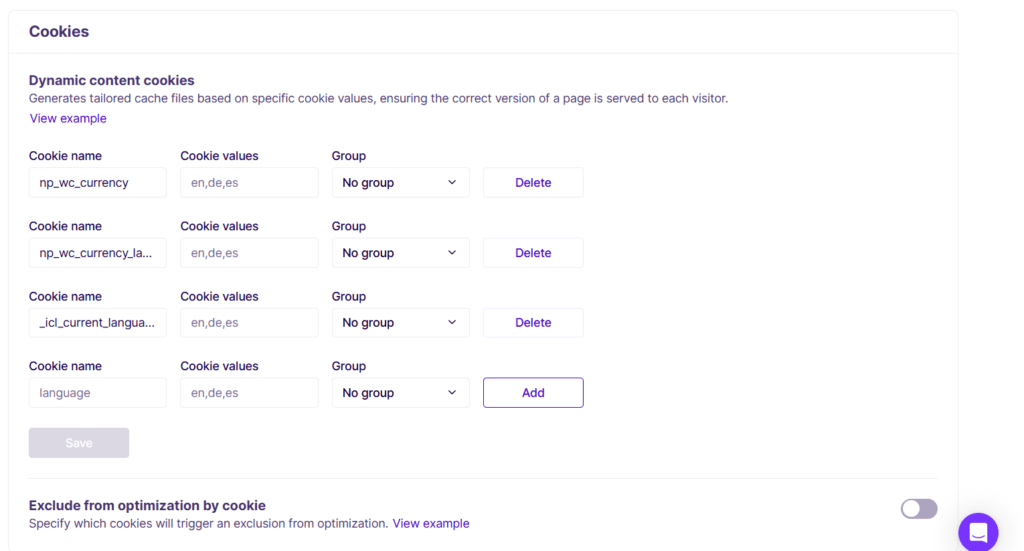
When enabled, NitroPack generates a cache file based on your cookie settings and serves it to relevant visitors.
Cache Insights
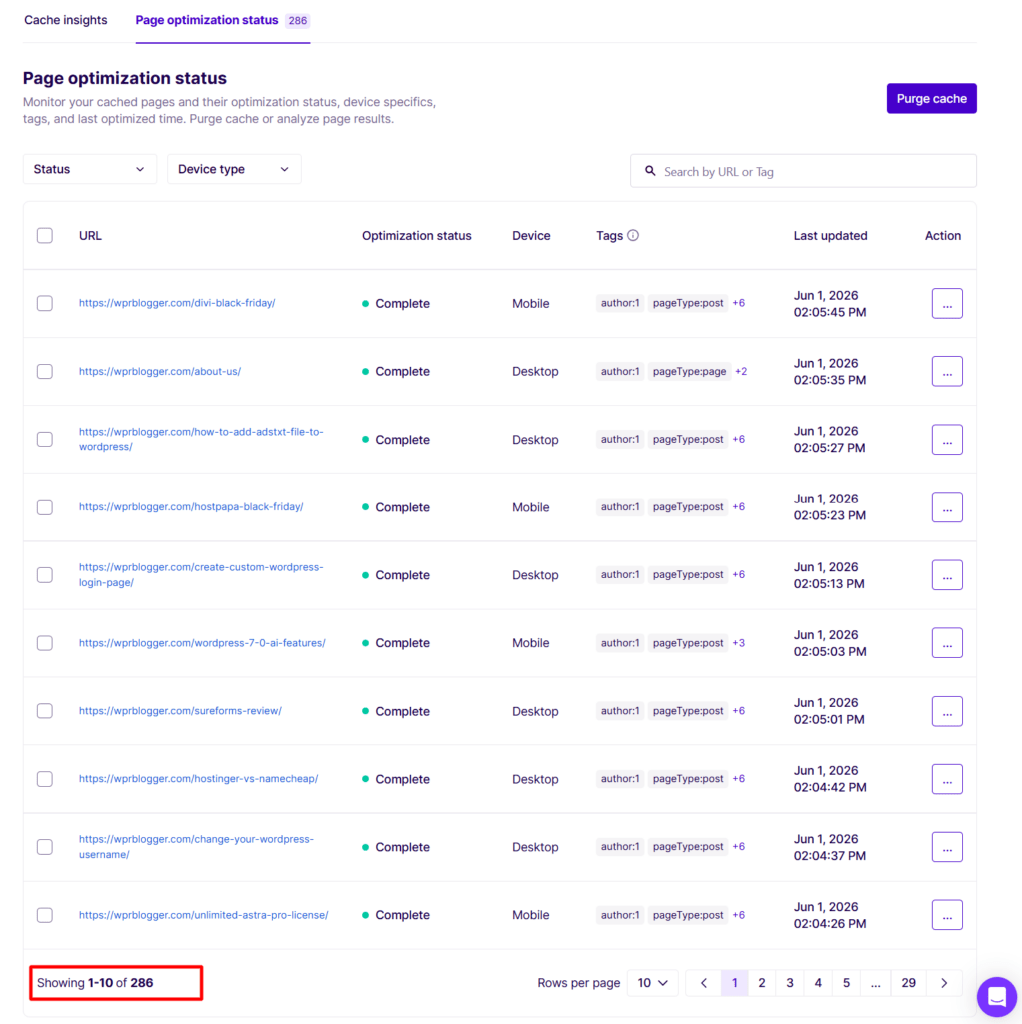
The Cache Insights tab is more than a status dashboard; it’s a practical resource management tool that gives you a clear picture of how NitroPack is using your plan’s allocation.
The Optimization Status panel shows exactly how many pages are fully optimized, how many are scheduled and queued, how many failed, and how many are not eligible.
On WPrBlogger, 286 pages were found, with all pages fully optimized. The cache hit ratio of 78% reflects the same early stage.
The Total Cache Size panel breaks down your 770.88MB cache by type: HTML cache (168.8MB), JavaScript cache (1.27MB), CSS cache (61.69MB), Fonts cache (3.41), and Images cache (535.71MB).
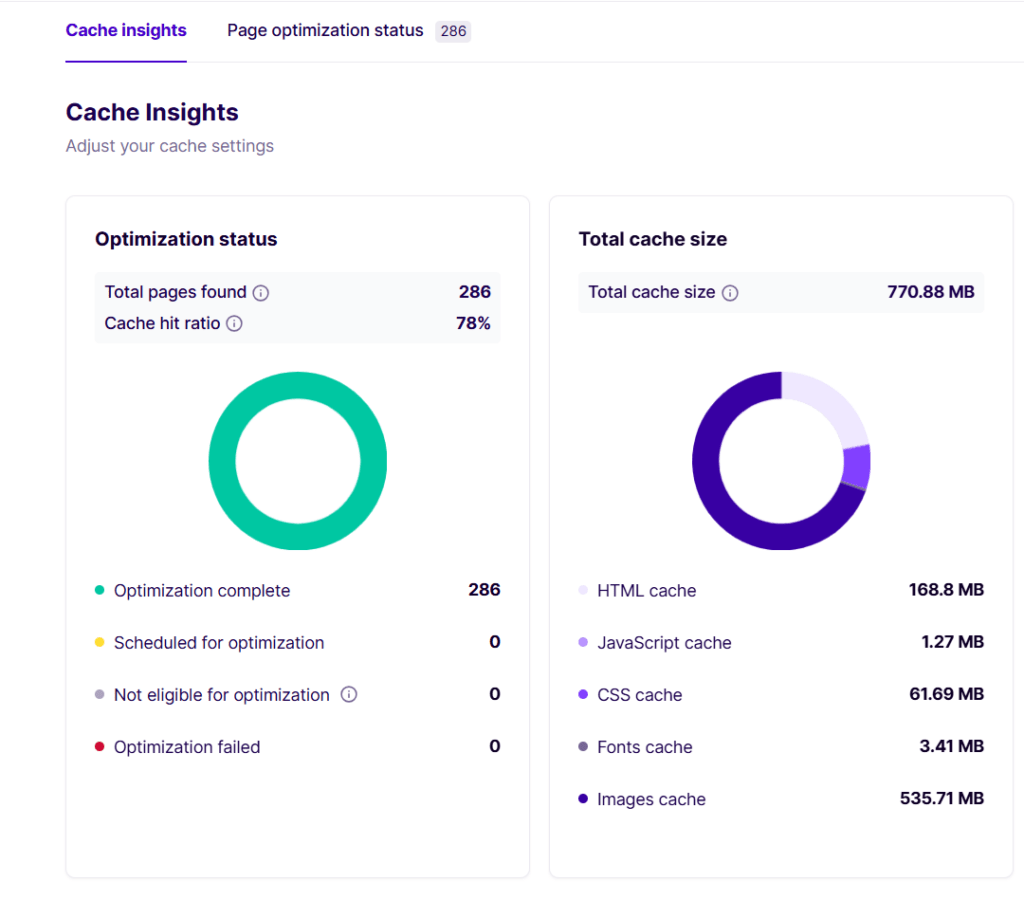
The images cache accounting for 77% of the total cache size is exactly what you’d expect. Images are by far the heaviest asset type on most WordPress blogs.
This Cache Insights breakdown matters if you’re on a plan with a CDN bandwidth cap; Cache Insights data shows how aggressively NitroPack caches and serves assets.
A high image cache size on a bandwidth-limited plan means your CDN allocation depletes faster. Knowing this helps you make informed decisions.
For example, by using the Optimize-only URLs feature to restrict optimization to your highest-traffic pages, conserving bandwidth for content that is actually visited.
The cache hit ratio is the most actionable metric here. A ratio of 78%+ indicates the cache warmup is working effectively. A low ratio (under 50%) after the warmup period is complete would signal a configuration issue worth investigating.
Perhaps excluded URLs that are too broad, or a cache expiration time that’s too short.
Analytics: Events History
The Events History log tracks every optimization request sent to NitroPack’s service. When pages were optimized, which device type triggered the event (mobile or desktop), and when caches were purged, along with any errors.
On this blog, the updated log showed 2,510 optimization events started, 74 failed, and 27 purge/invalidate events across the first 3-day session.
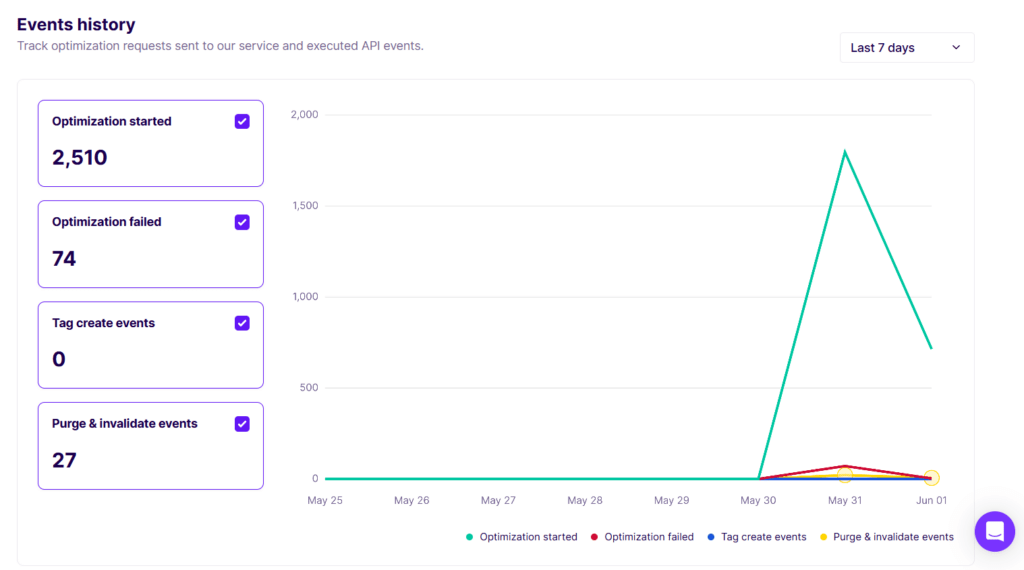
The 74 failed events are worth noting: optimization failures on day one of a new installation are common and expected. They typically reflect pages that returned 404 errors, pages with dynamic content that can’t be cached, or URLs in the sitemap that no longer exist.
The Plugin History tab logs every version change and connection event, providing a clear audit trail if you need to trace when a change was made.
This level of analytical visibility is genuinely rare in caching plugins. Other cache plugins tell you whether your cache is enabled. NitroPack tells you exactly which pages are cached, which failed, why, and when.
The CDN Bandwidth Limitation — What Happens When You Hit the Limit
Every NitroPack plan comes with a monthly cap on CDN bandwidth and pageviews. This is one of the most important things to understand before choosing a plan, so I asked NitroPack’s support directly:
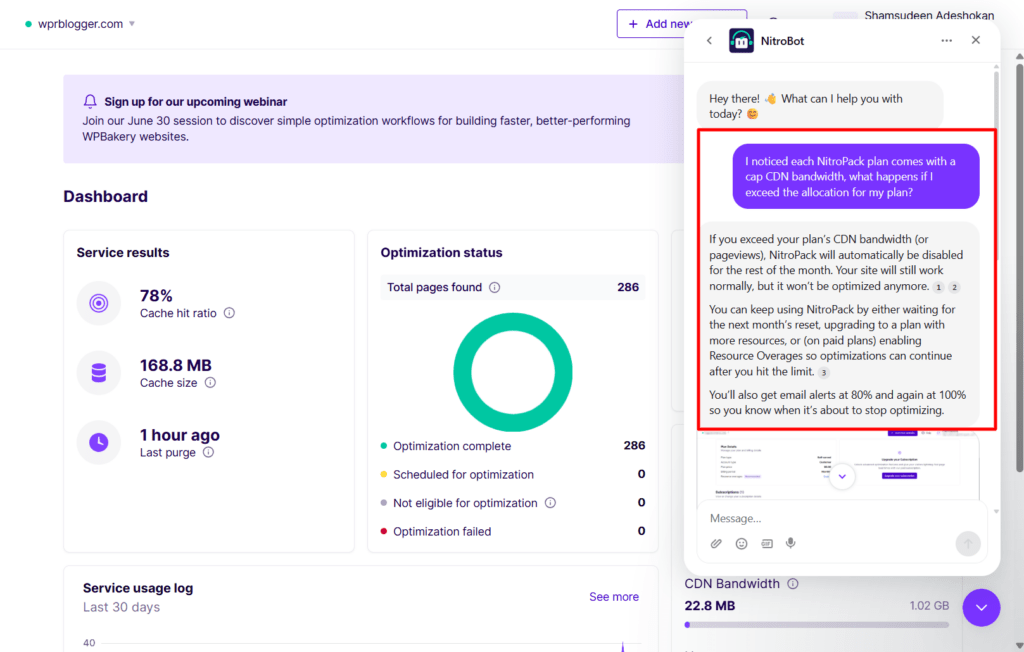
If you exceed your plan’s CDN bandwidth or pageview allocation, NitroPack will automatically be disabled for the rest of the month. Your site continues to work normally, but it won’t be optimized.
You can resume by waiting for the next month’s reset, upgrading your plan, or — on paid plans — enabling Resource Overages so optimization continues past the limit. NitroPack sends email alerts at 80% and 100% of usage, so you’re not caught off guard.
For Cloudflare users specifically, if you run out of NitroPack CDN bandwidth, Cloudflare continues to serve traffic as your CDN.
Since NitroPack’s CDN runs on Cloudflare’s infrastructure, your site continues to use Cloudflare CDN delivery even after NitroPack’s optimization layer is disabled. You lose the NitroPack optimizations — image compression, critical CSS, JS deferral — but raw content delivery continues uninterrupted.
This is a meaningful safety net compared to what would happen with a fully proprietary CDN that went dark at its bandwidth limit.
NitroPack Pricing
NitroPack offers five plans:
All plans include: 310 CDN locations (powered by Cloudflare), GZIP and Brotli compression, HTTP/3 compatibility, 24/7 support, 100% security guarantee, automatic updates, and Core Web Vitals optimization.
The pricing model is worth understanding carefully. NitroPack charges based on pageviews and CDN bandwidth, not a flat subscription. As your blog grows, costs scale.
Before committing, check your monthly pageview count in Google Analytics and match it to the appropriate plan. Upgrading mid-month is possible but means paying for the higher plan immediately.
NitroPack vs. WP Rocket vs. LiteSpeed Cache
NitroPack vs. WP Rocket
Architecture: WP Rocket runs entirely on your server and operates only in a WordPress environment. NitroPack offloads optimization to its cloud infrastructure, which works on most CMS and custom-coded sites.
Pricing model: WP Rocket charges a flat annual fee (starting at $59/year). NitroPack charges monthly based on pageviews, starting at $7/mon. Across all their plans, WP Rocket is cheaper, even for a multi-site license.
Ease of use: WP Rocket lives entirely inside WordPress and is easier to configure. NitroPack splits the configuration between the plugin and its external dashboard. WP Rocket wins on simplicity.
CDN: WP Rocket requires a separate CDN integration. NitroPack’s Cloudflare-powered CDN is built in.
Bandwidth caps: WP Rocket has none. NitroPack has monthly pageview and CDN bandwidth limits.
Read my comprehensive post for a detailed review of WP Rocket. For an in-depth head-to-head comparison and to learn which performance optimization plugin is the right fit for you, read my NitroPack vs WP Rocket.
NitroPack vs. LiteSpeed Cache
Architecture: LiteSpeed Cache is self-hosted. NitroPack is cloud-based.
Cost: LiteSpeed Cache is free. NitroPack is not.
Configuration: Both offer deep configuration. LiteSpeed Cache’s settings are entirely inside WordPress, but can be overwhelming without documentation. NitroPack splits its settings but provides clearer inline tooltips and help links for each option.
CDN: LiteSpeed Cache uses Quic.cloud CDN (free tier + paid). NitroPack uses Cloudflare-powered infrastructure with broader reach and more reliable delivery.
Best for: LiteSpeed Cache is the right choice if you’re on a LiteSpeed-powered server and want maximum performance for free. NitroPack is the right choice if you’re on a non-LiteSpeed host (like Cloudways or Pressable) and need the best results money can buy.
NOTE:
WP Rocket and LiteSpeed Cache include a database optimization tool; NitroPack does not. WP Rocket automates the process; LiteSpeed offers full manual control. The best plugin depends on your priority, budget, and situation.
Ease Of Use
NitroPack is not a beginner-friendly plugin like WP Rocket or FlyingPress. That’s not a criticism; it’s an honest characterization.
It offers default optimization modes (Standard through Ludicrous) that work out of the box for most sites. For many blogs, choosing Ludicrous mode and leaving everything at defaults will produce excellent results without touching a single advanced setting.
But if something breaks, a slider stops working, a font looks wrong, a widget doesn’t load, you’ll need to navigate the NitroPack dashboard to fix it. NitroPack has many settings, and diagnosing issues requires understanding what each one does.
What NitroPack does well here is documentation quality. Every setting has an inline tooltip, a “View example” link, or a “Learn more” link to a detailed help article. This significantly reduces the learning curve for beginners.
The dual-interface setup — basic controls in the WordPress plugin, advanced settings in the NitroPack web app — makes logical sense once you understand the cloud architecture, but it does require a mental shift from the “everything in one place” experience of WP Rocket.
NitroPack Support
NitroPack offers live chat support directly on their website. No email-only ticketing, no forum-only support. The chat starts with NitroBot, an AI agent that handles common questions and configuration queries.
I tested the support firsthand while setting up the plugin. As mentioned above, I asked NitroBot what happens when you exceed your CDN bandwidth allocation.
The response was accurate and detailed, covering the key scenarios — automatic disabling, the Resource Overages option, the email alerts at 80% and 100%, and the Cloudflare fallback behavior for users running both services.
When I followed up with a secondary question about Cloudflare specifically, it answered that correctly as well.
If NitroBot can’t resolve your issue, a human agent joins the conversation. This is a meaningful escalation path; you’re not left in an automated loop if your question is genuinely complex or technical.
All paid plans include 24/7 chat support. The free plan has limited support access, which is worth factoring in if you’re considering staying on the free tier long-term.
NitroPack also maintains a comprehensive help documentation library, which covers most setup scenarios, integration guides, and troubleshooting steps in detail. For most configuration questions, the documentation will get you the answer without needing to contact support at all.
NitroPack Pros And Cons
Pros
Cons
Who Should Use NitroPack?
NitroPack is a strong choice for:
NitroPack may not be the best fit for:
Final Verdict
NitroPack delivered fantastic results in our test: a mobile performance score from 51 to 91, LCP from 10.2 seconds to 2.0 seconds, and FCP from 5.1 seconds to 1.2 seconds — all within a single activation session on a real production site.
The feature depth is genuine, not just checkbox marketing. LCP preload, adaptive image sizing, preemptively sized images, video facades, and animated image optimization are not features you find in most caching plugins.
And the Cache Insights and Events History analytics give you visibility into what’s actually happening that many competitors simply don’t offer.
However, the pricing model requires careful planning — the monthly pageview and CDN bandwidth caps are real constraints that flat-rate plugins don’t have. And the dual-interface setup demands more from you as a user. But for pure PSI performance scores, NitroPack is difficult to beat.