
Most 404 errors are noise, but a few are lost traffic and lost backlinks. Rank Math’s 404 Monitor shows you which is which, and the free plugin covers the whole workflow. This guide shows how to set it up, sort the log, recover what is worth saving, and monetize only where it genuinely helps the reader.
Why most 404s do not matter, and which ones do
A 404 is not a penalty. Google says a deleted page with no equivalent should return a 404, and that most 404s do not hurt your indexing or rankings. A broken URL only costs you when something of value points at it: a backlink from another site, or visitors who still try to reach it.
That changes the job. You are not trying to clear every 404. You are looking for the small number that still carry traffic or links, and rescuing those.
Rank Math’s 404 Monitor is built for this. It logs every missing URL on your site, and in Advanced mode it also records where each visitor came from and what browser or bot made the request. The free plugin has everything this workflow needs. The only PRO feature is exporting the log.
Step 1: Set up the 404 Monitor
Turn on the module, then configure it so it keeps the data you need.
- Go to Rank Math SEO, then Dashboard. If you only see a short list of modules, switch the plugin from Easy Mode to Advanced Mode (top right).
- Turn on the 404 Monitor module. Turn on the Rank Math Redirections Module, too, because you will need it to act on what you find.
- Open Rank Math SEO, General Settings, then 404 Monitor.
Then set these four options.
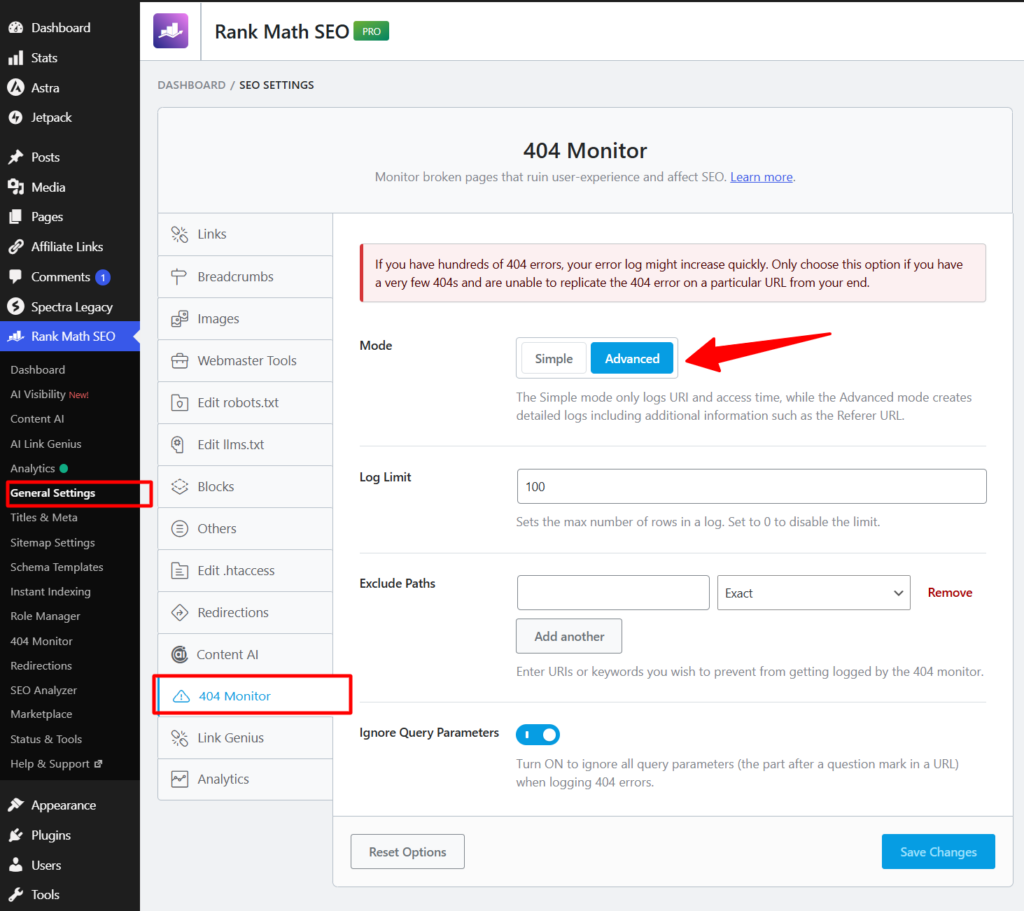
Advanced mode grows your database faster than Simple mode, so many site owners run it for a few weeks, act on the results, then switch back.
Step 2: Sort the log
Give the log days or weeks to fill, depending on your traffic. Then read each row for three things: who made the request, whether anyone links to the URL, and whether you have a relevant page to send it to. This table covers the patterns you will see most.
| What the row shows | What it usually means | What to do |
|---|---|---|
| Crawler in User-Agent (AhrefsBot, Baiduspider, DotBot), no Referer | A bot re-checking a URL it already knows about | Check backlinks before acting. A bot hit alone is not demand. |
| Blank Referer and blank User-Agent, odd path such as a REST API path tacked onto a post slug | A script or plugin request | Ignore or delete. Never redirect it. |
| Missing image or file under wp-content/uploads | A deleted or moved media file | Restore the file, or exclude the path if nobody needs it. |
| Human browser in User-Agent, Referer from your own site | A broken internal link | Fix the link at its source. A redirect is only a backup. |
| Human browser, Referer from another site | A backlink or a visitor-bearing link that is broken | Redirect to the closest relevant page, and consider contacting the site owner. |
| Old URL with many backlinks, any User-Agent | A page whose link value you are losing | Redirect to the best matching page. This is your highest-value fix. |
| Random strings or URLs that never existed | Scanner or typo traffic | Leave it as a 404. |
The Referer column only helps when a visitor clicked a link. Crawlers and direct visits leave it blank, so use a backlink tool such as Ahrefs or the Links report in Google Search Console to find who links to an old URL.
If you have Rank Math PRO, export the log to a spreadsheet and sort by hits. Without PRO, sort by Access Time and Hits inside the plugin.
For example, a missing image requested from another site shows in my log as a missing PNG under wp-content/uploads, a Referer of dishcuss.com, and a mobile Chrome browser in the User-Agent. That combination points to a real person, not a bot.
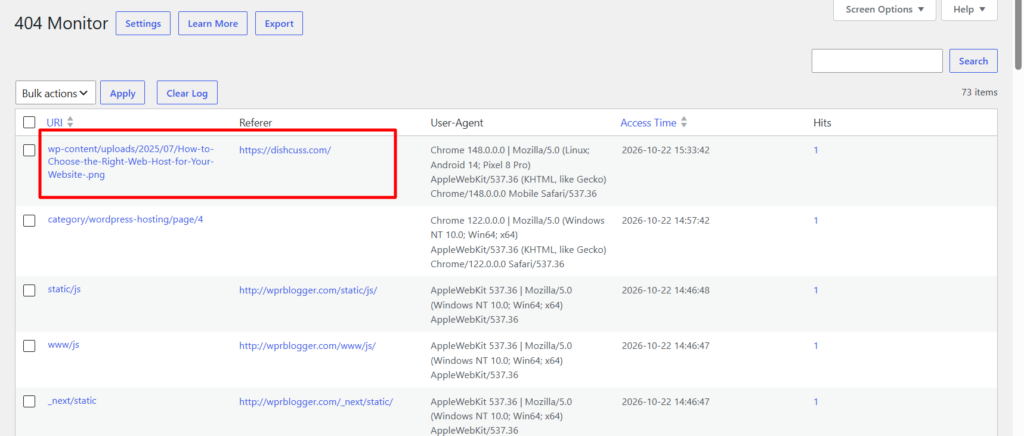
The most likely explanation is that someone viewed a page on that site that displays my image, and their browser asked my server for the file, which returned a 404.
Three things to notice. The visitor wasn’t searching for my content, so this isn’t a monetization opportunity. The Referer shows only the site, not what the person searched for. And the fix depends on the file, not the page.
Here is how I handle it:
- Search the Media Library for the current version of the image. A renamed or re-uploaded file is the usual cause.
- If it exists under a new name, redirect the old file URL to it, or restore the original filename.
- If the image was deleted on purpose, leave the 404 alone.
Fixing it makes my image appear again on their page, which keeps the exposure. It is also a good reminder to sort first and monetize second.
Step 3: Recover traffic with a redirect
When a URL deserves a new home, you can create the redirect straight from the log. To do this, hover over the row and click Redirect.
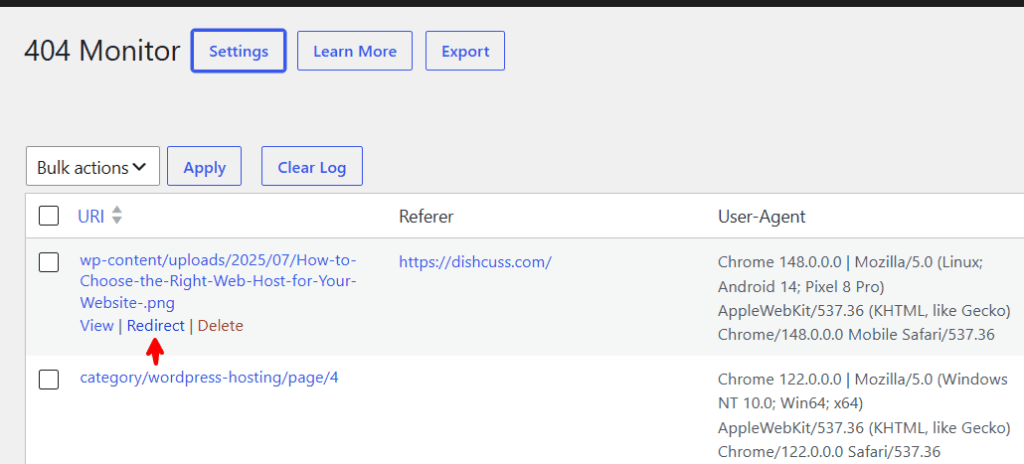
Rank Math fills in the source URL, so you mostly just choose a destination. If you don’t see the link, make sure the Redirections module is on.
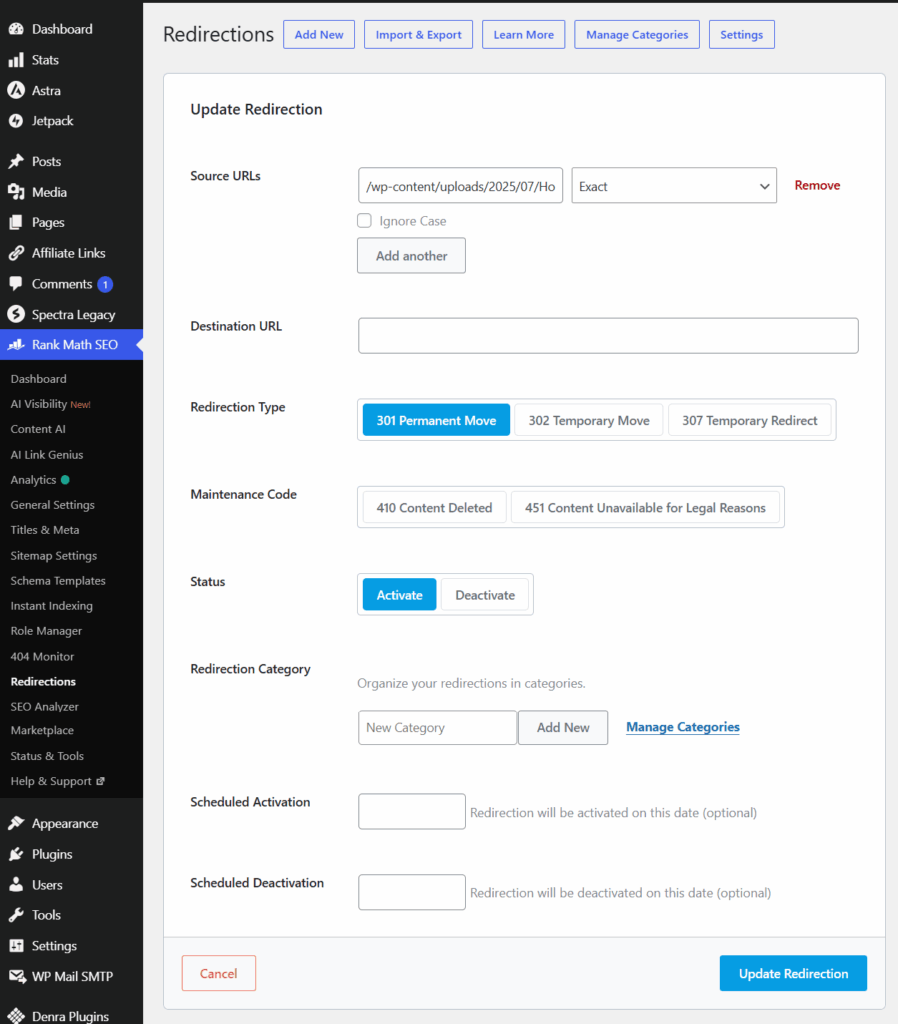
Here is what each field does:
Once a URL is redirected, it stops showing in the 404 log. The Hits count on the Redirections page shows how often the redirect fires. Delete the old log entry so your log stays clean.
NOTE:
Google warns that redirecting pages to unrelated destinations, especially the homepage, can be treated as a soft 404. Relevance is what keeps a redirect useful. If no good match exists, leave the 404 alone. Read our complete guide on managing redirects with Rank Math.
Step 4: Recover links with outreach
A redirect saves the visitor, but the better fix for an external link is often to have it corrected at the source. A link that points straight to a live page is stronger than one that passes through a redirect.
Start with the Referer column. If the page that sent the visitor is another site, open it and confirm the link is still there. If the Referer is blank, look up the URL in Ahrefs (your preferred SEO tool), or in the Top linked pages report in Google Search Console, to find who links to it.
Then send a short, specific note. Here is a template:
Subject: Quick fix for a broken link on your page
Hi [Name], I found a link on [their page URL] that points to [old URL], which no longer exists on my site. The current version is here: [new URL]. If it is easy to update, I would appreciate it. Thanks for linking to us.
Keep it brief and make the fix easy. Never ask for anything else in the same message.
Keep the redirect in place either way. Visitors still arrive through the old link until you change it, and not every site owner will reply.
Step 5: Monetize the right ones
Monetizing a 404 is a bonus on top of recovery, not the goal. It only makes sense when a URL passes two tests. It has real human traffic or backlinks, and the page matches what the visitor was looking for.
When both are true, you have two options.
Option A: redirect to your own relevant money page. The visitor lands on content that explains the recommendation, with your disclosure visible, and the affiliate link sits inside that page. If the old URL has backlinks, their value stays on your site. This is the safer, and usually better-earning, choice.
Option B: redirect straight to an affiliate link. It is faster, but the visitor lands on a sales page with no context from you, and the old URL’s link signals point at someone else’s site.
Instead, reserve this option for low-stakes URLs with no meaningful backlinks. And use the affiliate program’s direct link, not a cloaked link. A cloaked affiliate link is already a redirect, so don’t create a redirect chain.
A few ground rules apply to either option:
Most 404s will pass neither test, and that is fine. A small number of well-chosen redirects beats a log full of forced ones.
Step 6: Track results and maintain the log
A redirect you never check is a guess, so build a short routine around it.