

Sometimes, right after I hit publish, I realize the URL slug isn’t the one I intended. Other times, I need to change a URL for SEO reasons, or a post no longer exists, and I want visitors to land on something relevant instead of a 404 error.
On a small blog, you can fix these one at a time. On a site with hundreds or thousands of posts, you need a simple, automatic system.
Several WordPress SEO plugins handle redirects, but I like Rank Math’s Redirections module because it’s easy enough for a complete beginner and powerful enough for large sites. From experience, it does the job well.
In this guide, I’ll show you how to manage redirects in WordPress with Rank Math, from the settings and configuration to match types, regex, bulk actions, and CSV import and export.
Quick answer:
Rank Math Redirections is a built-in module that sends visitors and search engines from an old or dead URL to a new one, or tells them a page is gone for good. Turn it on in Rank Math SEO > Dashboard, set your defaults in General Settings, then create rules under Rank Math SEO > Redirections > Add New.
What Is Free and What Needs Rank Math PRO
The free version of Rank Math is genuinely generous here. This is how the redirects features split between PRO and Free.
I’ll label PRO features as we go, so you know what you can use today.
NOTE:
Bookmark our Rank Math PRO discount page to follow up when they launch a seasonal promotional offer. This might help you secure a first-year license at a discounted price.
Three Places You Can Create a Redirect
Rank Math lets you create redirects from three screens, each for a different situation.
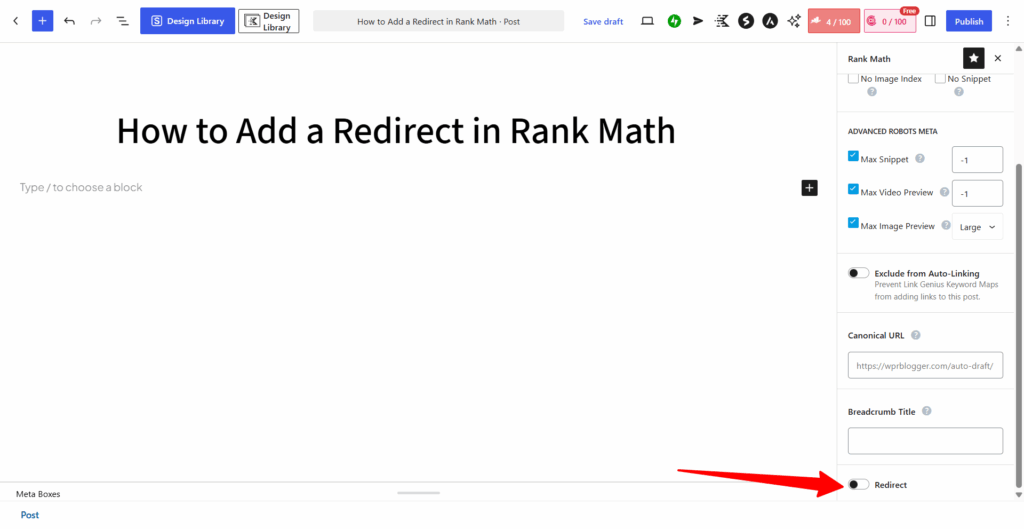
The post editor: Best when you’re redirecting a post or page that still exists in WordPress. Look in the Advanced tab of the Rank Math panel, then scroll to Redirect.
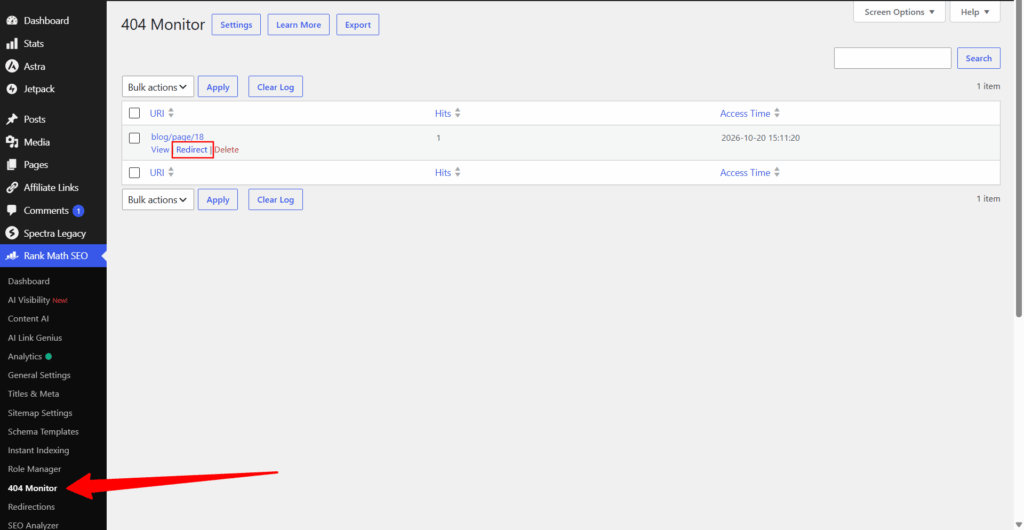
The 404 Monitor: Best when visitors or crawlers are hitting broken URLs. You see the dead URL, then turn it into a redirect.
The Redirections screen: Best for new rules. You can redirect any URL here, even one with no matching post or page, and you can use match types and regex.
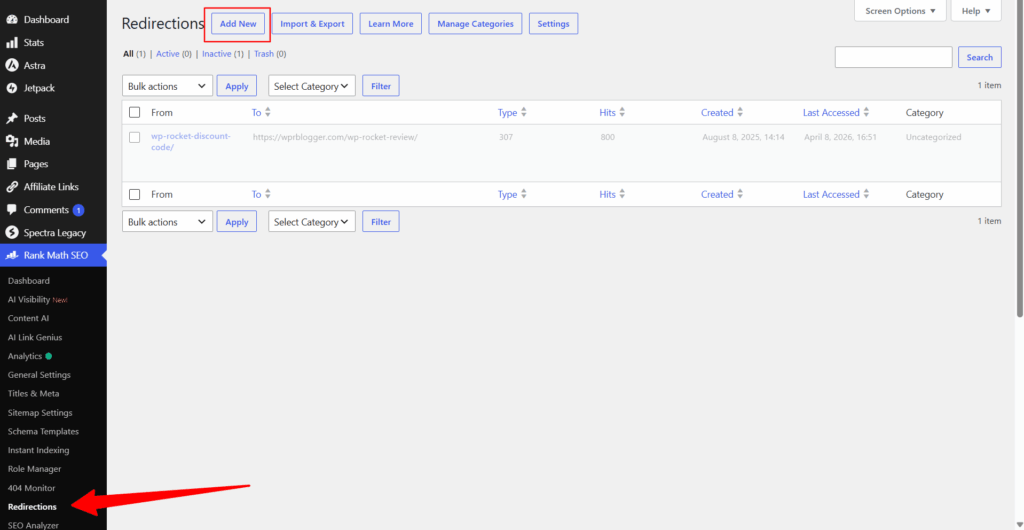
This guide focuses on the Redirections screen because it’s where you get the most control.
Step 1: Turn On the Redirections Module
Go to Rank Math SEO in your WordPress admin and click Dashboard. Scroll through the modules until you find Redirections, then toggle it on. The Settings button next to the toggle opens the Redirections tab of Rank Math’s General Settings, which is where we’ll go next.
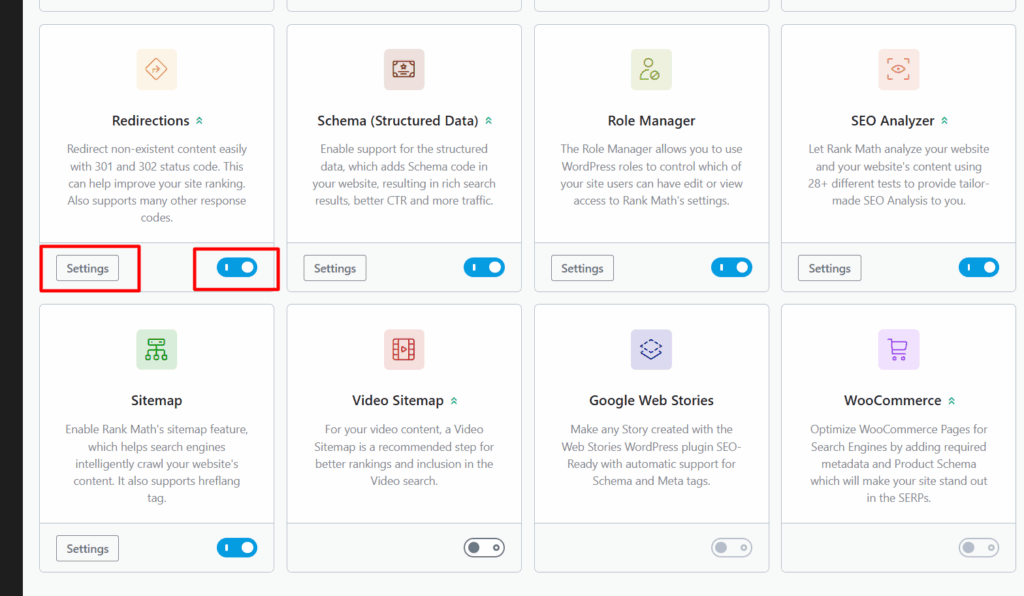
If you can’t see the Redirections module, switch Rank Math from Easy Mode to Advanced Mode first. Several redirect options only appear in Advanced Mode.
Step 2: Configure the Redirection Settings
Before you create any rules, set the behavior you want Rank Math to follow automatically. Go to Rank Math SEO > General Settings > Redirections. You only need to think about four options.
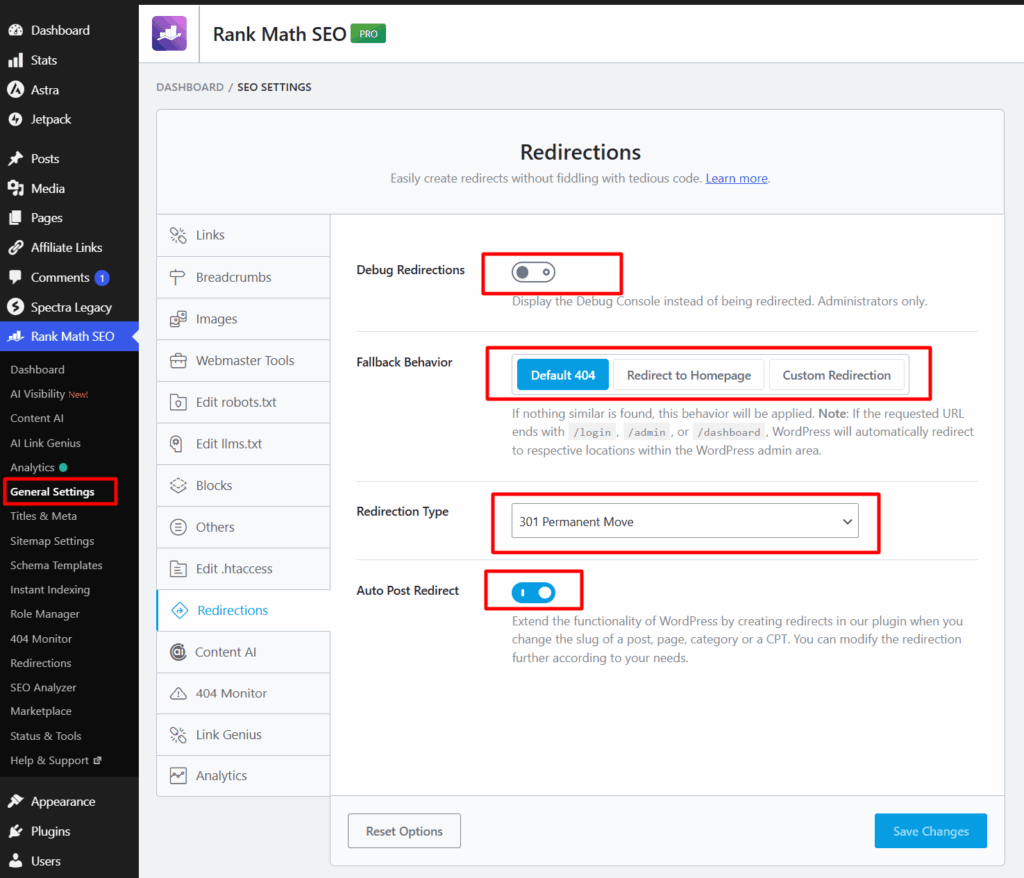
Fallback Behavior: This controls what happens when a redirect’s destination can’t be found. You can keep the default 404, redirect to your homepage, or send visitors to a custom URL. The choice is yours.
I recommend keeping the default 404 unless you have a clear reason to change it. Sending every missing page to the homepage can look like a soft 404 to Google, and it doesn’t help visitors who wanted something specific.
Redirection Type: This sets the default type Rank Math uses when you create a new redirect. It’s 301 Permanent Move by default, and you can override it on any individual redirect.
Leave it as it is unless you know what you’re doing.
Auto Post Redirect: This creates a redirect automatically whenever you change the URL slug of a post. WordPress already does this for posts, but only for posts.
Rank Math extends it to pages, taxonomies, and custom post types, and the redirects it creates are always 301 Permanent Moves.
This is the setting that saves you when you publish with the wrong slug, so I recommend turning it on.
Debug Redirections: This places an interstitial screen between the old URL and the new one whenever a logged-in administrator follows a redirect. It shows which rule triggered the redirect and includes a link to that rule.
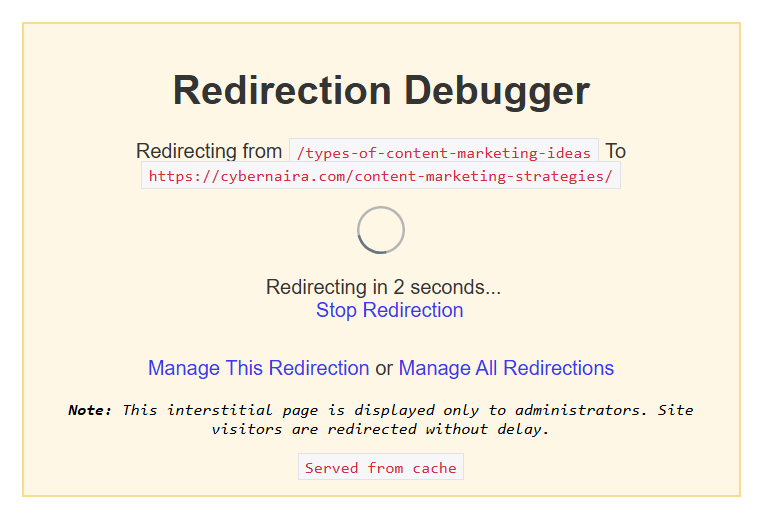
The screen only appears for about five seconds, and regular visitors never see it. Keep it off day to day and turn it on when you’re troubleshooting.
Click Save Changes when you’re done.
Step 3: Get to Know the Redirections Screen
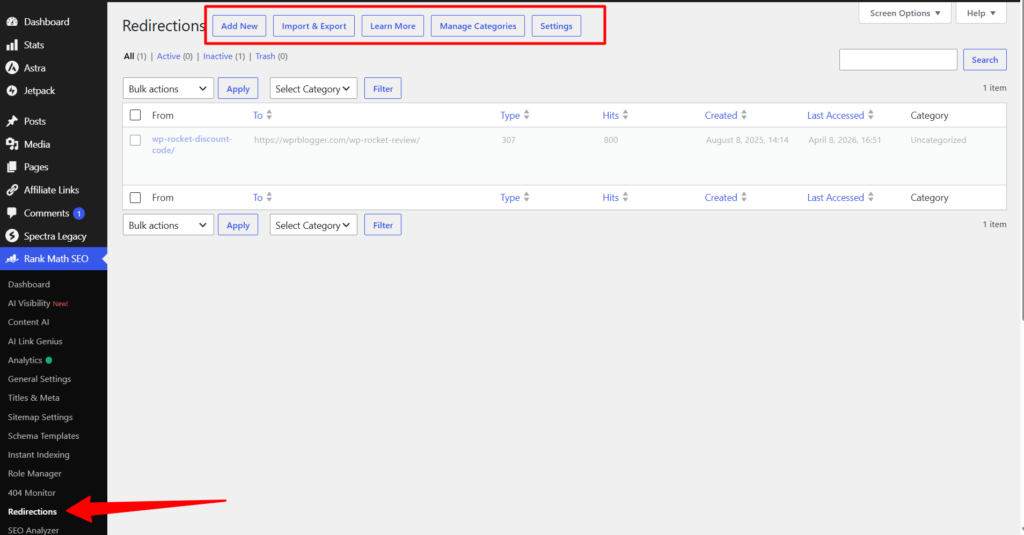
Go to Rank Math SEO > Redirections. At the top, you’ll see five buttons:
Step 4: Create a Redirect
Click Add New to open the Add Redirection form. Here’s what each field does.
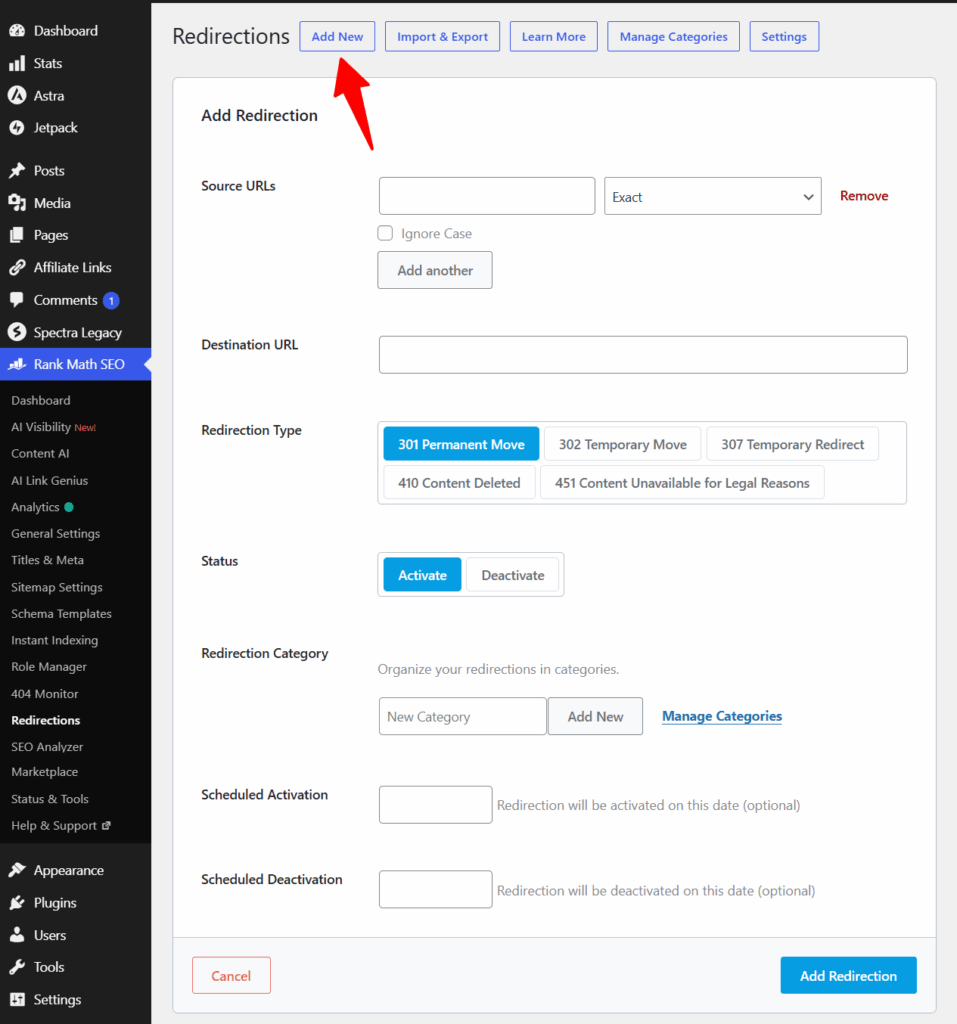
Source URLs: This is the old URL you’re redirecting from. Paste the full address, or just the path after your domain, and Rank Math removes the domain and extra slashes for you.
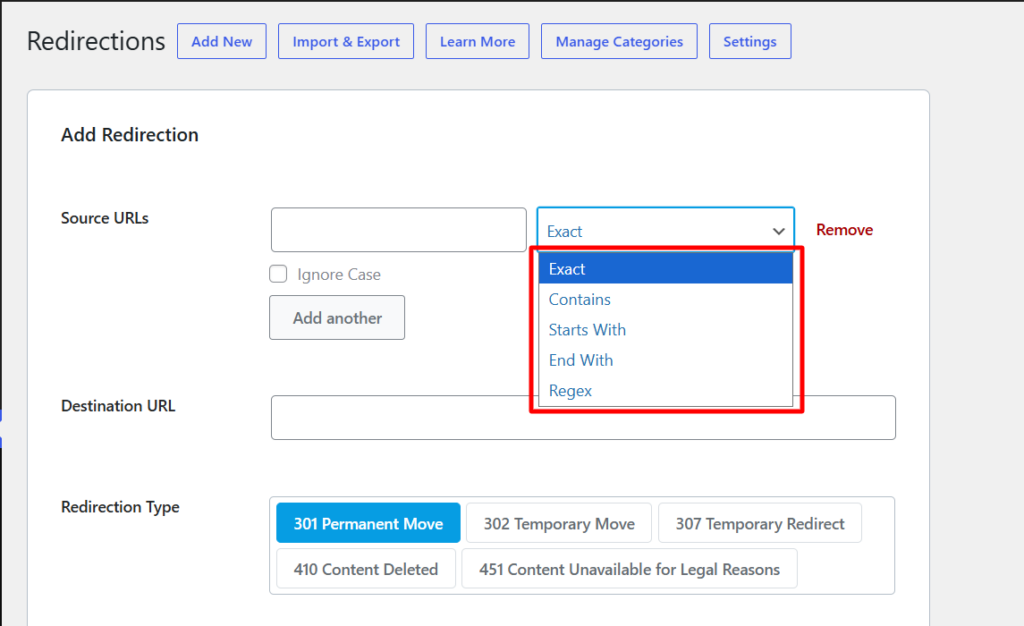
Match type: The dropdown next to the source box tells Rank Math how to compare the source with the URL a visitor requests. The options are Exact, Contains, Starts With, Ends With, and Regex. I explain each one below.
Ignore Case: URLs are case-sensitive. If you’re sure no uppercase version of the URL leads to a different page, tick this box so both versions redirect.
Add another: A redirect can have several sources pointing to one destination, and each source can use its own match type. I love this setup. I can set an exact link, any URL containing certain words, and URLs starting or ending with specific words, all pointing to one destination.
It gives me more control over internal link management and helps me consolidate topically related posts I’ve deleted.
Destination URL: This is where visitors should land. Use the full URL, including https and your domain, to avoid confusion. The destination can be a page on your site, an external site, or even a file such as a PDF. You can skip this field for 410 and 451 responses.
Redirection Type: Choose the status code that tells search engines what happened. More on that in a moment.
Status: New redirects are active by default. Choose Deactivate if you want to build a redirect now and switch it on later.
Redirection Category (PRO): Optional, but worth using once your list grows. You can pick an existing category or create one on the spot. I prefer creating categories while I’m adding the redirect, because that’s when I know the context and topic best.
Scheduled Activation and Scheduled Deactivation (PRO): These let you set the dates a redirect switches on and off. Scheduling is handy for seasonal promotions, or when you’re rebuilding a page and need to send traffic to a temporary URL for a while.
Finally, click Add Redirection to save.
Match Types Explained
Match types are what make Rank Math useful on big sites. Instead of creating hundreds of single redirects, you describe a pattern.
Choosing the Right Redirection Type
Use the proper HTTP status code so you send Google the right signal.
Two things to remember!
First, 410 and 451 aren’t true redirects, so there’s no destination, and you can’t combine them with a redirect type. Second, if a deleted post has no close replacement, a 410 is usually cleaner than redirecting it to an unrelated page or the homepage.
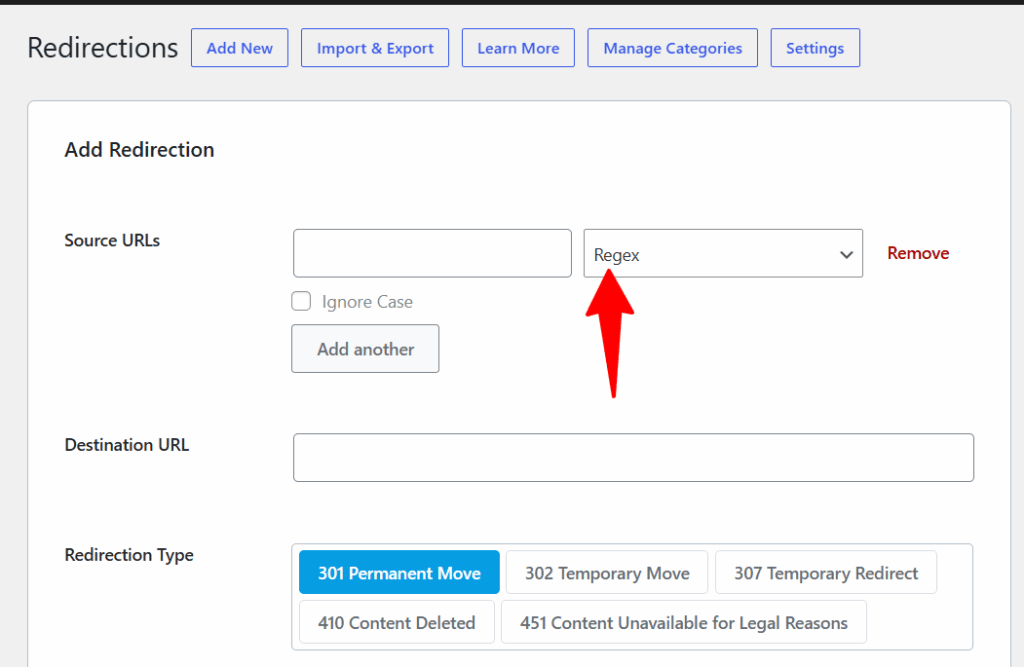
How to Use Regex Redirects in Rank Math
Regex is short for regular expression. It’s a pattern that describes a group of URLs, so one rule can replace hundreds of individual redirects. If the word sounds intimidating, think of it as an advanced wildcard.
The Few Symbols You Need
That last pair is the trick behind most regex redirects: it captures the part of the URL that stays the same, and reuses it in the new address.
Why You Would Use Regex
Regex earns its place when a rule would otherwise need many redirects. The common cases are:
Example 1: Remove a Folder From Your URLs
Say your tutorials used to live under /wordpress-tutorials/ and you now want them at the root. Select Regex as the match type and enter:
Now a visitor requesting yourdomain.com/wordpress-tutorials/install-plugin/ lands on yourdomain.com/install-plugin/. The same happens for every URL in that folder. Replace yourdomain.com with your own domain.
Example 2: Remove Dates From Post URLs
If your old permalinks looked like yourdomain.com/2024/05/14/post-name/, this source pattern matches the year, month, and day, then captures the slug:
Here \d{4} means four digits, and \d{2} means two digits. If your URLs only include the year and month, try a different source pattern, like \d{4}/\d{2}/([a-zA-Z0-9_.-]+)$, with the same destination.
Example 3: Send a Retired Section to One Page
If you stopped publishing hosting reviews, for example, and want every old review to land on one roundup page:
Notice there’s no $1 here. You’re not reusing the captured text, because every old URL goes to the same place.
Stay Safe With Regex
A small mistake can match far more URLs than you intended, and a bad pattern can make whole sections of your site seem to disappear. A few habits to keep you safe:
Manage Redirects at Scale
Once you have dozens or hundreds of redirects, organization matters more than creation. Rank Math gives you several tools for that.
Search: The search box finds redirects that contain your exact search term. Don’t add spaces, and include hyphens and slashes where they appear in the URL. Searching for for-beginners returns every redirect with that text.
Filter by status: Above the redirects list, you’ll see four links: All, Active, Inactive, and Trash. Each has a count next to it. Click one to see only those redirects, which makes it easy to find paused redirects or recover one you deleted by mistake.
Categories and filtering (PRO): Assign redirects to categories, including child categories, then use the category dropdown and the Filter button to see only that group. If you manage a large site, this saves a lot of scrolling.
Bulk actions: Tick the redirects you want, open the Bulk actions dropdown, and choose Activate, Deactivate, Move to Trash, or Add to Category. Then click Apply. It’s a real time saver when you’re cleaning up a long list.
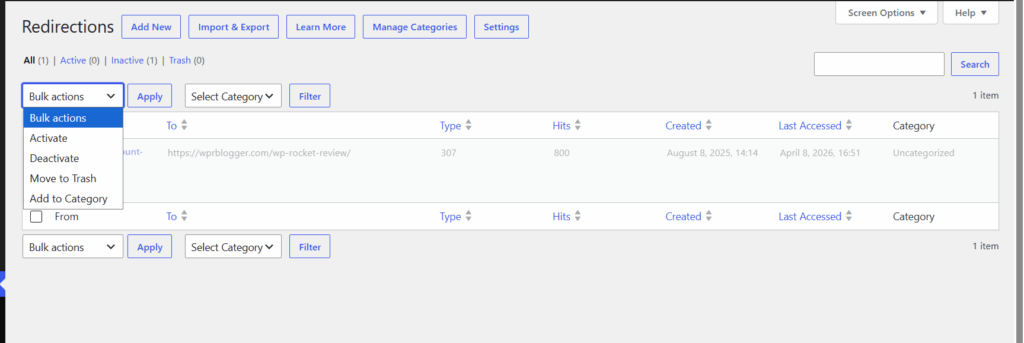
Redirect statistics: The list shows three useful columns: Hits (how many times the redirect has been accessed), Created, and Last Accessed. Both humans and bots are counted, so treat hits as a rough guide.
A redirect with no recent hits is a good candidate for cleanup, while one with steady hits tells you the old URL still has links or traffic pointing at it.
Back Up Your Redirects and Work With CSV Files
Losing your redirects can undo months of SEO work, so back them up. On the Import & Export screen, Rank Math lets you export your redirects as an .htaccess file for Apache servers or as a configuration file for Nginx.
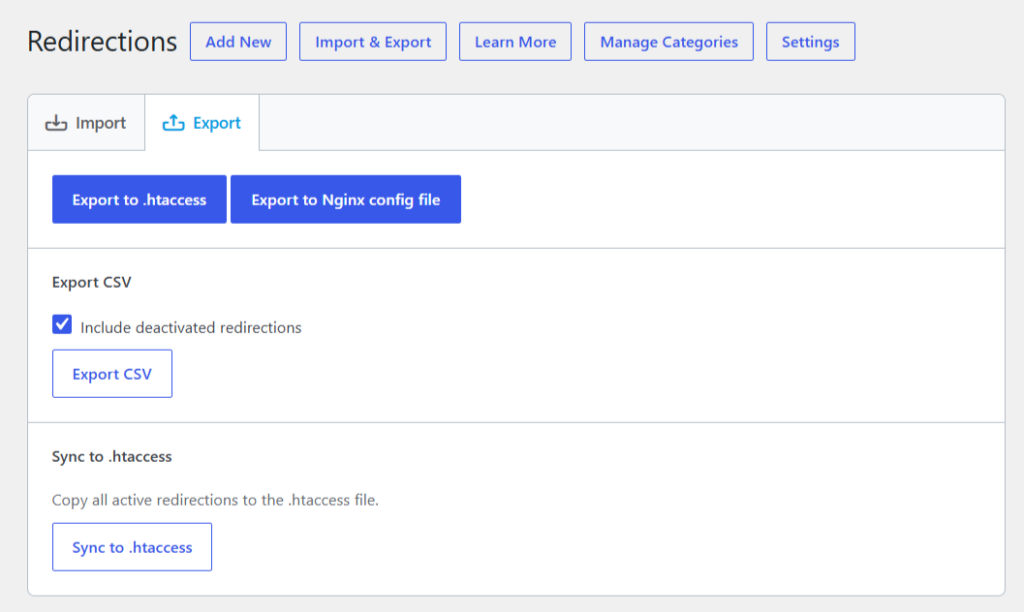
Rank Math PRO users can also use Sync to .htaccess to write redirects to that file automatically, which can make redirects faster.
CSV import and export (PRO): If you manage a large site or work for clients, CSV is the feature that sets Rank Math PRO apart. You can export your redirects, edit them in a spreadsheet, and import them back. You can also build a new list from scratch and share the spreadsheet with your team.
A CSV can include these columns: id, source, matching, destination, type, category, status, and ignore. Column headers must be lowercase, and the file needs at least the source and destination columns, or Rank Math shows a Missing one or more required columns error. Accepted values include:
To edit an existing redirect, include its ID. To delete one, type DELETE (in capital letters) in its destination cell. After you import, Rank Math reports how many redirects were created, merged, updated, and deleted. Always export a fresh backup before a big import.
Troubleshooting Common Redirect Problems
When something goes wrong, start with a quick self-check. Open the redirect list and look for blank rules, rules with the same source and destination, and redirects to files or locations you don’t recognize.
Redirect Best Practices
Frequently Asked Questions
Final Thoughts
Redirects are one of those behind-the-scenes jobs that protect your traffic, your rankings, and your visitors’ experience.
Rank Math makes them painless: turn on Auto Post Redirect so slug changes take care of themselves, use match types and multiple sources to handle groups of URLs, and reach for regex when a pattern would save you from creating dozens of rules.
If you manage a large site, PRO’s categories, scheduling, and CSV tools make the whole process far easier to maintain. Start with the settings, create one simple redirect, and build from there.