WordPress.com and WordPress.org are built by the same company, Automattic, and share the same core software. But the experience of using them and the type of site owner each is built for couldn’t be more different.
WordPress.com simplifies everything, such as hosting, security, updates, and performance, which are handled for you. WordPress.org gives you the core software and expects you to know what to do with it.
Which one is right for you? The answer is more nuanced than a simple checklist comparison. It depends on your technical comfort level, your business goals, how much control you want, and how much time you’re willing to spend managing infrastructure instead of building your site.
This comparison of WordPress.com vs WordPress.org is based on over a decade of experience building on both platforms, including hands-on testing, firsthand performance data, and feature testing.
The Fundamental Difference: Managed vs. Self-Hosted
The most cited difference between the two platforms is hosting, and it’s the right place to start, because everything else flows from it.
WordPress.org is self-hosted software. You download the WordPress core, find a web host, purchase a hosting plan, install WordPress on your server, and take it from there.
Security hardening, performance optimization, plugin management, theme updates, and server configuration are all your responsibility.
You may get some or all of these features bundled with your hosting plan, even in a self-hosted environment; it all depends on your host and the hosting package.
However, WordPress.com is a fully managed hosting platform. Automattic provides hosting, preinstalls WordPress, manages server infrastructure, backups, handles security, and automatically pushes application updates.
You log in and build. The underlying server configurations or performance optimization is not your concern.
This distinction shapes every other comparison on this list.
On WordPress.org, your ceiling is higher, but your floor is lower. You can build almost anything, but you can also break things badly if you don’t know what you’re doing.
On WordPress.com, your floor is higher; most sites get good performance and speed out of the box, but your ceiling is capped by what the platform allows.
Exclusive Platform Features
WordPress.com offers features that aren’t available in self-hosted WordPress.org installations, at least not natively or with the same level of integration.
During testing, the most notable examples were the Create AI Podcast feature, the AI site builder, and the Jetpack AI Assistant embedded directly inside the Gutenberg block editor.
The AI Podcast tool automatically converts written content into a two-host audio discussion, which you can add to your content or publish as a new post. No recording equipment, no third-party service, no additional plugin required.
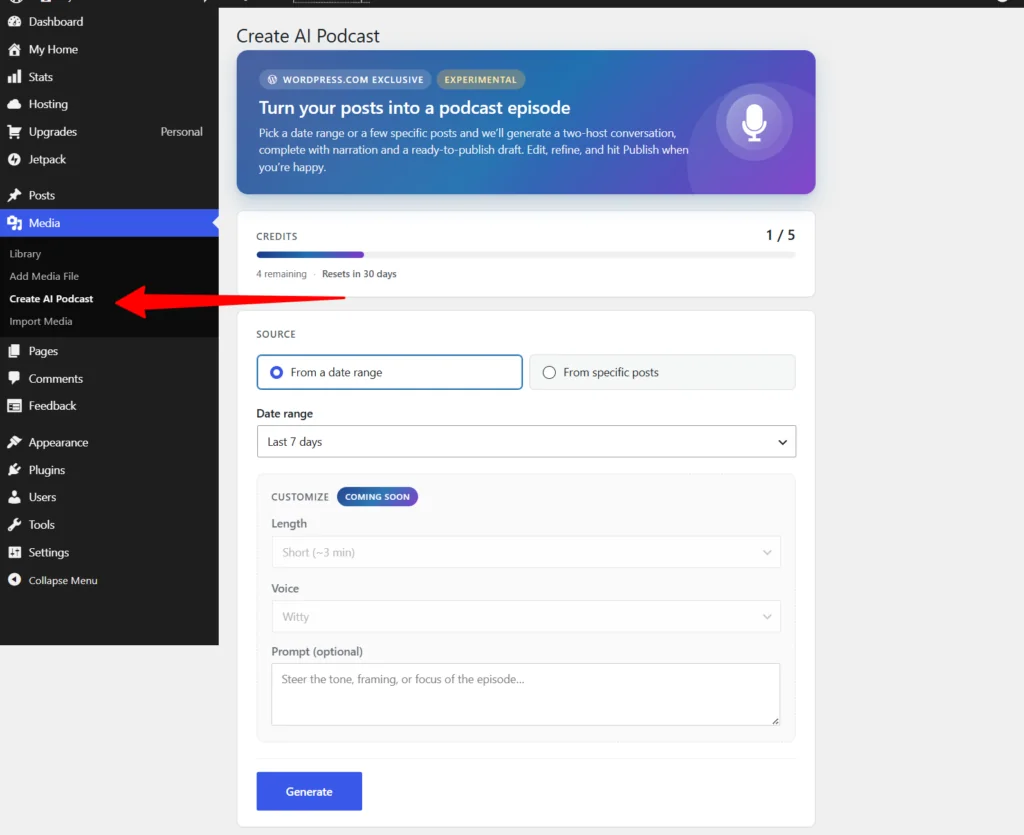
Firsthand: I used the AI Podcast tool to convert an entire review article into a podcast during testing. It worked without any manual intervention.
NOTE:
For more details on other cool features and the overall WordPress.com experience, including pricing, ease of use, performance, security, and who is it for, read my review.
On a self-hosted WordPress.org site, you could replicate some of these features with third-party plugins or external services, but the integration depth isn’t the same. You’d be stitching tools together rather than working with a unified platform.
This reflects a broader philosophical difference: WordPress.com is a business-oriented platform with a product roadmap built around its paying users. WordPress.org is an open-source, non-profit project built around the community.
Plugin Experience
Plugin access is one of the sharpest dividing lines between the two platforms.
On WordPress.com, plugins are locked entirely on the free plan. You need a paid subscription (Personal plan and above) to access the plugin directory. On a self-hosted WordPress.org site, you can install any plugin immediately, regardless of your hosting cost (even if it’s free).
Beyond access, the purchasing experience differs significantly. You purchase premium plugins directly from the developer’s website and handle support inquiries directly with the vendor if you run a self-hosted WordPress site.
WordPress.com handles plugin purchases in-house through its own checkout system — from browsing to checkout to installation and activation, you never leave the ecosystem.
There’s also a pricing angle worth knowing: most plugins vendors offer payment structures on WordPress.com that don’t exist on their own websites.
For example, a few plugins I tested (Astra Pro, Gravity Forms, and WP Bakery) doesn’t offer monthly billing on their official site, but does through WordPress.com at affordable prices and a 7-day money back guarantee policy. For short-term projects or plugin trials, that flexibility has real value.
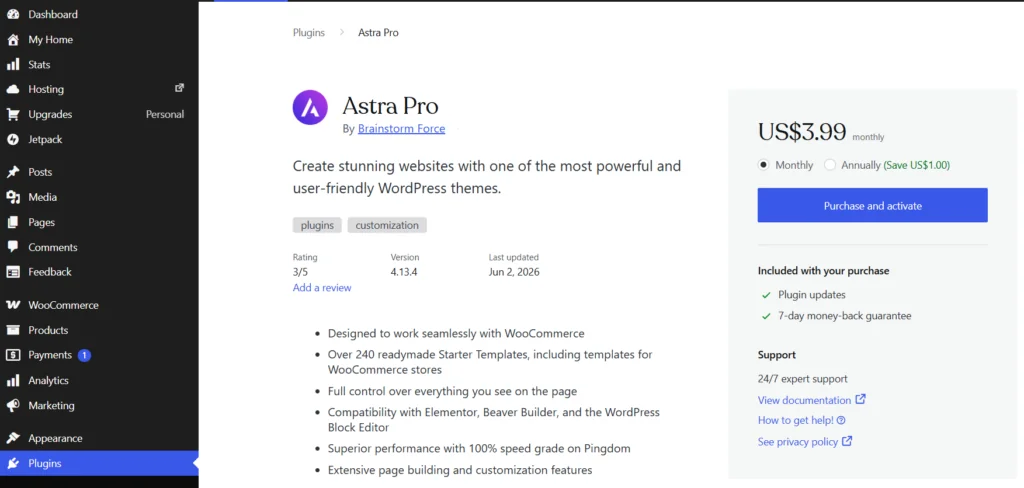
As a self-hosted WordPress site user, you won’t find such a deal on the developer’s website.
Theme Experience
Both platforms give you access to a theme gallery. Browse, preview, install, activate, and customize. And you can upload your own custom theme on the WordPress.com Paid plan.
The basic flow is the same on both. But here’s where it gets interesting.
On WordPress.com, your paid subscription plan unlocks a set of themes included at no additional cost. Personal plan users get dozens of premium themes; Premium, Business, and Commerce plans unlock the full library.
You can switch between any included paid themes in your plan without paying per theme (except for “Partner” themes). A significant cost advantage over self-hosted WordPress, where every premium theme is a separate purchase.


The theme browsing experience on WordPress.com is also better organized than WordPress.org’s directory.
You can filter by plan tier (such as Free, Partner, Included with your plan name) and by industry category, including My theme, Recommended, Blog, Portfolio, Business, Real Estate, Health and Wellness, Authors and Writers, and more).
Another distinction worth noting is that the theme directories aren’t identical across both platforms. Not every theme available on WordPress.com exists in the WordPress.org directory, and vice versa, including free options.
A practical example is the first theme I activated after signing up for WordPress.com was “Nook“, a free theme.
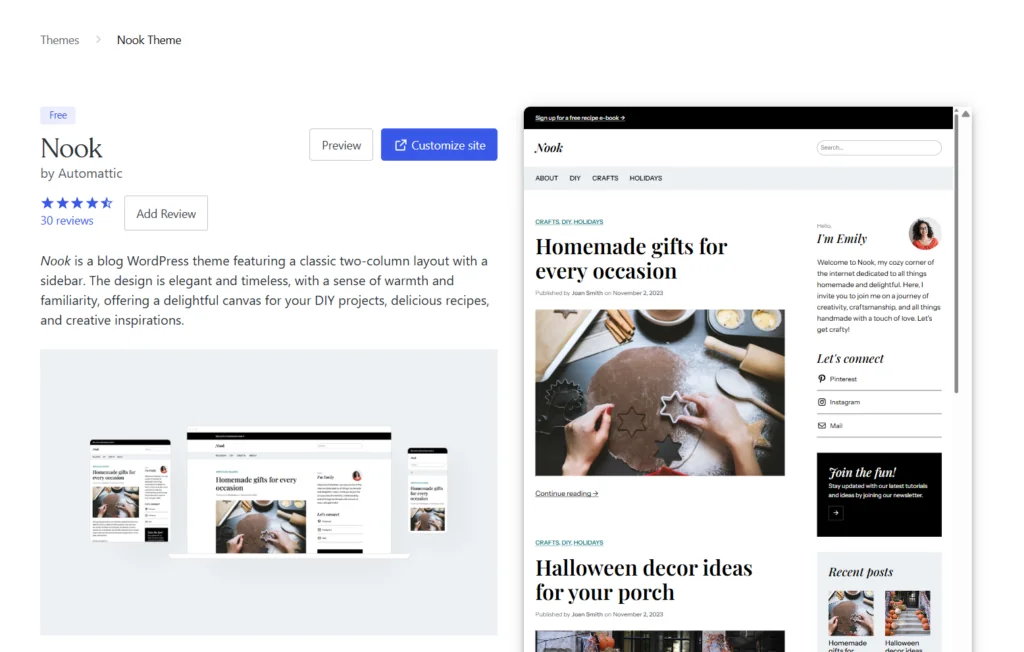
When I later searched for it on my self-hosted site, it wasn’t in the WordPress.org directory at all.
You can work around this by downloading the theme from one platform and uploading it to the other, but knowing about the directory gap upfront saves you the frustration of searching for something that simply isn’t there.
Developer Tools
This is where the platforms diverge most sharply for technical users.
WordPress.com offer SSH/SFTP, WP-CLI, Git commands, and GitHub Deployments, but these are locked behind the Business plan at $25/month billed annually — $300 for the first year, even with the 55% introductory discount. On monthly billing, that’s $40/month.
On a typical self-hosted WordPress.org site, these tools are available regardless of hosting tier. A $10/month shared hosting plan from most quality providers includes SFTP, WP-CLI, and often SSH access. You’re not paying a premium for command-line access.
WordPress.com does add one developer-worthy feature: direct GitHub repository integration for automated deployments and version control, available on the Business plan and above.
For teams managing client sites or running CI/CD workflows without a dedicated server, that’s a meaningful convenience.
Performance and Optimization Control
Performance is where the WordPress.com vs. WordPress.org debate gets most nuanced, and where firsthand data matters more than general claims.
On a self-hosted WordPress.org site, performance optimization is typically your responsibility. You select a caching plugin, configure a CDN, set up image optimization, and tune database caching.
Done well, this gives you precise control: adjustable cache TTLs, per-role cache behavior, CDN purge synchronization, and server-level configuration fine-tuned to your specific needs.
The trade-off is time, expertise, and the real risk that a misconfigured optimization stack will slow your site down rather than speed it up.
WordPress.com removes that complexity entirely. The platform’s optimization stack, including built-in page caching, a global CDN, a Batcache object cache (Memcached), and JS/CSS file optimization, is configured and maintained by Automattic’s infrastructure team.
Out of the box, this WordPress.com performance optimization stack produces a Grade A 96% performance score and a 180ms TTFB response time across 40 locations on a SpeedVitals test.
The limitation is the ceiling. If a particular WordPress.com performance optimization setting does not work with your specific site needs, you might not be able to change it.
For example, Cache-Control max-age is set to 300 TTL at the platform level, meaning cached content expires every five minutes. This might not be ideal for every site, especially sites where the content doesn’t change very often.
On a self-managed host, you’d typically push this to an hour, a day, a week, or longer for significantly better cache hit rates.
Security
On WordPress.com, security is largely automatic and handled by the platform. Security features includes a Web Application Firewall (WAF), brute-force protection, Akismet spam filtering, automated backups and malware scanning, DDoS protection, an SSL certificate, and Edge Defensive Mode — a feature that activates a browser challenge for visitors if it detects suspicious traffic.
On self-hosted WordPress.org sites, especially sites on shared hosting plans, the responsibility is yours. Plugin updates, theme updates, server hardening, SSL configuration, firewall setup, and malware scanning all need active management.
A neglected self-hosted WordPress site is a common target for attacks. An outdated plugin or misconfigured server is often all it takes.
Support
WordPress.com provides direct platform support on paid plans, and a 24/7 support channel is available, with priority support starting with the Business plan. You’re talking to people who know WordPress and the platform infrastructure intimately.
On self-hosted WordPress.org sites, the quality of support depends on your host’s expertise with WordPress. If you host your site with people who have limited knowledge of how WordPress works, you might be left alone when you need help.
However, you can submit questions to the WordPress.org community forum, but responses are often slow and not guaranteed.
Pros and Cons of WordPress.com vs .org
WordPress.com — Pros
WordPress.com — Cons
WordPress.org — Pros
WordPress.org — Cons
Who Each Platform Is For
WordPress.com is the right choice if you:
WordPress.org is the right choice if you:
Final Verdict
WordPress.com and WordPress.org aren’t competing products in the traditional sense. They serve genuinely different audiences, and the better choice depends entirely on what you need from your website.
If you want WordPress without the operational overhead, WordPress.com is the most credible offering on the market. The infrastructure is genuinely impressive — tested and verified, not just claimed. The entry-level pricing is fair.
And the zero-maintenance model has real value that’s easy to underestimate until you’ve spent time managing your own hosting.
If you want maximum control, lower long-term costs, and the freedom to build without platform restrictions, self-hosted WordPress.org remains the gold standard. Provided you have the technical knowledge or the willingness to develop it.
Most site owners will be better served by WordPress.com than they expect. Most developers will hit their ceiling faster than they’d like.
Know which one you are, and the decision makes itself.