
My experience with WordPress.com was over a decade ago, back in 2012–13. Since then, I’ve been building and managing self-hosted WordPress sites almost exclusively.
But it’s 2026, and a lot has changed — the platforms, the tools, and the approach to building websites. So I decided to revisit WordPress.com to see how far it had come and whether it was worth a serious look.
One factor that nudged me toward this test was hosting. I’ve always thought: if the people who built WordPress also run a hosting platform, why not build there?
They know WordPress better than anyone, and you’d expect the infrastructure to reflect that.
What started as a hosting test turned into something deeper. I found myself digging into the admin dashboard, the block editor, theme customization, the AI assistant, and the security features. Everything I discovered along the way is documented in this WordPress.com review.
If you’re planning to set up a new site, migrate an existing one, or are weighing a managed WordPress host against self-hosted alternatives, this is worth reading in full.
Key Takeaway
WordPress.com is a fully managed WordPress hosting platform with built-in edge caching, a global CDN, SSL, and an infrastructure built entirely by Automattic — the company behind WordPress itself.
It’s powerful, delivers top-tier performance out of the box, and removes server management entirely.
It bundles hosting, domain name management, automated backup, and premium themes into a single subscription package. This reduces costs and makes it easier to run an online business without having to navigate multiple platforms.
If you want to focus on running your site or business without worrying about server management, performance optimization, or manually updating plugins, WordPress.com is a serious platform to consider.
WordPress.com

Honest WordPress.com review based on real data. See how the platform performs globally. What it includes, & whether it’s worth it for small businesses.
Price: 4
Price Currency: USD
Operating System: Linux, Windows, macOS
Application Category: BusinessApplication
4.1
Ease of Use
From signup to account activation, the process was smooth and straightforward — pick a plan, complete registration, make a payment and confirm your email. Standard stuff, no friction.
WordPress comes preinstalled with a handful of plugins, including Gutenberg, Page Optimize, Layout Grid, Jetpack, and Akismet. These are automatically managed by WordPress.com, which saves you 30 minutes of setup work right out of the gate.
Jetpack comes loaded with Activity log access, Podcast hosting (Premium feature), automated scanning and fixes, and VaultPress Backup. Some of these features require the Business plan to unlock.
Note:
I review the Podcast feature separately in the next section. It’s worth reading
Now, to ensure proper ease of use.
As soon as I logged into the dashboard, the learning curve was real. Even with years of WordPress.org experience, I found myself looking around longer than expected.
The WordPress.com admin environment is familiar, but not in the total sense of site management. As usual, you have the WordPress admin dashboard navigation menu on the left. This is expected.
The dashboard itself opens to a “My Home” page with an onboarding checklist, and links to domain management, main Settings, Site preview, Hosting management, Quick Links, and a Fiverr logo maker integration.
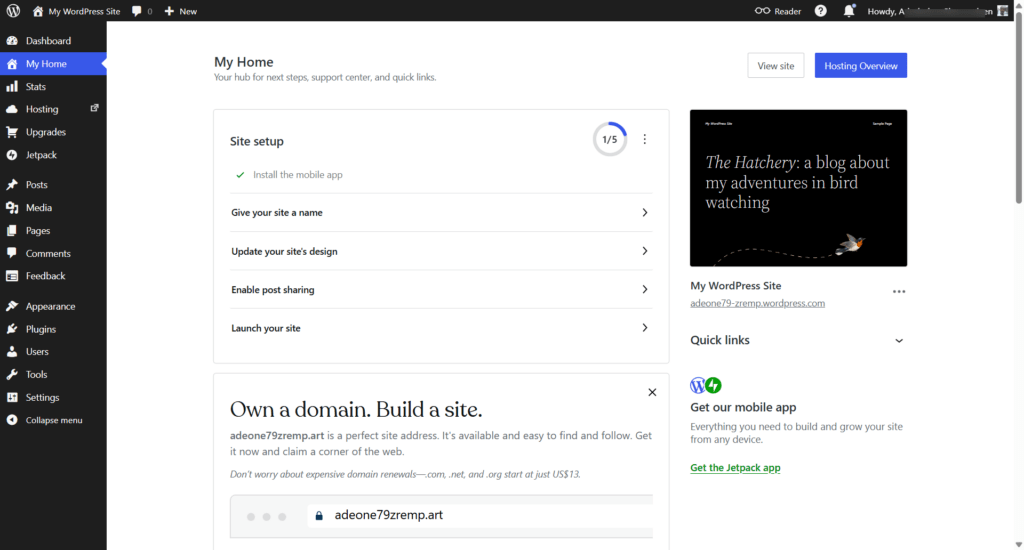
The checklist is aimed at helping you complete basic foundational stuff and guide you toward launching your site. It took a few minutes to orient myself with these steps, even though the layout looks simple on the surface.
This isn’t a criticism — it’s just an adjustment period. Once you understand where things live, navigation becomes comfortable quickly. But first-time WordPress users should expect a slightly steeper initial curve than the marketing suggests.
Theme Gallery
When I signed up for the WordPress.com Personal plan, I had access to dozens of premium themes, but not the full library. The complete premium theme collection is reserved for users of the Premium, Business, and Commerce plans.
Popular themes like Astra, Kadence, SolarOne, and Portfolio WP Pro are only available through the WordPress.com directory on Business and higher plans.
However, this is worth emphasizing: you can upload and activate any theme you already own without restrictions, regardless of your plan (paid plans only).
I have an Astra Pro license, so I uploaded the theme and its add-on plugin, activated it, selected a starter template, and my site was ready in under a minute. No prompts, no restrictions.
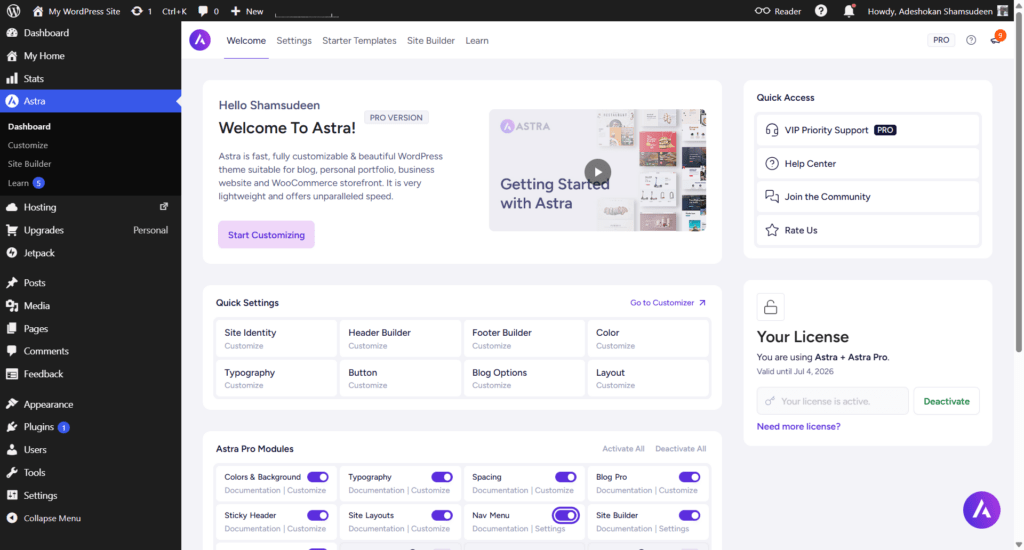
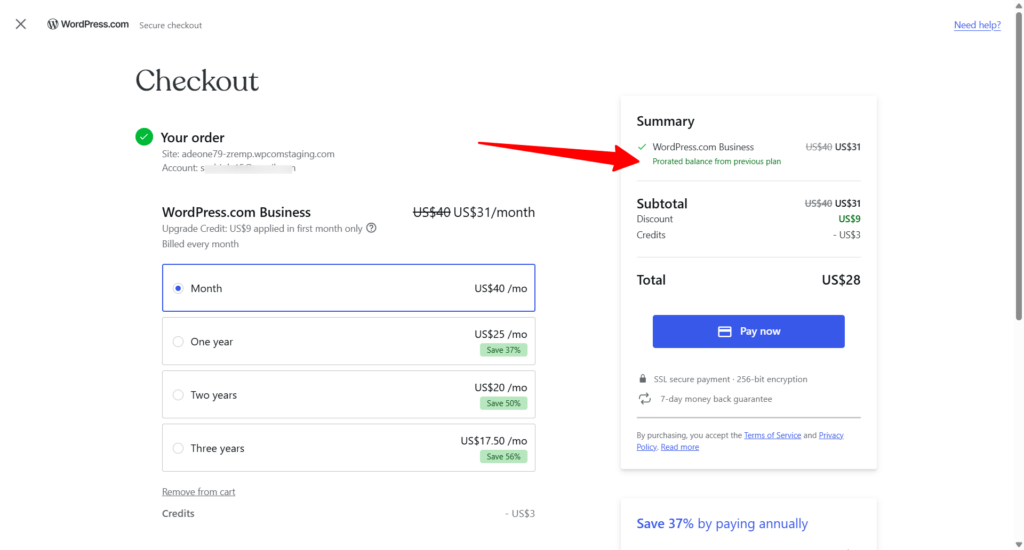
One thing to know: if you want to activate a paid theme from the WordPress.com directory that isn’t included in your current plan, you’ll be prompted to pay the prorated upgrade plan balance.
For example, choosing a Business-tier theme while on Personal automatically upgrades your account to Business and unlocks the full Business theme library, not just the one you selected.
NOTE:
Premium themes labeled “Partner” may require a separate purchase beyond the upgrade plan balance. So take note.

Howver, switching themes doesn’t affect your published content. It only changes the site’s look and structure.
NOTE:
Switching away from a manually uploaded premium theme and back again may not be seamless. When I deactivated Astra, switched to another theme, and later tried to reactivate Astra, WordPress.com prompted me to purchase it rather than recognizing it as a previously uploaded theme.
The workaround was to delete the theme entirely, re-upload it, and reactivate it. It worked, but it’s an extra step worth knowing about before you start experimenting with theme switching on an uploaded third-party premium theme.
Podcast Feature
The Podcast feature is one of the more interesting additions to WordPress.com and deserves its own section.
In simple terms, it converts your written content into an AI-generated audio podcast — a two-host discussion format where your article becomes a conversation.
The practical value is real: you create an audio version of your content without recording anything, reach audiences who prefer listening over reading, and extend your content’s reach without writing a single extra word.
The podcasting feature has two tiers within WordPress.com, accessible via Jetpack > Podcast in your dashboard.
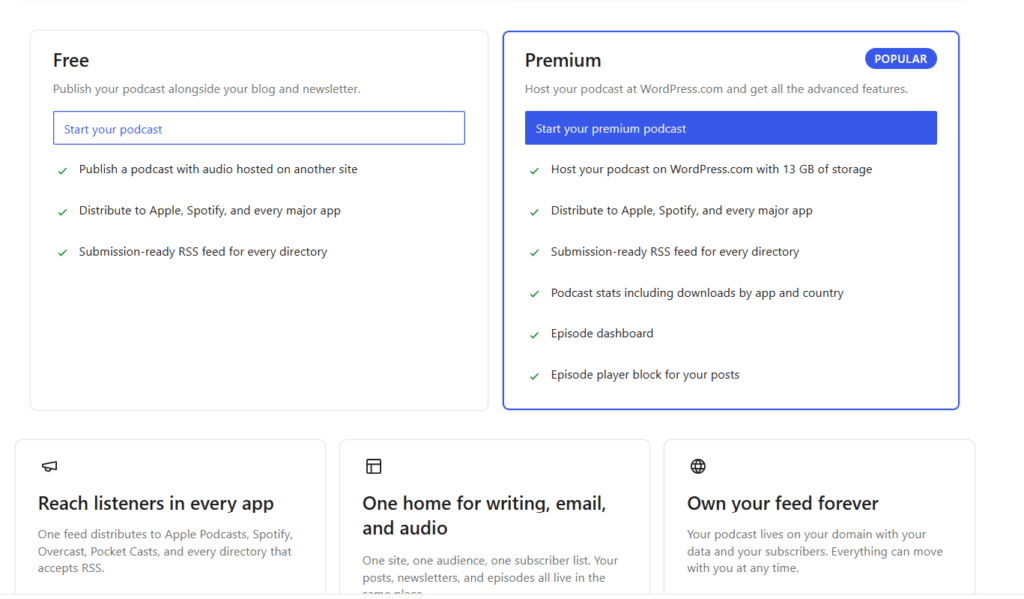
The Free podcasting tier lets you publish a podcast with audio hosted on an external site, distribute to Apple Podcasts, Spotify, and every major podcast app, and get a submission-ready RSS feed for every directory. It’s a solid starting point if you already have audio hosting elsewhere.
The Premium podcasting tier is where it gets more useful.
WordPress.com hosts your podcast directly on its servers, with 13GB of dedicated storage on the Premium plan, and adds podcast stats broken down by app and country, an episode dashboard, and an episode player block that you can embed directly in your posts.
Distribution to Apple Podcasts, Spotify, Pocket Casts, and every major app is included, along with a submission-ready RSS feed. This tier is available on Business and higher plans.
One thing worth noting: your podcast lives on your own domain with your data and your subscribers. If you ever leave WordPress.com, everything moves with you.
Using the AI podcast creation feature is straightforward. Go to Media > Create AI Podcast, then choose how you want to source the content — either by date range or by selecting a specific post.
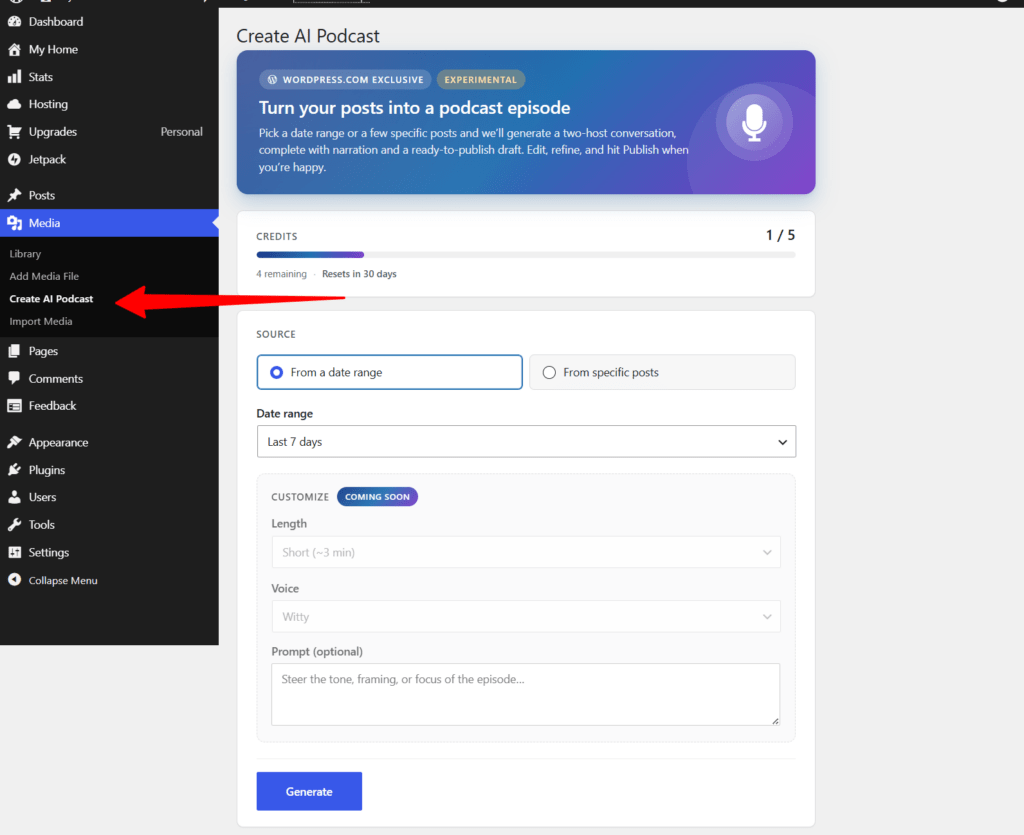
WordPress.com automatically generates the audio, formats it as an MP4 file, and opens it as a new draft post, ready for review.
From there, publish it directly to your blog or download the file and distribute it to your preferred podcast platforms for wider reach.
While writing this review of WordPress.com, I used the feature to convert the first draft into a podcast. You can listen to it below.
Theme Customization
Themes are accessible via Appearance > Themes, and the browsing experience is well thought out. Rather than scrolling through an undifferentiated list, you can filter by Free, Partner, Included with Plan, and by industry category: Blog, Portfolio, Business, About, Real Estate, Health & Wellness, Authors & Writers, Newsletter, and more.
With thousands of options in the WordPress.com theme directory, that filtering system makes finding the right fit significantly faster.
Once you’ve selected a theme, customization happens inside the Full Site Editor — a block-based design environment that gives you direct control over every part of your site’s template.
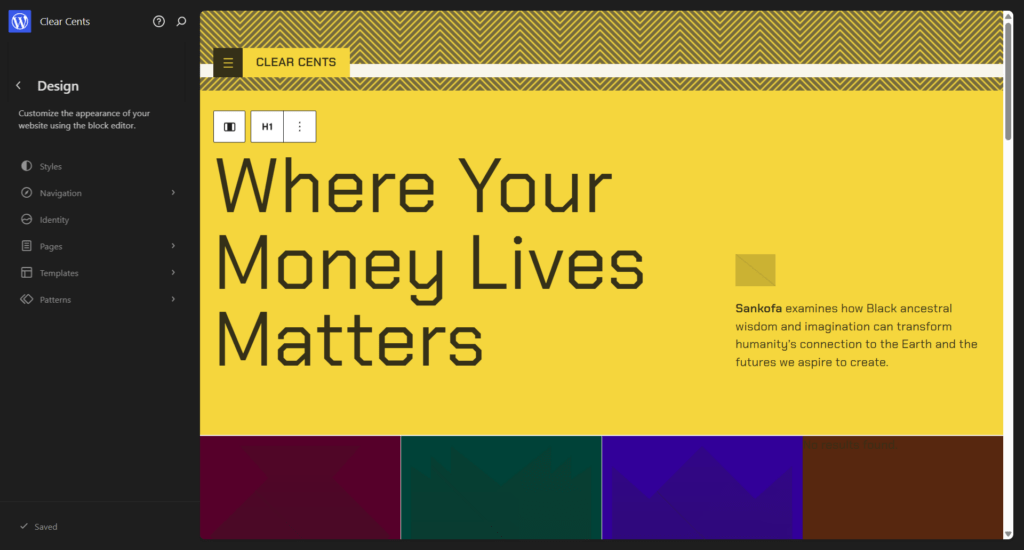
Navigation, identity, pages, templates, and patterns are all editable from a single sidebar panel, with a live preview updating in real time as you make changes. It’s a more capable environment than the classic WordPress Customizer, and after spending time with it on WordPress.com, I’d argue it’s the direction all WordPress theme customization is heading.
The level of customization that Full Site Editing gives you over every template is unmatched by the native customizer.
However, themes that don’t support Full Site Editing yet, such as Astra, fall back to the traditional Customizer interface.
Either way, you can add custom CSS at both the sitewide and page level, so granular styling control is always available regardless of which environment your theme uses.
Plugins
WordPress.com operates its own plugin marketplace, and it’s a different experience from the standard WordPress.org plugin directory you might be used to.
Plugins are organized by functionality, industry, popularity, editor picks, and free options, making it easier to browse by use case rather than searching by name. Both free and paid plugins are available, and you can upload your own plugin directly regardless of which plan you’re on.
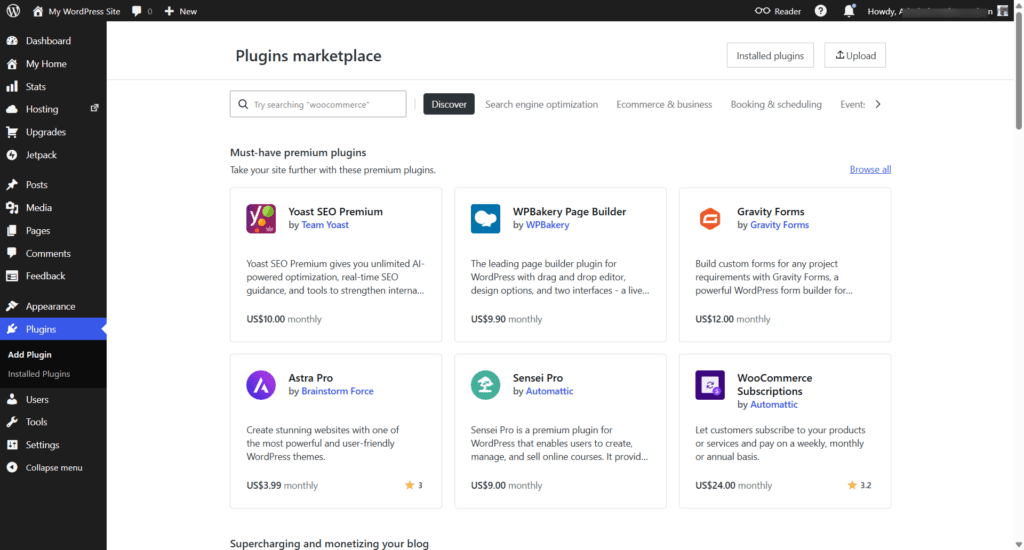
One thing worth highlighting: many paid plugins in the marketplace offer pricing and payment flexibility you won’t find on their own websites.
WP Bakery, for example, doesn’t offer a monthly billing option on its official site, but on WordPress.com, it’s available for $9.90 per month. Whether that’s economical depends on how long you plan to use it, but for short-term projects or trial runs, the monthly option is a genuine advantage.
Plugin purchases are handled entirely within WordPress.com’s checkout. The process is clean, SSL-secured, 256-bit encrypted, with a money-back guarantee (for most plugins) and a credit system that offsets the total at checkout.
That said, there’s one gap worth flagging. Most premium plugins offer tiered subscription plans — Basic, Pro, Elite, or similar on their main website, with different feature sets at different price points.
When purchasing through WordPress.com, the specific plan tier you’re subscribing to isn’t stated anywhere in the plugin description or at checkout. I tested this firsthand by going through the checkout flow for several plugins, including Gravity Forms at $120/year, and confirmed the plan details are absent at every step.
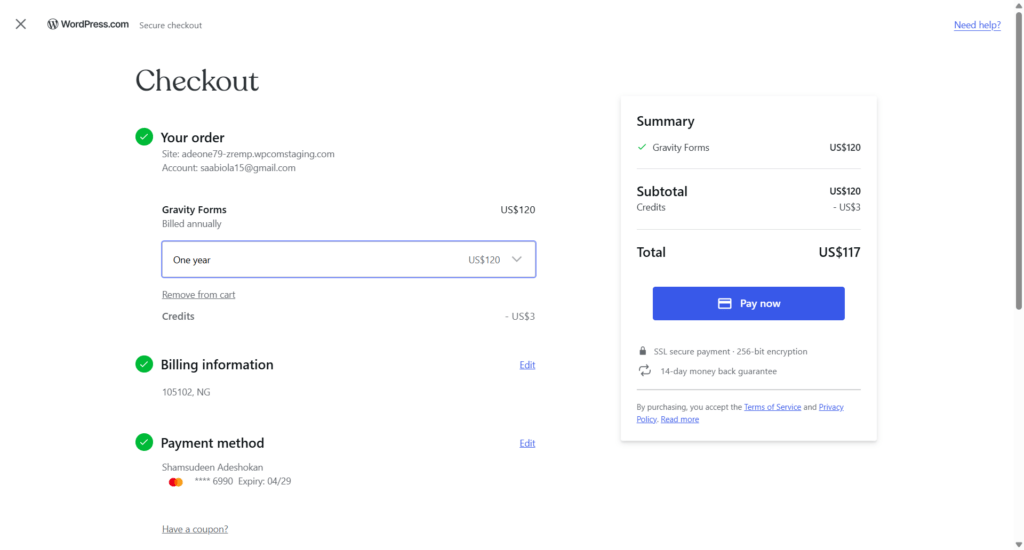
For a $120/year commitment, knowing exactly which feature tier you’re purchasing before payment isn’t optional; it’s basic consumer information. WordPress.com should surface this clearly in both the plugin listing and the checkout summary.
Publishing and the AI Assistant
Publishing a post feels identical to self-hosted WordPress. Click “Add New Post,” land on the Gutenberg editor, and write. Managing tags, categories, post types, and excerpts is all familiar and straightforward.
The addition is Jetpack’s AI Assistant, built directly into the editor.
You can generate content with a single prompt, or use the Smart Dictation mic icon on the toolbar to speak your prompt instead of typing it.
The AI can handle text generation, formatting changes, and in-editor tasks — I tested it writing a full post, and it handled the task without issue.
You can also position the AI Chat window to suit your workflow: pop out sidebar, split screen, or move to sidebar.
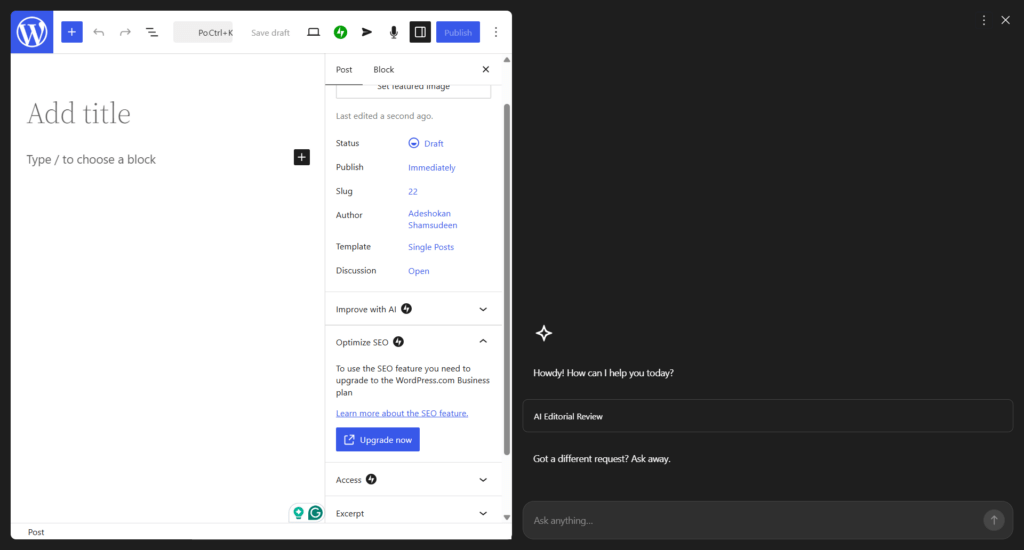
That said, the Jetpack AI Assistant still has rough edges.
During my testing, I had sessions where it was unresponsive to prompts, generated content in the wrong language without being asked, and occasionally failed to complete tasks. The 600-character prompt limit is also a real constraint — complex instructions get cut off, and there’s no workaround.
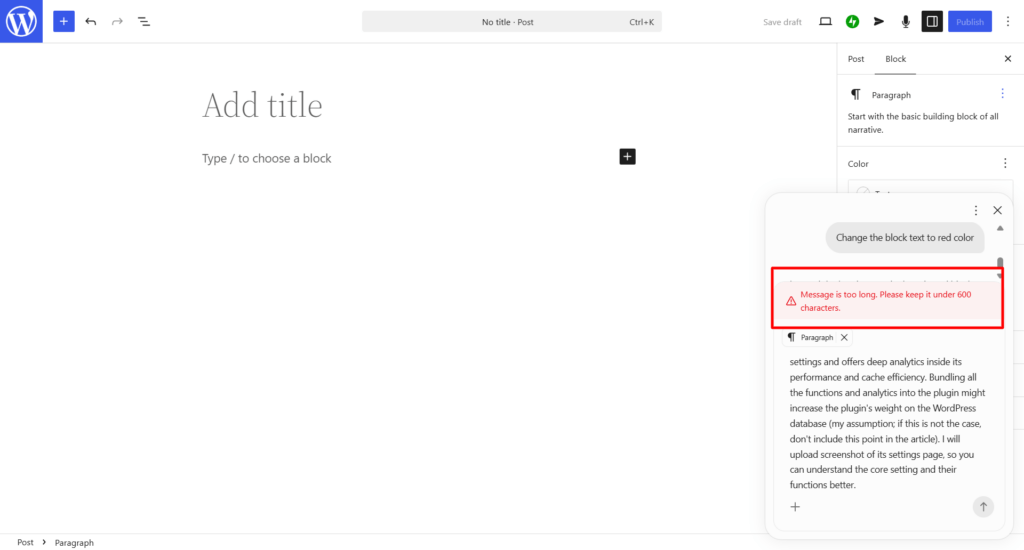
Overall, the experience is a net positive. The AI is genuinely useful for speeding up content production inside WordPress. But it’s not a finished product, and you’ll hit its limits if you push it too far.
Server Performance
For this WordPress.com review, I set up the site with only the platform’s native optimization stack active — global edge caching, Memcached object cache, and WordPress.com’s built-in CDN with a 28 PoP network. No third-party plugins, no WP Rocket, no custom cache rules.
Then I test the TTFB (Time to First Byte) with SpeedVitals.
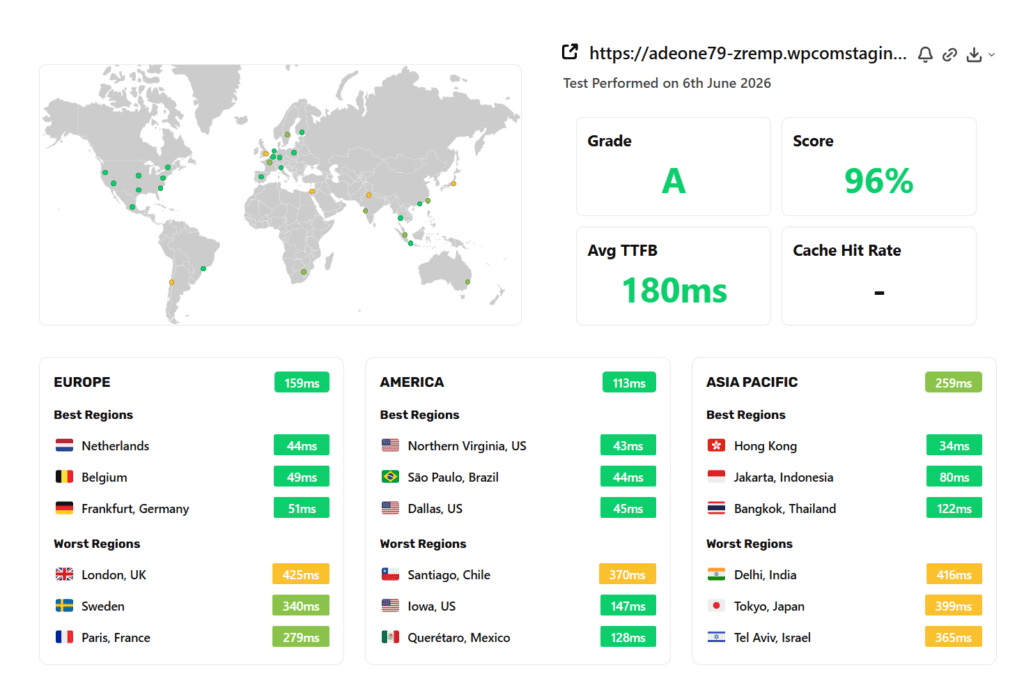
The results came back with a Grade A, 96% score, and an 180ms average TTFB across 40 global locations. That’s a strong baseline for a managed platform where you control nothing at the server level.
Regional breakdown
America led the pack with a 113ms regional average. Northern Virginia, São Paulo, and Dallas all came in between 43–45ms — textbook CDN edge delivery.
Europe followed at 159ms, with the Netherlands, Belgium, and Frankfurt returning 44–51ms respectively. Asia Pacific averaged 259ms, though Hong Kong was the surprise standout at just 34ms.
The worst performers were London (425ms), Delhi (416ms), Tokyo (399ms), and Santiago (370ms). These are outliers rather than a pattern — response headers confirmed cache hits were serving from edge nodes, not origin, across most locations.
The inconsistency in certain regions might indicate uneven CDN PoP coverage on the Personal plan tier rather than a server performance issue. Business plan users may see more consistent results globally.
Digging into the response headers revealed a Cache-Control: max-age=300 setting — cached content expires every five minutes. That’s a conservative TTL set at the platform level that you can’t adjust on any lower-tier plan.
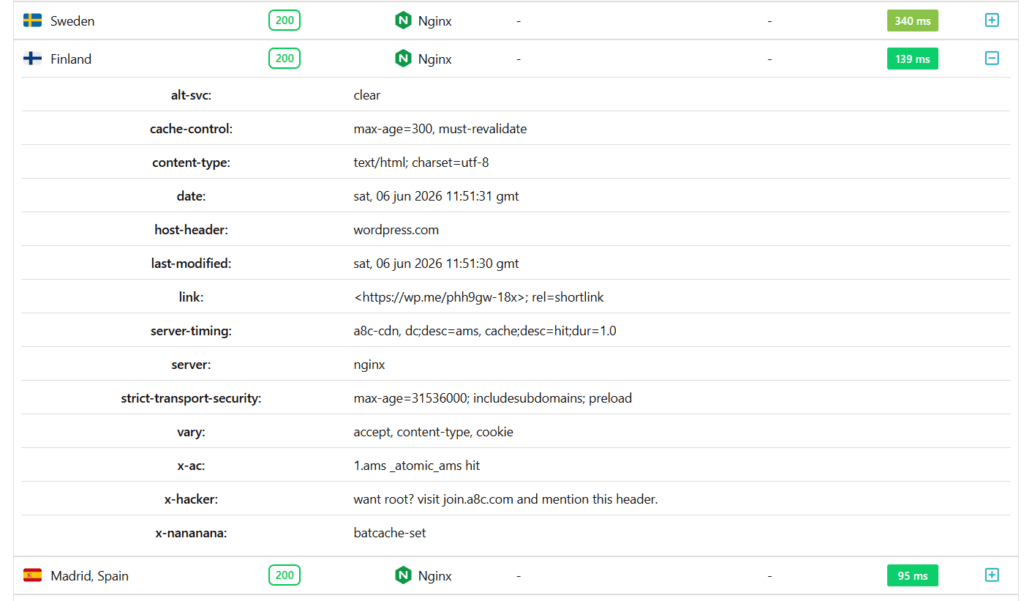
On a self-managed host, you’d typically push this to an hour or more. It’s a real limitation, just not a dealbreaker for most users.
The x-nananana: batcache-set header also confirmed that Batcache — WordPress.com’s Memcached-backed object cache — was active and writing correctly throughout the test.
An 180ms global average TTFB with zero manual optimization is a result that most shared hosting providers can’t match without a separately configured CDN. WordPress.com’s hosting infrastructure does the heavy lifting quietly.
The tradeoff is that you might not be able to push it further on lower-tier plans. This is roughly the ceiling for Personal. For better performance consistency across all regions, the Business or Commerce plan is worth considering.
Server Management and Security
WordPress.com is fully managed, but it does give you control over the basics: cache behavior, PHP version, SSH/SFTP access, MySQL database access, and cache purging.
You can monitor server response behavior, review error logs, troubleshoot issues, and access performance tools directly from the hosting dashboard.
For developers, WordPress.com supports direct GitHub repository connections for streamlined deployments, automated workflows, and version control — all without managing a separate CI/CD pipeline.
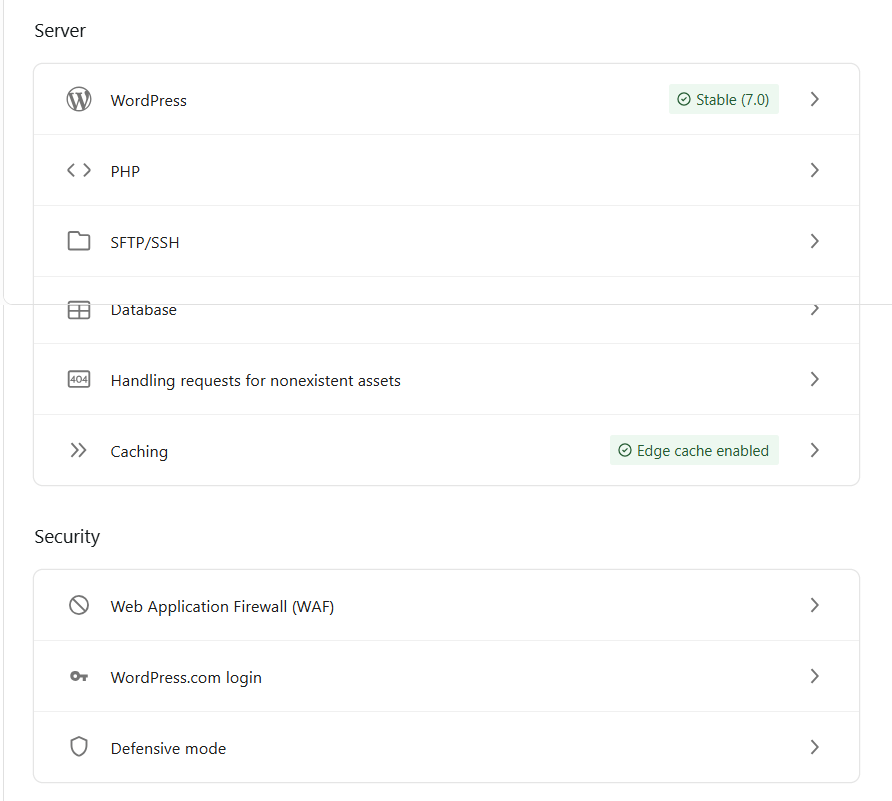
On the security side, you get a Web Application Firewall (WAF), authentication logging, and Edge Defensive Mode — a feature that lets you temporarily enable a browser challenge for site visitors if you detect suspicious bot traffic or malicious patterns.
It’s worth noting that most of these advanced tools are locked behind the Business and Commerce plans. If server access and security controls matter to your workflow, factor that into your plan decision before signing up.
Additional management features include one-click reinstallation of plugins and themes for preinstalled software, as well as site transfer, leave, reset, and delete options in the management panel.
WordPress.com Pricing
WordPress.com offers five plans, including a permanently free tier. All paid plans are billed annually, with current promotional pricing showing up to 55% off regular rates.
Free — $0 No expiration: You get a WordPress.com subdomain, 1GB storage, and access to basic features. Ads are displayed on your site, and you can’t install plugins or connect a custom domain without upgrading.
Personal — $4/month (renews at $5/month, billed yearly): The entry point for a professional site. Includes a free domain for one year, 6GB storage, ad-free browsing for visitors, dozens of premium themes, plugin installation, and standard support.
Premium — $8/month (renews at $9/month, billed yearly): Bumps storage to 13GB and adds the full premium theme library, sitewide font and color customization, Google Analytics integration, video uploads, and fast support. The right tier for bloggers who want more design flexibility without jumping to Business pricing.
Business — $25/month (renews at $28/month, billed yearly): Where WordPress.com starts competing seriously with self-hosted setups. You get 50GB base storage, SFTP/SSH access, WP-CLI, Git commands, GitHub Deployments, priority 24/7 support, and the full plugin ecosystem. Storage add-ons are available in 50GB increments, from $50/month (50GB + 50GB) up to $291.67/month (50GB + 350GB), all billed yearly.
Commerce — $45/month (renews at $50/month, billed yearly): Everything in Business plus WooCommerce tools, all premium and store themes, and an optimized eCommerce experience. Storage add-ons follow the same structure as Business.
Enterprise — Starting at $25,000/year: Purpose-built for large publishers and brands. Clients include Slack, Samsung, Meta, Al Jazeera, Vox Media, and Condé Nast. Pricing and features are negotiated directly with the WordPress.com team.
A note on renewal pricing: Promotional rates apply only to the first billing cycle. Increases are modest — Personal goes from $4 to $5, Business from $25 to $28, Commerce from $45 to $50 — but worth knowing before you commit.
Monthly billing is available, but costs significantly more: Personal $9, Premium $18, Business $40, Commerce $70 per month. Priority 24/7 support is also not available on monthly billing cycles.
If you’re coming from a self-hosted background, you won’t feel fully at home until Business. The free plan serves ads to your visitors, caps your stats at basic levels, and requires the Business plan for developer-level server access.
WordPress.com Plans at a Glance
| Feature | Free | Personal | Premium | Business | Commerce |
|---|---|---|---|---|---|
| Monthly price (promo) | $0 | $4 | $8 | $25 | $45 |
| Renewal price/month | — | $5 | $9 | $28 | $50 |
| Storage | 1GB | 6GB | 13GB | 50GB+ | 50GB+ |
| Custom domain | ✗ | ✓ (1 yr free) | ✓ (1 yr free) | ✓ (1 yr free) | ✓ (1 yr free) |
| Ad-free for visitors | ✗ | ✓ | ✓ | ✓ | ✓ |
| Install plugins | ✗ | ✓ | ✓ | ✓ | ✓ |
| Premium themes | ✗ | Dozens | All | All | All + Store |
| Sitewide font & color customization | ✗ | ✗ | ✓ | ✓ | ✓ |
| Google Analytics | ✗ | ✗ | ✓ | ✓ | ✓ |
| Video uploads | ✗ | ✗ | ✓ | ✓ | ✓ |
| SFTP/SSH, WP-CLI, Git | ✗ | ✗ | ✗ | ✓ | ✓ |
| GitHub Deployments | ✗ | ✗ | ✗ | ✓ | ✓ |
| Storage add-ons | ✗ | ✗ | ✗ | ✓ | ✓ |
| WooCommerce / eCommerce tools | ✗ | ✗ | ✗ | ✗ | ✓ |
| Support | ✗ | Standard | Fast | Priority 24/7 | Priority 24/7 |
WordPress.com Pros and Cons
No hosting platform is perfect. After testing WordPress.com hands-on, here’s an honest breakdown of where it delivers and where it falls short.
Pros
Cons
Who should use WordPress.com:
Who should look elsewhere:
Final Verdict: Is WordPress.com Worth It?
WordPress.com occupies an interesting position in the website-building landscape. It’s not trying to compete with self-hosted WordPress on flexibility, and it’s not trying to be a drag-and-drop builder like Squarespace or Wix. It’s something in between — a managed WordPress platform that trades configuration freedom for infrastructure quality and zero maintenance overhead.
After testing it hands-on, I found that the tradeoff is more favorable than I expected.
The server performance is hard to argue with. An 180ms average TTFB globally, a Grade A rating, and confirmed edge cache hits across 40 test locations — all on a Personal plan with no optimization plugins- is a result that many self-hosted setups can’t match without a dedicated CDN and careful server tuning.
The pricing is reasonable at the entry level. Personal at $4/month includes a custom domain, ad-free visitors, plugin access, and solid global performance in one package.
The value holds through Premium. It starts to thin out at Business, where $25/month is a meaningful ask compared to self-hosted alternatives, but the developer tooling, staging environment, and server access justify it for the right user.
WordPress.com is a well-built, well-maintained platform that does exactly what it promises.
The infrastructure is genuinely impressive, the entry-level pricing is fair, and the zero-maintenance model has real value that’s easy to underestimate until you’ve spent time managing your own hosting. The limitations are real, but they’re structural to the platform’s philosophy, not flaws in execution.
If you want WordPress without the headaches of running WordPress, this is the most credible version of that offer on the market.