
Reading the pricing page tells you what the plan offers. It doesn’t tell you what it feels like to actually build and run a site on it. The small friction points, the workarounds you discover only after hitting a wall, and the moments where the platform genuinely surprises you.
I tested WordPress.com’s Personal plan firsthand. Not a surface-level walkthrough, but actual site-building, plugin installation, support ticket submission, video uploads, and digging into the dashboard to see where the ceiling sits.
This review covers everything I found — what works well, what’s genuinely limited, and the point at which upgrading (or switching to self-hosted WordPress entirely) starts to make more sense than staying put.
Note:
This guide specifically addresses the Personal plan limitations, not an actual review. For a broader review of the platform’s full feature set and how all plans compare, including the Personal Plan, see my complete WordPress.com review.
What Is the WordPress.com Personal Plan?
The WordPress.com Personal plan is WordPress.com’s entry-level paid hosting plan. It is designed for individuals, hobby bloggers, and anyone who wants a simple way to create and manage a website without handling technical tasks such as server management, security updates, or backups.
Pricing (billed annually) starts at $4/month, or as low as $2.75/month on a 3-year plan. Month-to-month runs $9/month.
Unlike the free plan, the Personal plan lets you connect a custom domain name, remove WordPress.com ads, and access premium customer support. It also includes managed WordPress hosting, automatic updates, security protection, backups, and a collection of premium themes.
This plan is best suited for personal blogs, portfolio websites, simple informational sites, and small projects that don’t require advanced configuration. Since WordPress.com manages the hosting environment, getting started is much easier than setting up a self-hosted WordPress.org website.
That said, the Personal plan comes with several restrictions, including limited premium themes and storage, limited GA4 integration, limited malware scanning, and no access to backups.
These limitations often become noticeable as your site grows and you need more flexibility, features, or monetization options.
Key features of the WordPress.com Personal plan include:
For beginners who want a simple, maintenance-free blogging experience, the Personal plan can be a good starting point. However, users who need advanced server-level features or full control over their websites may eventually need to upgrade to a higher WordPress.com plan or move to a self-hosted WordPress.org website.
Now, let’s jump straight into the things I find interesting to share about the WordPress.com Personal Plan, based on experience.
Storage and Themes Add-On Flexibility
Two limitations jump out immediately on the Personal plan pricing page: 6 GB of storage and access to only a select portion (a dozen) of the premium theme library, not the full catalog.
At first glance, both feel restrictive, but the pricing page doesn’t mention something that makes both limitations easy to manage.
WordPress.com sells add-ons for both. You can purchase additional storage in 50 GB increments up to 350 GB, with pricing starting at $50/year. For themes, a theme add-on unlocks the full premium theme collection, including Business and Commerce themes, for $2/month.
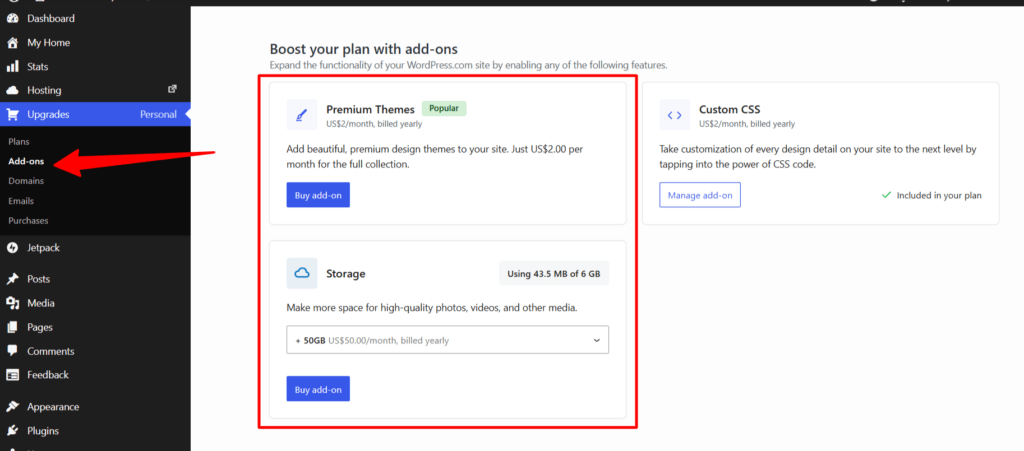
This changes the calculus significantly. The Personal plan’s storage and theme constraints aren’t hard ceilings; they’re configurable, at an additional cost.
Whether that cost makes sense depends on your use case.
For a text-heavy blog, 6 GB goes a long way. For a media-rich site or content publishing operation, you’ll likely feel the squeeze within months, and the add-on cost starts stacking up against what self-hosted WordPress with managed hosting would run you.
Jetpack Limitations
Because Automattic builds both WordPress.com and Jetpack, Personal plan users automatically get a substantial slice of Jetpack’s feature set baked into the platform. You don’t need to install or configure anything.
Out of the box, the Personal plan includes:
Things get more nuanced with four specific features: real-time backups, malware scanning, WordAds, and Google Analytics integration.
Note:
JetPack UTM and Device tracking capabilities are locked for users on Premium and higher plans only. But I honestly don’t see this as a serious limitation. You can get this data via Google Analytics or another third-party analytics tool.
Google Analytics: Not Actually Blocked
The pricing page lists Google Analytics integration as a higher-plan feature, which is technically accurate for Jetpack’s native GA4 integration. But it doesn’t mean you’re blocked from using GA4.
I installed WPCode on my Personal plan site, pasted my GA4 measurement script into a sitewide header snippet, and confirmed tracking was active in my Google Analytics dashboard within minutes. No upgrade required.
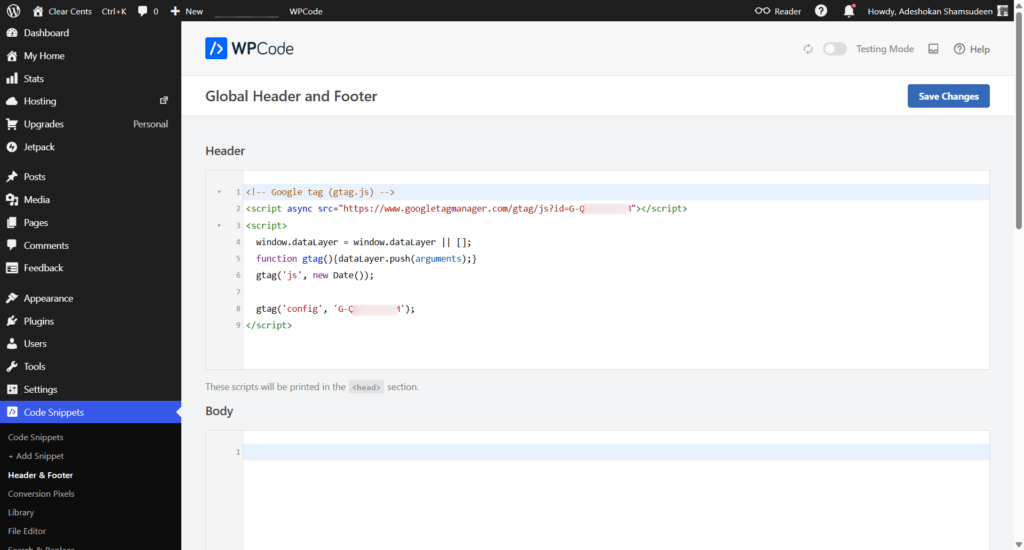
This is a meaningful distinction: the Jetpack convenience integration is locked, but GA4 itself works fine via a third-party plugin or if you’re using a theme like Astra with built-in script management features.
Real-Time Backups and Scanning: The Actual Gap
This is where the Personal plan has a genuine limitation worth taking seriously.
WordPress.com backs up your site, but on the Personal plan, you can’t access those backups. There’s no restore point you can click, no file-level access, no point-in-time recovery.
Jetpack VaultPress runs in the background, but the dashboard controls are locked to higher plans.
Similarly, Jetpack Scan, which monitors for malware, suspicious file changes, and vulnerabilities, isn’t available at this tier.
However, there are workarounds to fix both limitations on the Personal plan.
You can use a service like MalCare that handles scanning and firewall protection well, and plugins like UpdraftPlus or Backuply to manage scheduled and on-demand backups. Even their free options might be sufficient for many users.
However, there’s a deeper catch with the backup restore side, specifically. I tested Backuply on the Personal plan site. Backup creation and local download worked exactly as expected. You can take a full backup and save a copy to your computer without issue.
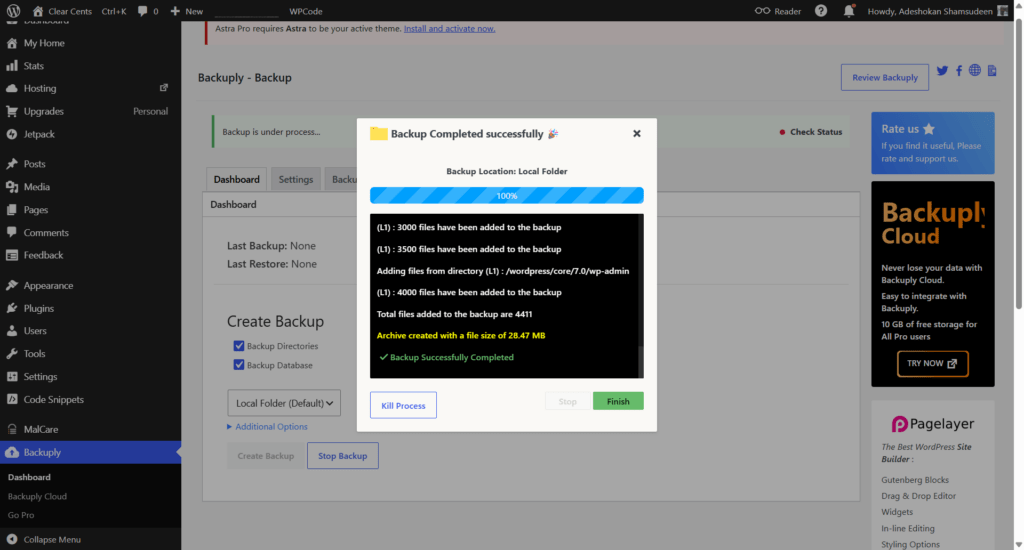
Restoring from that backup, however, is a different story. When I ran a restore, the process hit 100% and then failed, with Backuply throwing write-protection warnings on core WordPress files (wp-activate.php, readme.html, wp-config-sample.php), followed by an unzip error and a final “Restore of your WordPress installation failed” message.
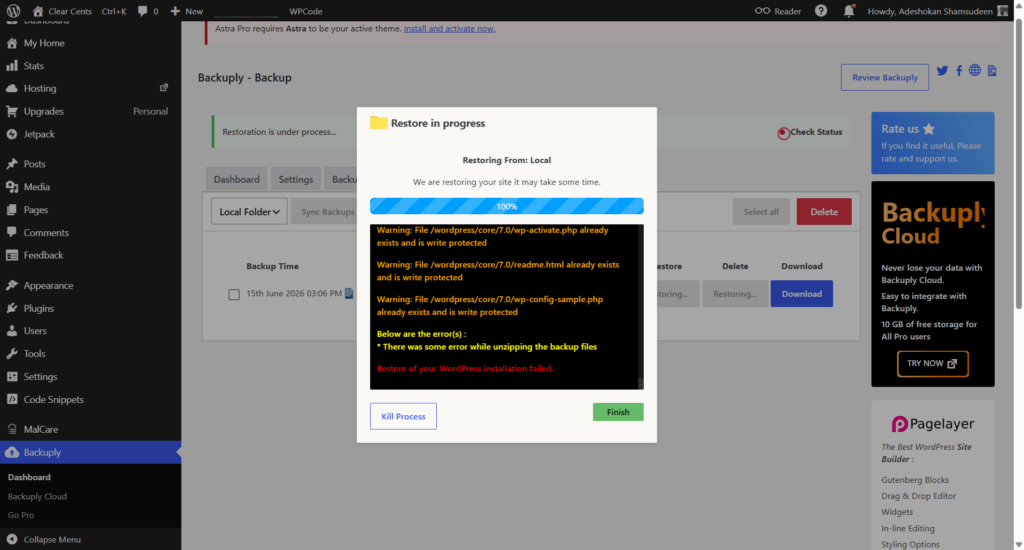
The root cause ties directly back to the server-level access limitations covered below: WordPress.com manages and protects its own core WordPress files at the infrastructure level, and Personal plan sites have no SFTP/SSH or file system access.
Backuply operates via PHP within WordPress itself, so when a restore needs to overwrite protected core files, it simply lacks permission, and the restore aborts.
Practical takeaway
On the Personal plan, backup plugins are reliable for creating and downloading a copy of your site, which is genuinely useful as an off-site safety net. But don’t assume a one-click restore through these plugins will work the same way as in a self-hosted environment. If you ever need to rebuild a WordPress.com site from one of these backups, you may need to upgrade, perform a manual restoration, or rebuild on a host with full file system access.
WordAds
WordAds – WordPress.com’s built-in advertising program is not available on the Personal plan. This is one of the more significant limitations if your goal is to generate ad revenue directly from your site, since WordAds access only kicks in at Premium and higher plans.
For anyone building a content site with display advertising as part of the monetization plan, this is worth taking seriously. It’s not a minor inconvenience like the theme library restriction; it’s the absence of a revenue stream entirely, unless you’re on a plan that includes it.
A possible workaround — but I haven’t tested this
Earlier in this guide, I showed how GA4 tracking (officially a higher-plan Jetpack integration) worked perfectly fine on the Personal plan by pasting the script directly via WPCode. That raises an obvious question: could the same approach work for ad network code, like Google AdSense?
In theory, if WPCode allows custom script injection sitewide, there’s no obvious technical reason an AdSense script couldn’t be added the same way. I haven’t actually tested this myself, so I can’t confirm whether it works, displays correctly, or gets stripped/blocked by the platform.
There’s also a separate consideration beyond the technical one: WordPress.com’s terms of service may restrict running third-party ad networks on certain plans, regardless of whether the script technically loads.
Even if a workaround is technically possible, it’s worth checking WordPress.com’s current advertising policies before relying on it. A script that “works” but violates platform terms isn’t a real solution.
If generating ad revenue is part of your plan, treat the lack of WordAds on the Personal plan as a real limitation, not something to engineer around. If you’re curious about the AdSense-via-WPCode approach, test it on a low-stakes site first, and I’d genuinely like to hear from anyone who’s tried it.
Server-Level Access
This is the section any serious site builder or business site owner will feel most acutely.
The following features are available only in the Business and Commerce plans:
For a beginner blogger publishing content, most of these won’t matter. For anyone building a more complex site, running custom queries, debugging plugin conflicts at the server level, or deploying via GitHub, this is a firm wall.
The PHP version point is worth a quick note: WordPress.com automatically keeps your site on the latest supported PHP version, so for most use cases, not having to manually select a version isn’t a real-world problem. The rest of the list is harder to work around.
Video Uploads: Use YouTube or Insert From URL
Direct video uploads are not supported on the Personal plan. I tested this firsthand, and the video upload block actually pops up an error message.
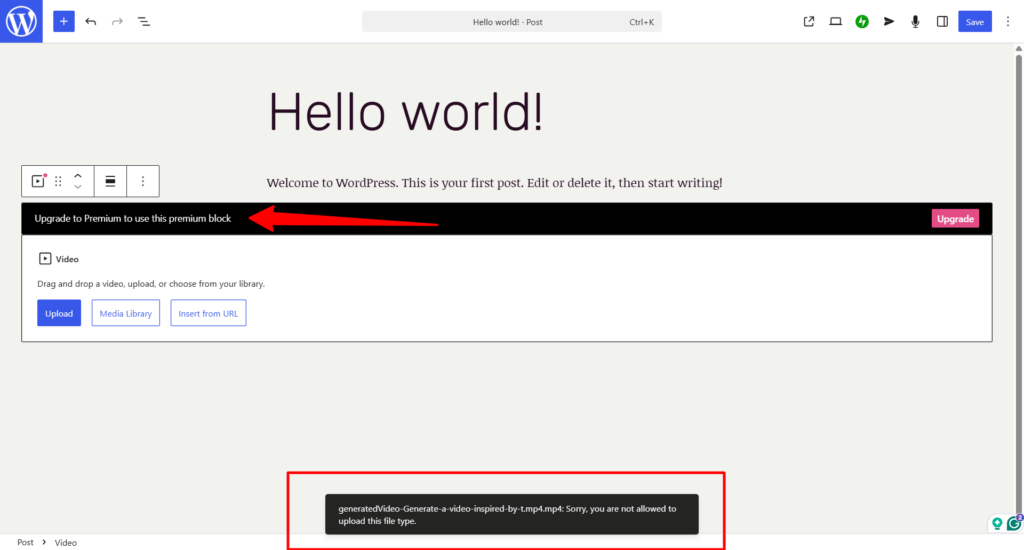
VideoPress (WordPress.com’s native video hosting with 250 GB of dedicated storage) is a Premium-and-above feature.
The practical workaround is straightforward: upload your video to YouTube, publish it as unlisted or public, and embed the link in your post. The WordPress block editor handles YouTube embeds natively with no friction.
If you’re already a content creator publishing on YouTube, this limitation is essentially a non-issue. If you’re planning to host video exclusively on your own site without a YouTube channel, the Personal plan isn’t the right fit.
Another workaround is to host the video on a different platform that supports copying the video URL, then use the “Insert From URL” option in WordPress.com. This works perfectly when I tested it with a video already hosted on another site.
Support Experience
The pricing page stated that Personal plan users have access to the “Free Support”. What “Free” means in this context is not completely clear. Instead of guessing, I engaged support directly to get a firsthand experience of what it feels like.
My experience shows that for common questions, such as navigating the dashboard, theme setup, and basic feature explanations, the on-site AI chatbot assistant handles things reasonably well.
When I escalated to a human Happiness Engineer, the full cycle from initiating the chatbot to receiving an email response took about 18 minutes. That’s when I realized what the “Free support” means for Personal Plan users.
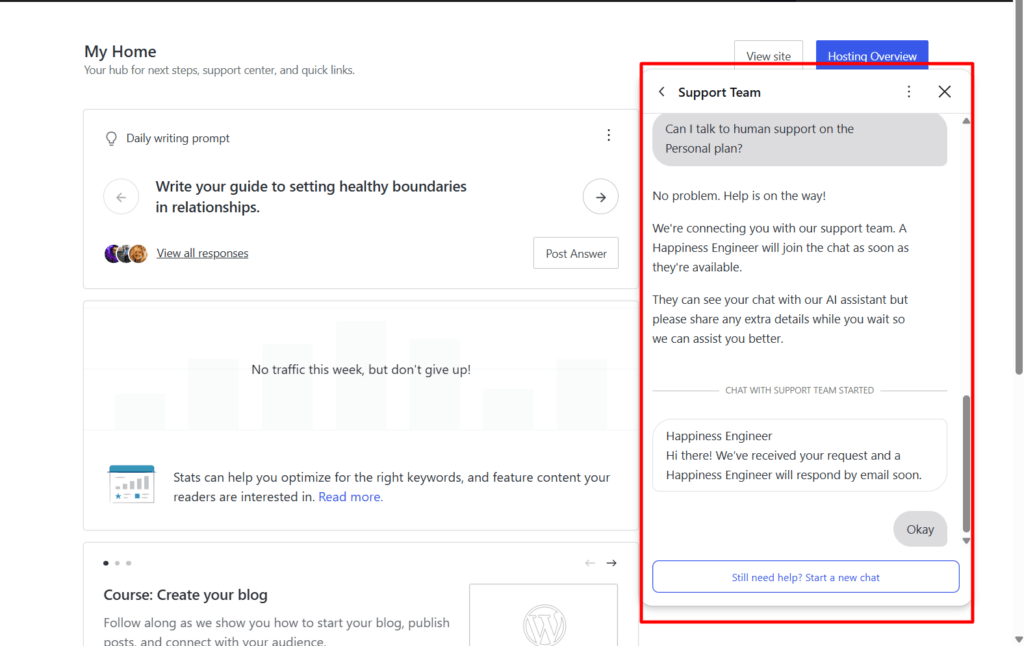
18 minutes is acceptable for non-urgent issues, but for a site that’s down, broken, or under attack, it’s a long wait.
The Business and Commerce plans include 24/7 priority support with faster response times. If support reliability and response speed matter to your operation, factor that into your plan decision.
Who Should Use the Personal Plan
The Personal plan makes sense if you’re:
When You’ve Outgrown It
You’ll hit the ceiling on the Personal plan when:
At that point, you’ll need to move to a higher WordPress.com plan that includes the features and access you want.
Self-Hosted Alternative
If the limitations above are dealbreakers, self-hosted WordPress on a managed host gives you the full WordPress experience.
Every plugin, every theme, complete server access, staging environments, and no platform-level feature locks, often included at a comparable or lower monthly cost to WordPress.com.
Hosts like Kinsta and Pressable offer managed WordPress environments built for performance, with the kind of server control that WordPress.com reserves for its top-tier plans.
NOTE:
If you’d like to learn more about how Kinsta compares to WordPress.com, read the comprehensive guide, since both platforms are WordPress-focused hosting.
For anyone building a site they intend to monetize, scale, or customize seriously, self-hosted is typically the stronger long-term move.
Final Verdict
The WordPress.com Personal plan is a solid entry point for bloggers and site owners who want a fully managed WordPress environment without managing server infrastructure.
Plugin access at this tier, something the platform didn’t always offer, makes it genuinely more capable than its price suggests.
Where it falls short is in server configuration access, backup control, and priority support. Those gaps don’t matter to everyone, but for anyone building a site with growth and a faster expert support guarantee, they’ll surface sooner than expected.
The personal plan is fine to start with. It’s not where serious publishers stay.