
If you’ve ever asked an AI tool how to speed up your WordPress site, you’ve probably run into the same wall every time. The AI gives you solid general advice, but it has no idea what your site actually looks like.
It doesn’t know your current cache settings, your real performance scores, or what’s slowing you down right now. You end up doing the actual work yourself anyway.
That changes with WP Rocket 3.23. The plugin now supports MCP (Model Context Protocol), which lets AI tools like Claude, ChatGPT, or Gemini connect directly to your WP Rocket settings and real performance data.
Instead of generic tips, your AI can read your actual scores, suggest changes based on what’s really happening on your site, and even adjust settings for you, with your approval at every step.
In this guide, I’ll walk you through what WP Rocket MCP actually does, how to connect it to Claude and other AI tools, and a few prompts you can try once you’re set up.
What Is MCP, for Beginners?
MCP stands for Model Context Protocol. Don’t worry about memorizing that. Here’s the simple version: it lets an AI tool plug directly into an app or service and work with real, live data instead of guessing.
Before MCP, asking an AI about your site’s speed looked like this: you’d describe your setup in a chat, and the AI tool would respond with advice based on WordPress performance in general.
It couldn’t see your site. It couldn’t verify whether your settings were actually causing the problem you described.
With WP Rocket MCP, that gap closes. Claude, ChatGPT, and other AIs can now read your actual WP Rocket configuration and your real performance scores and work from there.
You go from “here’s what usually helps” to “here’s what’s actually happening on your site, and here’s what to do about it.”
Quick Primer: What Is Rocket Insights?
Since WP Rocket MCP leans heavily on Rocket Insights data, it’s worth a quick explainer if you haven’t used it yet.
Rocket Insights is WP Rocket’s built-in performance dashboard, powered by GTmetrix. It tracks your key pages, monitors performance scores over time, flags what’s slowing you down, and recommends which WP Rocket features to turn on next.
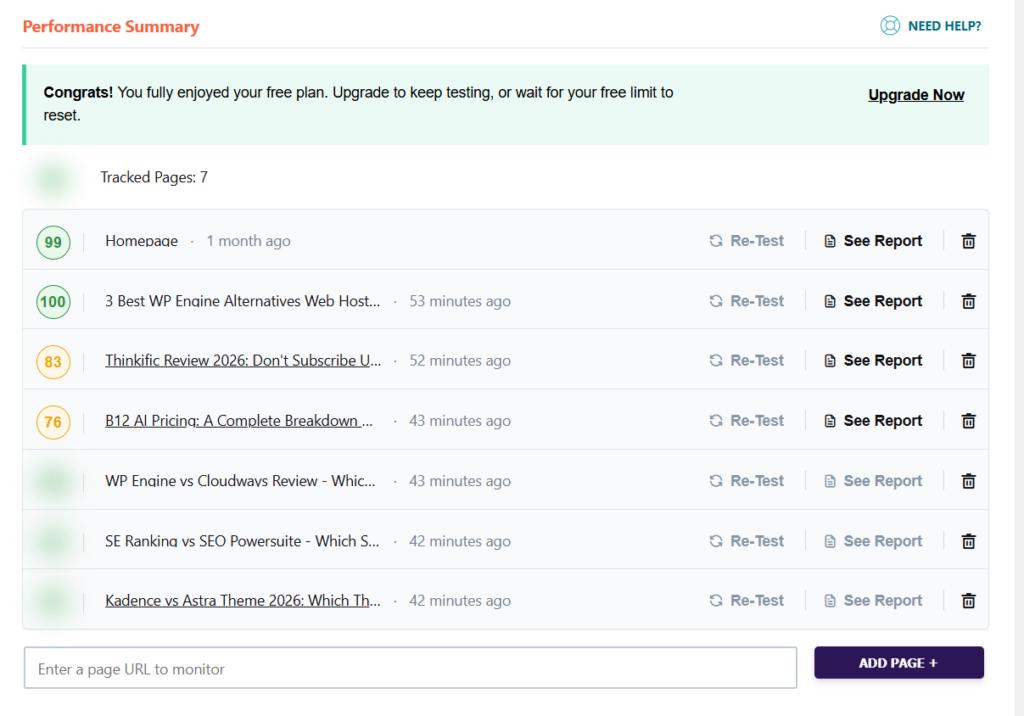
It’s included free with every WP Rocket license. MCP doesn’t replace Rocket Insights. It just gives your AI tool a direct line to read that data and act on it.
What You Can Actually Do With WP Rocket MCP
Once connected, the AI tool can:
One thing worth repeating clearly: nothing on your site gets changed without your approval.
Claude or any AI tool you connect can suggest a setting change, but you have to confirm it before it’s applied. Think of it as a very well-informed assistant sitting next to you, not an autopilot.
Step-by-Step: Connecting AI Tool to WP Rocket
Here’s how to set up the connection.
- Update to WP Rocket 3.23 or later. MCP access ships with this version, and it’s included in all licenses at no extra cost.
- Enable MCP access inside your WP Rocket settings. You’ll find the option in your WP Rocket dashboard once you’re on 3.23. It generates the connection details your AI tool needs.
- Set up your AI to connect to your site. Right now, this involves a brief manual setup step (WP Rocket says one-click OAuth support is coming soon, but it isn’t live yet). Copy the connection details from your WP Rocket dashboard and add them to the AI so it can access that site.
- Confirm the connection. Once it’s set up, ask the AI something simple, like your current Rocket Insights score. If it returns specific numbers from your site rather than a generic answer, you’re connected.
- Repeat for each additional site. Important: connecting one site doesn’t automatically connect the others. If you’re managing more than one WordPress site, you’ll need to go through this setup for each one individually. That’s a deliberate choice on WP Rocket’s part, so you stay in control of exactly which sites your AI can see.
Note:
Since the one-click connection option isn’t out yet, this initial step takes a few extra minutes per site. Worth doing once and getting comfortable with it, since it’ll only get simpler from here.
Prompts to Try Once You’re Connected
Once your AI is talking to your WP Rocket data, here are a few prompts to get you started:
“Check my site’s Rocket Insights score and tell me what’s dragging it down.” This gives you an instant read on where your site stands and what’s actually causing any slowdown, rather than a generic checklist.
“What WP Rocket settings do I currently have enabled, and what am I missing?” Useful if you inherited a site, or you just don’t remember what you turned on six months ago.
“If I enable [a specific setting], what change should I expect, and can you check the impact after I turn it on?” This turns Claude or your specific AI into a before-and-after tracker for a specific change, instead of you manually comparing scores yourself.
Keep the first few prompts simple. Once you get a feel for how Claude responds with your real data, you’ll start finding your own use cases pretty quickly.
A Few Practical Notes Before You Dive In
A couple of things worth knowing upfront so nothing catches you off guard:
Where This Fits If You Manage More Than One Site
If you’re only running your own single site, this is a nice convenience: a faster way to check in on performance without digging through the dashboard yourself.
If you manage sites for clients, this matters a lot more. Instead of opening each client dashboard individually, you can have one conversation with Claude that checks performance across your whole portfolio, flags what needs attention, and helps you apply a fix, all before a client notices anything slowed down.
That’s a bigger topic on its own, and one I’ll dig into separately for anyone running client work.
For now, if you haven’t already, it’s worth pairing this with your existing WP Rocket setup. If you need a refresher on dialing in your settings first, check out our WP Rocket settings guide before layering MCP on top.
And if you’re running LiteSpeed instead of WP Rocket on some sites, our LiteSpeed Cache settings guide covers that.
Wrapping Up
WP Rocket MCP is a genuinely useful step forward, not because it replaces the work of understanding your site’s performance, but because it removes the friction of checking, comparing, and applying changes by hand every time.
Connect it once, ask a few questions, and you’ll quickly see how much time it saves. If you try it out, I’d love to hear what prompts you end up using most. Drop a comment below.